 PluginStats
jetbrains/upsource pulls statistics
By jetbrains (640 listings) · Docker Hub · Integration & delivery
Official Docker image for JetBrains Upsource
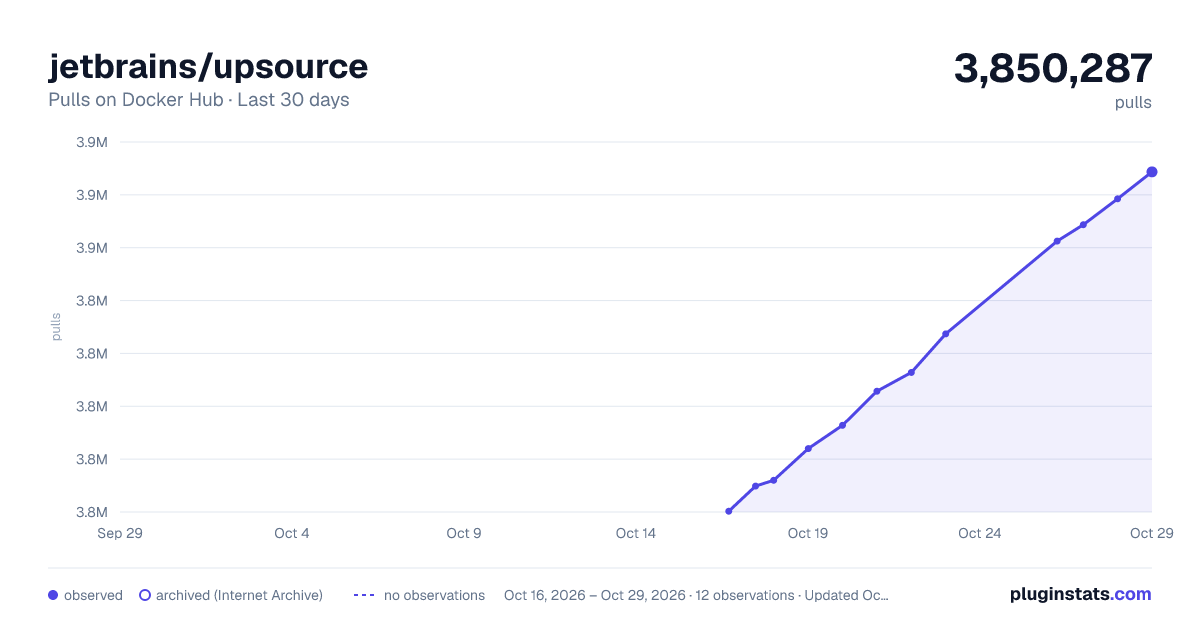
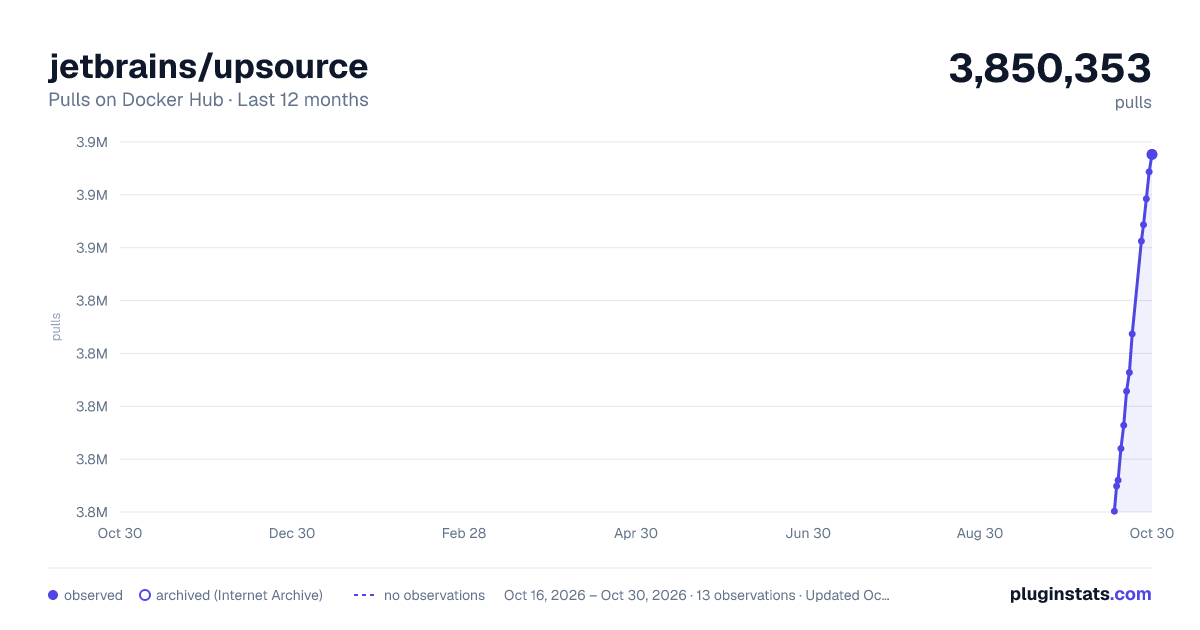
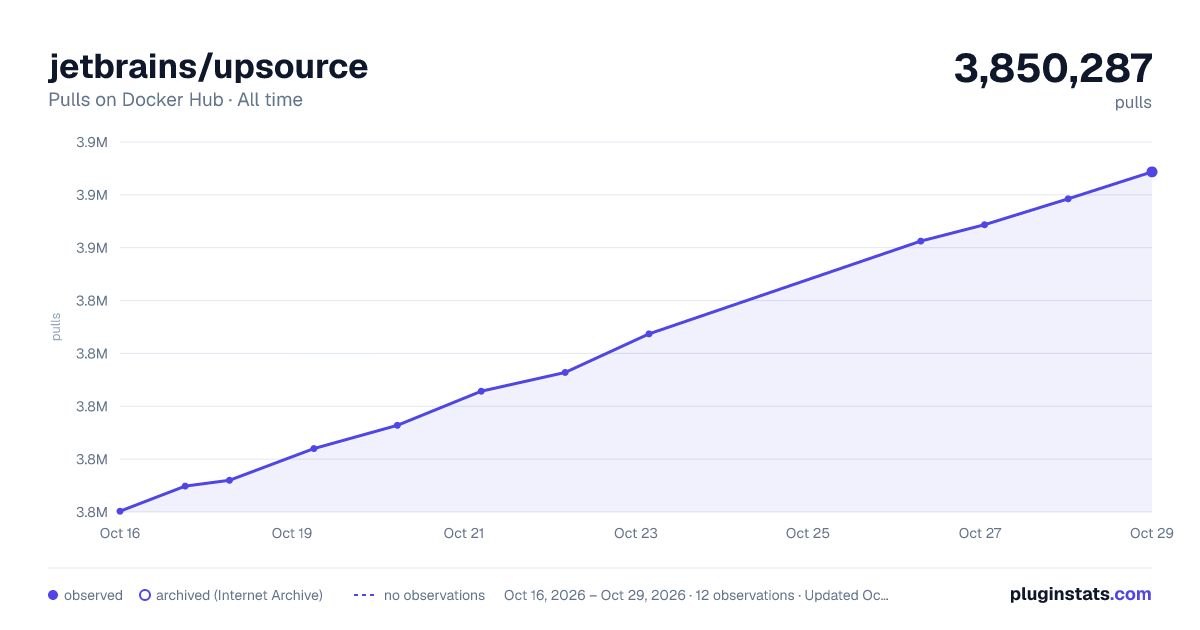
jetbrains/upsource has 3,849,120 recorded pulls on Docker Hub.
It ranks #184 of 1,263 tracked Docker Hub listings by pulls.
PluginStats has 3 daily observations since Oct 16, 2026; the latest is from Oct 18, 2026.
About jetbrains/upsource
This is an official Docker image of JetBrains Upsource. The image is suitable for evaluation purposes as well as for production use.
How to Use This Image
Pull the image from the Docker Hub Repository docker pull jetbrains/upsource:{version}
For the {version}, specify the tag containing Upsource release version including build number. For a list of version tags, check the Tags List.
To see a list of commands that are supported by the image entry point, run the help command: docker run -it --rm jetbrains/upsource:{version} help
The image can be used for building a customized Upsource image containing 3rd-party tools required for code analysis features. See the Tools for source code analysis section for more details.
Start Upsource
To start a container with an Upsource server, run the following command:
In this command, specify the following parameters: {path to data directory} is the host machine directory where Upsource stores its Apache Cassandra database. For a new instance, pass an empty directory. If you do not map this path, you risk losing Upsource data when the container is removed. {path to conf directory} is the host machine directory where Upsource stores configuration files that contain environment settings, JVM options, Hub integration settings, and so on. {path to logs directory} is the host machine directory where Upsource writes log files. {path to backups directory} is the host machine directory where Upsource stores backups. For more information about managing backup files, refer to the Upsource documentation
You can omit references to the directories (data, conf, logs, backups) for non-production testing or demo use, but be sure to provide them when running in production. Otherwise, the corresponding application data is stored in anonymous container volumes which have several problems: • They can be occasionally removed together with the container (docker rm {Id} -f) which causes loss of data. • They are stored by the Docker Engine on a host machine inside subfolders of /var/docker with cryptic names. It is difficult if even possible to locate application data in this case, especially if the container itself was removed.
The Upsource service is run inside a docker container under the non-root account 13001:13001 (group:id). Before the first container start, set the appropriate access permissions for the host directories passed to the Upsource container. For example:
-p {port on host}:8080 This port mapping instructs the host machine to listen on port {port on host} and propagate all traffic to the port 8080 inside the Docker container.
Access the Running Service
By default, the service starts on {0.0.0.0:8080} inside the Docker container. Port 8080 is mapped to a {port on host} in the start command. This way, the service can be accessed from any machine that has network access to the port {port on host} of the host machine. For example, if the FQDN of the host machine is host.mydomain.com, then the service is available at http://{host.mydomain.com}:{port on host}.
Stop Upsource
To stop the Upsource service gracefully, run the command docker exec {containerId} stop.
The standard docker kill --signal=SIGTERM {containerId} command also executes a graceful shutdown.
You can also use the standard command docker stop, but with caution. By default, this command sends the SIGTERM signal to the Upsource process inside the Docker container, then waits for 10 seconds. If Upsource doesn't manage to finish shutdown within that time period, SIGKILL is sent to the kernel and the Upsource process is killed. This may lead to data corruption. To avoid this outcome, specify an appropriate timeout value when using this command. For example, the following command leaves ample time for the Upsource service to shut down: docker stop -t 1800 {containerId}
Configure Upsource
On first start, a browser-based Configuration Wizard starts on the main service port. For a list of configuration options, refer to the Upsource documentation. When the configuration is complete, the "Welcome to Upsource" page opens. You can also configure Upsource from the command line, including the properties that are set in the Configuration Wizard on the first start. Stop the Upsource service and run the configure command:
In this command, specify the following parameters: {arguments} is a list of product properties or JVM options.
For more details on the format of the configure command, run the docker run -it jetbrains/upsource:{version} help command.
When you execute the configure command, be sure to keep all local system paths in volume mappings the same as the mappings specified in the run command for the main server. Otherwise updates are not applied to the Upsource configuration files.
You can skip the Configuration Wizard on the first run to make Upsource start with the default settings. Run the configure command (before starting Upsource) with the argument: -J-Ddisable.configuration.wizard.on.clean.install=true If you skip the Configuration Wizard on the first run, you must explicitly configure the base-url property (argument --base-url={URL_Upsource_is_available_to_end_users_by}).
Tools for source code analysis
Upsource supports code navigation and analysis for several languages (notably Java, Kotlin, JavaScript, PHP, and Python). Some of those languages are fully supported out of the box, while others require additional tooling to be installed on the Upsource server. The exact requirements vary depending on the source code processed by your Upsource installation. Please refer to the project configuration guide which describes the 3rd-party tools that may be required. The following Dockerfile can be used as an example of how to create a new Upsource image with the necessary 3rd-party tools.
Upgrade Upsource
Before you upgrade, check the detailed Upsource upgrade instructions.
Minor upgrades…
Description from the Docker Hub listing.
Where jetbrains/upsource sits in the listing
Each band is one page of 20. Pulls on a log scale. Placement is projected from pulls, so it can differ from the marketplace's own sort order. Hover a dot to see the listing.


Charts
Images: 30d · 1y · all time · 1600×900 dark

Adoption over time


7/30/90-day growth


Filled points are observed values; hollow points come from Internet Archive snapshots of the listing page. Dashed segments span periods with no observations — values between points are not interpolated.
Recent observations
Full history (3)Similar Docker Hub Integration & delivery plugins
Data source
Cumulative pull counts and stars come from the public Docker Hub API. Pulls count image downloads (including automated CI pulls), not installs or users.
Listing: https://hub.docker.com/r/jetbrains/upsource. First seen Oct 16, 2026; last successful collection Oct 18, 2026. See the methodology.