 PluginStats
SidePDF - PDF Editor, Note Taker & Annotator users statistics
By JotLayer · Chrome Web Store · Workflow & Planning
PDF editor for margin notes: add space beside pages, highlight text, write notes, draw and insert images. Save annotations to PDF.
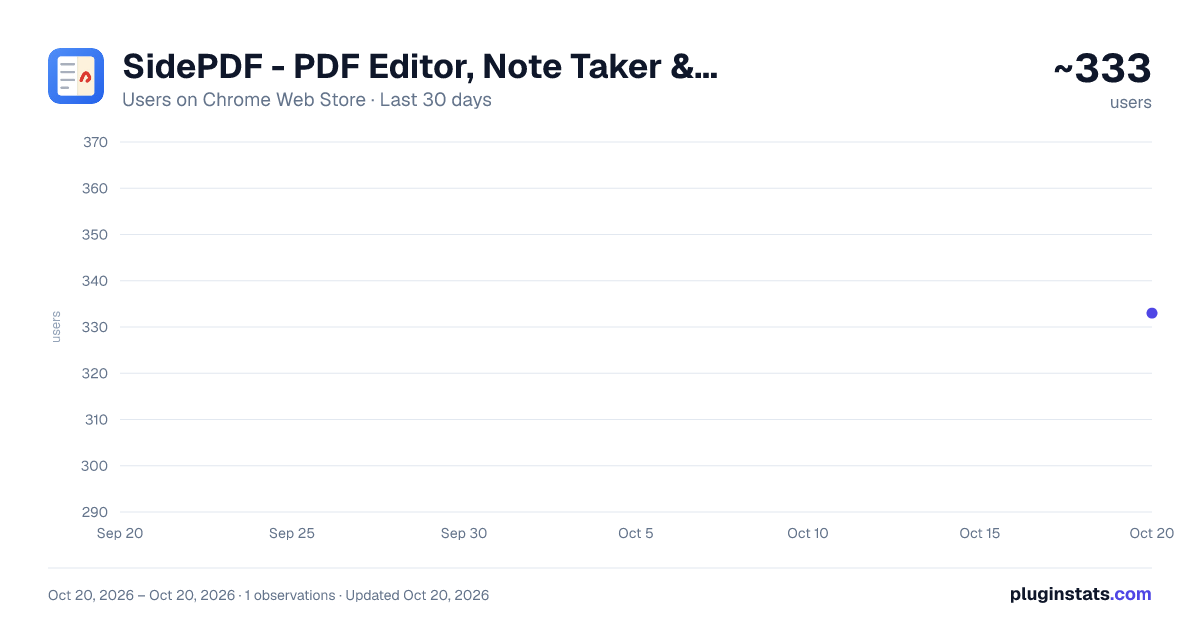
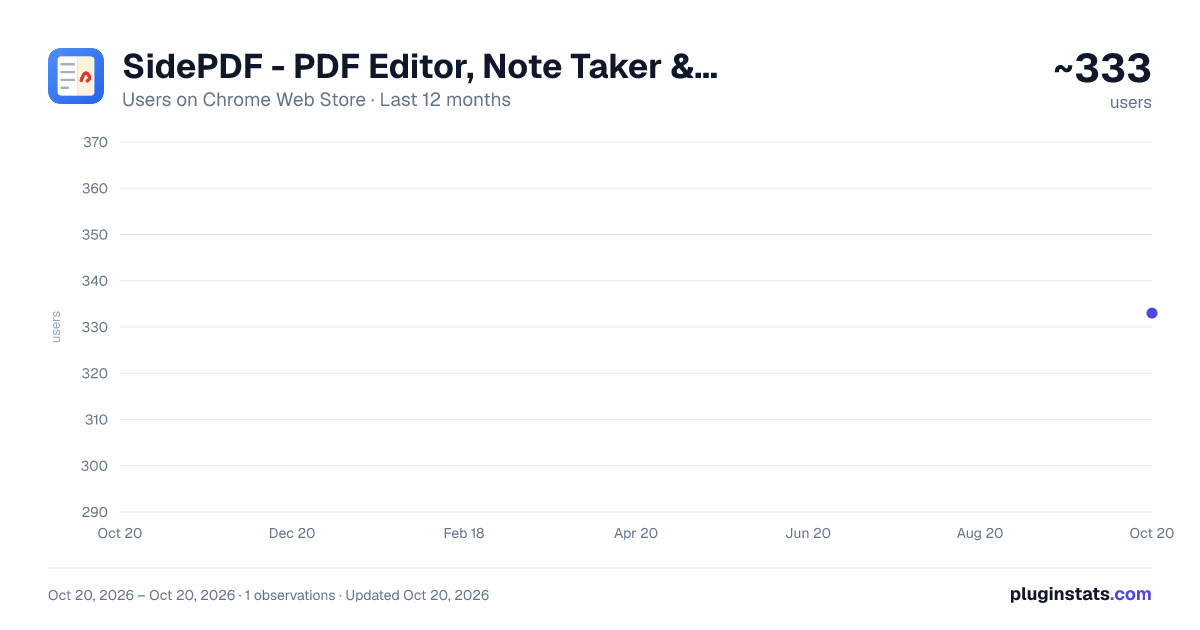
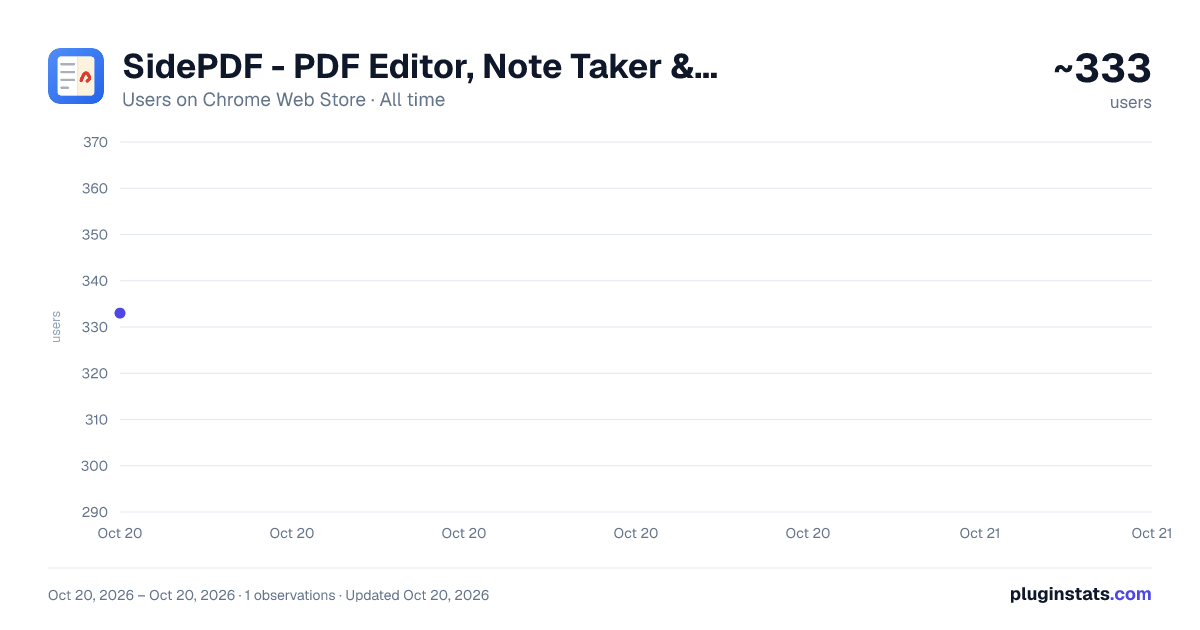
SidePDF - PDF Editor, Note Taker & Annotator has approximately 333 recorded users on Chrome Web Store, ranking #1490 of 2,495 tracked listings.
Rating: 5.00 / 5 from 7 ratings
About SidePDF - PDF Editor, Note Taker & Annotator
PDF editor for margin notes: add space beside pages, highlight text, write notes, draw and insert images. Save annotations to PDF.
Write your notes NEXT TO the text, not on top of it.
Every other PDF annotator makes you scribble over the document, cramming notes into whatever white space happens to be left. PDF Note Taker does something no other extension does: it widens the page itself. Add a margin to the left, the right, or both — and that blank space becomes a real part of the page, with room to actually think.
Then handwrite, highlight, type, draw arrows and drop in images. When you're done, everything is saved back into the PDF file itself — not a proprietary sidecar. Open it in Preview, Acrobat, or on your phone, and your notes are simply part of the document.
★ CORNELL NOTES ON ANY PDF
Because margins are independent on each side, you can build a proper Cornell layout on any document: a narrow cue column on the left for questions and keywords, the original page in the middle, and a wide notes column on the right.
No printing. No templates. No copying the reading into a separate notebook — the source and your thinking finally live on the same page.
★ WHAT YOU CAN DO
• Widen either margin — The headline feature. Add blank space to the left, right or both sides of any page, one page at a time. It becomes genuine page geometry in the exported file. • Handwrite naturally — Pressure-sensitive inking for stylus and tablet users, with smooth, tapered strokes. Works with a mouse or trackpad too. • Highlight real text — Select text the way you normally would and it becomes a clean, per-line highlight. The words stay perfectly readable underneath. • Type formatted notes — Click anywhere and start typing. Resize the text box and text reflows; bold any word with Ctrl+B; change size and colour. Notes export as real, selectable, searchable PDF text — not flattened images. • Point with arrows — Drag an arrow to call out anything on the page. Perfect for tying a margin note to the exact line it refers to. • Box anything — Draw a hollow rectangle around a formula, diagram or clause. The middle stays transparent, so whatever you box is still fully readable. • Add images — Insert screenshots, diagrams or photos from a file picker, by drag-and-drop, or with a simple paste. Move and resize them freely. • Draw on top of images — Images sit on the lowest layer, so you can ink and annotate directly over any screenshot or diagram you add. • Erase and undo — Remove individual strokes, arrows and highlights, with full undo support. • Jump to any page — Type a page number in the toolbar and go straight there. • Insert a blank page [NEW] — Need more space than a margin gives you? Add a whole blank page anywhere in the document: between any two pages, or ahead of the first. Write, draw, highlight and paste images on it exactly like a printed page, and it becomes a real page in the saved PDF, so the page count and page order in the file match what you see on screen. • Notes that flow onto the next page [NEW] — Keep typing past the bottom of the page and your note continues at the top of the following one, chaining as far as your writing needs. Shorten it and the text pulls back up on its own. No more squeezing a long thought into a text box that ran out of room. • Distraction-free full screen [NEW] — Press F and the document takes over the whole screen, with the browser's tabs and address bar out of the way. The toolbar comes along, so you can keep highlighting and writing while you read. • Write notes in your own alphabet [NEW]— Typed notes cover Latin, Greek, Cyrillic and Vietnamese, so Polish, Czech, Turkish, Russian, Ukrainian and Vietnamese text is embedded in the saved PDF exactly as you typed it, accents and all. • Save into the same file [NEW] — Saving writes back to the file you opened, so you don't collect a folder of "document-annotated-final-v2.pdf" copies.
★ USE IT IN YOUR OWN LANGUAGE
Every tool, tooltip and the guided tour are translated into 20 languages, and Chrome picks yours automatically. Spanish, Portuguese, French, German, Italian and Dutch are covered, along with Polish, Turkish, Russian and Ukrainian. So are Japanese, Korean and both Chinese scripts, plus Hindi, Arabic, Indonesian, Vietnamese and Thai. Arabic reads right-to-left throughout, while the document itself stays the way the page was written.
★ BUILT FOR
Students annotating lecture slides and textbooks. Researchers marking up papers. Lawyers and editors reviewing contracts and drafts. Engineers redlining specs and drawings. Anyone who has ever printed a PDF just to scribble in the margins.
★ PRIVATE BY DESIGN — YOUR FILES NEVER LEAVE YOUR COMPUTER
There is no account, no sign-up and no server. Your PDFs are never uploaded anywhere. Every page is rendered, annotated and saved entirely inside your browser, and your notes are stored in local browser storage on your own machine. The extension has no analytics and no tracking of any kind.
★ HOW IT WORKS
- Open any PDF — click a PDF link, open a local file, or use the toolbar's Open button.
- Hover a page and press + on the left or right edge to open up margin space.
- Pick a tool — pen, arrow, box, highlighter, text or eraser.
- Press Save. Your annotations are baked into the PDF permanently.
A short guided tour walks you through it the first time you open the extension.
★ GOOD TO KNOW…
Description from the Chrome Web Store listing.
README badge
Show your rank in a README or on your website. The badge updates automatically.
Charts
Images: 30d · 1y · all time · 1600×900 dark
Adoption over time
7/30/90-day growth
Ranking history
Ratings over time
Listing placement
Listing placement
Filled points are observed values; hollow points come from Internet Archive snapshots of the listing page. Dashed segments span periods with no observations — values between points are not interpolated.
Each band is one page of 20. Users on a linear scale. Placement is projected from users, so it can differ from the marketplace's own sort order. Hover a dot to see the listing.
Recent observations
Full history (1)Similar Chrome Web Store Workflow & Planning plugins
All 20 SidePDF - PDF Editor, Note Taker & Annotator alternatives



Data source
Covers every Chrome Web Store extension with at least 100 users, found through the store's public sitemap. User counts are read from public listing pages. The 10% most-used extensions are refreshed daily, the next 40% weekly and the next 40% monthly; the least-used 10% are not refreshed. Google displays rounded user counts (and caps the display at 10,000,000+), so small changes may not be visible. Rating counts above 1,000 are rounded (e.g. 1.6K).
Listing: https://chromewebstore.google.com/detail/sidepdf-pdf-editor-note-t/hjkcjckbfhnmanmlepghgpgcnnnblofl. First seen Oct 20, 2026; last successful collection Oct 20, 2026. See the methodology.