 PluginStats
Sidenote: AI Reading Assistant with Citations users statistics
AI reading assistant: summarise, chat & explain PDFs, articles, YouTube, Gmail & more, with citations that highlight the source.
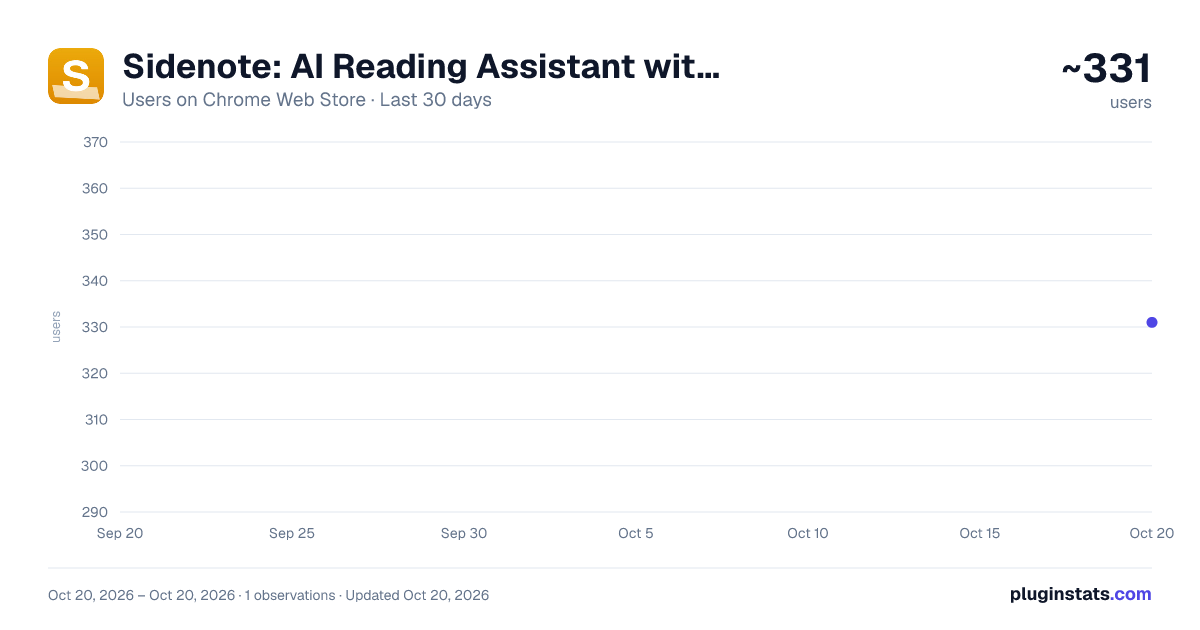
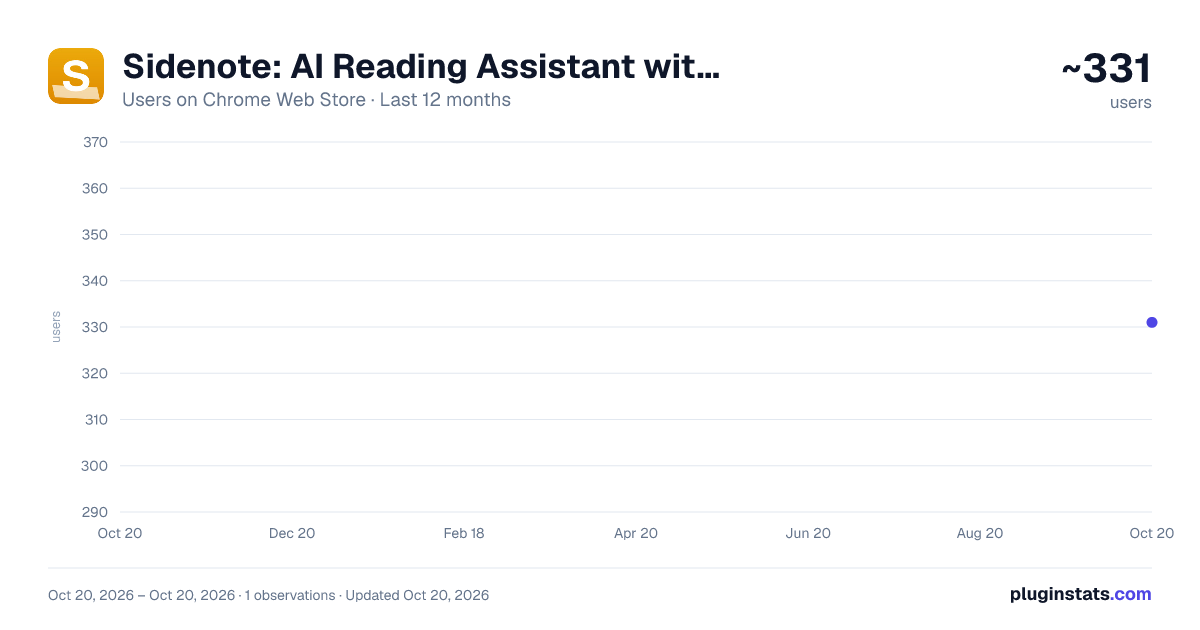
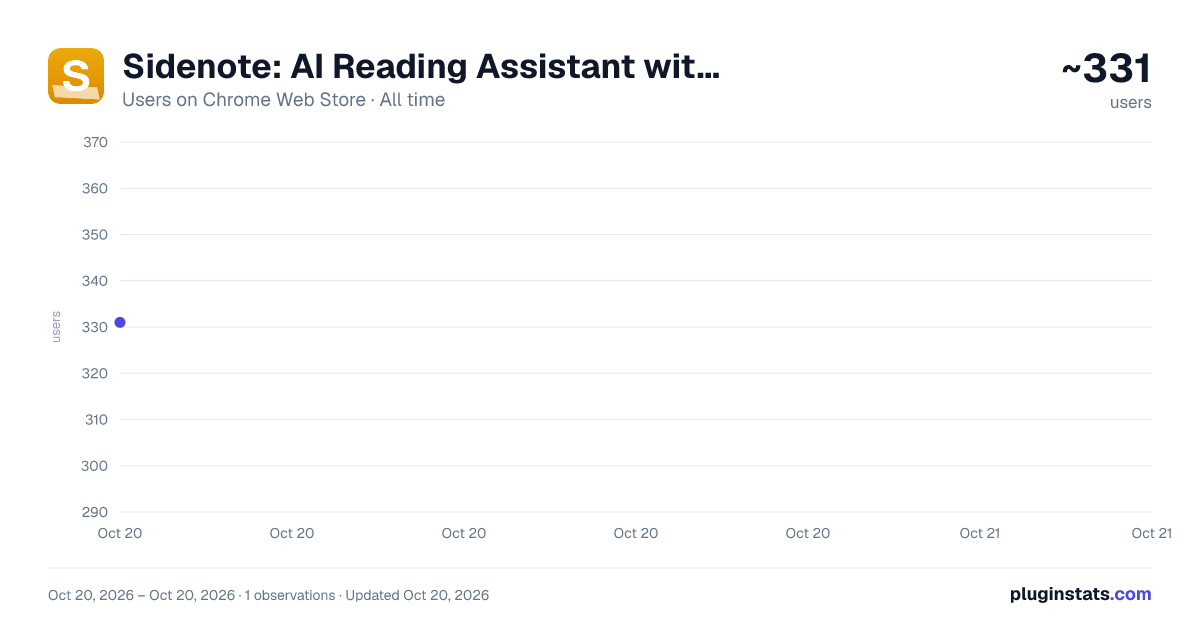
Sidenote: AI Reading Assistant with Citations has approximately 331 recorded users on Chrome Web Store, ranking #2318 of 3,853 tracked listings.
Rating: 5.00 / 5 from 59 ratings
About Sidenote: AI Reading Assistant with Citations
AI reading assistant: summarise, chat & explain PDFs, articles, YouTube, Gmail & more, with citations that highlight the source.
Sidenote is an AI reading assistant that lives in Chrome's side panel and answers questions about whatever you're reading: a PDF, a web article, a YouTube video, an email in Gmail or Outlook, or a document in a connected account. Every answer carries numbered citations, and clicking one scrolls the page to the exact source passage and highlights it, so you can check any claim in one click instead of taking the AI's word for it.
Stop skim-reading and stop second-guessing AI answers. Open the side panel on any document and Sidenote will summarise it at the length you choose, chat with it, explain the hard parts at the reading level you pick, and build a glossary of its jargon. Whatever it tells you, it shows you where it came from.
HOW IT WORKS
- Open the side panel with the toolbar icon or Ctrl+Shift+S (Cmd+Shift+S on Mac).
- Load what you're reading: Sidenote detects the page, PDF, video or email on screen, and one click brings it in.
- Pick a tool from the dock at the bottom of the panel: summarise, chat, explain or define. Every answer arrives with citation chips: click one and the source passage lights up on the page.
READS THE DOCUMENTS YOU ALREADY USE ‚Ä¢ Open it on a PDF to read research papers, journal articles, reports, contracts and manuals. Works in the browser's built-in PDF viewer and in Sidenote's own viewer, with page-accurate citations either way. ‚Ä¢ Read scanned PDFs on a paid plan: built-in OCR turns a scanned contract, an old paper or a photographed handout into searchable, summarisable text whose citations still land on the right spot on the page. ‚Ä¢ Read PDFs a site shows inside its own in-page viewer, the kind that never gets its own web address, and PDFs behind a sign-in, which load through your existing browser session. ‚Ä¢ Summarise any web page or long article: news, documentation, blog posts and help centres. Sidenote extracts the readable article and works from that. ‚Ä¢ Open a YouTube video and work from its transcript instead of scrubbing through it. Summarise the video, ask questions about it and build a glossary, with every citation carrying a timestamp: click a chip and the player seeks to the exact moment. ‚Ä¢ Summarise a Gmail thread where it sits, and read the documents attached to it without downloading them first. A message carrying several files lets you pick one, each attachment keeps its own entry in your library, and a saved attachment links back to the email it came from. ‚Ä¢ Do the same in Outlook: open a message on Outlook.com or a work or school account and read both the message and its attachments through your Microsoft connection. ‚Ä¢ Open a file stored in Google Drive and read it in place, whether you open it in its own tab or preview it from the file list. Files shared with you work the same way, and pasting a Drive link brings in a file you haven't opened yet. ‚Ä¢ Ask questions about a Google Doc: read-only, captured with Google's own typesetting so columns, fonts and drawings match the document exactly, and cited to the exact passage. Documents with multiple tabs ingest every tab. ‚Ä¢ Read your team's Confluence wiki straight from the browser with no admin install, or index a whole space at once and ask questions across all of it (space indexing on Pro+ and above). ‚Ä¢ Chat with the Notion pages you connect, and summarise them in a click. ‚Ä¢ Work with Word files and slide decks stored in Microsoft SharePoint or OneDrive, read through your Microsoft connection. ‚Ä¢ Bring in a Slack canvas your team is working from. ‚Ä¢ Read any public article or PDF by pasting its link, even when the page you're on isn't one Sidenote can open directly. ‚Ä¢ Upload your own files too. On paid plans, Word documents and PowerPoint decks render as true print-quality pages, so what you cite is what the document actually looks like.…
Description from the Chrome Web Store listing.
README badge
Show your rank in a README or on your website. The badge updates automatically.
Charts
Images: 30d · 1y · all time · 1600×900 dark
Adoption over time
7/30/90-day growth
Ranking history
Ratings over time
Listing placement
Listing placement
Filled points are observed values; hollow points come from Internet Archive snapshots of the listing page. Dashed segments span periods with no observations — values between points are not interpolated.
Each band is one page of 20. Users on a linear scale. Placement is projected from users, so it can differ from the marketplace's own sort order. Hover a dot to see the listing.
Recent observations
Full history (1)Similar Chrome Web Store Tools plugins
All 20 Sidenote: AI Reading Assistant with Citations alternatives



Data source
Covers every Chrome Web Store extension with at least 100 users, found through the store's public sitemap. User counts are read from public listing pages. The 10% most-used extensions are refreshed daily, the next 40% weekly and the next 40% monthly; the least-used 10% are not refreshed. Google displays rounded user counts (and caps the display at 10,000,000+), so small changes may not be visible. Rating counts above 1,000 are rounded (e.g. 1.6K).
Listing: https://chromewebstore.google.com/detail/sidenote-ai-reading-assis/eopgbgnfgjopkebjghcjlnbhmncggnpf. First seen Oct 20, 2026; last successful collection Oct 20, 2026. See the methodology.