 PluginStats

Scrapy users statistics
By echen1246 · Chrome Web Store · Developer Tools
Filter and Save Data from Websites in JSON, CSV, and TXT formats.
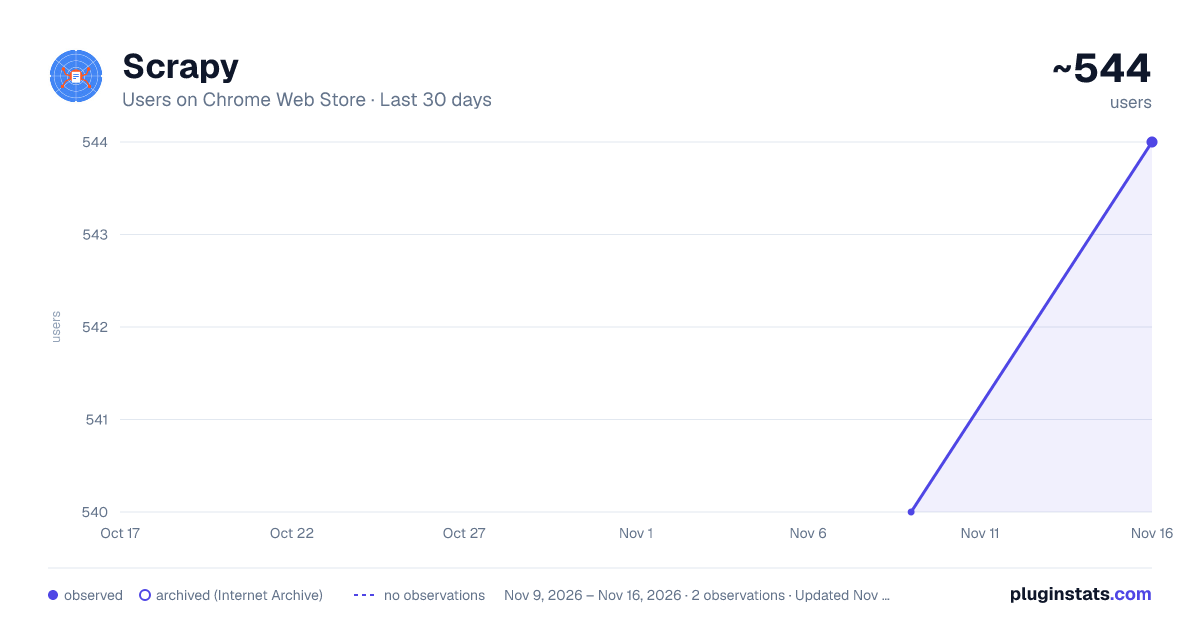
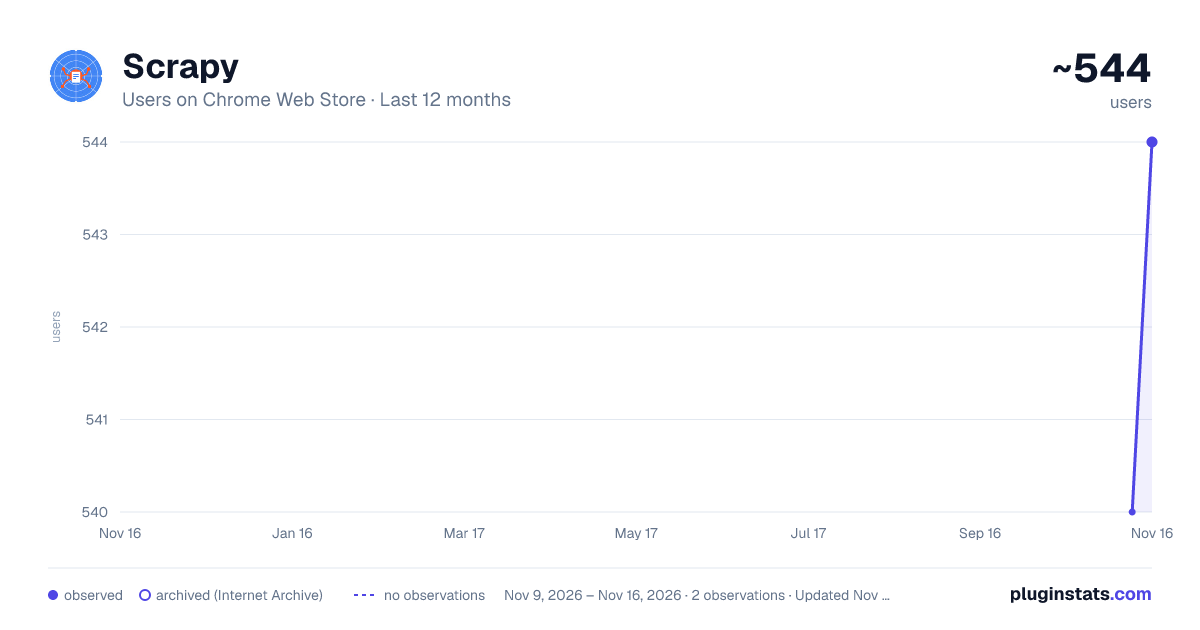
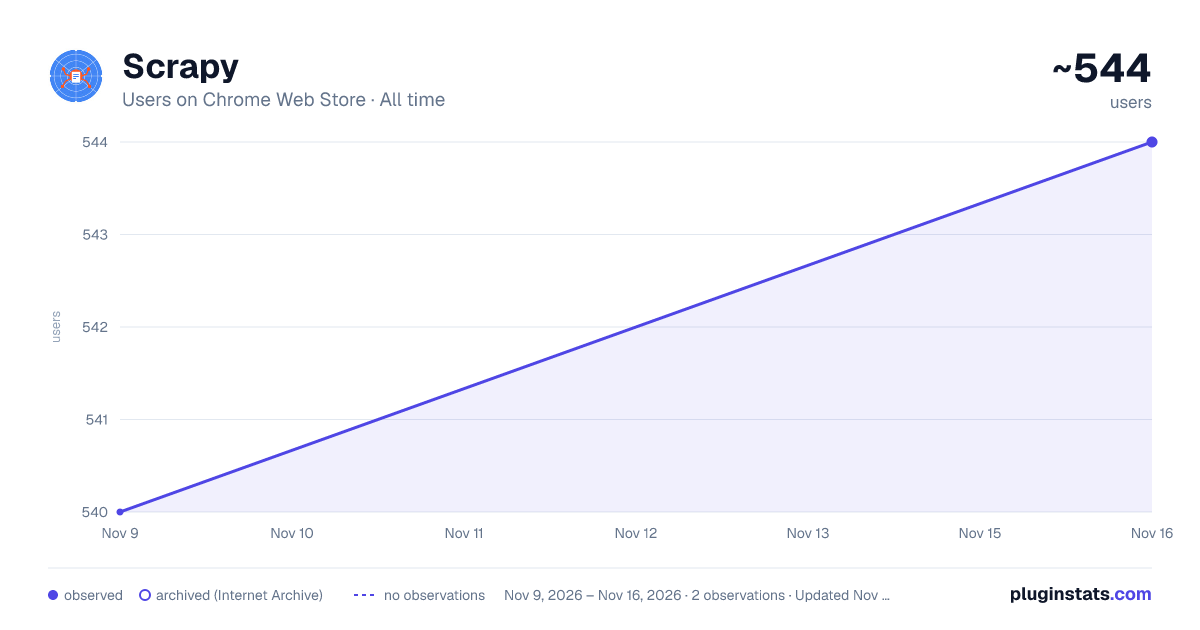
Scrapy has approximately 544 recorded users on Chrome Web Store, a change of +0.7% over the past 7 days, ranking #5035 of 10,388 tracked listings.
Rating: 5.00 / 5 from 2 ratings
About Scrapy
Filter and Save Data from Websites in JSON, CSV, and TXT formats.
Scrapy A Chrome extension for filtering and saving data from websites in various formats (JSON, CSV, TXT, XML, SQL, Markdown).
Features Scrape data from any website with just a few clicks Filter by element types (headings, paragraphs, images, links, tables, lists, forms, metadata) Use custom CSS and XPath selectors for precise data targeting Clean and normalize data with built-in options Grab data from multiple pages through pagination Define custom schemas for structured data collection Export to multiple formats (JSON, CSV, TXT, XML, SQL, Markdown) API integration to send data directly to external services Save and reuse configurations with templates Dark mode support
Basic Usage Navigate to any website you want to scrape Click the Scrapy extension icon Select the data filters you're interested in (like headings, images, links) Choose your preferred export format Click "Scrape Data" Once scraping is complete, click "Download" to save the data Feature Tutorials Basic Data Filtering The "Basic" tab lets you quickly select what types of elements to scrape:
Headings: Grabs all heading elements (h1, h2, h3, etc.) Paragraphs: Extracts paragraph text from the page Images: Collects image URLs, alt text, and dimensions Links: Gathers all links with their text and destinations Tables: Extracts tabular data with headers and rows Lists: Grabs ordered and unordered lists Forms: Collects form fields and attributes Metadata: Extracts meta tags from the page head This is great for quickly grabbing general content from a page. Simply check or uncheck boxes to control what data you collect.
Using CSS and XPath Selectors When you need more precise targeting, switch to the "Advanced" tab and use custom selectors:
CSS Selector Examples: .product-card - Selects all elements with class "product-card" .products > .item .price - Selects price elements within item containers article h2 - Selects all h2 headings within article elements table.data tr:nth-child(even) - Selects even rows from tables with class "data" CSS selectors are easier to write if you're familiar with CSS for styling web pages.
XPath Selector Examples: //div[@class="product"] - Selects all div elements with class "product" //h3[contains(text(),"Price")] - Selects h3 elements containing the text "Price" //table//tr[position() > 1] - Selects all table rows except the first one //ul[@id="menu"]/li/a/@href - Extracts href attributes from links in a menu XPath is more powerful when you need to select elements based on their content or need complex conditions.
Tip: Use your browser's developer tools to test selectors. Right-click an element, choose "Inspect", then use the Elements panel to explore the page structure.
Data Cleaning Options The "Advanced" tab also offers options to clean your scraped data:
Remove excess whitespace: Trims extra spaces, tabs, and line breaks, converting multiple spaces to a single space. Great for cleaning up messy text formatting.
Strip HTML tags: Removes HTML tags from text content. Useful when you want plain text without any markup.
Normalize text: Converts text to lowercase and removes accent marks. This helps when you need standardized text for analysis or comparison.
Example: A raw text like " <span>Product Name</span> \n " would become:
With whitespace removal: "<span>Product Name</span>" With HTML stripping: " Product Name \n " With both options: "Product Name" With all three options: "product name" Pagination Support Scrape data across multiple pages with the pagination feature:
Check "Enable pagination scraping" in the Advanced tab Enter a selector that targets the "Next" link or button: CSS example: .pagination .next or a.next-page XPath example: //a[contains(text(), "Next")] or //a[@rel="next"] Set the maximum number of pages to scrape Specify a delay between page loads (in milliseconds) When to use pagination:
Product catalogs spanning multiple pages Search results with pagination Forums or comment sections News article archives Example scenario: Scraping an e-commerce category with 5 pages of products:
Enable pagination Set selector to .pagination-container .next-page Set max pages to 5 Set delay to 1500 (1.5 seconds) Scrapy will load each page, scrape the data, and automatically continue to the next page until it reaches page 5 or can't find the "next" button.
Schema Definition The Schema tab lets you create a structured data model for more organized results:
Define field names and types Specify selectors for each field Scrapy will extract data according to your schema Schema Example 1: Product Listings Field Name Type Selector title text .product-item h3 price number .product-item .price rating number .product-item .rating inStock boolean .product-item .stock-status imageUrl image .product-item img This schema would create structured data like:
[ { "title": "Wireless Headphones", "price": 49.99, "rating": 4.5, "inStock": true, "imageUrl": "https://example.com/images/headphones.jpg" }, { "title": "Bluetooth Speaker", "price": 89.99, "rating": 4.2, "inStock": false, "imageUrl": "https://example.com/images/speaker.jpg" } ] Schema Example 2: News Articles Field Name Type Selector headline text article h2 author text .article-meta .author date date .article-meta .date summary text article .summary category text .article-category url url article a.read-more Parent-Child Relationships in Schemas You can create parent-child relationships in your schema using the > operator in selectors:
For a list of products: .product-card as parent selector .product-card > .title for product title .product-card > .price for product price This extracts data for each product as a separate item in the results.
API Integration Send your scraped data directly to an external API:…
Description from the Chrome Web Store listing.
README badge
Show your rank in a README or on your website. The badge updates automatically.
Charts
Images: 30d · 1y · all time · 1600×900 dark
Adoption over time
7/30/90-day growth
Ranking history
Ratings over time
Listing placement
Listing placement
Filled points are observed values; hollow points come from Internet Archive snapshots of the listing page. Dashed segments span periods with no observations — values between points are not interpolated.
Each band is one page of 20. Users on a linear scale. Placement is projected from users, so it can differ from the marketplace's own sort order. Hover a dot to see the listing.
Recent observations
Full history (2)Similar Chrome Web Store Developer Tools plugins
All 20 Scrapy alternatives



Data source
Covers every Chrome Web Store extension with at least 100 users, found through the store's public sitemap. User counts are read from public listing pages. The 10% most-used extensions are refreshed daily, the next 40% weekly and the next 40% monthly; the least-used 10% are not refreshed. Google displays rounded user counts (and caps the display at 10,000,000+), so small changes may not be visible. Rating counts above 1,000 are rounded (e.g. 1.6K).
Listing: https://chromewebstore.google.com/detail/scrapy/hohnpoeceiecjgbihcapbbkgcjjmjlfh. First seen Nov 9, 2026; last successful collection Nov 16, 2026. See the methodology.