 PluginStats

TakeScreenshot – capture area, full page or scrolling screenshot users statistics
Easily capture an area, the entire screen or a scrolling page and instantly add annotations: highlight, draw, write...
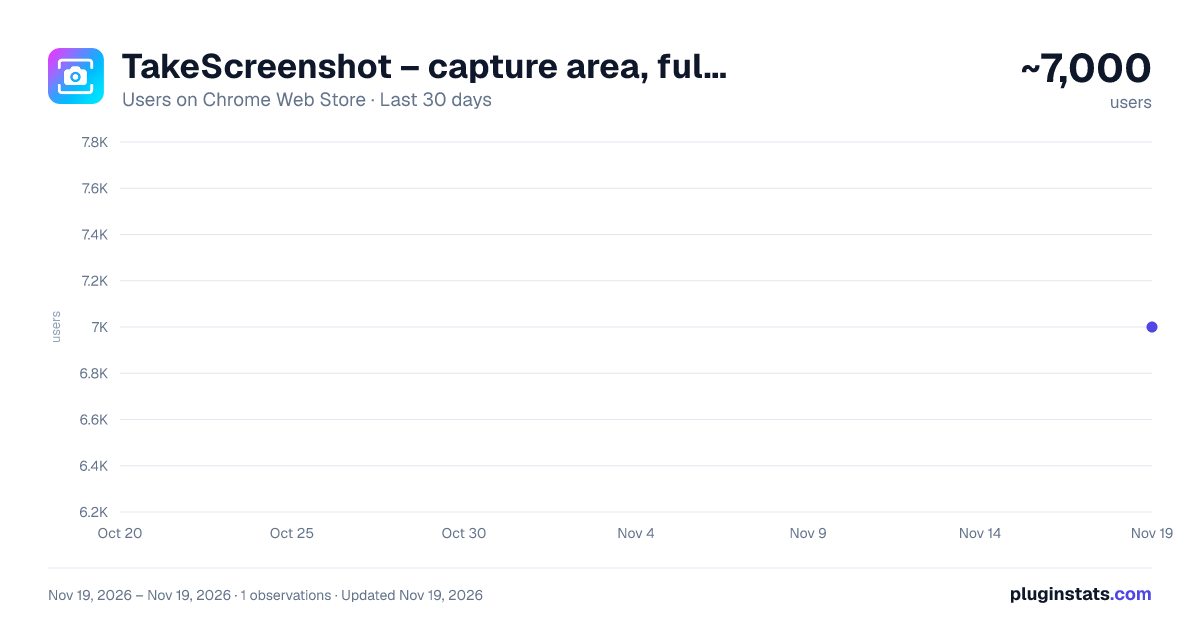
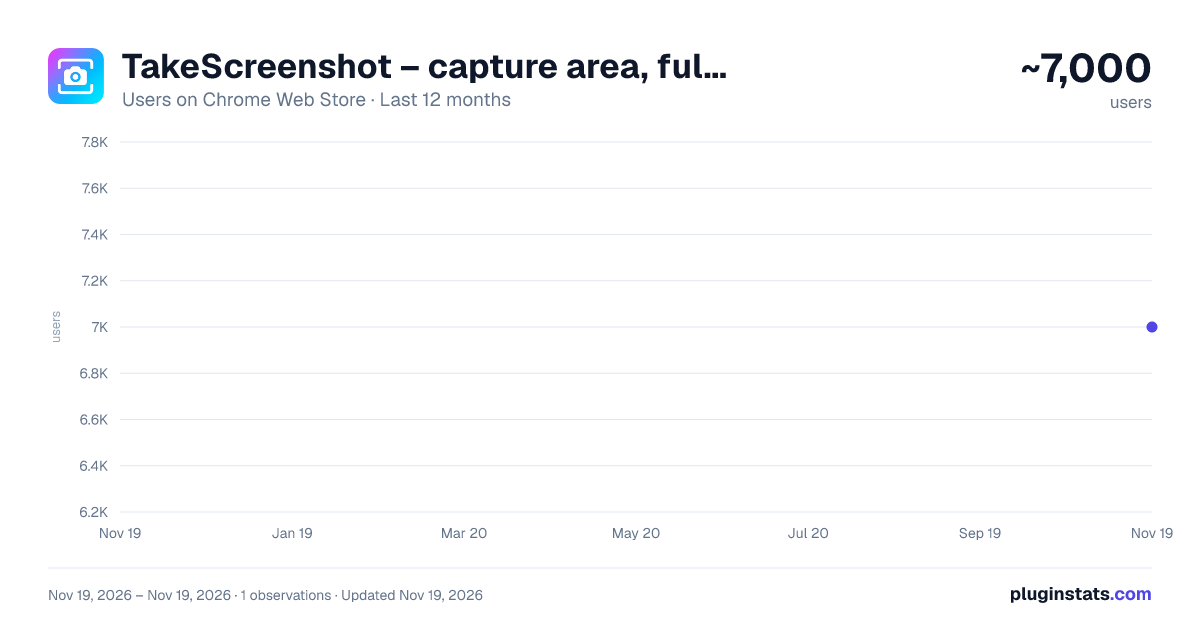
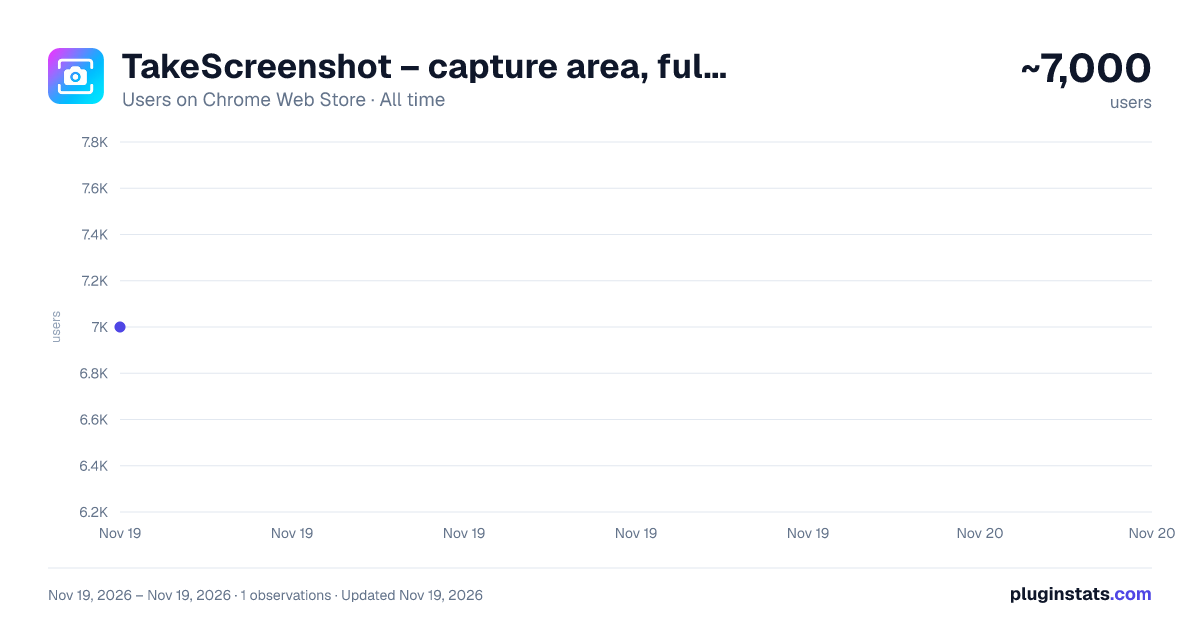
TakeScreenshot – capture area, full page or scrolling screenshot has approximately 7,000 recorded users on Chrome Web Store, ranking #1437 of 10,523 tracked listings.
Rating: 4.80 / 5 from 133 ratings
About TakeScreenshot – capture area, full page or scrolling screenshot
Easily capture an area, the entire screen or a scrolling page and instantly add annotations: highlight, draw, write...
🎯 Take a screenshot or record a video from your computer screen in one click – quickly, for free, and without any extra software!
📸 TakeScreenshot is a fast, powerful screenshot extension and screen recorder for Chrome, Yandex Browser, and other Chromium-based browsers — built to help you capture, annotate, save, and share content in seconds.
Need to grab a selected area, save a visible page, make a full page screenshot with scrolling, highlight an issue, or record your screen to explain something clearly? TakeScreenshot brings all of that together in one simple, smooth, and user-friendly workflow.
Whether you are working, studying, reporting a bug, creating step-by-step instructions, saving important information from a website, or sending a quick visual explanation to someone, TakeScreenshot helps you do it faster — without bulky desktop software, complicated tools, or extra steps.
✨ With TakeScreenshot, you can: • capture a selected area of any web page; • capture the visible part of the current tab; • create a scrolling screenshot for long pages; • make a full page screenshot with scrolling; • annotate screenshots right after capture; • add arrows, lines, shapes, text, highlights, and numbered steps; • save screenshots as PNG, JPG, or WEBP; • copy screenshots directly to the clipboard; • add a watermark or signature; • record a browser tab, a window, or your full screen; • record with microphone input; • capture tab audio or system audio when available; • pause and resume recording; • save the final video after recording.
🌟 Why people choose TakeScreenshot
⚡ Fast when you need it TakeScreenshot is built for real everyday tasks. You do not need one app to take screenshots, another one to edit them, and a third one to record screen video. Just open the extension, choose your mode, capture what you need, add annotations if needed, and save the result right away.
That makes it especially useful for people working in websites and web apps every day — dashboards, admin panels, online stores, help centers, browser tools, reports, support chats, documents, product pages, and web-based services.
🎯 Capture exactly what you want Different tasks need different tools — and TakeScreenshot gives you the right mode for the moment.
🟦 Selected area screenshot Capture only the exact part of the page you need. Perfect for error messages, UI elements, product details, forms, images, charts, messages, tables, or any small section of a webpage.
🖥️ Visible page screenshot Save the visible part of the current tab in one click. Great for quick browser screenshots when you do not need scrolling.
📜 Scrolling screenshot / full page screenshot Need to save more than one screen at a time? TakeScreenshot helps you create a scrolling screenshot for long pages, articles, product pages, help center content, documentation, reports, dashboards, timelines, and long conversations. This is ideal for users searching for a full page screenshot extension, a scrolling screenshot tool, or a way to capture an entire web page.
🎥 Screen recording Sometimes a screenshot is not enough. When you need to show the full process step by step, TakeScreenshot lets you record your screen and explain everything clearly. That is perfect for bug reports, tutorials, onboarding guides, support replies, demos, walkthroughs, and visual explanations.
💡 That makes TakeScreenshot a great fit when users need: • a screenshot tool for Chrome; • a screenshot extension for Chromium browsers; • a full page screenshot extension; • a scrolling screenshot tool; • a visible page capture tool; • a browser screen recorder; • a tab recorder; • a window recorder; • a desktop recorder.
🖍️ Built-in screenshot editor After taking a screenshot, you can edit it immediately without opening another app.
Available annotation tools include: • arrows; • lines; • rectangles; • ellipses; • text; • freehand drawing; • highlighter marks; • numbered steps; • moving and editing annotation elements; • undo for recent actions.
This built-in screenshot editor is especially useful when you want to: • point to a bug or issue; • show exactly where to click; • highlight an important part of a page; • prepare a clear bug report; • create visual instructions; • comment on a layout or design; • send a clean explanation to a teammate, client, or developer.
A screenshot with arrows, highlights, notes, and steps is often much more useful than a plain image. It saves time, reduces confusion, and makes communication much easier.
💾 Save and share the way you want TakeScreenshot gives you flexible ways to save and reuse what you capture.
You can: • save screenshots to your computer; • copy screenshots to the clipboard; • paste them into chat, email, documents, tickets, or presentations; • save your final video recording after capture is complete.
🧩 Supported screenshot formats: • PNG — ideal for crisp UI, text, and interface details; • JPG — useful for lighter files; • WEBP — a modern format that helps reduce file size.
Whether you need a quick screenshot for a message, a saved file for documentation, or a lighter image for sharing, the workflow stays smooth and convenient.
🎬 Screen recording features TakeScreenshot is more than a screenshot extension — it also works as a practical browser screen recorder.
You can record: • a browser tab; • an application window; • your full desktop or screen.
Recording features include: • microphone recording; • tab audio or system audio when available for the selected source; • pause and resume; • click highlighting; • an on-page recording control bar; • saving the final video when recording ends.…
Description from the Chrome Web Store listing.
README badge
Show your rank in a README or on your website. The badge updates automatically.
Charts
Images: 30d · 1y · all time · 1600×900 dark
Adoption over time
7/30/90-day growth
Ranking history
Ratings over time
Listing placement
Listing placement
Filled points are observed values; hollow points come from Internet Archive snapshots of the listing page. Dashed segments span periods with no observations — values between points are not interpolated.
Each band is one page of 20. Users on a linear scale. Placement is projected from users, so it can differ from the marketplace's own sort order. Hover a dot to see the listing.
Recent observations
Full history (1)Similar Chrome Web Store Tools plugins
All 20 TakeScreenshot – capture area, full page or scrolling screenshot alternatives



Data source
Covers every Chrome Web Store extension with at least 100 users, found through the store's public sitemap. User counts are read from public listing pages. The 10% most-used extensions are refreshed daily, the next 40% weekly and the next 40% monthly; the least-used 10% are not refreshed. Google displays rounded user counts (and caps the display at 10,000,000+), so small changes may not be visible. Rating counts above 1,000 are rounded (e.g. 1.6K).
Listing: https://chromewebstore.google.com/detail/takescreenshot-–-capture/ofgfpnpgheacjcoijlfcjmdjjjhhcfac. First seen Nov 19, 2026; last successful collection Nov 19, 2026. See the methodology.