 PluginStats
eslint-plugin-import-newlines weekly downloads statistics
By SeinopSys · npm · ESLint plugins
ESLint plugin for enforcing newlines in ES6 import statements past a certain number of items
eslint-plugin-import-newlines has 66,028 recorded weekly downloads on npm, a decrease of 42.5% over the past 30 days.
It ranks #504 of 2,251 tracked npm listings by weekly downloads.
Over 90 days, weekly downloads changed by -48.1%.
PluginStats has 121 daily observations since Jun 19, 2026; the latest is from Oct 17, 2026.
About eslint-plugin-import-newlines
eslint-plugin-import-newlines )
ESLint plugin for enforcing newlines in ES6 import statements past a certain number of items.
There is only one rule in this plugin which will report when there are more than 4 values in a line by default, and if there are less it will report when the import is not on a single line.
Installation
You'll first need to install ESLint:
Next, install eslint-plugin-import-newlines:
Note: If you installed ESLint globally (using the -g flag) then you must also install eslint-plugin-import-newlines globally.
Usage
Add import-newlines to the plugins section of your .eslintrc configuration file.
Then add the rule in the rules section.
Options
The first and most readable way is to use an object which allows you to specify any of the available options, leaving everything that's not specified as the default.
Because of its easy expandability this is the only format that will allow you to configure any new options – should they be added – but there is also a shorter syntax that will let you configure just the first two and keep everything else default.
To specify items as 6:
To specify items as 4 and max-len as 120:
items [number] (default: 4)
Specifies the maximum number of items before the plugin requires breaking up the import to multiple lines. If there are exactly this many or fewer items, then the plugin will make sure the import stays on one line unless it would violate the max-len option. More items than this number will always be split onto multiple lines.
Note that the plugin simply inserts newline characters after each token in the import when splitting, and the fix output never includes leading tabs or spaces. To have consistent indentation, be sure to use the built-in indent rule.
max-len [number] (default: Infinity)
Specifies the maximum length for source code lines in your project. This allows the plugin to prevent quick fixes that would cause your code to violate this limit from being applied. The rule will also automatically split import lines for you should they exceed the limit, which works great as an automatic fix for the ESLint built-in max-len rule (which doesn't have any quick fixes out of the box at the time of writing) for your imports. It's highly recommended you keep this option's value in sync with what you use for the aforementioned rule for best results.
semi [boolean] (default: true)
Indicates whether you want to have semicolons at the end of your imports. This is used in the maximum length calculation for the previous rule, so be sure to set this to false if your code style does not use semicolons at the end of imports otherwise it can lead to some unexpected automatic fixes.
Note that this does not enforce the use of semicolons, use the built-in ESLint semi rule to control that. Setting this to the right value merely aims to ensure that the plugin will not produce conflicting quick fixes.
Also, to preserve backwards compatibility with the existing array-based configuration, this is always set to false when not using the new object syntax to configure the rule.
forceSingleLine [boolean] (default: true)
Forces the import to a single line provided there's less than or equal to items imported values and the result would fit within the configured max-length. This can be set to false if you want to be able to break imports up to multiple lines without the plugin reporting an error and offering an autofix.
allowBlankLines [boolean] (default: false)
By default, the rule will report if there are any additional lines between the imported items. This is checked by comparing the end and start lines of adjacent import specifiers and if the difference is greater than one, the error will be raised. If you want to allow blank lines between imported items, set this option to true. Note that applying any auto-fixes from this rule will cause your new lines to be lost.
Testing
Tests can be run via npm run test, make sure these pass after every change. Be sure to add tests for new features.
Description from the npm listing.
- eslint
- eslint-plugin
- eslintplugin
- lint
- import
Where eslint-plugin-import-newlines sits in the listing
Each band is one page of 20. Weekly downloads on a log scale. Placement is projected from weekly downloads, so it can differ from the marketplace's own sort order. Hover a dot to see the listing.


Charts
Images: 30d · 1y · all time · 1600×900 dark
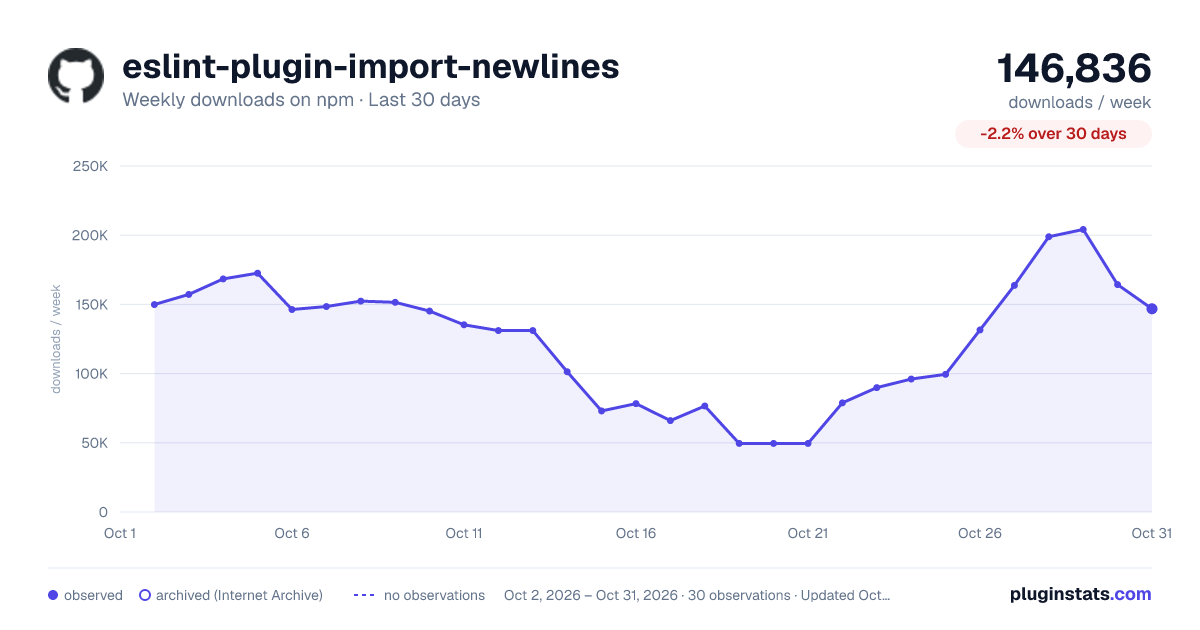
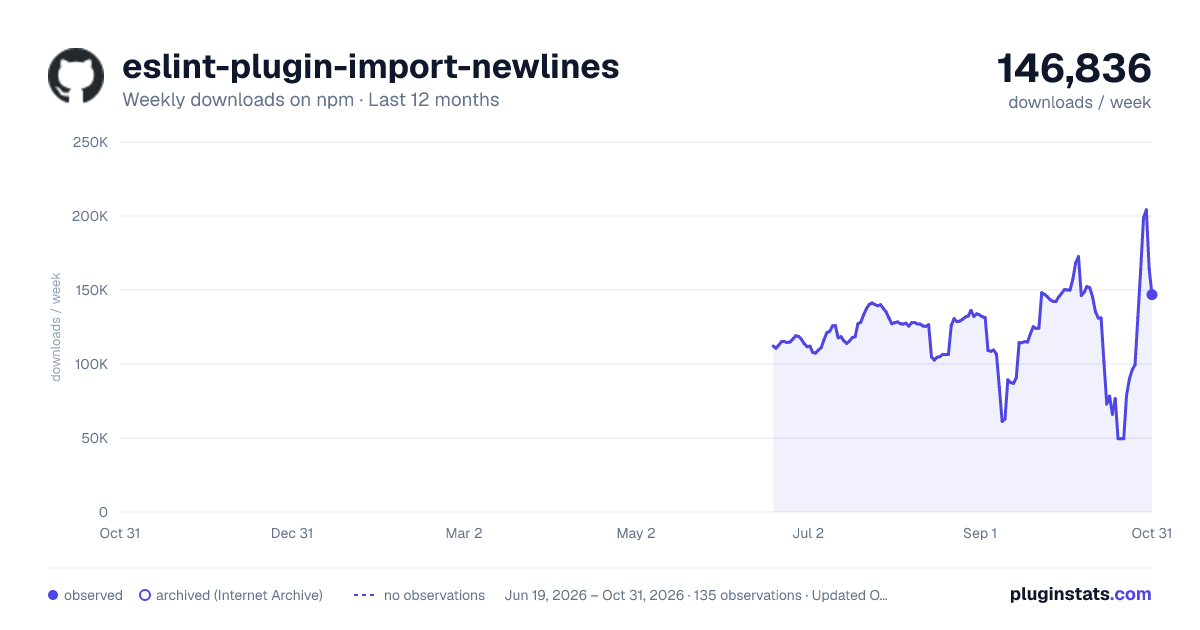
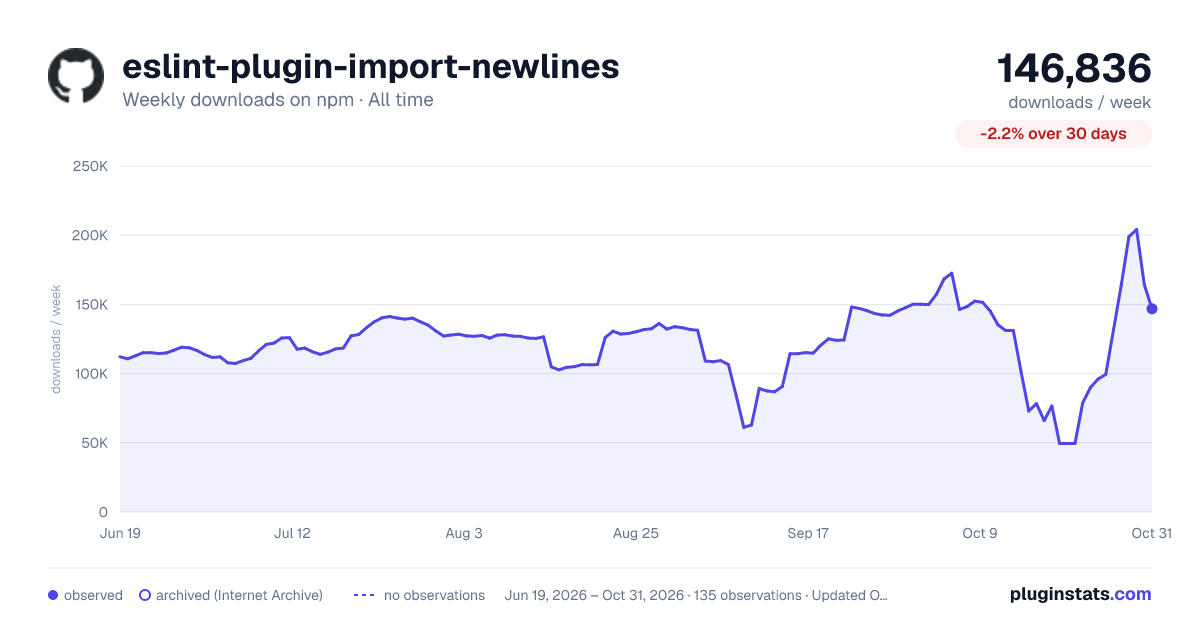

Adoption over time


7/30/90-day growth


Filled points are observed values; hollow points come from Internet Archive snapshots of the listing page. Dashed segments span periods with no observations — values between points are not interpolated.
Recent observations
Full history (121)Similar npm ESLint plugins plugins
Data source
Weekly downloads (trailing 7 complete days) come from the official npm downloads API. Downloads include CI and mirrors and are not equivalent to installs or users. npm publishes no ratings.
Listing: https://www.npmjs.com/package/eslint-plugin-import-newlines. First seen Oct 16, 2026; last successful collection Oct 18, 2026. See the methodology.