 PluginStats

Notebook Clipper — Web Clipper for Gemini Notebook (NotebookLM) users statistics
Save YouTube videos, playlists, AI chats & any page to Gemini Notebook in one click — the all-in-one companion.
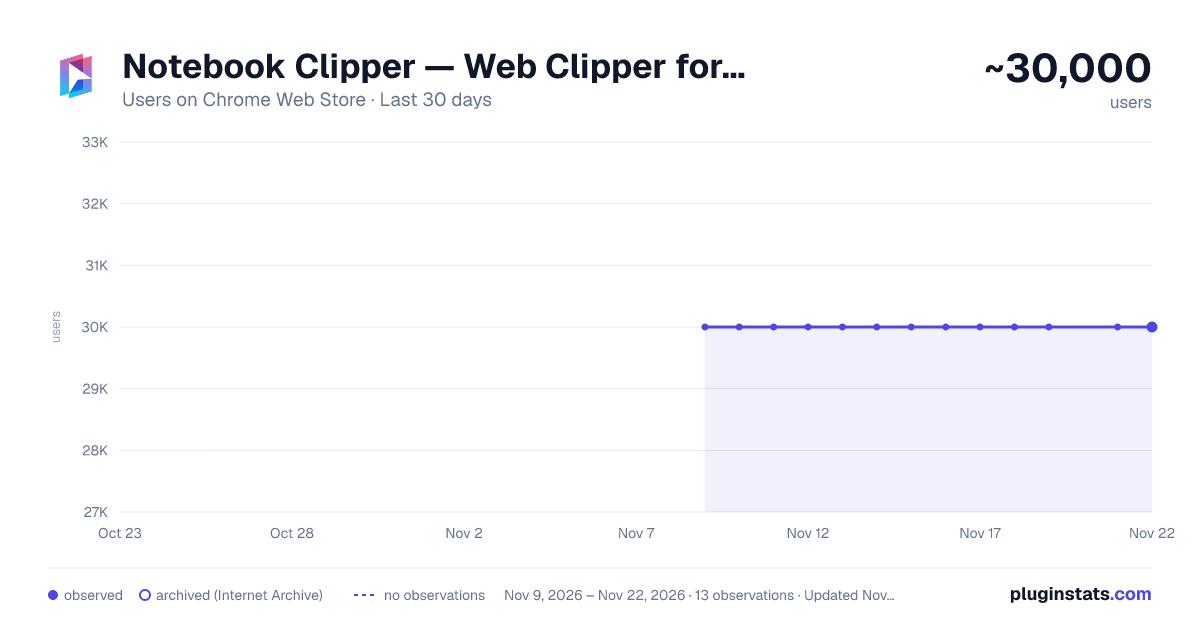
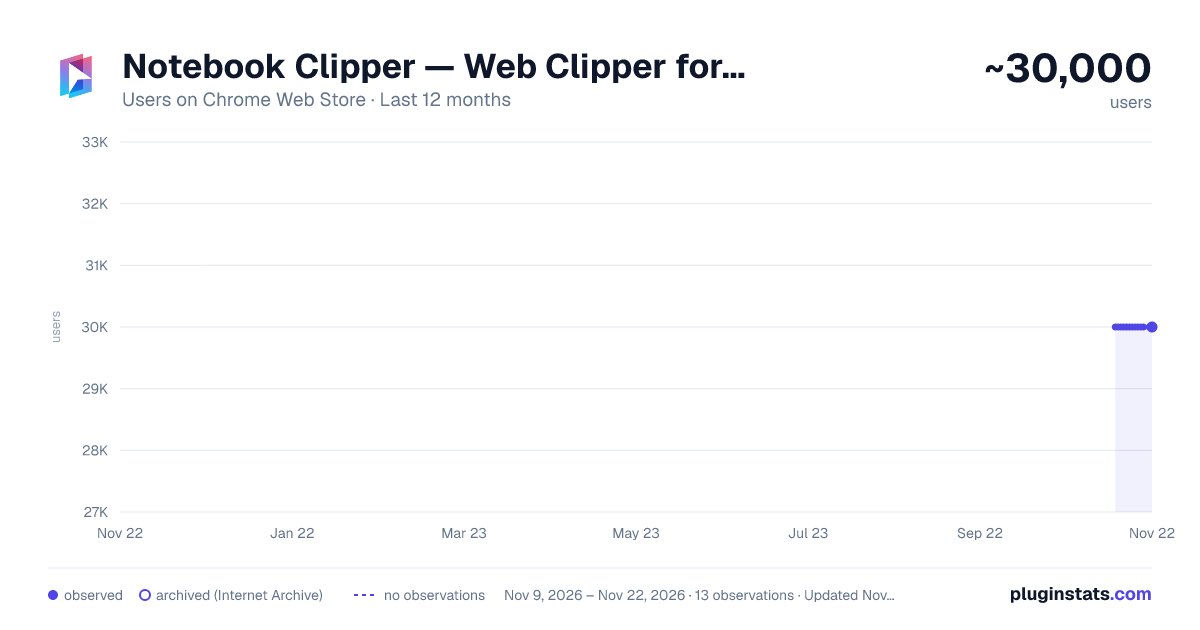
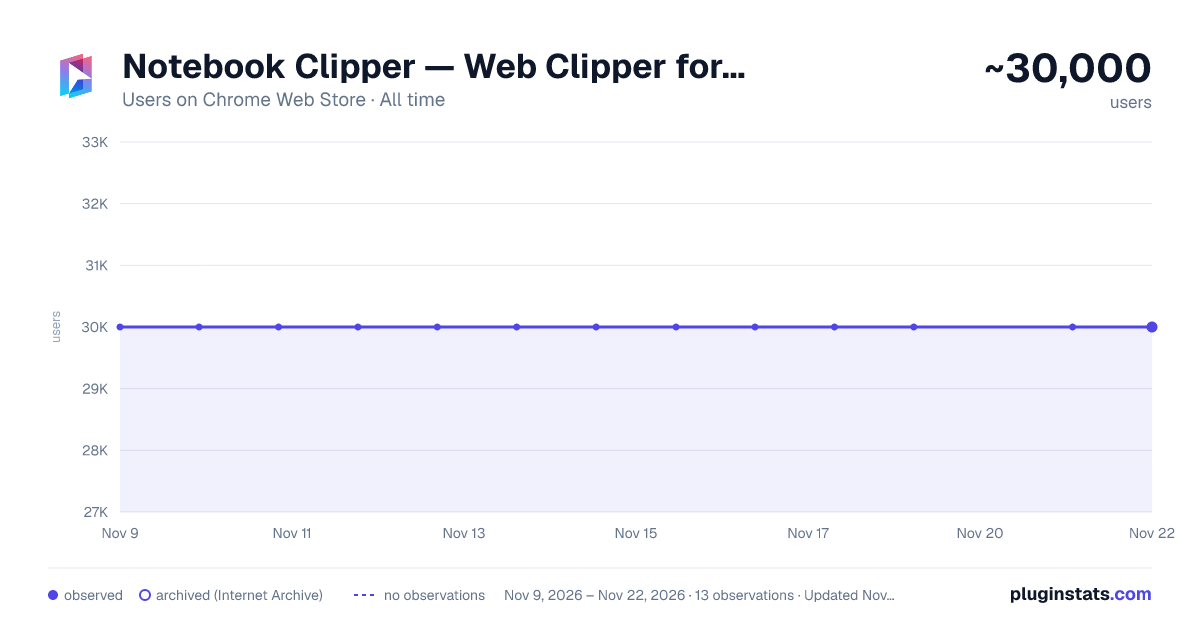
Notebook Clipper — Web Clipper for Gemini Notebook (NotebookLM) has approximately 30,000 recorded users on Chrome Web Store, a change of 0.0% over the past 7 days, ranking #597 of 10,388 tracked listings.
Rating: 4.90 / 5 from 108 ratings
About Notebook Clipper — Web Clipper for Gemini Notebook (NotebookLM)
Save YouTube videos, playlists, AI chats & any page to Gemini Notebook in one click — the all-in-one companion.
If you use Gemini Notebook (formerly NotebookLM) for research, studying, writing or creative work, this Chrome extension makes adding sources nearly effortless. With a single click you can save web pages, PDFs, YouTube links, AI chats and more directly into your Gemini Notebook workspace. And now, you can export the artifacts Gemini Notebook generates — flashcards, quizzes, mind maps, reports, even entire chat conversations — in formats ready for your favorite tools.
🎬 YouTube to Gemini Notebook: the ultimate solution
Adding YouTube content to Gemini Notebook has never been easier. This extension gives you full control over how you capture video content:
• Videos: add any YouTube video as a source with one click • YouTube Shorts: floating button appears on Shorts pages for instant saving • YouTube Channels: add an entire YouTube channel to Gemini Notebook, or select specific videos to include • YouTube Playlists: batch add curated video collections directly to your notebooks, with the option to pick exactly which videos to include
Perfect for building research notebooks from lectures, talks, podcasts, tutorials, interviews or educational content. The extension automatically handles everything so Gemini Notebook can summarize, answer questions and generate insights from your video sources.
📤 Export your artifacts
Gemini Notebook generates amazing content: flashcards, quizzes, mind maps, reports, notes, data tables and slide decks. Now you can take them into the tools you already use.
• Flashcards & quizzes: import them straight into Anki and keep studying • Mind maps: open them in Obsidian or your favorite mind-mapping app • Reports & notes: edit them in Word or any text editor • Data tables: work with them in a spreadsheet • Slide decks: download every slide as an image
The export menu appears right in the artifact context menu, matching Google's native UI, so it feels like it was always there.
📋 Duplicate any notebook in one click
Clone an entire notebook — every source, every Google Drive link — without rebuilding it by hand. Set up a course notebook once, then spin off variants for each module, topic, or client.
• One click from Gemini Notebook itself: "Duplicate" lives in the notebook list alongside Rename and Delete • One click from the side panel: "Duplicate" is in the actions menu on every notebook • Google Drive sources stay linked: Docs, Slides, and Sheets from Drive keep their live connection to the original file, so AutoSync keeps working on the copy
📄 Export your Gemini Notebook chat as Markdown or PDF
Take research conversations out of Gemini Notebook. A new download button in the chat panel header turns the full conversation into a polished file you can share, archive, or feed into another tool:
• Markdown export: clean .md with every prompt and response, inline citation markers preserved, and a Sources section mapping each citation back to its title • PDF export: same content with color-coded role labels (You / Gemini Notebook) and clean pagination between turns • Native UI: the download button blends into Gemini Notebook's chat panel and the dropdown styling matches the app's native menus exactly
💡 Turn a Gemini Notebook answer into a source
Save any Gemini Notebook answer, or the whole conversation, as a source you can cite, summarize, and build on, in another notebook or the same one, all in one click.
• Whole chat or one answer: add the entire conversation, or just the answers worth keeping • Any notebook: send it to a different notebook, or keep it in the current one • Two ways to add: the "Add to notebook" button in the chat, or the side panel • Smart re-adding: add the same chat again and the existing source updates in place, no duplicates (Pro)
⚡ Saved prompts in Gemini Notebook chat
Stop retyping the prompts you use every day. Save them once, then insert them into any notebook's chat in one click.
• Slash picker: type / in an empty chat box (or click the prompt button next to it) to open your saved prompts, filter as you type, and insert with Enter • Manage in place: create, edit, search, and delete prompts without leaving Gemini Notebook, with undo after delete • Across notebooks and devices: prompts are saved to your account and follow you everywhere you sign in • Free plan includes 1 saved prompt; Pro unlocks unlimited prompts
📎 Add Google Docs, Sheets & Slides from the doc itself
Working in a Google Doc, Sheet, or Slide deck? Send it to Gemini Notebook without leaving the page. An "Add to Gemini Notebook" button sits right in the editor toolbar, next to Share.
• One click from the toolbar: add the document you're editing to any notebook, no copy/paste, no tab switching • Also in the side panel: open it on any Docs, Sheets, or Slides tab and pick the notebook to add to • Added as a live Drive source: Gemini Notebook keeps syncing your edits instead of saving a one-time snapshot, so AutoSync keeps the notebook current • No duplicates: adding a file that's already in the notebook won't create a second copy
🔄 Keep Google Drive sources in sync
Google Docs, Slides, Sheets, and PDFs imported from Drive don't automatically refresh in Gemini Notebook when the originals change. This extension fixes that:
• Manual sync: click the "More" button (⋮) on any Google Drive source to refresh it instantly, or sync all sources at once • AutoSync: enable automatic synchronization per notebook and your imported documents stay current in the background — no manual intervention needed • Easy setup: open the side panel, navigate to your notebook, and click the gear icon to access AutoSync settings
Your research stays accurate even as your source documents evolve.
🐦 X (formerly Twitter) to Gemini Notebook…
Description from the Chrome Web Store listing.
README badge
Show your rank in a README or on your website. The badge updates automatically.
Charts
Images: 30d · 1y · all time · 1600×900 dark
Adoption over time
7/30/90-day growth
Ranking history
Ratings over time
Listing placement
Listing placement
Filled points are observed values; hollow points come from Internet Archive snapshots of the listing page. Dashed segments span periods with no observations — values between points are not interpolated.
Each band is one page of 20. Users on a linear scale. Placement is projected from users, so it can differ from the marketplace's own sort order. Hover a dot to see the listing.
Recent observations
Full history (12)Similar Chrome Web Store Tools plugins
All 20 Notebook Clipper — Web Clipper for Gemini Notebook (NotebookLM) alternatives



Data source
Covers every Chrome Web Store extension with at least 100 users, found through the store's public sitemap. User counts are read from public listing pages. The 10% most-used extensions are refreshed daily, the next 40% weekly and the next 40% monthly; the least-used 10% are not refreshed. Google displays rounded user counts (and caps the display at 10,000,000+), so small changes may not be visible. Rating counts above 1,000 are rounded (e.g. 1.6K).
Listing: https://chromewebstore.google.com/detail/notebook-clipper-—-web-cl/ancgeemmgnlempppapnfkdpghghphgjb. First seen Nov 9, 2026; last successful collection Nov 21, 2026. See the methodology.