 PluginStats
Azure App Service installs statistics
By Microsoft (224 listings) · VS Code Marketplace · Azure
An Azure App Service management extension for Visual Studio Code.
Azure App Service has 3,411,057 recorded installs on VS Code Marketplace, a change of +0.2% over the past 7 days, ranking #231 of 2,502 tracked listings.
Rating: 3.39 / 5 from 31 ratings
About Azure App Service
Azure App Service for Visual Studio Code (Preview)
<!-- region exclude-from-marketplace -->App Service is Azure's fully-managed Platform as a Service (PaaS) that lets you deploy and scale web, mobile, and API apps. Use the Azure App Service extension for VS Code to quickly create, manage, and deploy your websites.
Visit the wiki for more information about Azure App Service and how to use the advanced features of the extension.
Sign up today for your free Azure account and receive 12 months of free popular services, $200 free credit and 25+ always free services 👉 Start Free.
Installation
- Download and install the Azure App Service extension for Visual Studio Code
If you're interested in deploying single page web apps or progressive web apps (something without an express server), install the Azure Storage extension
- Wait for the extension to finish installing then reload Visual Studio Code when prompted
- Once complete, you'll see an Azure icon in the Activity Bar
If your activity bar is hidden, you won't be able to access the extension. Show the Activity Bar by clicking View > Appearance > Show Activity Bar
- Sign in to your Azure Account by clicking Sign in to Azure…
If you don't already have an Azure Account, click "Create a Free Azure Account"
Deploy your first app to Azure
Once you are signed in to your Azure account and you have your app open in Visual Studio Code, click the Create Resource button - it's the plus icon - to create a Web App.

Select "Create App Service Web App..."

Tip: Be sure that your application is listening on the port provided by the PORT environment variable:
server.listen(process.env.PORT)
- Type a globally unique name for your Web App and press Enter. Valid characters for an app name are 'a-z', '0-9', and '-'
- Choose your Runtime stack

Once your Web App has been created, reveal the resource in the Resource explorer, right click on the Web App and select "Deploy to Web App...".

- Select your current workspace if you have your app open already or browse to the directory containing your application code
Click Yes if prompted to update your configuration to run npm install on the target server.

Once the deployment starts, you're prompted to update your workspace so that subsequent deploys from this workspace automatically deploy to the same App Service web app. Choose Yes to ensure your changes are deployed to the correct app - you can change this later by editing your workspace settings (in .vscode/settings.json).

Once the deployment completes, click Browse Website in the prompt to view your freshly deployed website.
Stream Your Application Logs
- In the Azure App Service explorer, expand the app then expand Logs
- Click on Connect to Log Stream...

- Choose Yes when prompted to enable logging and restart the app
File logging is disabled by default and will automatically be disabled within 24 hours
- The Visual Studio Code output window opens with a connection to the log stream
Connecting to log stream...
2019-01-06T07:36:52  Welcome, you are now connected to log-streaming service.
2019-01-06 07:37:08.038 INFO  - Starting container for site
2019-01-06 07:37:33.273 INFO  - Container mahernaexpress_0 for site mahernaexpress initialized successfully.
Known Issues
- Local Git deployment may fail with large commits
Contributing
There are a couple of ways you can contribute to this repo:
- Ideas, feature requests and bugs: We are open to all ideas and we want to get rid of bugs! Use the Issues section to either report a new issue, provide your ideas or contribute to existing threads.
- Documentation: Found a typo or strangely worded sentences? Submit a PR!
- Code: Contribute bug fixes, features or design changes:
- Clone the repository locally and open in VS Code.
- Run "Extensions: Show Recommended Extensions" from the command palette and install all extensions listed under "Workspace Recommendations"
- Open the terminal (press <kbd>CTRL</kbd>+ <kbd>`</kbd>) and run
npm install. - To build, press <kbd>F1</kbd> and type in
Tasks: Run Build Task. - Debug: press <kbd>F5</kbd> to start debugging the extension.
Legal…
Description from the VS Code Marketplace listing.
- App Service
- Azure
- multi-root ready
README badge
Show your rank in a README or on your website. The badge updates automatically.
Charts
Images: 30d · 1y · all time · 1600×900 dark
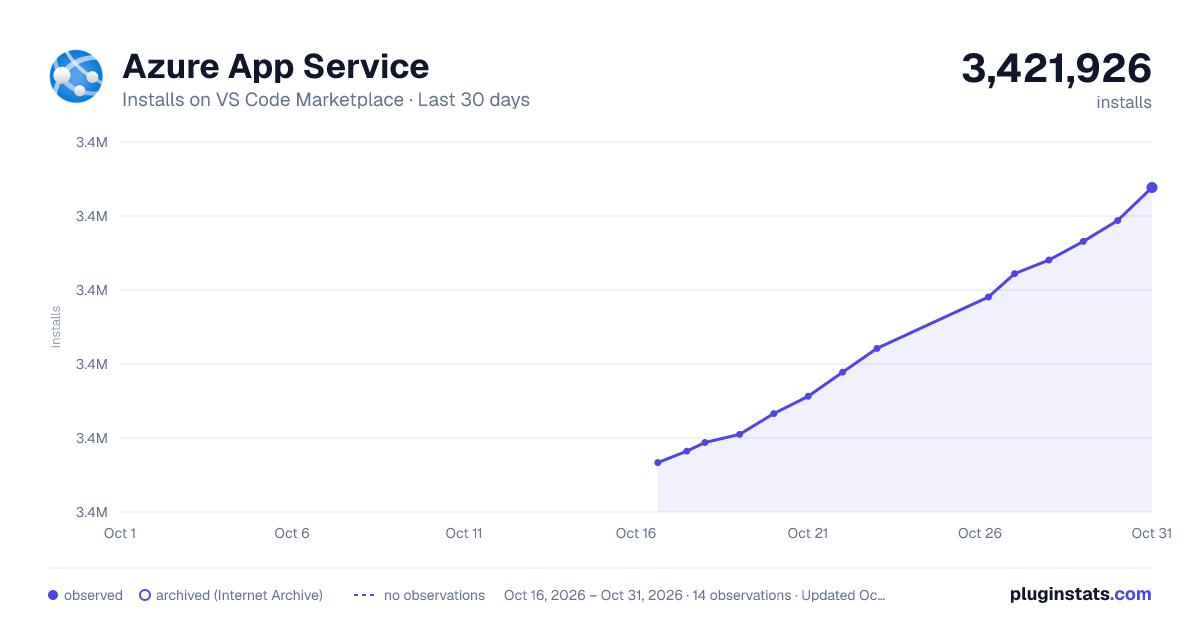
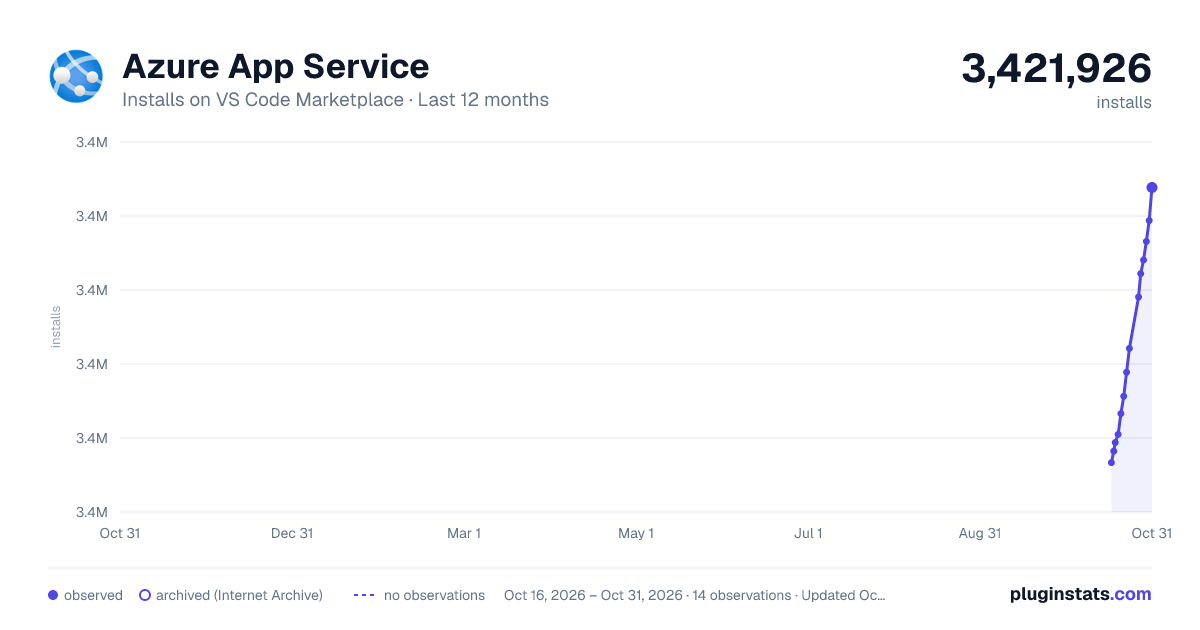
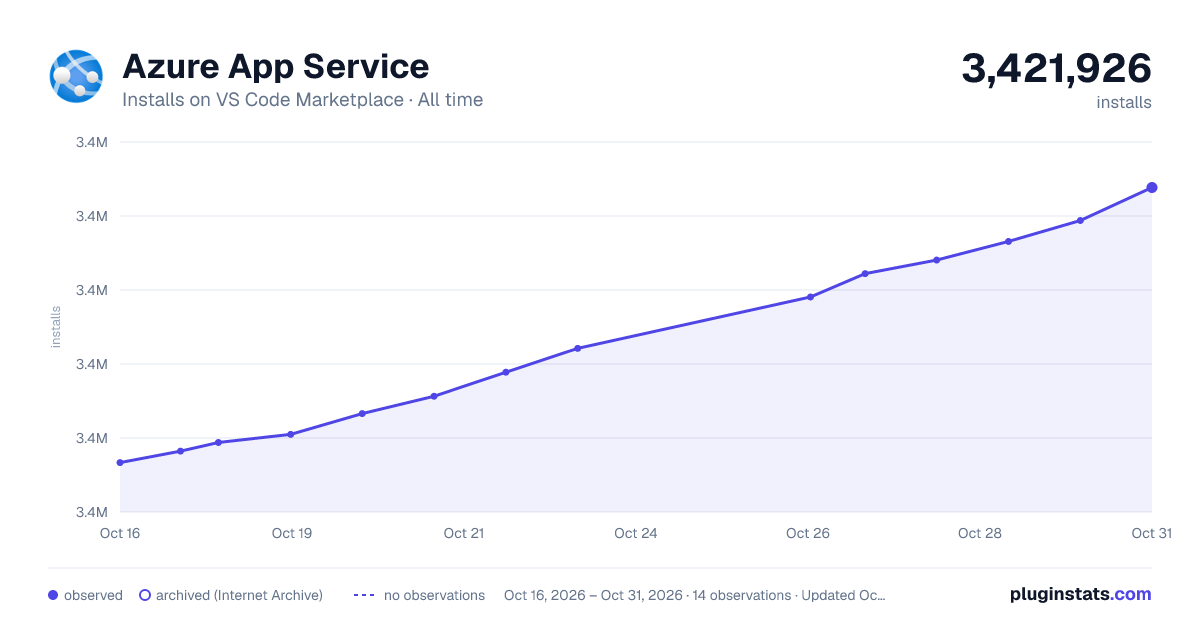

Adoption over time
7/30/90-day growth
Ranking history
Ratings over time
Listing placement
Listing placement
Filled points are observed values; hollow points come from Internet Archive snapshots of the listing page. Dashed segments span periods with no observations — values between points are not interpolated.
Each band is one page of 20. Installs on a linear scale. Placement is projected from installs, so it can differ from the marketplace's own sort order. Hover a dot to see the listing.
Recent observations
Full history (8)Similar VS Code Marketplace Azure plugins
All 20 Azure App Service alternativesData source
Install counts, average rating, and rating counts come from the public Visual Studio Marketplace gallery API. Installs are cumulative and exclude updates.
Listing: https://marketplace.visualstudio.com/items?itemName=ms-azuretools.vscode-azureappservice. First seen Oct 16, 2026; last successful collection Oct 23, 2026. See the methodology.