 PluginStats
ARM Template Viewer installs statistics
By Ben Coleman · VS Code Marketplace · Programming Languages
Graphically display ARM templates in an interactive map view
ARM Template Viewer has 668,148 recorded installs on VS Code Marketplace.
It ranks #715 of 2,500 tracked VS Code Marketplace listings by installs.
It is rated 4.9 out of 5 from 29 ratings.
PluginStats has 3 daily observations since Oct 16, 2026; the latest is from Oct 18, 2026.
Rating: 4.93 / 5 from 29 ratings
About ARM Template Viewer
ARM Viewer for VS Code
This extension displays a graphical preview of Azure Resource Manager (ARM) templates. The view will show all resources with the official Azure icons and also linkage between the resources. Uses the Cytoscape.js library
You can drag and move icons as you wish, zoom in and out with the mouse wheel and drag the canvas to pan around. Clicking on a resource will show a small "infobox" with extra details. See usage for more details and features.
Extension as been tested successfully against all 900+ Azure Quickstart Templates 😁
Usage
• Open a ARM template JSON file, and ensure it is active/focused • Click the eye symbol in the top right of the editor tab bar • • Or: • Open the VS Code command pallet with Ctrl+Shift+P or ⇧⌘P on a mac • Start typing ARM Viewer • Pick ARM Viewer: Preview ARM file graphically from the list • Or: • Use keyboard shortcut Ctrl+Alt+Q
Basic Features
• Click on a resource to show popup 'infobox' for that resource, a selected subset of details will be shown. • Click and drag on background to move and pan the view around. • Zoom in and out with the mouse wheel. • Drag icons around to layout as your wish, one tip is to click 'Re-fit' after moving to get the best view & zoom level.
Toolbar
• Click the 'Labels' button to toggle labels from resource names to resource types. • Click the 'Re-fit' button to refit the view to the best zoom level. • Click the 'Snap' button to toggle snap to grid mode on/off. • Click the 'Export' button to export as PNG, you will be prompted for a filename. The PNG will have a transparent background. • Two auto layout modes are available: • 'Tree' lays out the nodes in a hierarchical manner, ok for small templates, also the default. • 'Grid' puts the nodes on a grid, better for large templates but will often not make logical sense.
Parameter Files
By default the extension will try to use any defaultValues found in the parameters section of the template.
To apply a set of input parameters and overrides to the view, click 'Params' toolbar button. You will be prompted for a ARM parameters JSON file (e.g. azuredeploy.parameters.json). The values in the parameters JSON fill will be used in place of values set in the template
Resource Filters
The view can sometimes get very crowded, especially when you have many resources of the same time (e.g. NSG rules or Key Vault secrets). Click the 'Filter' toolbar button to apply a filter to the view. You will be prompted for a input string:
• This is a comma separated list of resource types you want _removed from the view_. • A partial substring of the type can be used, e.g. secrets or vaults/secrets or microsoft.keyvault/vaults/secrets. • Case does not matter. • Entering an empty string will remove the filter.
Linked Templates
The extension will attempt to locate and display linked templates, these resources will be shown grouped together in a shaded box. Linked template support comes with many limitations. This is an outline of how it works:
• If the resolved linked template URL is externally accessible, it will be downloaded and used. Results are cached to stop excessive HTTP calls. • If the URL is not accessible, then an attempt is made to load the file locally based on a guess from the filename and parent dir extracted from the URL, e.g. nested/linked.json • If that fails, then the local filesystem of the VS Code workspace will be searched for the file. Some assumptions are made in this search: • The search will only happen if the linked file has a _different_ filename from the main/master template being viewed. Otherwise the search would just find the main template being viewed. • The linked template file should located somewhere under the path of the main template, sub-folders will be searched. If the file resides elsewhere outside this path it will not be located. • The first matching file will be used. • If linked template URL or filename is dynamic based on template parameters it is very likely not to resolve, and will not be found. • If the linked template can not be located/loaded then a icon representing the deployment will be shown as a fallback. • Currently there is no cache for data fetched from external URLs. • The layout of the icons/resources can initially be a bit strange, and will require some manual tidy up to look good. I'm investigating how to improve this.
Notes
This project was created as a learning exercise, but was heavily inspired & influenced by the old ARMViz tool. ARMViz sadly seems to have been abandoned, it often has problems displaying some templates. Personally I wasn't a fan of look of the output, and found it hard to read. These are a few of the reasons why I created this project
A new based version based on the same code as this VS Code extension, can be found here: https://github.com/benc-uk/armview-web
ARM Template JSON Support
ARM templates go outside the JSON specification and break it in a couple of areas:
• Support for comments in the JSON file (aka JSONC) • Allowing the use of multi-line strings The extension supports both of these as far as is reasonably possible, multi-line strings in particular has no known spec on how it should be supported. The extension is also aware of the language server provided by the 'Azure Resource Manager Tools' extension and will accept files set to 'arm-template' as the language type.
Limitations & Known Issues…
Description from the VS Code Marketplace listing.
- arm
- azure
- keybindings
- map
- preview
- template
- viewer
- visualizer
Where ARM Template Viewer sits in the listing
Each band is one page of 20. Installs on a log scale. Placement is projected from installs, so it can differ from the marketplace's own sort order. Hover a dot to see the listing.


Charts
Images: 30d · 1y · all time · 1600×900 dark
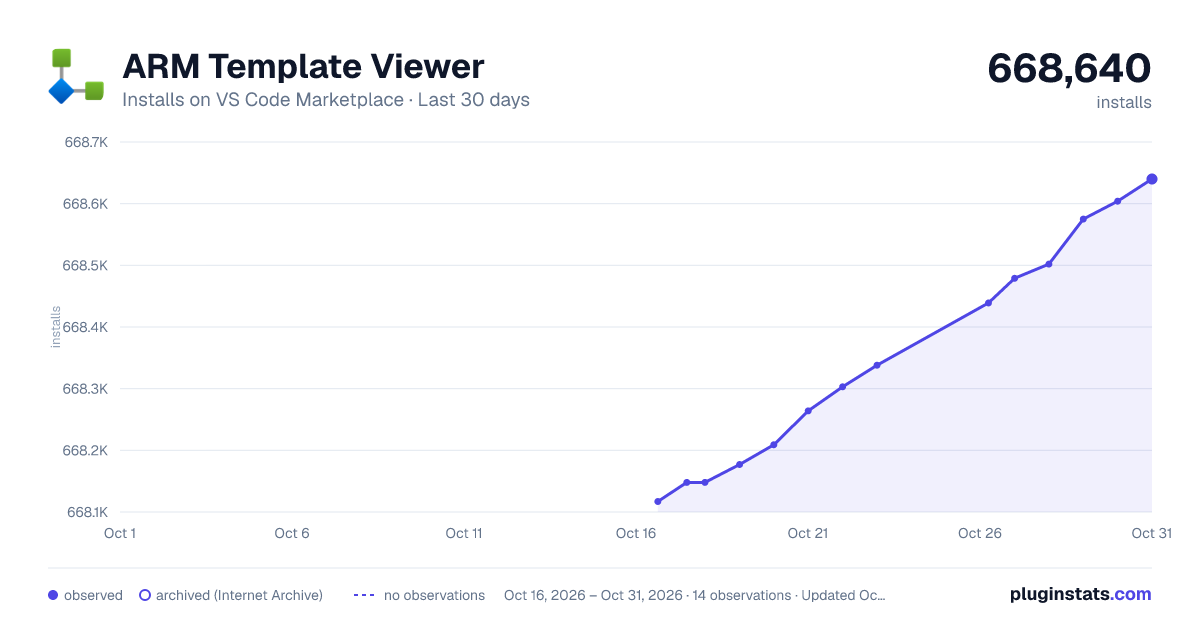
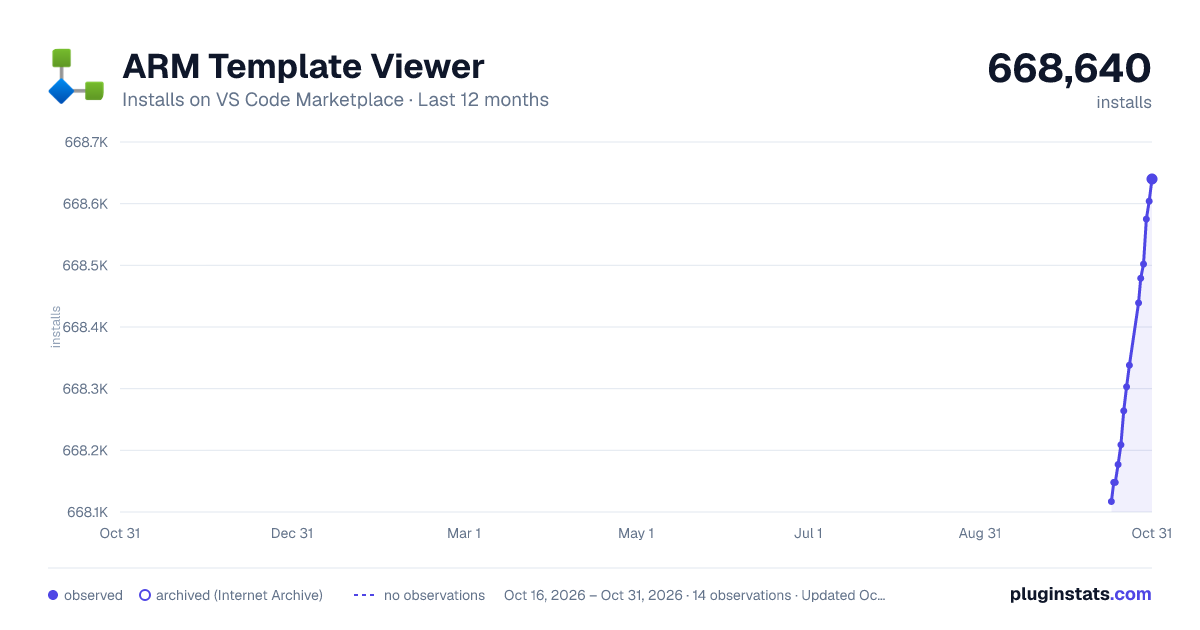
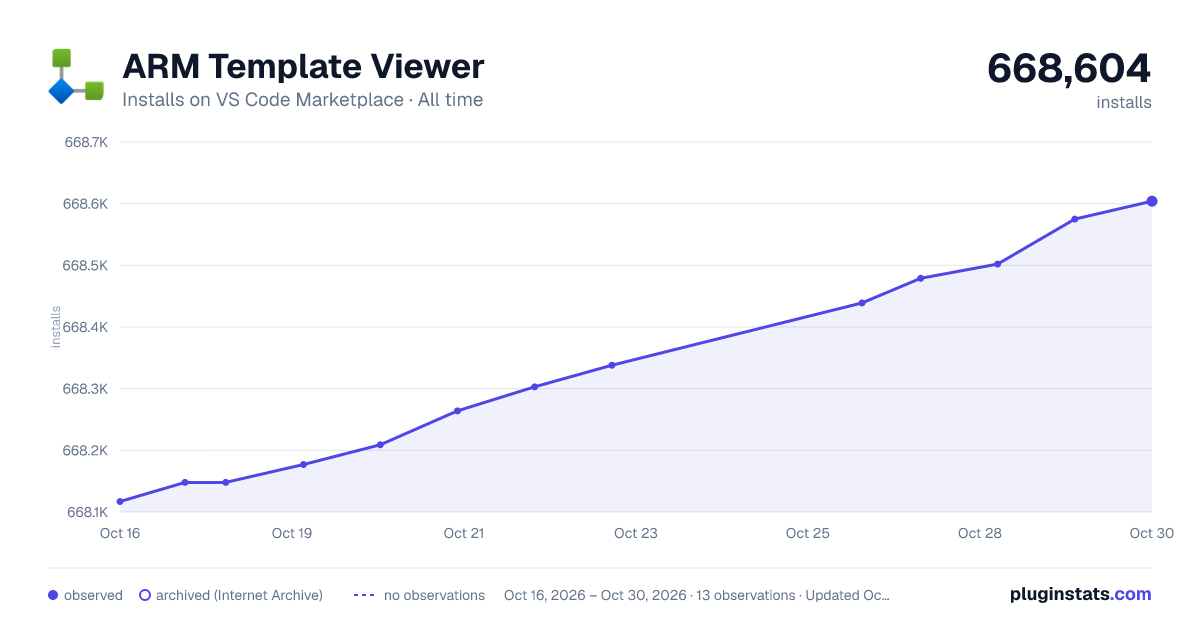

Adoption over time


7/30/90-day growth


Ranking history


Filled points are observed values; hollow points come from Internet Archive snapshots of the listing page. Dashed segments span periods with no observations — values between points are not interpolated.
Recent observations
Full history (3)Similar VS Code Marketplace Programming Languages plugins
Data source
Install counts, average rating, and rating counts come from the public Visual Studio Marketplace gallery API. Installs are cumulative and exclude updates.
Listing: https://marketplace.visualstudio.com/items?itemName=bencoleman.armview. First seen Oct 16, 2026; last successful collection Oct 18, 2026. See the methodology.