 PluginStats
RuboCop installs statistics
By RuboCop Headquarters · VS Code Marketplace · Linters
VS Code extension for the RuboCop linter and code formatter.
RuboCop has 93,167 recorded installs on VS Code Marketplace.
It ranks #2470 of 2,500 tracked VS Code Marketplace listings by installs.
It is rated 5.0 out of 5 from 2 ratings.
PluginStats has 3 daily observations since Oct 16, 2026; the latest is from Oct 18, 2026.
Rating: 5.00 / 5 from 2 ratings
About RuboCop
vscode-rubocop
This is the official VS Code extension for RuboCop.
You can install this VS Code extension from the Visual Studio Marketplace.
For VS Code-based IDEs like VSCodium or Eclipse Theia, the extension can be installed from the Open VSX Registry.
Language Server Capabilities
These are the capabilities of this extension, each enabled by RuboCop's built-in LSP server.
It supports the following capabilities:
• Fast Diagnostics (Linting) • Fast Document Formatting • Execute Command (Trigger autocorrect)
:star2: Pro tip: Enabling Format On Save is recommended. By activating just this one setting, code gets autocorrected every time a file is saved. Don't miss out on this game-changing boost to your development experience!
Requirements
• RuboCop 1.53.0+ • VS Code 1.75.0+
Configuration
The extension only offers a few of its own configuration options, but because it conforms to the VS Code Formatting API, several general editor settings can impact the extension's behavior as well.
Configuring the VS Code editor to use RuboCop
There are two general editor settings that you'll want to verify are set in order to use RuboCop as your formatter.
editor.formatOnSave
To automatically format your Ruby with RuboCop, check Format on Save in the Formatting settings under Text Editor:
Or, in settings.json:
editor.defaultFormatter
Next, if you have installed multiple extensions that provide formatting for Ruby files (it's okay if you're not sure—it can be hard to tell), you can specify RuboCop as your formatter of choice by setting editor.defaultFormatter under a "[ruby]" section of settings.json like this:
Configuring RuboCop extension options
To edit RuboCop's own options, first expand Extensions and select RuboCop from the sidebar of the Settings editor.
rubocop.mode
The Mode setting determines how (and whether) RuboCop runs in a given workspace. Generally, it will try to execute rubocop via bundle exec if possible, and fall back on searching for a global rubocop bin in your PATH.
• _"Always run—whether via Bundler or globally"_ (JSON: enableUnconditionally) this mode will first attempt to run via Bundler, but if that fails for any reason, it will attempt to run rubocop in your PATH • [Default] _"Run unless the bundle excludes rubocop"_ (JSON: enableViaGemfileOrMissingGemfile) this mode will attempt to run RuboCop via Bundler, but if a bundle exists and the rubocop gem isn't in it (i.e. you're working in a project doesn't use RuboCop), the extension will disable itself. If, however, no bundle is present in the workspace, it will fall back on the first rubocop executable in your PATH • _"Run only via Bundler, never globally"_ (JSON: enableViaGemfile) the same as the default enableViaGemfileOrMissingGemfile, but will never run rubocop from your PATH (as a result, single-file windows and workspace folders without a Gemfile may never activate the extension) • _"Run only globally, never via Bundler"_ (JSON: onlyRunGlobally) if you want to avoid running the bundled version of RuboCop, this mode will never interact with Bundler and will only run rubocop on your PATH • _"Disable the extension"_ (JSON: disable) disable the extension entirely
Or, in settings.json:
rubocop.autocorrect
The autocorrect option does what it says on the tin. if you don't want RuboCop to automatically edit your documents on save, you can disable it here:
You might want to disable this if you're using RuboCop to highlight problems but don't want it to edit your files automatically. You could also accomplish this by disabling editor.formatOnSave, but as that's a global setting across all languages, it's more straightforward to uncheck this extension setting.
Or, in settings.json:
rubocop.safeAutocorrect
This feature requires RuboCop 1.54+ to be enabled.
When autocorrect is enabled, safeAutocorrect controls its safety. By default, it is enabled to perform safe autocorrections. If you disable it, unsafe autocorrections will also be performed, you can disable it here:
Or, in settings.json:
rubocop.lintMode
This feature requires RuboCop 1.55+ to be enabled.
Run lint only cops (rubocop -l). If you only want to enable the feature as a linter like ruby -w, you can conveniently set it here:
Or, in settings.json:
rubocop.layoutMode
This feature requires RuboCop 1.55+ to be enabled.
Run layout only cops. If you only want to enable the feature as a formatter, you can conveniently set it here:
Or, in settings.json:
Furthermore, enabling autocorrect with the editor.formatOnSave to the effect of rubocop -x command line option.
rubocop.commandPath
As described above, the extension contains logic to determine which version of rubocop to launch. If you want a specific binary to run instead, you can set it here.
This will override whatever search strategy is set in rubocop.mode (except for disable, in which case the extension will remain disabled).
Note: Command-line arguments included in the executable path may be ignored when RuboCop is run via Bundler in projects with a Gemfile. For reliable argument passing, use the rubocop.commandArgs setting instead.
Or, in settings.json:
rubocop.bundleCommandPath
When the extension needs to run RuboCop via Bundler (e.g., bundle exec rubocop), it will use the system's bundle command by default. If you want to specify a different bundle executable, you can set it here.
This setting supports the same variable substitution as commandPath: • ${userHome} - User's home directory • ${pathSeparator} - OS-specific path separator • ${cwd} - Current working directory
Or, in settings.json:
rubocop.yjitEnabled
This extension supports YJIT, which can speed up the built-in language server in RuboCop. The rubocop.yjitEnabled option is enabled by default.
You can disable YJIT by unchecking.
Or, in settings.json:
rubocop.additionalLanguages
This extension is enabled by default only for files that VS Code recognizes as ruby files.…
Description from the VS Code Marketplace listing.
- autocorrect
- formatter
- language-server
- linter
- rubocop
- ruby
- style-guide
Where RuboCop sits in the listing
Each band is one page of 20. Installs on a log scale. Placement is projected from installs, so it can differ from the marketplace's own sort order. Hover a dot to see the listing.


Charts
Images: 30d · 1y · all time · 1600×900 dark

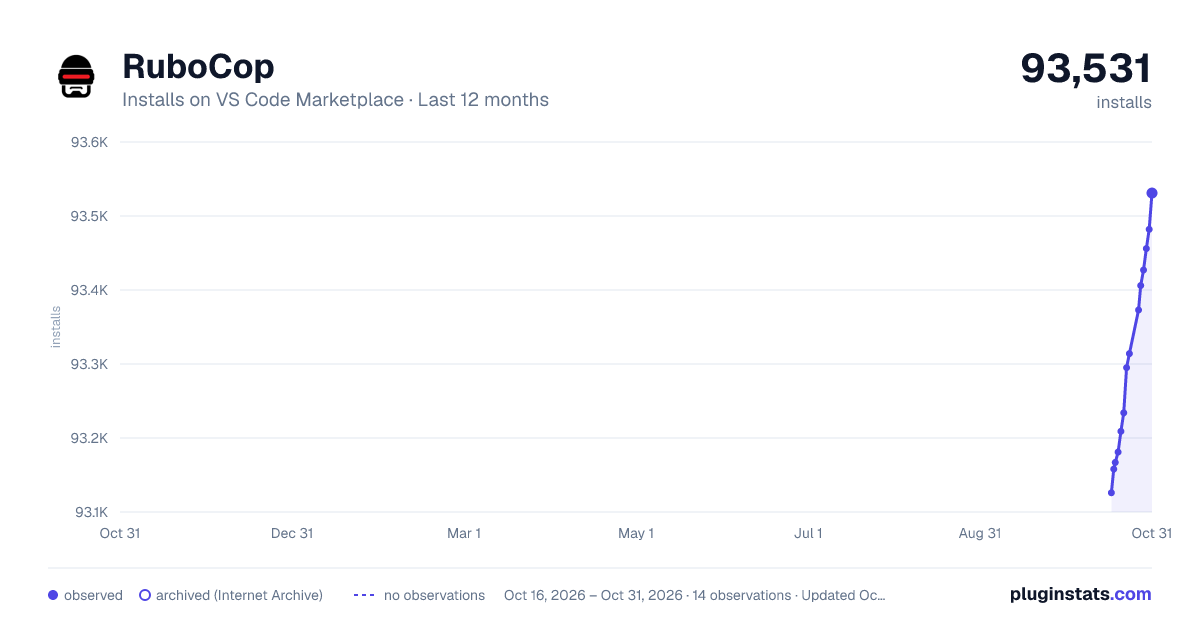


Adoption over time


7/30/90-day growth


Filled points are observed values; hollow points come from Internet Archive snapshots of the listing page. Dashed segments span periods with no observations — values between points are not interpolated.
Recent observations
Full history (3)Similar VS Code Marketplace Linters plugins
Data source
Install counts, average rating, and rating counts come from the public Visual Studio Marketplace gallery API. Installs are cumulative and exclude updates.
Listing: https://marketplace.visualstudio.com/items?itemName=rubocop.vscode-rubocop. First seen Oct 16, 2026; last successful collection Oct 18, 2026. See the methodology.