 PluginStats
CodeQL installs statistics
By GitHub (16 listings) · VS Code Marketplace · Programming Languages
CodeQL for Visual Studio Code
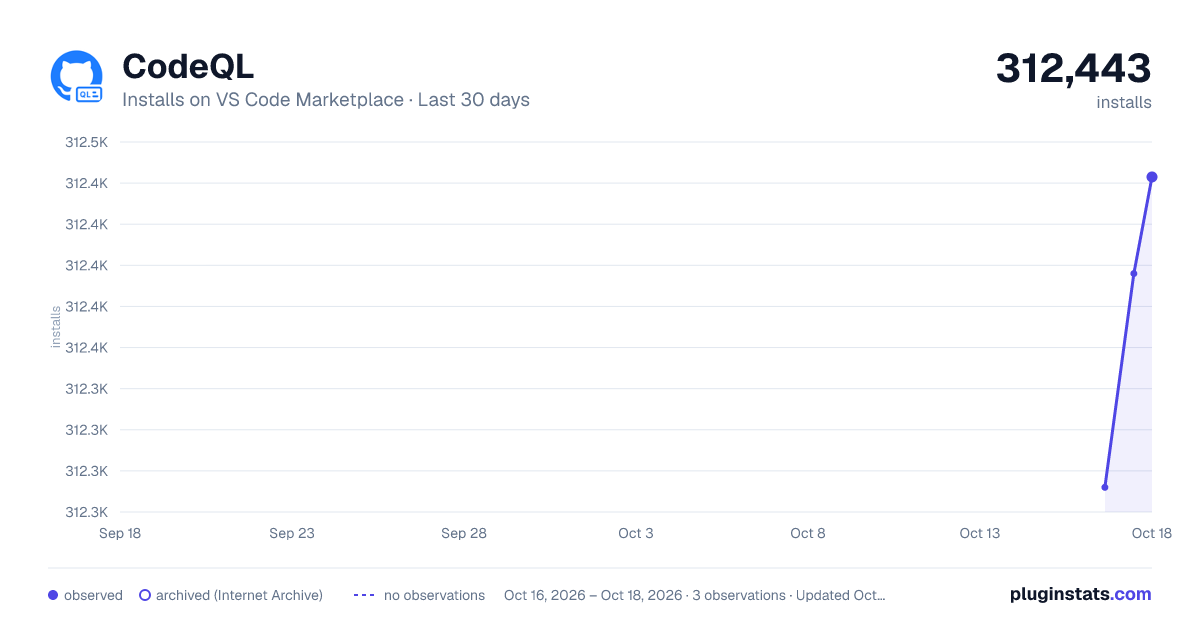
CodeQL has 312,443 recorded installs on VS Code Marketplace.
It ranks #1123 of 2,500 tracked VS Code Marketplace listings by installs.
It is rated 3.7 out of 5 from 7 ratings.
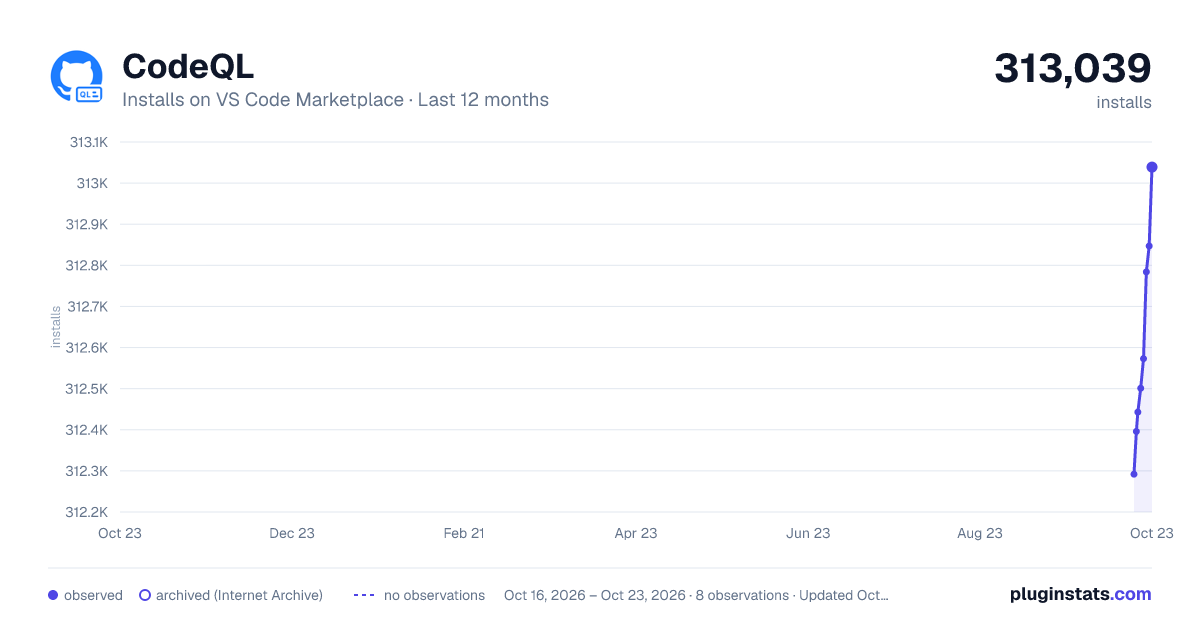
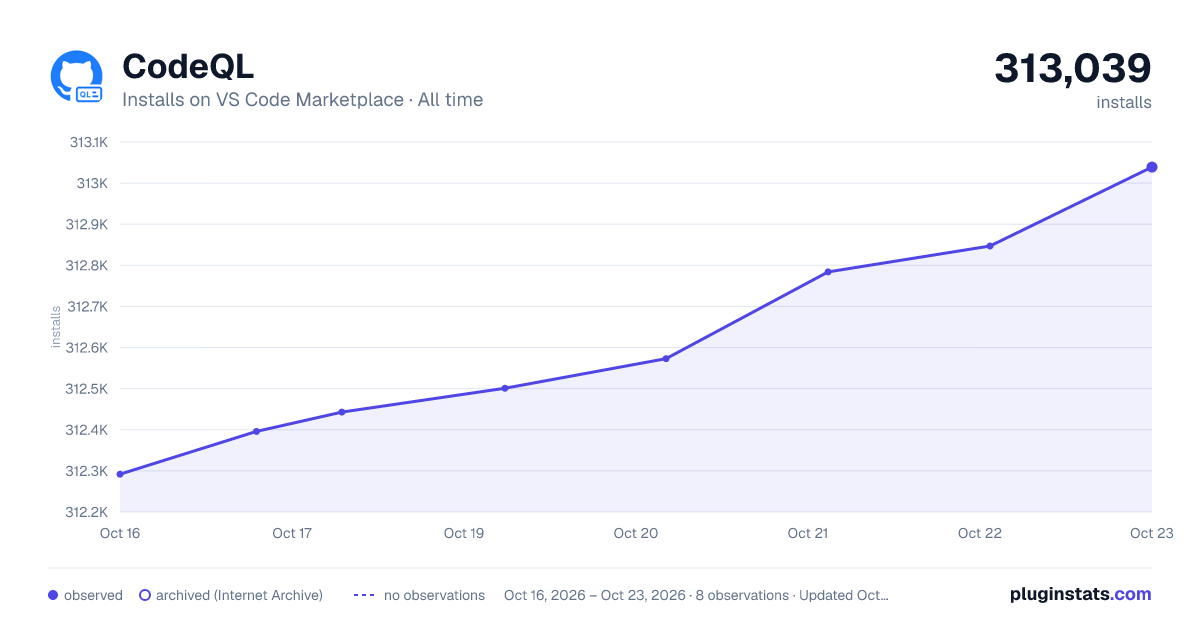
PluginStats has 3 daily observations since Oct 16, 2026; the latest is from Oct 18, 2026.
Rating: 3.71 / 5 from 7 ratings
About CodeQL
CodeQL extension for Visual Studio Code
This project is an extension for Visual Studio Code that adds rich language support for CodeQL and allows you to easily find problems in codebases. In particular, the extension:
• Enables you to use CodeQL to query databases generated from source code. • Shows the flow of data through the results of path queries, which is essential for triaging security results. • Provides an easy way to run queries from the large, open source repository of CodeQL security queries. • Adds IntelliSense to support you writing and editing your own CodeQL query and library files.
To see what has changed in the last few versions of the extension, see the Changelog.
You can also read full documentation for the extension on the GitHub documentation website.
Quick start overview
The information in this README file describes the quickest way to start using CodeQL. For information about other configurations, see "Using the advanced functionality of the CodeQL for VS Code extension" in the GitHub documentation.
Quick start: Installing and configuring the extension
1. Install the extension. 1. Check access to the CodeQL CLI. 1. Clone the CodeQL starter workspace.
Quick start: Using CodeQL
1. Import a database from GitHub. 1. Run a query.
Quick start: Installing and configuring the extension
Installing the extension
The CodeQL extension requires a minimum of Visual Studio Code 1.39. Older versions are not supported.
1. Install and open Visual Studio Code. 1. Open the Extensions view (press Ctrl+Shift+X or Cmd+Shift+X). 1. At the top of the Extensions view, type CodeQL in the box labeled Search Extensions in Marketplace. 1. Locate the CodeQL extension and select Install. This will install the extension from the Visual Studio Marketplace.
Checking access to the CodeQL CLI
The extension uses the CodeQL CLI to compile and run queries. The extension automatically manages access to the CLI for you by default (recommended). To check for updates to the CodeQL CLI, you can use the CodeQL: Check for CLI Updates command.
If you want to override the default behavior and use a CodeQL CLI that's already on your machine, see "Configuring access to the CodeQL CLI" in the GitHub documentation.
If you have any difficulty with CodeQL CLI access, see the CodeQL Extension Log in the Output view for any error messages.
Cloning the CodeQL starter workspace
When you're working with CodeQL, you need access to the standard CodeQL libraries and queries. Initially, we recommend that you clone and use the ready-to-use starter workspace. This includes libraries and queries for the main supported languages, with folders set up ready for your custom queries. After cloning the workspace (use git clone --recursive), you can use it in the same way as any other VS Code workspace—with the added advantage that you can easily update the CodeQL libraries.
For information about configuring an existing workspace for CodeQL, see "Setting up a CodeQL workspace" in the GitHub documentation.
Upgrading CodeQL standard libraries
You can easily keep up-to-date with the latest changes to the CodeQL standard libraries.
If you're using the CodeQL starter workspace, you can pull in the latest standard libraries by running:
in the starter workspace directory.
If you're using your own clone of the CodeQL standard libraries, you can do a git pull from where you have the libraries checked out.
Quick start: Using CodeQL
You can find all the commands contributed by the extension in the Command Palette (Ctrl+Shift+P or Cmd+Shift+P) by typing CodeQL, many of them are also accessible through the interface, and via keyboard shortcuts.
Importing a database from GitHub
While you can use the CodeQL CLI to create your own databases, the simplest way to start is by downloading a database from GitHub.com.
1. Find a project that you're interested in on GitHub.com, for example Apache Kafka. 1. Copy the link to that project, for example https://github.com/apache/kafka. 1. In VS Code, open the Command Palette and choose the CodeQL: Download Database from GitHub command. 1. Paste the link you copied earlier. 1. Select the language for the database you want to download (only required if the project has databases for multiple languages). 1. Once the CodeQL database has been imported, it is displayed in the Databases view.
For more information, see "Managing CodeQL databases" in the GitHub documentation.
Running a query
The instructions below assume that you're using the CodeQL starter workspace, or that you've added the CodeQL libraries and queries repository to your workspace.
1. Expand the ql folder and locate a query to run. The standard queries are grouped by target language and then type, for example: ql/java/ql/src/Likely Bugs. 1. Open a query (.ql) file. 1. Right-click in the query window and select CodeQL: Run Query on Selected Database. Alternatively, open the Command Palette (Ctrl+Shift+P or Cmd+Shift+P), type Run Query, then select CodeQL: Run Query on Selected Database.
The CodeQL extension runs the query on the current database using the CLI and reports progress in the bottom right corner of the application. When the results are ready, they're displayed in the CodeQL Query Results view. Use the dropdown menu to choose between different forms of result output.
If there are any problems running a query, a notification is displayed in the bottom right corner of the application. In addition to the error message, the notification includes details of how to fix the problem.
Keyboard navigation
If you wish to navigate the query results from your keyboard, you can bind shortcuts to the CodeQL: Navigate Up/Down/Left/Right in Result Viewer commands.
What next?
We recommend reading the full documentation for the extension on the GitHub documentation website. You may also find the following resources useful:…
Description from the VS Code Marketplace listing.
- CodeQL
- dbscheme
- debuggers
- json
- ql
- ql-summary
- snippet
- xml
Where CodeQL sits in the listing
Each band is one page of 20. Installs on a log scale. Placement is projected from installs, so it can differ from the marketplace's own sort order. Hover a dot to see the listing.


Charts
Images: 30d · 1y · all time · 1600×900 dark

Adoption over time


7/30/90-day growth


Filled points are observed values; hollow points come from Internet Archive snapshots of the listing page. Dashed segments span periods with no observations — values between points are not interpolated.
Recent observations
Full history (3)Similar VS Code Marketplace Programming Languages plugins
Data source
Install counts, average rating, and rating counts come from the public Visual Studio Marketplace gallery API. Installs are cumulative and exclude updates.
Listing: https://marketplace.visualstudio.com/items?itemName=GitHub.vscode-codeql. First seen Oct 16, 2026; last successful collection Oct 18, 2026. See the methodology.