 PluginStats
Spreadsheet Viewer installs statistics
By MESCIUS · VS Code Marketplace · Other
Edit XLSX spreadsheets and CSV files in Visual Studio Code and VS Code for the Web.
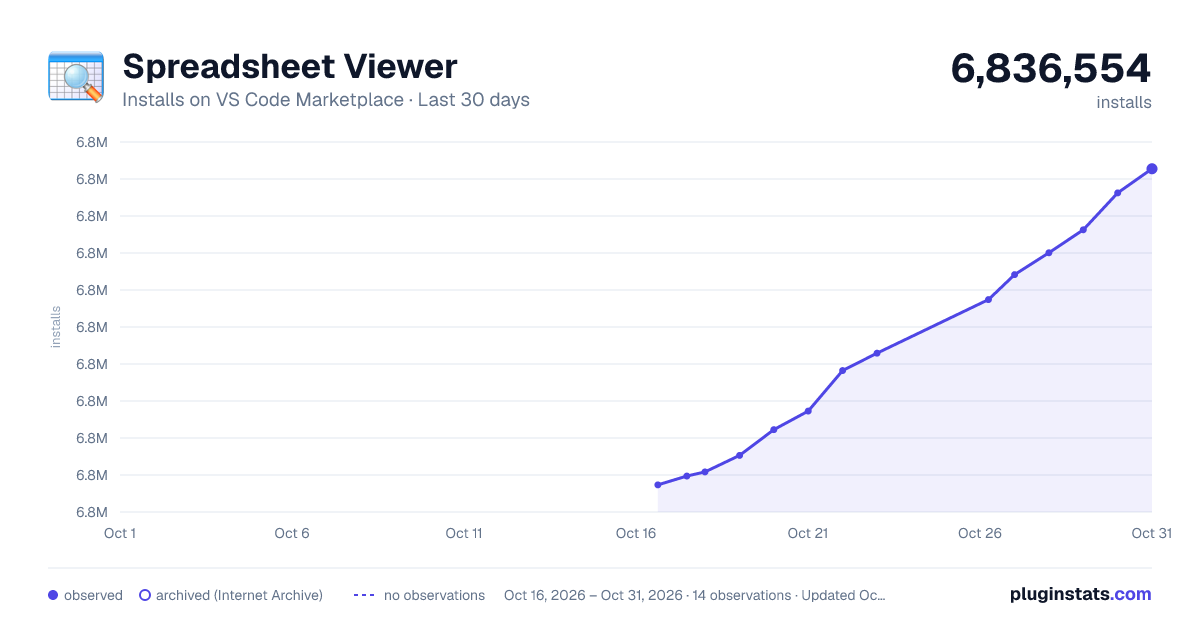
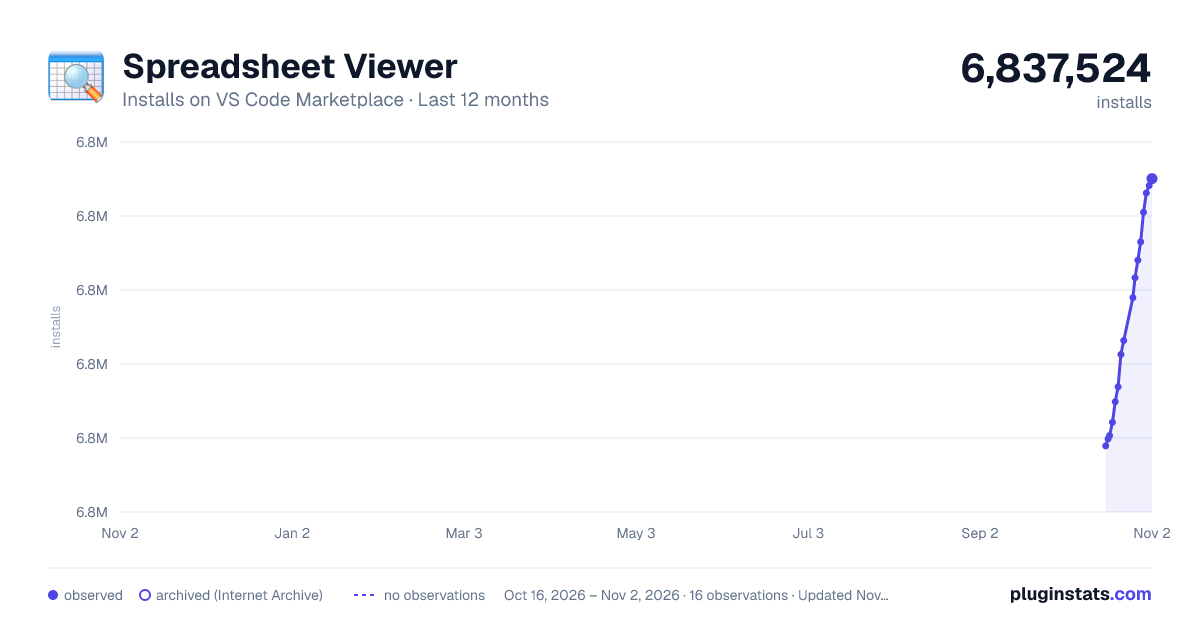
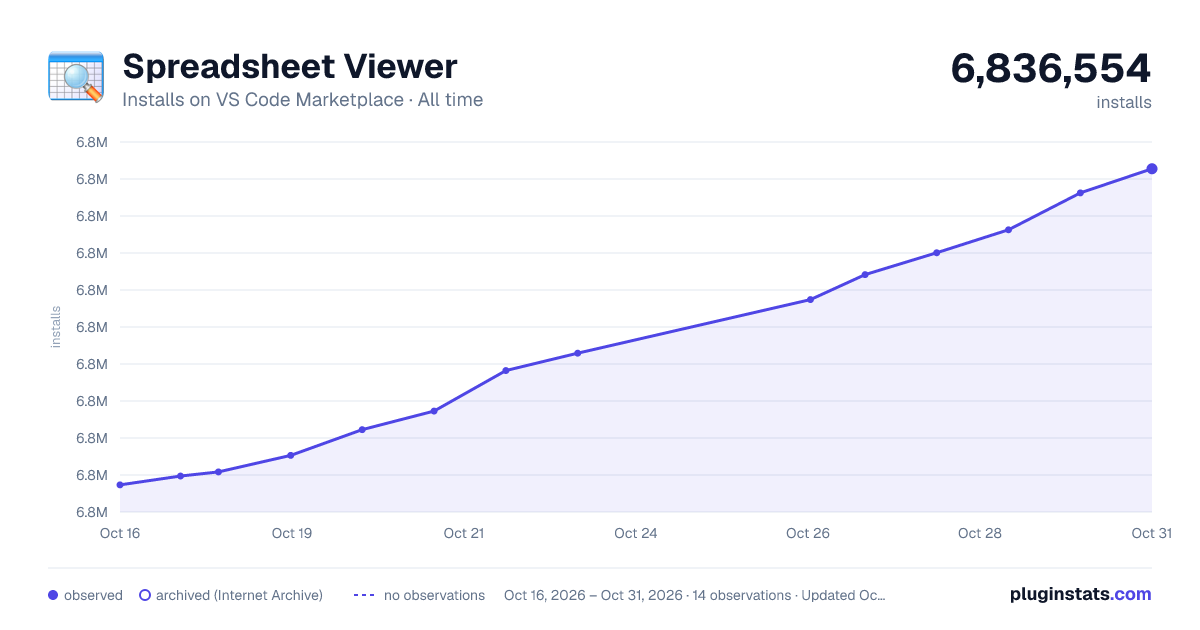
Spreadsheet Viewer has 6,820,166 recorded installs on VS Code Marketplace.
It ranks #137 of 2,500 tracked VS Code Marketplace listings by installs.
It is rated 3.4 out of 5 from 158 ratings.
PluginStats has 3 daily observations since Oct 16, 2026; the latest is from Oct 18, 2026.
Rating: 3.37 / 5 from 158 ratings
About Spreadsheet Viewer
Spreadsheet Viewer for VSCode
This extension is no longer actively maintained. For an enhanced spreadsheet editing experience in VSCode, we recommend using the SpreasJS XLSX Editor, powered by SpreadJS.
Powered by Wijmo, this extension provides custom editors and previews for CSV files and XLSX spreadsheets in Visual Studio Code and Visual Studio Code for the Web.
Version 4.2.58 fixes many CSV editing issues that occurred in files containing multiline cells.
Version 4.2 now supports first-class custom editors that implement operations such as save, undo, redo, and hot exit. For XLSX files, this is the default, and clicking the name of an XLSX file in explorer view opens the custom editor directly. For CSV files, this is optional, and executing the Open With command on the context menu prompts for the built-in or custom editor to be opened. The Open Preview command is still supported for both file types.
Version 4.2 also supports Visual Studio Code for the Web. To get started, visit https://vscode.dev in your browser.
This extension requires Visual Studio Code 1.63.0 or greater.
CSV Usage
For files with a .csv, .tsv, or .tab extension, use the explorer context menu or editor title menu to invoke the Open Preview command. The contents of the file will be displayed in a FlexGrid control, which supports sorting and filtering via its column headers. You can also use the Open With command on the explorer context menu to open a custom editor, as shown here:
For .tsv and .tab files, a tab delimiter is assumed. For plain text files with different extensions, open the file in an editor and execute the CSV: Open Preview command from the command palette. For any text file that is open in the built-in editor, regardless of extension, you can right-click its tab and execute the Reopen Editor With command, then select the CSV Viewer option when prompted.
Please read this section, which describes common customizations to the default configuration for column separators and other settings that affect CSV files.
To sort a column in ascending order, click its column header. To reverse the sort order, click its column header again. To specify a secondary sort column, hold the Shift key while clicking its column header. To undo sorting for a column, hold the Ctrl key while clicking its column header. Alternatively, you can use the CSV: Clear Preview State command to remove all sort/filter criteria for the current file.
XLSX Usage
For files with an .xlsx or .xlsm extension, just click (or double-click) the filename in explorer view. The contents of the file will be displayed in a FlexSheet control. If multiple sheets are present, use the controls at the bottom of the view for navigation.
As in earlier versions, you can use the explorer context menu or editor title menu to invoke the Open Preview command.
Theme Support
The extension adapts its display to the current Visual Studio Code theme. For best results, choose a theme with opaque selection background colors.
Persistent Data
The extension automatically stores user customizations on a per-file, per-workspace basis. For CSV files, this includes column widths, sort/filter criteria, data types, format strings, and scroll bar positions. For XLSX files, this includes the selected sheet index, sort/filter criteria, and scroll bar positions associated with that sheet only. If the column structure of a CSV file changes, any persistent data is ignored for that file.
To discard persistent data for a CSV or XLSX file, execute the command CSV: Clear Preview State. The preview will be refreshed automatically.
Numeric Formatting
By default, numeric formatting is always enabled for CSV files, and the extension will examine the first row of data to determine which columns are numeric. The setting csv-preview.numberFormat specifies a .NET-style format string that controls the display type and significant digits for all numeric columns. This setting defaults to g2, which specifies two significant digits and does not display a thousands separator.
The setting csv-preview.formatValues controls how numeric formatting is applied:
Value | Description
always | All numeric values are formatted according to the csv-preview.numberFormat setting. This is the default. never | All values are treated as strings, and no numeric formatting occurs. unquoted | Numeric values are formatted, but only if they are not enclosed in quotes. If a column contains a mixture of quoted and unquoted values, the value in the first data row takes precedence.
Since data types and format strings are persisted along with other column properties, you may need to run the CSV: Clear Preview State command to see the effects of changing the csv-preview.formatValues and csv-preview.numberFormat options.
Configuration
To change the default configuration settings for the Spreadsheet Viewer extension, edit the user or workspace settings as described here. The available settings, which govern CSV files only, are as follows:
Setting | Type | Default Value | Description…
Description from the VS Code Marketplace listing.
- CSV
- Excel
- keybindings
- plaintext
- spreadsheet
- tsv
- viewer
- vscode
Where Spreadsheet Viewer sits in the listing
Each band is one page of 20. Installs on a log scale. Placement is projected from installs, so it can differ from the marketplace's own sort order. Hover a dot to see the listing.


Charts
Images: 30d · 1y · all time · 1600×900 dark

Adoption over time


7/30/90-day growth


Ranking history


Filled points are observed values; hollow points come from Internet Archive snapshots of the listing page. Dashed segments span periods with no observations — values between points are not interpolated.
Recent observations
Full history (3)Similar VS Code Marketplace Other plugins
Data source
Install counts, average rating, and rating counts come from the public Visual Studio Marketplace gallery API. Installs are cumulative and exclude updates.
Listing: https://marketplace.visualstudio.com/items?itemName=GrapeCity.gc-excelviewer. First seen Oct 16, 2026; last successful collection Oct 18, 2026. See the methodology.