 PluginStats
Activitus Bar installs statistics
By Gruntfuggly (2 listings) · VS Code Marketplace · Other
Save some real estate by recreating the activity bar buttons on the status bar
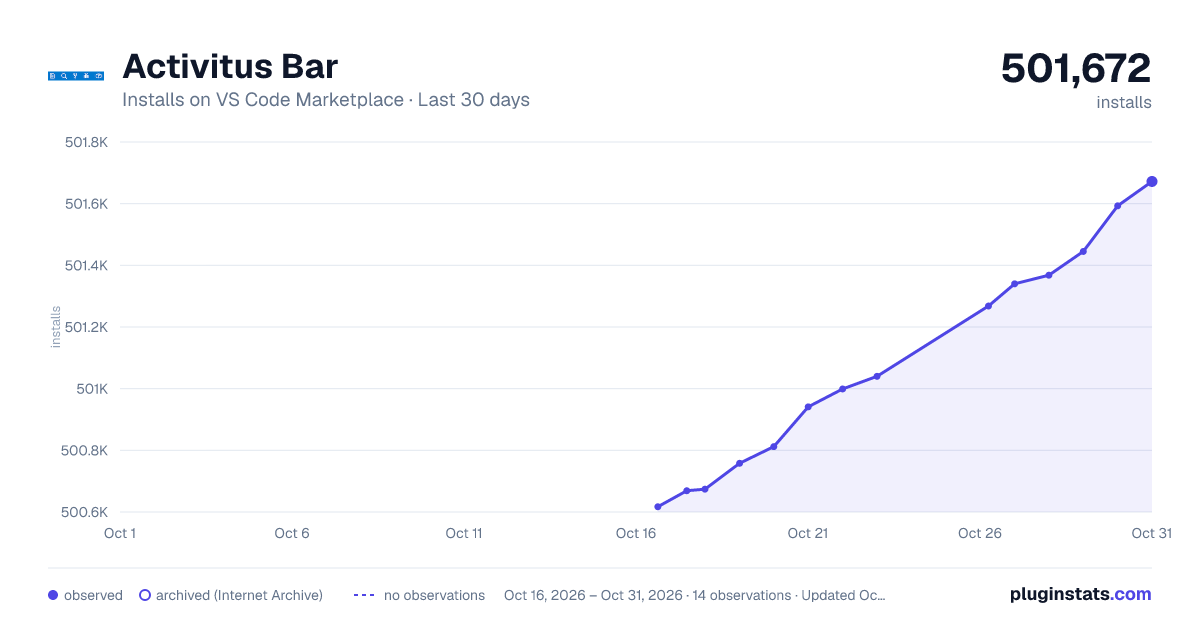
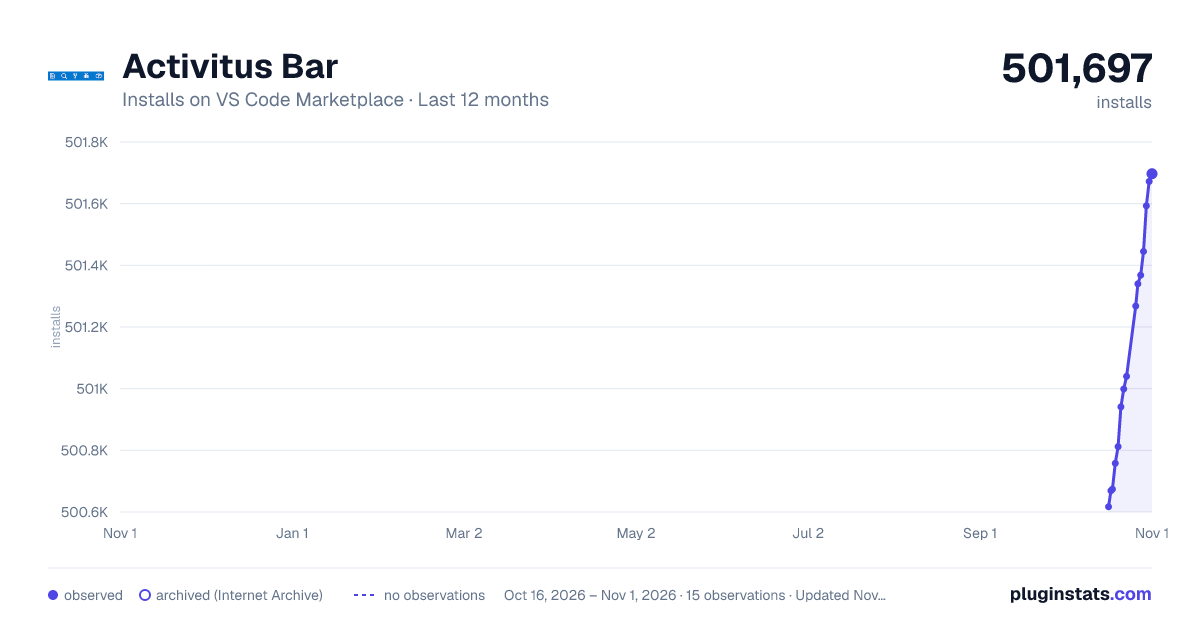
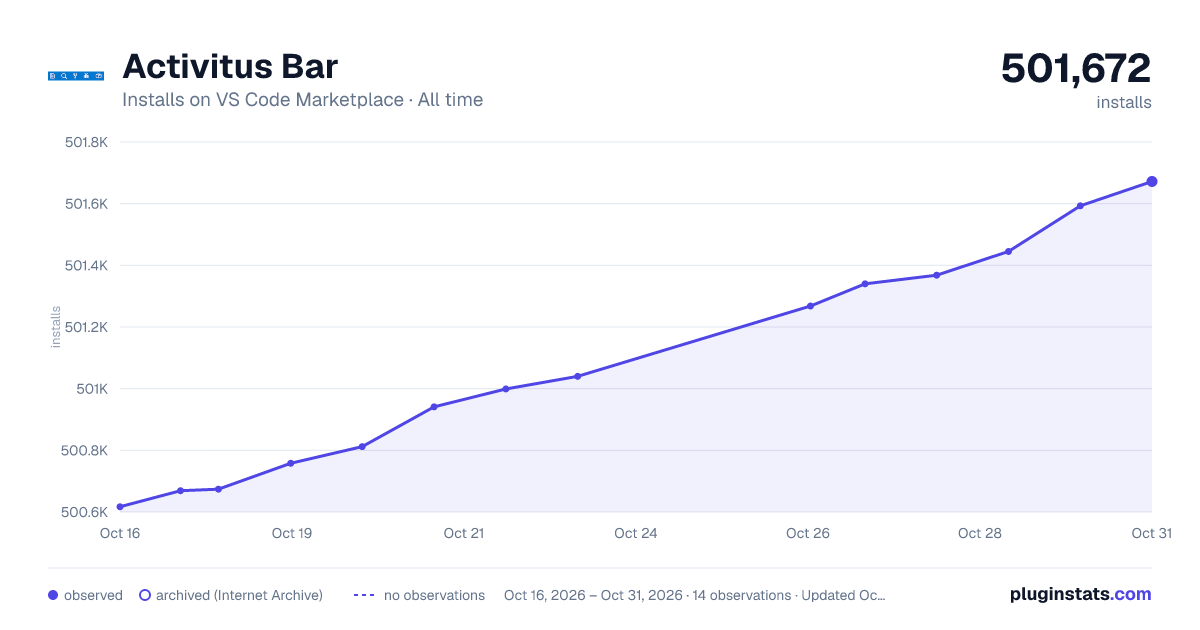
Activitus Bar has 500,674 recorded installs on VS Code Marketplace.
It ranks #849 of 2,500 tracked VS Code Marketplace listings by installs.
It is rated 5.0 out of 5 from 37 ratings.
PluginStats has 3 daily observations since Oct 16, 2026; the latest is from Oct 18, 2026.
Rating: 4.97 / 5 from 37 ratings
About Activitus Bar
Activitus Bar
One of my work colleagues was complaining about the activity bar wasting too much space, so this simply puts icons on the status bar that open the views of the activity bar. You can then hide the activity bar from the View menu...
Configuration
The buttons are configurable, using activitusbar.views. This is a array containing objects with names, their associated icons and optional tooltips or labels. By default, all standard views are enabled, i.e. Explorer, Search, SCM, Debug and Extensions. (*See Default Configuration below*). When overriding the default settings, default icons will be used if not specified.
The panel views Terminal, Problems, Output and Debug Console can now also be moved to the activity bar. The extension supports these using the names "terminal", "problems", "output" and "debugConsole", again with default icons. These buttons will still work if the panel views are kept in the default location, but the views will not hide again if activitusbar.toggleSidebar is enabled.
The colour of the active and inactive buttons can also be specified using activitusbar.activeColour and activitusbar.inactiveColour. The configuration accepts either theme colour names (e.g. editor.foreground, see for the full list), standard HTML/CSS colour names or hex colour codes (e.g. #ff0000). If the colours are not specified in the configuration, the current status bar foreground (statusBar.foreground) and the inactive activity bar icon (activityBar.inactiveForeground) are used.
If required, the position of the icons can be adjusted by changing the value of activitusbar.priority and activitusbar.alignment. The defaults are 99999 and Left which should place them at the far left or the status bar. Depending on what other extensions are installed, you may need to experiment to find a value which suits. For example, to move everything to the far right, try Right and -99999.
Now that custom view containers are available, the configuration has been extended to support this. To add a button for a custom view, you'll need to find the name of the view name. This is normally shown in the *Feature Contributions* tab of the extension page in the extensions view.
Once you have the name of the view, choose an icon (see known issues below) from the list of codicons and add an entry to activitusbar.views with the format "{ "name": "*<view name>*", "codicon": "*<icon-name>*"}, e.g.
By default, clicking a button again will toggle the sidebar so that it is not visible. If you want to disable this behaviour, set activitusbar.toggleSidebar to false.
Normally configuration in your workspace settings overwrites your user settings. If you want to have a base set of buttons in your user settings and then have additional buttons on a per workspace basis, set activitusbar.combineWorkspaceSettings to true. This will then combine the settings together for each vscode window.
One last option is activitusbar.searchViewInPanel. If you move the search view to the panel (using the context menu) then set this to true to allow the panel to be toggled instead of the sidebar. *Note: Don't set this to true with the search view in the normal position!*
Separators
You can add spaces between buttons by including an empty object ({}) in the view list. If you want a spacer with an icon, just include an icon without a view name, e.g.
Task Buttons
Buttons can also be configured to start tasks. Just use "task.*task-label*". For example, this:
will create a button with the tools icons which starts the "build" task when the button is clicked.
Command Buttons
Buttons can also be configured to run arbitrary commands. Use "command.*command-name*". For example,
will create a button which reloads the window.
Settings Button
You can also add a button which opens the settings GUI using
*Note: Buttons can all have optional tooltips and labels specified. Labels are added to the right of the icon.*
Default Configuration
Source code counter
You can also show a counter which is displayed next to the SCM view button. This attempts to emulate the badge that is shown in the activity bar. This can be enabled by settting:
*Note: Some users have reported that this interferes with VSCode dialogs*.
Keybindings
You may want to override the default keybindings in order to use them with activitusbar. This will also allow the highlighted icon to stay in sync if you use keyboard shortcuts to change view.
*Note: You may also have to disable the default keyboard bindings.*
Known Issues
Because there is no way to know when a view has been selected, the currently active view will not stay in sync if the normal activity bar is used, or the view is changed using the Open View... from the View menu.
If Find in Files is selected from the Edit Menu, again, the currently active view will become out of sync.
Installing
You can install the latest version of the extension via the Visual Studio Marketplace here.
Alternatively, open Visual Studio code, press Ctrl+P or Cmd+P and type:
Source Code
The source code is available on GitHub here.
Description from the VS Code Marketplace listing.
- activity bar
- status bar
- task
- task buttons
- tasks
Where Activitus Bar sits in the listing
Each band is one page of 20. Installs on a log scale. Placement is projected from installs, so it can differ from the marketplace's own sort order. Hover a dot to see the listing.


Charts
Images: 30d · 1y · all time · 1600×900 dark

Adoption over time


7/30/90-day growth


Ranking history


Filled points are observed values; hollow points come from Internet Archive snapshots of the listing page. Dashed segments span periods with no observations — values between points are not interpolated.
Recent observations
Full history (3)Similar VS Code Marketplace Other plugins
Data source
Install counts, average rating, and rating counts come from the public Visual Studio Marketplace gallery API. Installs are cumulative and exclude updates.
Listing: https://marketplace.visualstudio.com/items?itemName=Gruntfuggly.activitusbar. First seen Oct 16, 2026; last successful collection Oct 18, 2026. See the methodology.