 PluginStats
CodeTour installs statistics
By Jonathan Carter (5 listings) · VS Code Marketplace · Other
VS Code extension that allows you to record and playback guided tours of codebases, directly within the editor
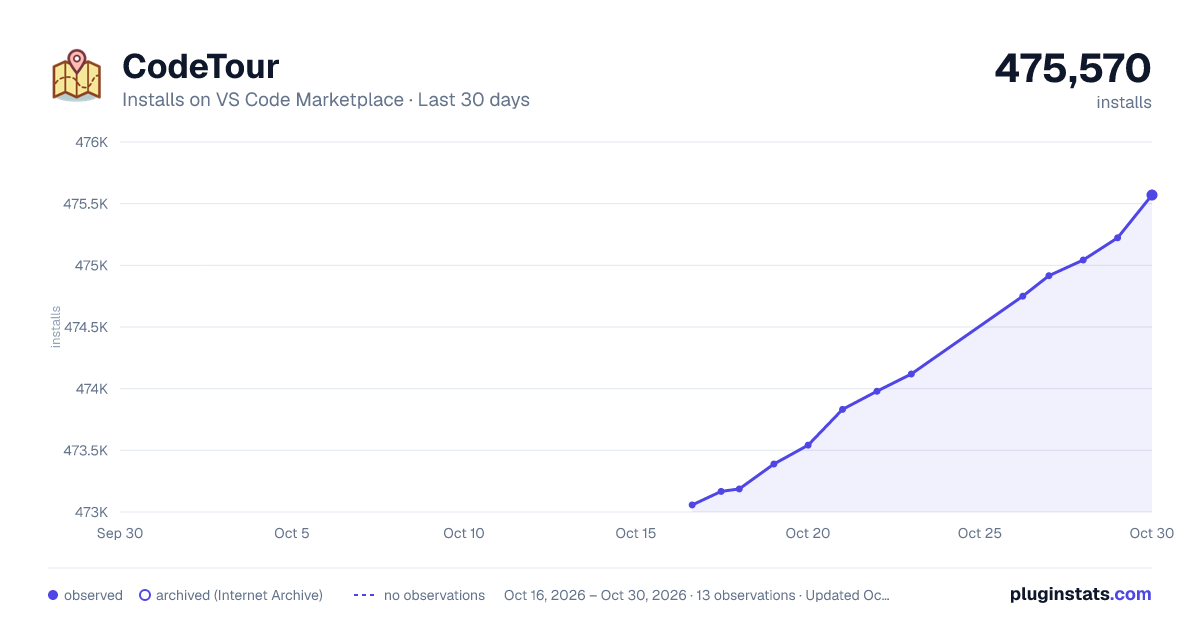
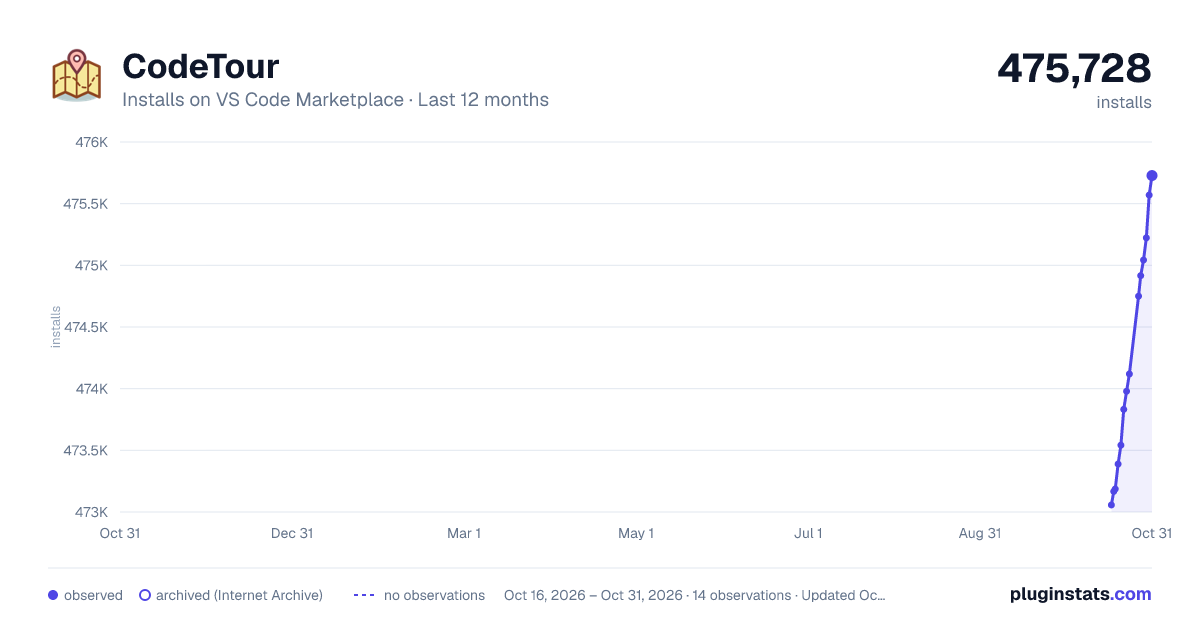
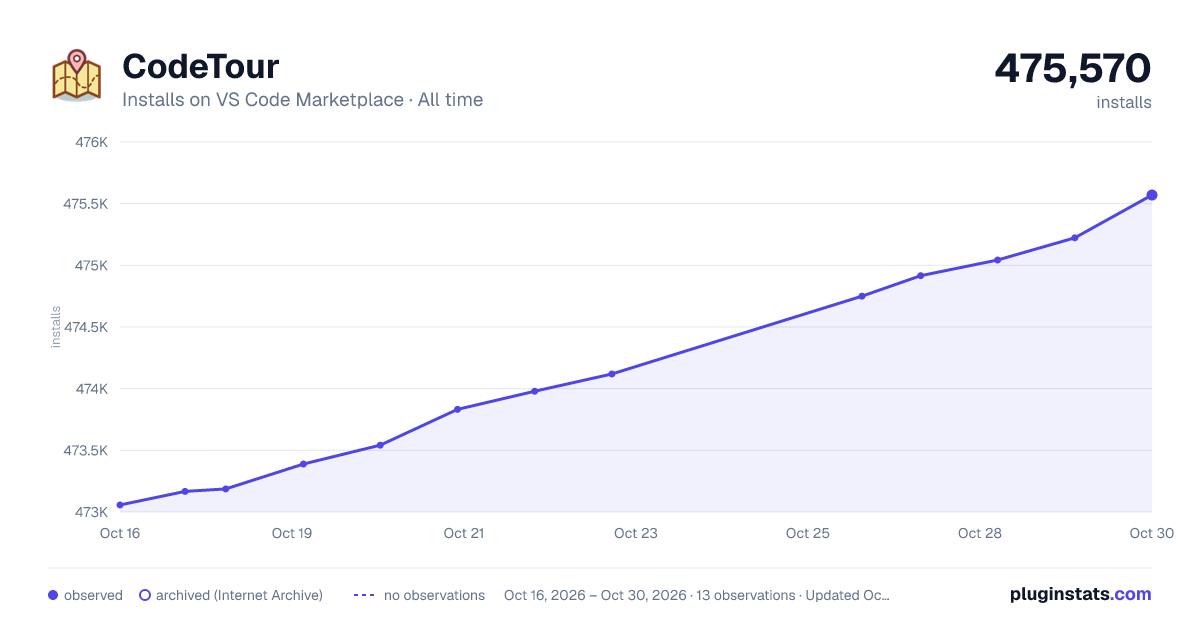
CodeTour has 473,187 recorded installs on VS Code Marketplace.
It ranks #869 of 2,500 tracked VS Code Marketplace listings by installs.
It is rated 5.0 out of 5 from 21 ratings.
PluginStats has 3 daily observations since Oct 16, 2026; the latest is from Oct 18, 2026.
Rating: 5.00 / 5 from 21 ratings
About CodeTour
CodeTour 🗺️
CodeTour is a Visual Studio Code extension, which allows you to record and play back guided walkthroughs of your codebases. It's like a table of contents, that can make it easier to onboard (or re-board!) to a new project/feature area, visualize bug reports, or understand the context of a code review/PR change. A "code tour" is simply a series of interactive steps, each of which are associated with a specific directory, or file/line, and include a description of the respective code. This allows developers to clone a repo, and then immediately start learning it, without needing to refer to a CONTRIBUTING.md file and/or rely on help from others. Tours can either be checked into a repo, to enable sharing with other contributors, or exported to a "tour file", which allows anyone to replay the same tour, without having to clone any code to do it!
Getting Started
In order to get started, install the CodeTour extension, and then following one of the following guides, depending on whether you want to record or play back a tour:
• Recording Tours • Exporting Tours • Starting Tours • Navigating Tours • Maintaining Tours • Reference
Recording Tours
If you'd like to record a code tour for your codebase, you can simply click the + button in the CodeTour tree view (if it's visible) and/or run the CodeTour: Record Tour command. This will start the tour recorder, which allows you to begin opening files, clicking the "comment bar" for the line you want to annotate, and then adding the respective description (including markdown!). Add as many steps as you want, and then when done, simply click the stop tour action (the red square button). You can also create directory steps, selection steps, or content steps in order to add an introductory or intermediate explanations to a tour.
While you're recording, the CodeTour tree view will display the currently recorded tour, and it's current set of steps. You can tell which tour is being recorded because it will have a microphone icon to the left of its name.
If you need to edit or delete a step while recording, click the ... menu next to the step's description, and select the appropriate action. Alternatively, you can edit/delete steps from the CodeTour tree view.
Workspaces
If you record a tour within a "multi-root workspace", you'll be asked to select the folder that you'd like to save the tour to. This is necessary because tours are written as files to your workspace, and so we need to disambiguate which folder the tour should be persisted to. That said, when you're recording a tour, you can add steps that span any of the folders within the workspace, which allows you to create tours for a specific folder and/or that demonstrate concepts across multiple folders within the workspace.
Step Titles
By default, the CodeTour tree displays each tour step using the following display name format: # - . However, if you'd like to give the step a more friendly/recognizeable name, you can do so using one of the following methods:
1. Right-click the step in the CodeTour tree and select Change Title 1. Edit the step's description and add a markdown heading to the top of it, using whichever heading level you prefer (e.g. #, ##, etc.). For example, if you add a step whose description starts with ### Activation, the step and tree view would look like the following:
Text Selection
By default, each step is associated with the line of code you created the comment on (i.e. the line you clicked the + on the comment bar for). However, if you want to call out a specific span of code as part of the step, simply highlight the code before you add the step (clicking the Add Tour to Step button), and the selection will be captured as part of the step.
If you need to tweak the selection that's associated with a step, simply edit the step, reset the selection and then save it. Furthermore, if you want to create a step from a selection, simply highlight a span a code, right-click the editor and select Add CodeTour Step.
Re-arranging steps
While you're recording a tour, each new step that you add will be appended to the end of the tour. However, you can move existing steps up and down in the order by performing one of the following actions:
• Hover over the step in the CodeTour tree and click the up/down arrow icon • Right-click the step in the CodeTour tree and select the Move Up or Move Down menu items • Click the ... menu in the step comment UI and select Move Up or Move Down
Additionally, if you want to add a new step in the middle of a tour, simply navigate to the step that you want to insert a new step after, and then create the new step.
Deleting steps
If you no longer need a specific step in a tour, you can delete it by means of one of the following actions:
• Right-clicking the step in the CodeTour tree and selecting Delete Step • Navigating to the step in the replay/comment UI, selecting the ... menu next to the comment description and selecting Delete Step
If you need to delete multiple steps, the CodeTour tree supports multi-select, so you can Cmd+click (macOS) / Ctrl+click (Windows/Linux) multiple step nodes, and then right-click them and select Delete Step.
Editing a tour
If you want to edit an existing tour, simply right-click the tour in the CodeTour tree and select Edit Tour. Alternatively, you can edit a tour you're actively viewing by clicking the pencil icon in the current step's comment bar, or running the CodeTour: Edit Tour command.
At any time, you can right-click a tour in the CodeTour tree and change it's title, description or git ref, by selecting the Change Title, Change Description or Change Git Ref menu items. Additionally, you can delete a tour by right-clicking it in the CodeTour tree and selecting Delete Tour.
Linking Tours…
Description from the VS Code Marketplace listing.
- Collaboration
- json
- keybindings
- Sharing
Where CodeTour sits in the listing
Each band is one page of 20. Installs on a log scale. Placement is projected from installs, so it can differ from the marketplace's own sort order. Hover a dot to see the listing.


Charts
Images: 30d · 1y · all time · 1600×900 dark

Adoption over time


7/30/90-day growth


Filled points are observed values; hollow points come from Internet Archive snapshots of the listing page. Dashed segments span periods with no observations — values between points are not interpolated.
Recent observations
Full history (3)Similar VS Code Marketplace Other plugins
Data source
Install counts, average rating, and rating counts come from the public Visual Studio Marketplace gallery API. Installs are cumulative and exclude updates.
Listing: https://marketplace.visualstudio.com/items?itemName=vsls-contrib.codetour. First seen Oct 16, 2026; last successful collection Oct 18, 2026. See the methodology.