 PluginStats
Vale Linter installs statistics
By Chris Chinchilla (2 listings) · VS Code Marketplace · Linters
The Vale linter extension for Visual Studio Code and editors based on Visual Studio Code.
Vale Linter has 92,341 recorded installs on VS Code Marketplace.
It ranks #2481 of 2,500 tracked VS Code Marketplace listings by installs.
It is rated 5.0 out of 5 from 1 ratings.
PluginStats has 3 daily observations since Oct 16, 2026; the latest is from Oct 18, 2026.
Rating: 5.00 / 5 from 1 ratings
About Vale Linter
The Vale extension for Visual Studio Code
The Visual Studio Code extension for Vale.
The Vale extension for Visual Studio Code and editors based on Visual Studio Code such as Cursor provides customizable spelling, style, and grammar checking for a variety of markup formats (Markdown, AsciiDoc, reStructuredText, HTML, and DITA). The extension uses the Vale Language Server which allows for tighter integration with Vale features.
Requirements
• VS Code 1.109.0 or later, or a compatible editor based on that version or later. • Vale 3.10.0 or later, available on the extension host's PATH, configured through vale.valeCLI.path, or installed automatically with vale.valeCLI.installVale. Alternatively, use Docker. • An accessible .vale.ini configuration with rules enabled for the files you want to check. • Internet access on first launch to download the Vale Language Server, and when downloading Vale or syncing packages.
Installation
1. Install Vale - 3.10.0 or later (see note below) or use the extension's options to install Vale automatically. 2. install vale-vscode (this extension) via the Marketplace. 3. Restart VS Code (recommended).
Pre-release versions
The Marketplace receives pre-release builds ahead of stable releases. To opt in, open the extension's Marketplace page in VS Code and choose **Switch to Pre-Release Version. Switch back at any time with Switch to Release Version**.
[!WARNING] Vale versions before 3.10.0 don't support the raw filter expressions this extension sends for setting alert levels or toggling spell check, and fail every lint with filter '...' not found. This happens even if you never touch either setting, since spell checking defaults to false. If your Vale CLI version predates 3.10.0, the extension shows a warning identifying this on startup.
First launch
On first launch the extension downloads the Vale Language Server binary, verifies it against a known SHA-256 checksum, and stores it in VS Code's per-extension global storage directory.
Features
The extension uses any configuration, vocabularies, and packages defined in your Vale configuration. If you experience any issues with the extension, check if Vale runs as expected on the command line first.
Highlight Vale rule violations in the editor and problems view
Vale: Show Readability Metrics computes a Flesch-Kincaid grade level for the active file's saved content and, since readability is document-wide rather than specific to a line, displays it where the vale.readabilityProblemLocation setting says to: the status bar (default), inline in the problems view, or both. It doesn't run automatically as you type or save - re-run the command to refresh it.
Quick fixes
Fix word usage, capitalization, and more using Quick Fixes (macOS: cmd + ., Windows/Linux: Ctrl + .).
The quick fixes feature depends on the underlying rule implementing an action that VS Code can then trigger. A substitution rule with multiple |-separated alternatives (e.g. swap: what if|options|more) offers one quick fix per alternative.
Spell checking
You need a spelling style in your Vale configuration to enable spell-checking.
With no additional Vale configuration, the spell checker uses a Hunspell-compatible US English dictionary. If you want to use other custom dictionaries, then configure your spelling style with custom dictionaries.
The extension supports adding custom exception words to Vale exception lists. For it to work, you need to add a vocabulary path to the vale.vocabPath setting. The extension can then add the selected word to the vocabulary lists from the quick fix menu or by selecting the word and right-clicking.
For example, if you set vale.vocabPath to "MyVocab", it targets _/config/vocabularies/MyVocab/>_.
Vale commands panel
The following commands are available from the Vale panel in the Explorer sidebar and from the command palette (Cmd/Ctrl + Shift + P):
• Vale: Sync downloads and updates the packages defined in your .vale.ini file. You can also enable automatic syncing on startup using the vale.valeCLI.syncOnStartup setting (see Settings below). • Vale: Install or Update Vale installs or updates the Vale binary the language server manages. • Vale: Show Configuration runs vale ls-config and displays the active Vale configuration in the Vale output panel. • Vale: Show Readability Metrics reports the active file's readability metrics. • Vale: Restart Language Server retries installation if needed and restarts all workspace clients without reloading the window. • Vale: Show Diagnostics shows the extension-host location, platform/libc, workspace and config paths, selected Vale execution mode, and language-server startup failures. • Vale: Add to Accept List / Vale: Add to Reject List add the selected (or right-clicked) word to your vocabulary's accept.txt or reject.txt. They need vale.vocabPath set. Also available as quick fixes on spelling alerts.
Multi-root workspaces
The extension starts a separate Vale Language Server instance per workspace folder, each scoped to that folder's files. This means:
• You can set settings such as vale.valeCLI.config, vale.valeCLI.path, and vale.vocabPath per folder (e.g. in each folder's .vscode/settings.json) and the extension resolves them relative to that folder, including ${workspaceFolder} in vale.valeCLI.config and vale.valeCLI.path. • Commands run from the Vale panel or command palette (Vale: Sync, Vale: Show Configuration, Vale: Show Readability Metrics, and the vocabulary commands) act on the workspace folder containing the currently active file, not always the first folder in the workspace. • Adding or removing a folder from the workspace starts or stops its Vale Language Server instance automatically, without needing to reload the window.…
Description from the VS Code Marketplace listing.
Where Vale Linter sits in the listing
Each band is one page of 20. Installs on a log scale. Placement is projected from installs, so it can differ from the marketplace's own sort order. Hover a dot to see the listing.


Charts
Images: 30d · 1y · all time · 1600×900 dark
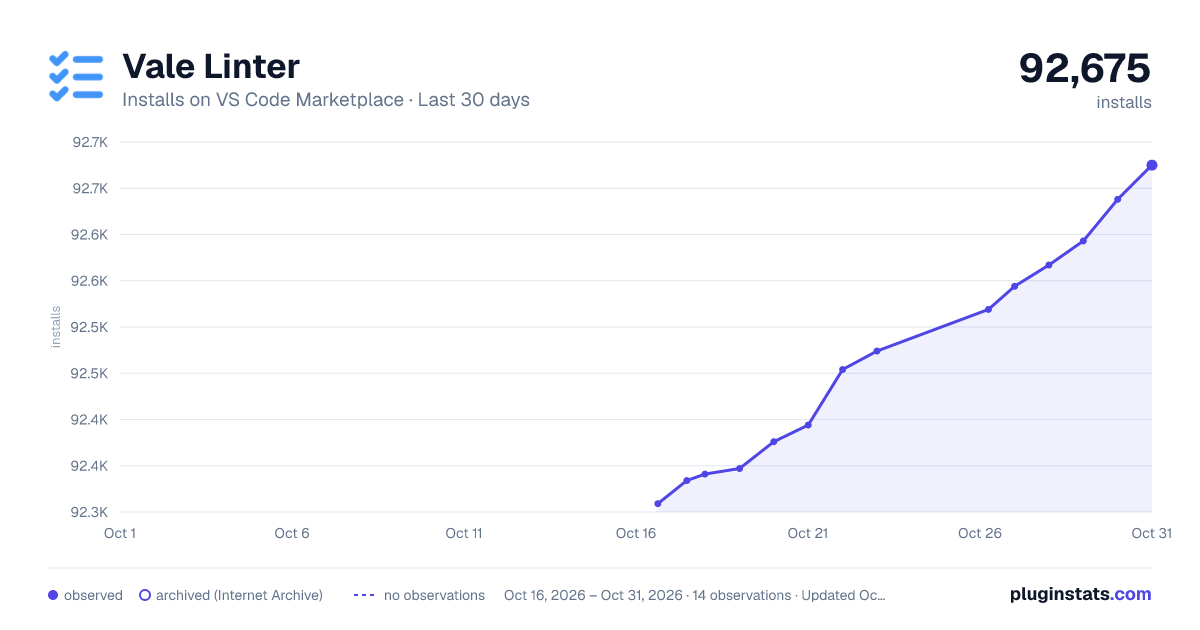
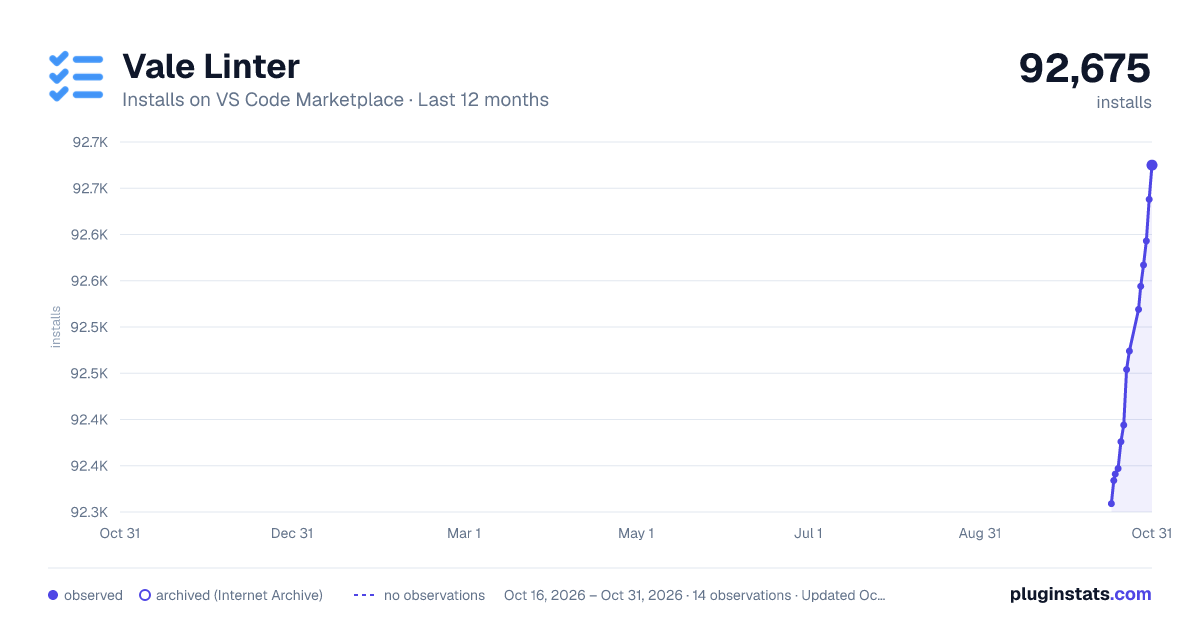
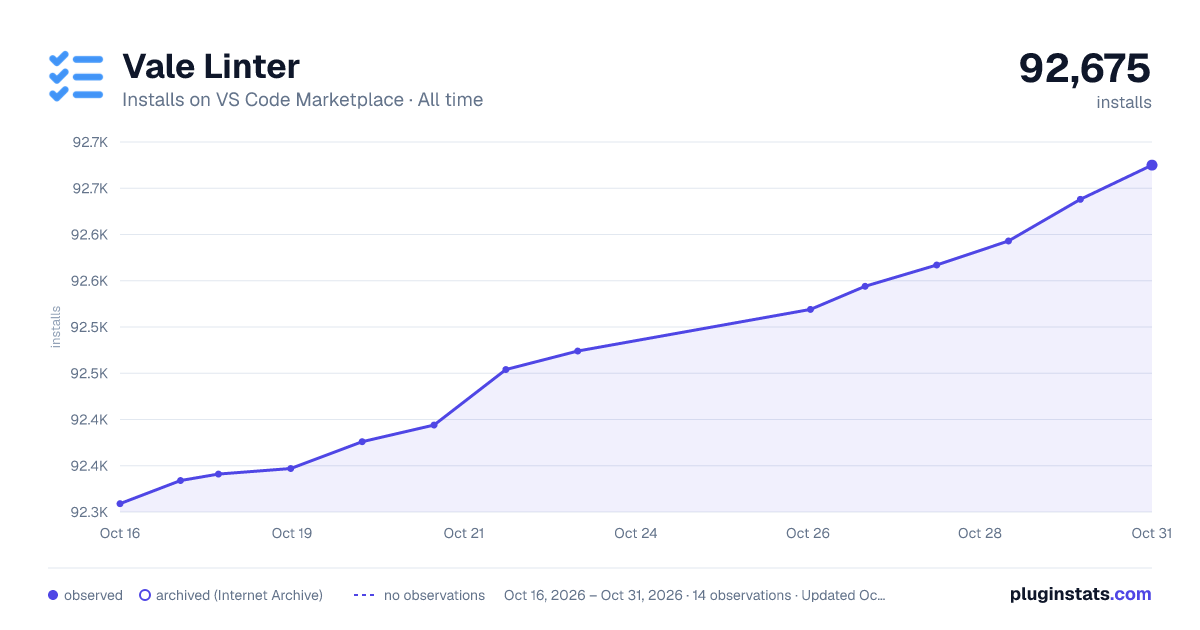

Adoption over time


7/30/90-day growth


Ranking history


Filled points are observed values; hollow points come from Internet Archive snapshots of the listing page. Dashed segments span periods with no observations — values between points are not interpolated.
Recent observations
Full history (3)Similar VS Code Marketplace Linters plugins
Data source
Install counts, average rating, and rating counts come from the public Visual Studio Marketplace gallery API. Installs are cumulative and exclude updates.
Listing: https://marketplace.visualstudio.com/items?itemName=ChrisChinchilla.vale-vscode. First seen Oct 16, 2026; last successful collection Oct 18, 2026. See the methodology.