 PluginStats
GitHub Classroom installs statistics
By GitHub (16 listings) · VS Code Marketplace · Education
Browse, edit and collaborate on your GitHub Classroom assignments
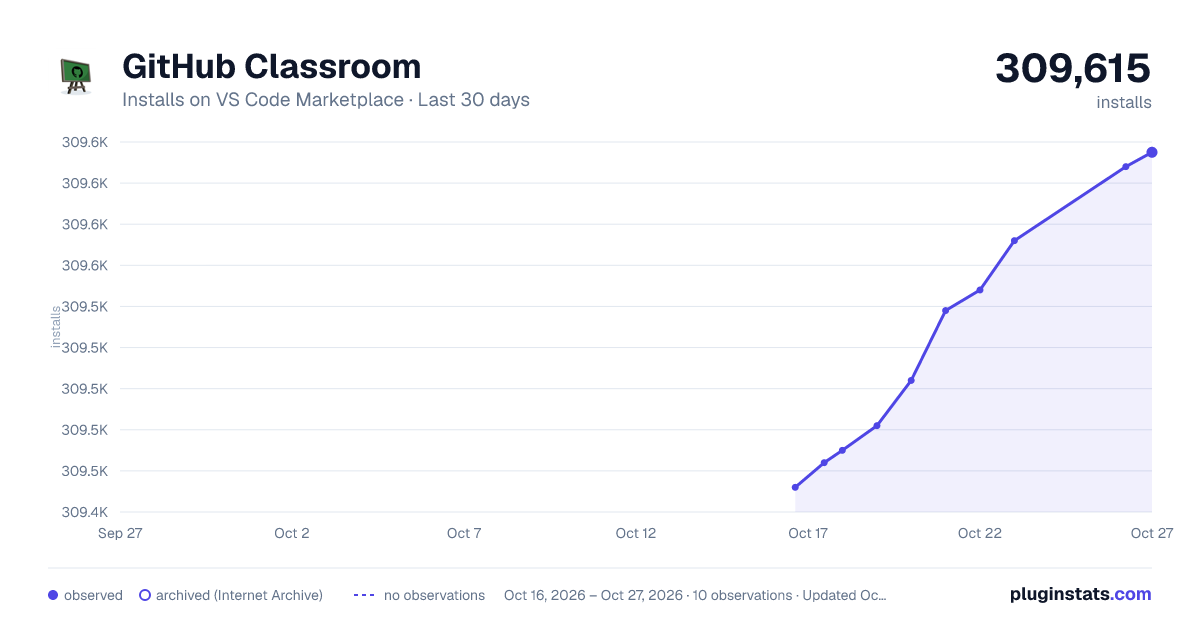
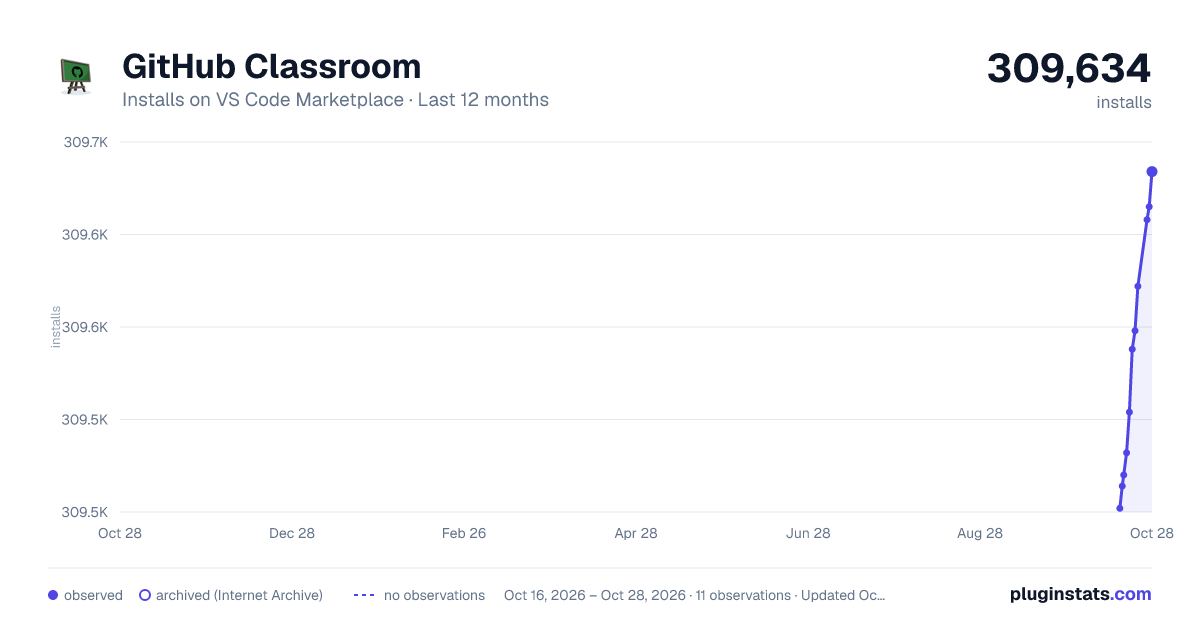
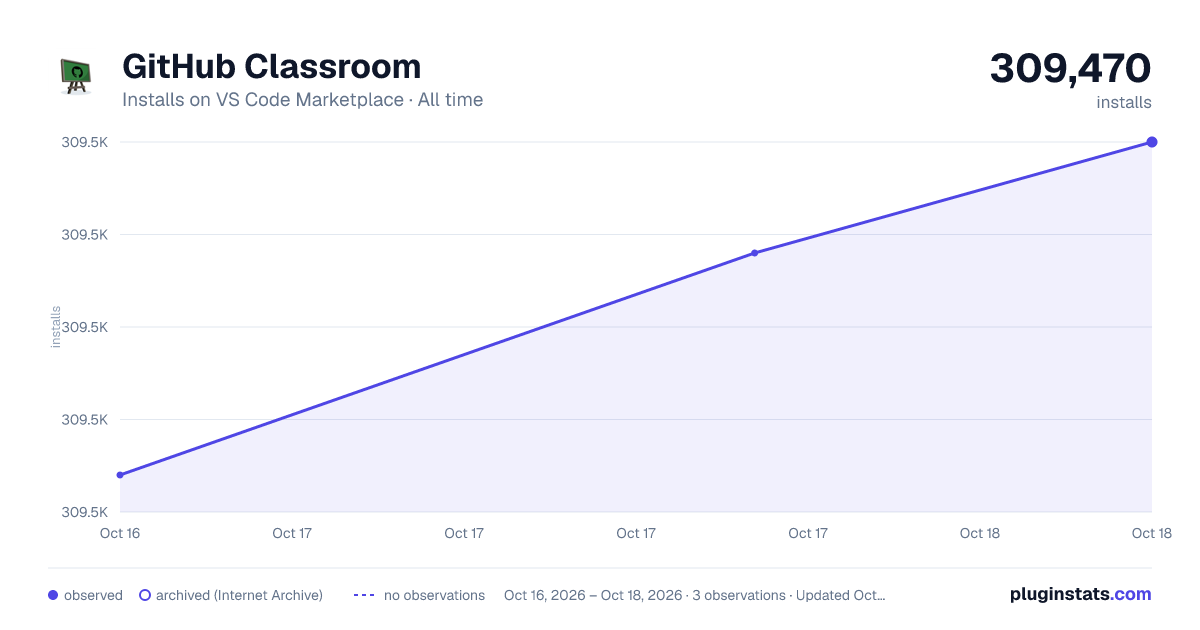
GitHub Classroom has 309,470 recorded installs on VS Code Marketplace.
It ranks #1128 of 2,500 tracked VS Code Marketplace listings by installs.
It is rated 3.4 out of 5 from 10 ratings.
PluginStats has 3 daily observations since Oct 16, 2026; the latest is from Oct 18, 2026.
Rating: 3.40 / 5 from 10 ratings
About GitHub Classroom
GitHub Classroom
ℹ️ _This extension is no longer in active development. The one click "Open in VS Code" experience for opening the assignment from your GitHub repository will still work, but some features of the extension may not work as expected._
The GitHub Classroom extension allows you to browse your classroom assignments, and begin working on them in a single-click. You can open assignments, sync your progress back to GitHub, and see auto-grading test results, directly within Visual Studio Code. When working on a group assignment, you can view the other students in your group, and collaboratively edit and debug together in real-time. Additionally, you can view and reply to feedback that your teacher/TA has left, without having to ever leave your editor 🎓
Prerequisites
Before installing this extension, make sure you have the following prerequisites:
1. An active GitHub account 1. Membership in one or more GitHub Classroom courses 1. Git installed on your computer
ℹ️ _This extension allows you to get started without having any Git experience. So don't worry about needing to learn anything in order start working on an assignment 👍_
Getting Started
Once you've satisfied the prerequisites, perform the following steps to get started:
1. Install this extension and reload VS Code 1. Click on the GitHub tab in the activity bar 1. Expand the Classrooms view, and click on the green Sign in button within it. Complete the sign process, using the GitHub account that's associated with your classroom 1. Find the assignment you want to work on, right-click it in the tree, and select Open Assignment 1. If prompted with a trust dialog, select the checkbox labeled Trust the authors of all files in the parent folder 'github-classroom', and then click the Yes, I trust the authors button.
Alternatively, if you see an Open in Visual Studio Code badge in your assignment's readme, clicking that will automate steps 1-4 for you 🚀
Browsing / Starting Assignments
After you've signed in with your GitHub account, the Classrooms view (within the GitHub tab) will display the list of classrooms you're a member of. If you expand a classroom node in the tree, you can see all of the assignments you've accepted for that classroom, along with their title and submission deadline. To start working on an assignment, simply right-click it and select Open Assignment.
When you have an assignment open, a view called Assignment will appear on the Explorer tab. This allows you to see the details of the assignment you're working on, without having to search for it within the Classrooms view (which could include a large number of classrooms/assignments). From here, you can sync changes and view your test results, as well as collaborate on group assignments.
ℹ️ _The first time you open an assignment, the extension will git clone the assignment's repository to your local machine (within a folder called github-classroom in your $HOME directory). Otherwise, it will simply open the directory that was previously cloned. This behavior allows you to open any assignments you want to work on, without worrying about the details for getting started._
Syncing Changes & Running Tests
After working on an assignment, you can sync your changes back to GitHub, by clicking the Sync Changes button in the header bar of the Assignment view (the circular arrow button). It will ask you for a description of your changes, which provides an opportunity to think about the progress you've made.
This workflow makes it easy to back up your work, and allows your teacher/TA to provide feedback along the way. Additionally, if the assignment has any auto-grading tests associated with it, a new test run will be automatically kicked-off after you've synced changes. Once completed, you can see the pass/fail status for each of the tests, along with the points (if any) that are associated with them.
ℹ️ _Behind the scenes, the Sync Changes command is simply performing a git pull, followed by a git commit (using the provided description) and git push. If you're comfortable with the git CLI, you could run these commands yourself, and achieve the same results. However, it's recommended that you use the Sync Changes button, since that will trigger a new test run within the UI._
Collaborating on Assignments
In addition to test results, the Assignment view allows you to work with others, by inviting them into a collaboration session. If you expand the Group node, you can see the list of admins for your class (the teacher and any TAs), along with their availability status (e.g. online, away, do-not-disturb). If you'd like to seek assistance from one of them, simply hover over their tree node and click the share icon. This will send a collaboration request, and if accepted, will start a co-editing session where you can see each other cursors, highlights, and more.
If the active assignment is a group project, the Group node will also display the list of students in your group. This makes it easy to work together on the assignment, via an editor-integrated collaboration experience. You can differentiate between admins and students in the tree, because admins will have an Admin label displayed to the right of their name.
ℹ️ _The real-time collaboration experience is powered by the Visual Studio Live Share extension. If you'd like to learn more about how it works, be sure to check out the docs for more information._
Viewing Assignment Feedback
As you sync changes, your teacher and TAs can choose to leave feedback on your assignment, which can be helpful in guiding your work before it's actually submitted. In GitHub Classroom, asynchronous feedback is provided as comments on a pull request (PR) in your assignment's GitHub repository. To make it easy to view and reply to feedback, this extension bundles the GitHub Pull Requests extension, which allows you to open the feedback PR directly in the editor.
Contributed Commands…
Description from the VS Code Marketplace listing.
- classroom
- github
- student
Where GitHub Classroom sits in the listing
Each band is one page of 20. Installs on a log scale. Placement is projected from installs, so it can differ from the marketplace's own sort order. Hover a dot to see the listing.


Charts
Images: 30d · 1y · all time · 1600×900 dark

Adoption over time


7/30/90-day growth


Ranking history


Filled points are observed values; hollow points come from Internet Archive snapshots of the listing page. Dashed segments span periods with no observations — values between points are not interpolated.
Recent observations
Full history (3)Similar VS Code Marketplace Education plugins
Data source
Install counts, average rating, and rating counts come from the public Visual Studio Marketplace gallery API. Installs are cumulative and exclude updates.
Listing: https://marketplace.visualstudio.com/items?itemName=GitHub.classroom. First seen Oct 16, 2026; last successful collection Oct 18, 2026. See the methodology.