 PluginStats
Markdown Preview Mermaid Support installs statistics
By Matt Bierner (11 listings) · VS Code Marketplace · Other
Adds Mermaid diagram and flowchart support to VS Code's builtin markdown preview
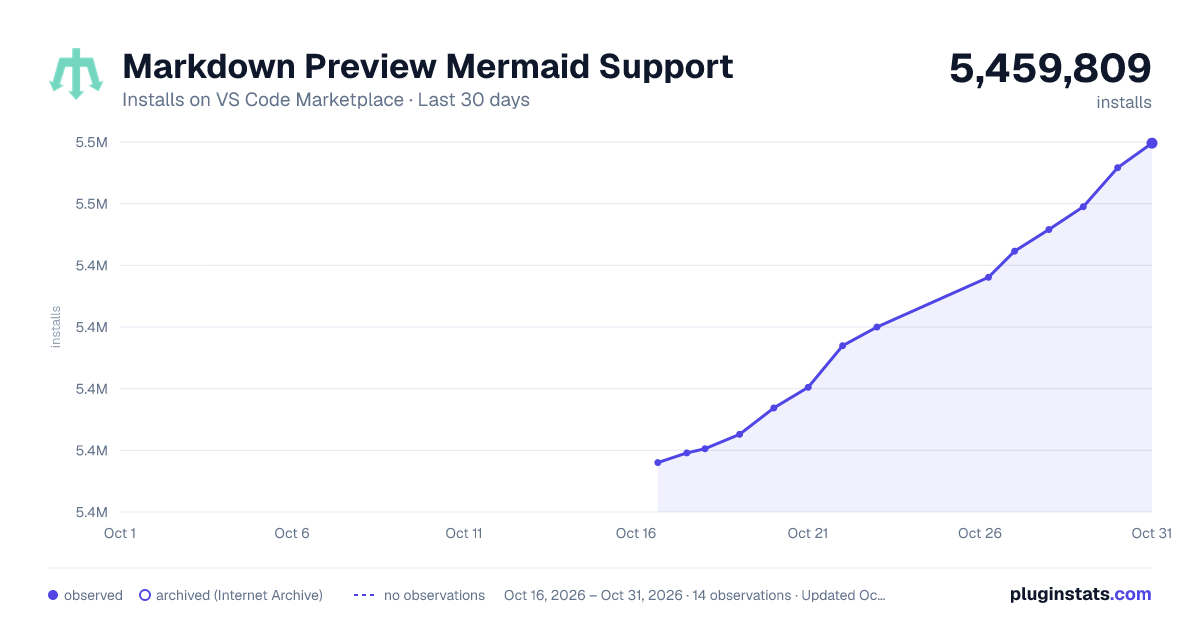
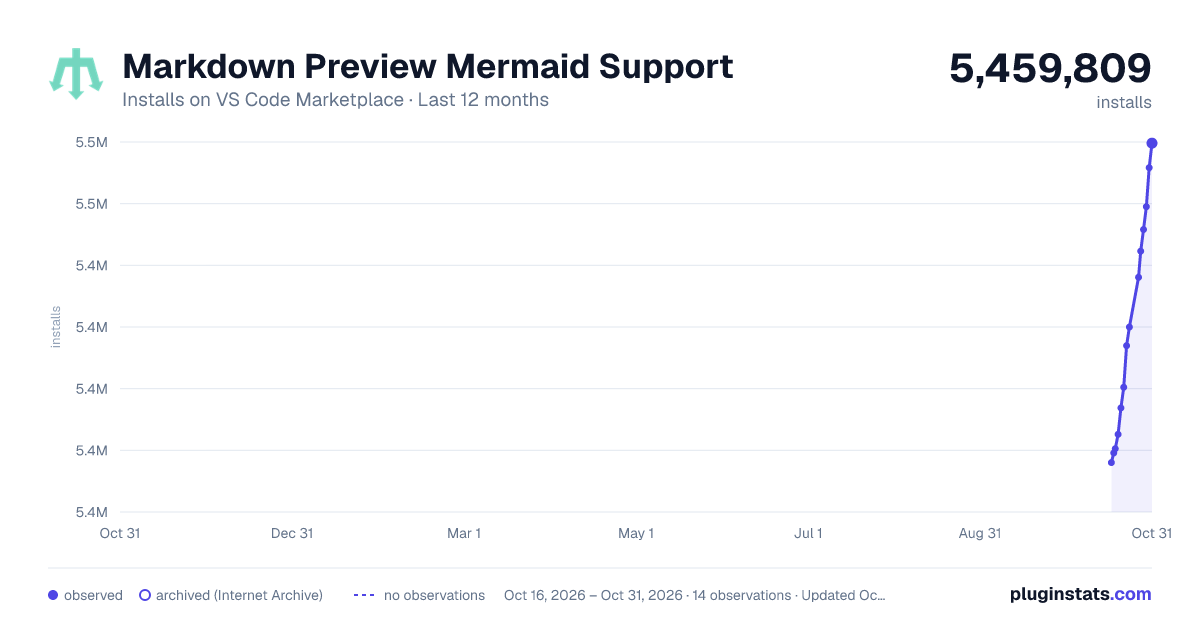
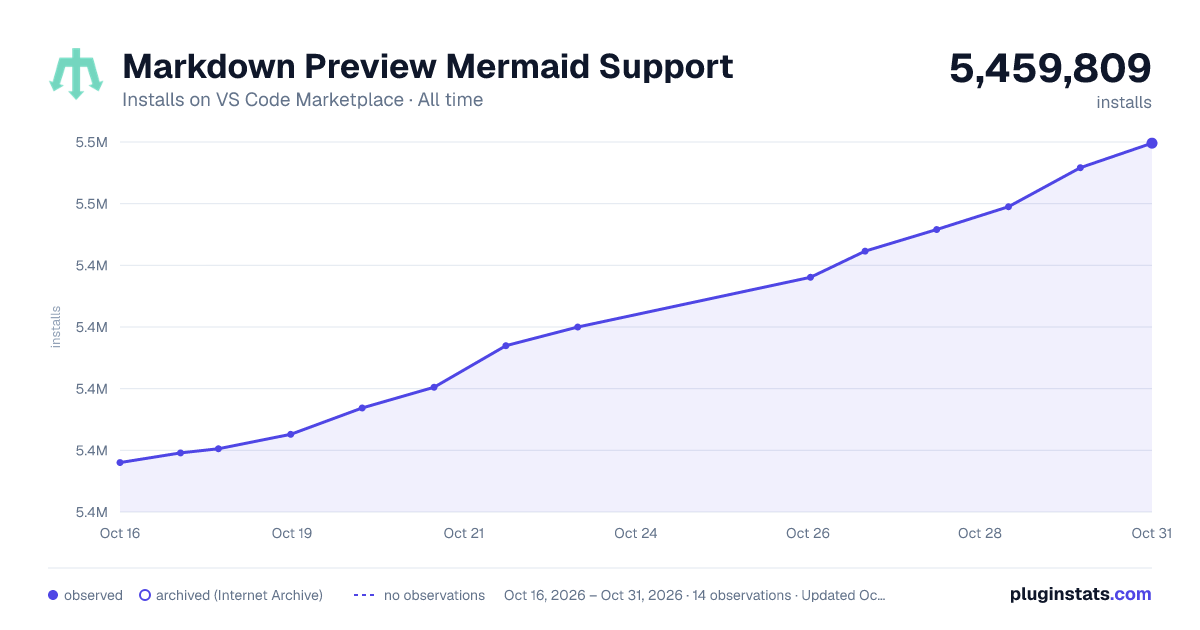
Markdown Preview Mermaid Support has 5,410,257 recorded installs on VS Code Marketplace.
It ranks #173 of 2,500 tracked VS Code Marketplace listings by installs.
It is rated 4.6 out of 5 from 60 ratings.
PluginStats has 3 daily observations since Oct 16, 2026; the latest is from Oct 18, 2026.
Rating: 4.62 / 5 from 60 ratings
About Markdown Preview Mermaid Support
[!WARNING] This extension is deprecated as it has been merged into VS Code 1.121.
Markdown Preview Mermaid Support
Adds Mermaid diagram and flowchart support to VS Code's builtin Markdown preview and to Markdown cells in notebooks.
Currently supports Mermaid version 11.12.0.
Usage
Create diagrams in markdown using mermaid fenced code blocks:
You can also use ::: blocks:
Supports MDI and logos icons from Iconify:
Navigating Diagrams
Mermaid diagrams support panning and zooming to help explore large or complex diagrams. By default, navigation controls appear when you hover over or focus on a diagram. You can also navigate diagrams using the mouse:
Zooming
To zoom in and out of diagrams:
• Zoom controls — Use the + and - buttons that appear in the navigation controls • Scroll wheel — Hold alt (option on Mac) and scroll to zoom • Pinch-to-zoom — Use a trackpad pinch gesture • Click zoom — Alt+click to zoom in, Alt+Shift+click to zoom out
To reset the zoom level and position, click the reset button in the controls.
Panning
To pan around a diagram:
• Click and drag — Hold alt (option on Mac) and click and drag to pan • Pan mode — Click the pan mode button in the navigation controls to enable click-and-drag panning without holding alt. Click it again to turn off pan mode.
By default, click-and-drag panning requires holding the alt key to prevent accidental panning. Use markdown-mermaid.mouseNavigation.enabled to change this:
• always — Click and drag always pans (no modifier key needed) • alt — Click and drag only pans when holding alt (default) • never — Disable mouse-based panning (controls and pinch-to-zoom still work)
Resizing
Diagrams can be resized vertically by dragging the bottom edge. This is most useful if you use the markdown-mermaid.maxHeight setting or use css to limit the diagram's natural size.
Use markdown-mermaid.resizable to disable this behavior, or markdown-mermaid.maxHeight to set a maximum height.
Configuration
markdown-mermaid.lightModeTheme
Configures the Mermaid theme used when VS Code is using a light color theme. Supported values:
• base • forest • dark • default • neutral
Currently not supported in notebooks.
markdown-mermaid.darkModeTheme
Configures the Mermaid theme used when VS Code is using a dark color theme. Supported values:
• base • forest • dark • default • neutral
Currently not supported in notebooks.
markdown-mermaid.languages
Configures language ids used to identify Mermaid code blocks in markdown. The default is ["mermaid"].
markdown-mermaid.mouseNavigation.enabled
Controls when mouse-based navigation (panning and zooming) is enabled. The default is alt. Supported values:
• always — Always enable mouse navigation on mermaid diagrams • alt — Only enable mouse navigation when holding down alt (option on Mac) • never — Disable mouse navigation
markdown-mermaid.controls.show
When to show navigation control buttons. The default is onHoverOrFocus. Supported values:
• never — Never show navigation controls • onHoverOrFocus — Show navigation controls when hovering over or focusing on a diagram • always — Always show navigation controls
markdown-mermaid.resizable
Allow diagrams to be resized vertically by dragging the bottom edge. The default is true.
When enabled, you can drag the bottom edge of any diagram to adjust its height. The custom height is preserved as long as the diagram content doesn't change.
markdown-mermaid.maxHeight
Maximum height for diagrams. Can be a number (pixels) or a CSS value like 80vh or 400px. Leave empty for no limit. The default is empty (no limit).
Examples: • 400 — 400 pixels. • 80vh — 80% of the viewport (markdown-preview) height.
markdown-mermaid.maxTextSize
Maximum allowed size of diagram text. The default is 50000.
Using custom CSS in the Markdown Preview
You can use the built-in functionality to add custom CSS. More info can be found in the markdown.styles documentation
For example, add Font Awesome like this:
Use it like this:
Description from the VS Code Marketplace listing.
- chart
- diagram
- diagrams
- flowchart
- markdown
- mermaid
- mermaidjs
- preview
Where Markdown Preview Mermaid Support sits in the listing
Each band is one page of 20. Installs on a log scale. Placement is projected from installs, so it can differ from the marketplace's own sort order. Hover a dot to see the listing.


Charts
Images: 30d · 1y · all time · 1600×900 dark

Adoption over time


7/30/90-day growth


Ranking history


Filled points are observed values; hollow points come from Internet Archive snapshots of the listing page. Dashed segments span periods with no observations — values between points are not interpolated.
Recent observations
Full history (3)Similar VS Code Marketplace Other plugins
Data source
Install counts, average rating, and rating counts come from the public Visual Studio Marketplace gallery API. Installs are cumulative and exclude updates.
Listing: https://marketplace.visualstudio.com/items?itemName=bierner.markdown-mermaid. First seen Oct 16, 2026; last successful collection Oct 18, 2026. See the methodology.