 PluginStats
Edit CSV installs statistics
By janisdd · VS Code Marketplace · Other
extension to edit csv files with a table ui
Edit CSV has 2,525,255 recorded installs on VS Code Marketplace.
It ranks #291 of 2,501 tracked VS Code Marketplace listings by installs.
It is rated 4.7 out of 5 from 114 ratings.
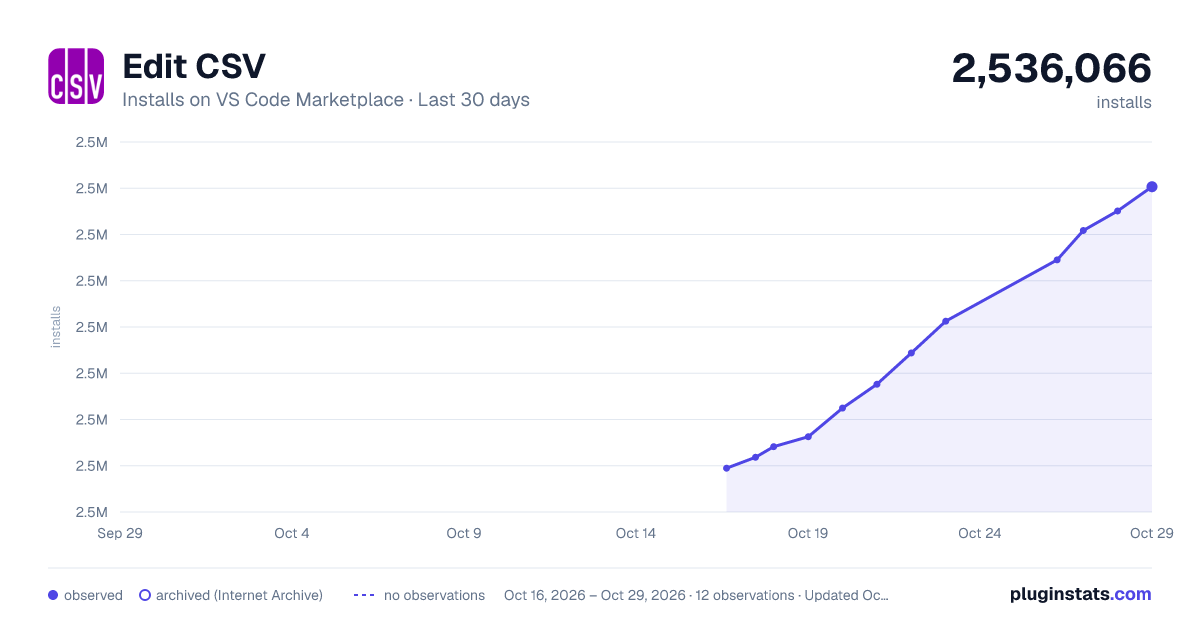
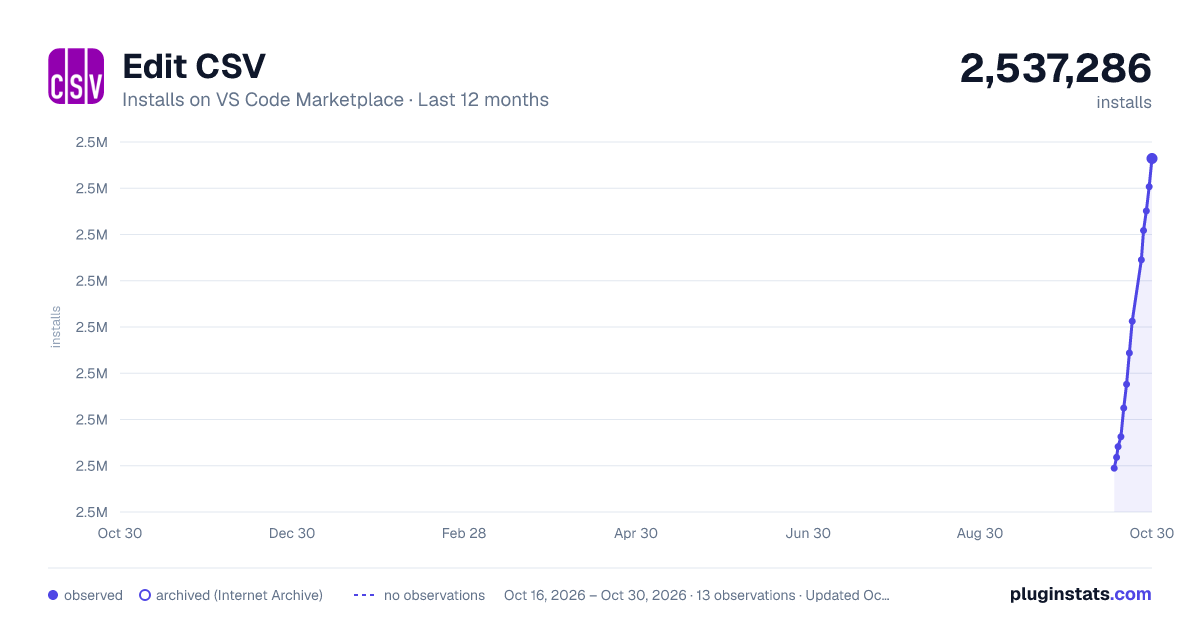
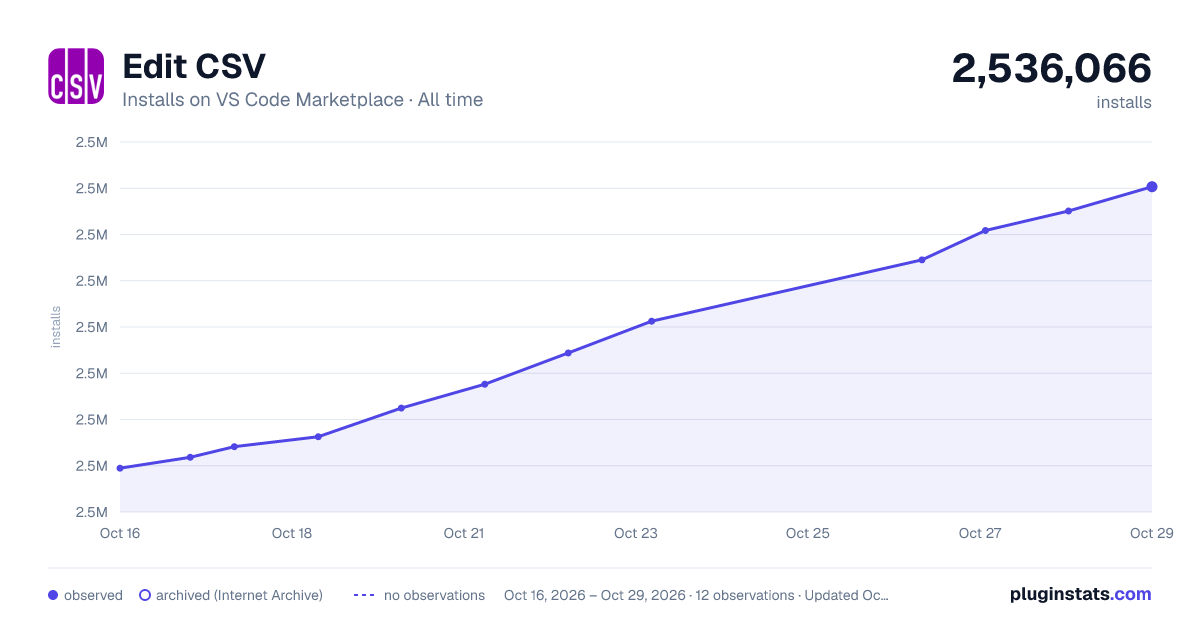
PluginStats has 4 daily observations since Oct 16, 2026; the latest is from Oct 19, 2026.
Rating: 4.73 / 5 from 114 ratings
About Edit CSV
vscode-edit-csv
This extensions allows you to edit csv files with an excel like table ui
Web version
If you don't have vs code to hand, you can use the online version at https://edit-csv.net
Features
Execute the command edit as csv to open an editor for the current file.
*Execute the command again to switch back to the source file or to switch back to the editor*
Note that the data flow is one way (editor to source file). If you make changes to the source file (.csv) while the editor is open, the editor will not be updated!
¡ Important Notes !
• On initial load all rows are expanded so that all rows have equal length (number of cells (if necessary)) • if that happens you will see the unsaved changes indicator right from the start • enabling/disabling the has header read option will clear the undo/redo stack! • empty lines are skipped! • this will not trigger the unsaved changes indicator • (during parsing) a row is also empty when it only contains "" • this can be problematic if you have only 1 column... • We try to retain quote information (default) but in *some cases* fields could get unquoted on save (see Retain Quote Information Rules) • Comment row (rows starting with a comment) will only export the first cell • if you accidentally added comment text to a cell other than the first cell you will notice it (color) • Adding new lines to comments rows (via alt + enter) will have no effect when exporting (lines breaks are removed in comments!) • leading spaces will be removed in comment rows! • Starting with Version 0.1.0 the table has a context menu (right-click the table) • *(just mentioning it because it is not obvious via the ui)* • Plugin Version 0.0.11 had an issue with loading and saving files with more than \~1 MB • saved files were corrupted (content of the first \~1MB was repeated after the first \~1MB until the file size was reached)
Retain Quote Information Rules
during parsing information about the quotes are stored
• quote information is only stored for columns • only the first non-comment, not empty row (no fields) is used to gather quote information • if the first row has less cells than other rows • then missing entries are filled with csv-edit.newColumnQuoteInformationIsQuoted (default is not quoted) • manually added columns will get csv-edit.newColumnQuoteInformationIsQuoted quote information • moving columns will also "move" the quote information • e.g. column 3 was quoted and is now column 1 then column 1 is quoted after moving
Implications of this
• columns with mixed cells (quoted and not quoted fields) will get homogeneously quoted
This can be turned off by setting csv-edit.retainQuoteInformation to false In this case all unnecessary quotes are removed
How this extension works
*essentially it's just import csv and export csv*
When you click on Edit CSV file
• the file content is cut into pieced and transferred via [webview].postMessage • the current config is stringified and injected into the editor (webview) html • a manager stores a reference to the webview, source file uri, editor uri • in the webview the pieces are put together and the text is parsed as csv and displayed in the (handsontable) table element
When you click on apply
• the current table is transformed into csv, transferred via vscode.postMessage to the extension and written to the source file • if you clicked on apply by accident, you can undo the changes in the table element (with the usual shortcuts) and apply again or open the source file and just do an undo (with the usual shortcuts) • When you click on apply and save • the first step is equal to apply • then the source file is saved • When you click in Read again • the injected content is used (when the editor was opened), this does not read the source file again
As you can see this does not scale very well with large csv files (needs to be stringified and stored the whole time)
Extension Settings
There are some settings for this plugin. Open the VS Code Settings and search for csv-edit
Supported file types/extension
Files with the extension .csv, .tsv should work out of the box.
You can change the file type in the bottom right corner of the editor (select language mode). This is required for unnamed/new files.
For tsv, make sure the indentation is set to tabs.
File extension xyz is not recognized by the vs code extension
See https://code.visualstudio.com/docs/languages/overview#_adding-a-file-extension-to-a-language
If the link is down: Search for files.associations in the vs code settings. Then add an entry for *.xyz to csv. Now the file is treated as a csv file and is recognized by the extension
Drag to Auto Fill
Starting from version 0.10.0 the setting dragToAutoFill defaults to excelLike.
The other values are none and copyOnly.
none is used to disable auto fill.
Setting dragToAutoFill to copyOnly will copy the selected cell values over and over again. Example: 1,b,3 and you drag the handle 6 cells further will give 1,b,3,1,b,3 as auto fill values. As you can see, there is no interpolation, the selected sequence is copied again and again.
The default setting excelLike imitates the Excel behaviour for automatic fill values.
In most cases it will work *just fine*, but there may be some special cases.
In general, the following values can be filled in automatically: Numbers, month names and dates.
Similar to Excel, you can hold down the alt key before releasing the mouse button to copy the cell values. No interpolation is carried out.
You can find a complete explanation of how automatic filling works in docs/autoFillBehavior.md.
Known Issues…
Description from the VS Code Marketplace listing.
- CSV
- tsv
Where Edit CSV sits in the listing
Each band is one page of 20. Installs on a log scale. Placement is projected from installs, so it can differ from the marketplace's own sort order. Hover a dot to see the listing.


Charts
Images: 30d · 1y · all time · 1600×900 dark

Adoption over time


7/30/90-day growth


Filled points are observed values; hollow points come from Internet Archive snapshots of the listing page. Dashed segments span periods with no observations — values between points are not interpolated.
Recent observations
Full history (4)Similar VS Code Marketplace Other plugins
Data source
Install counts, average rating, and rating counts come from the public Visual Studio Marketplace gallery API. Installs are cumulative and exclude updates.
Listing: https://marketplace.visualstudio.com/items?itemName=janisdd.vscode-edit-csv. First seen Oct 16, 2026; last successful collection Oct 19, 2026. See the methodology.