 PluginStats
Gradle for Java installs statistics
By Microsoft (223 listings) · VS Code Marketplace · Programming Languages
Manage Gradle Projects, run Gradle tasks and provide better Gradle file authoring experience in VS Code
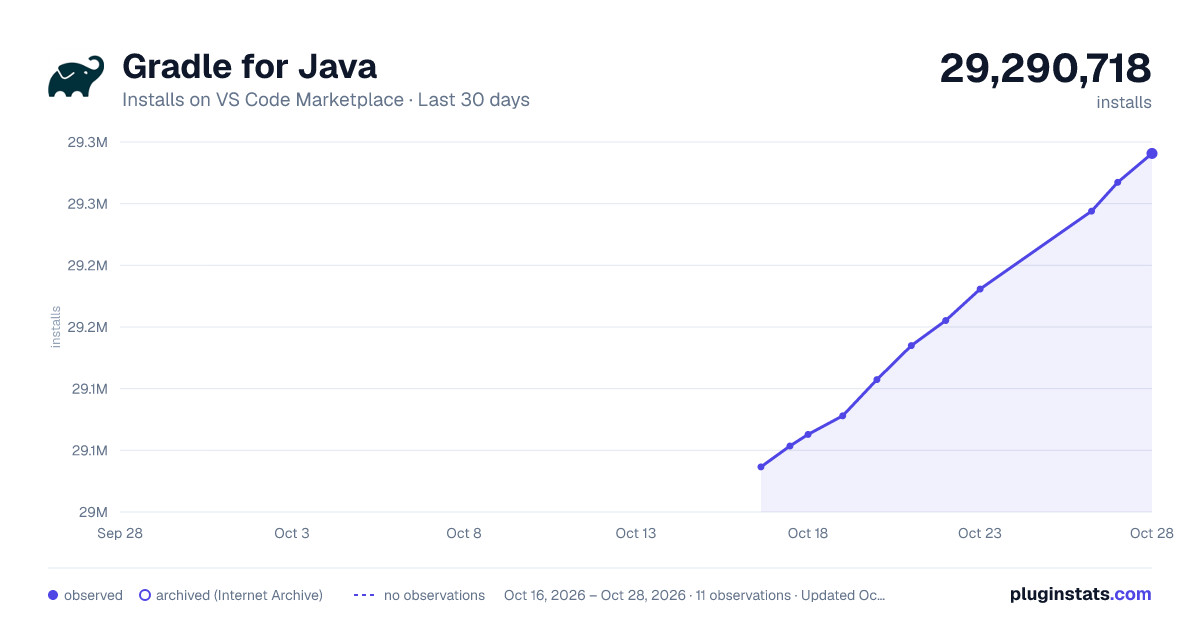
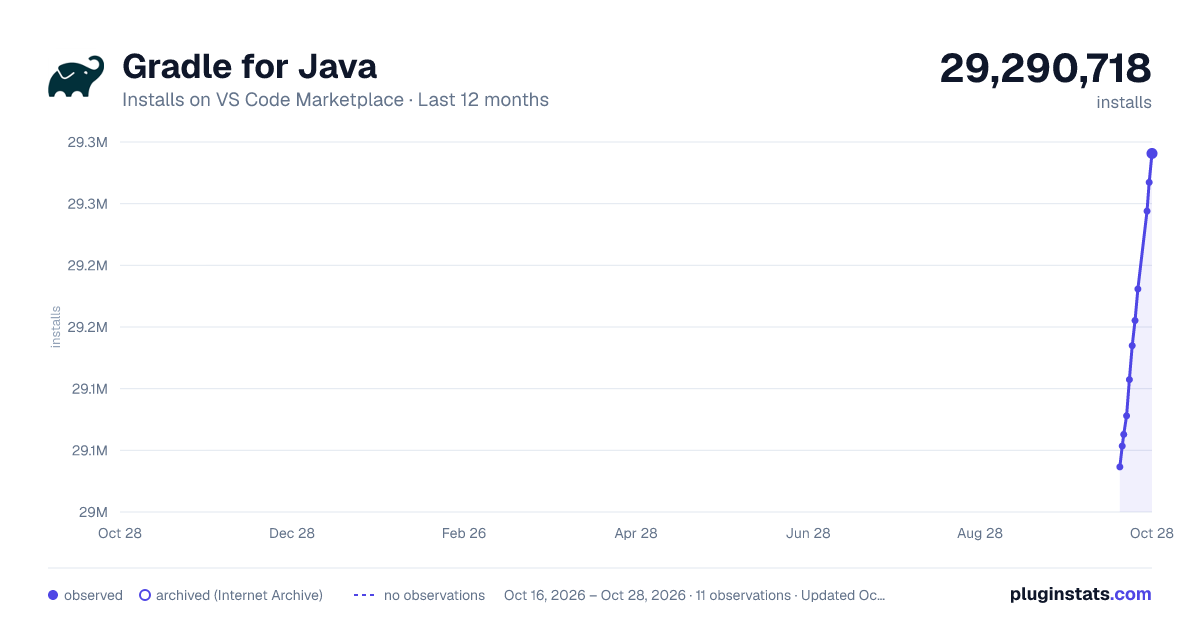
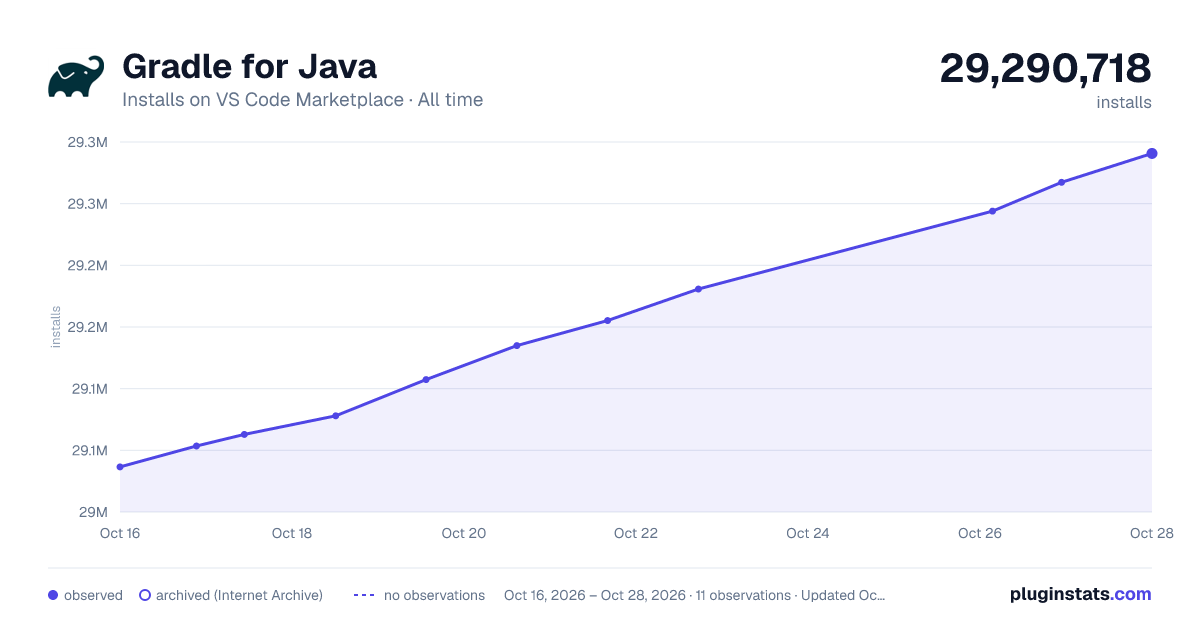
Gradle for Java has 29,062,900 recorded installs on VS Code Marketplace.
It ranks #43 of 2,500 tracked VS Code Marketplace listings by installs.
It is rated 3.4 out of 5 from 15 ratings.
PluginStats has 3 daily observations since Oct 16, 2026; the latest is from Oct 18, 2026.
Rating: 3.40 / 5 from 15 ratings
About Gradle for Java
Gradle for Java
This VS Code extension provides a visual interface for your Gradle build. You can use this interface to view Gradle Tasks and Project dependencies, or run Gradle Tasks as VS Code Task. The extension also offers better Gradle file (e.g. build.gradle) authoring experience including syntax highlighting, error reporting and auto completion. The extension works nicely alongside other Java extensions in the Extension Pack for Java.
Requirements
• VS Code >= 1.76.0 • Java from 8 to 21
Project Discovery
This extension supports both root and nested Gradle projects. A Gradle project is identified by having Gradle Wrapper scripts (gradlew or gradlew.bat) or Gradle build files (build.gradle or settings.gradle and their Kotlin versions) at the root of a directory. (Nested Gradle project discovery is not enabled by default, set "gradle.nestedProjects": true to enable it.)
Feature Overview
Once the extension is activated you will see a new Gradle icon in the activity bar. Clicking on this icon will reveal some tree views in the sidebar.
Protip: you can move drag & drop any of these tree views into the main explorer view for easier access. This is especially useful for pinned tasks.
You can also run any Gradle task as a VS Code task. Access the Gradle VS Code tasks by running Run Task from the command palette.
List projects and tasks
A Gradle build can have one or more projects. Projects are listed in a flat list with the root project listed first, and sub-projects listed alphabetically thereafter.
When you expand a project, tasks are listed in a tree, grouped by the task group. You can toggle the display of the tasks by clicking on the Show Flat List/Show Tree button in the tree view header.
List project dependencies
The project's dependencies are included in the Dependencies item under the project. The dependencies are grouped by Gradle configurations and you can expand each configuration to find the corresponding ones. For omitted dependency (marked with a (*)), you can use the inline button Go to Omitted Dependency to go to the previously listed dependency.
Run tasks
Tasks can be run via:
• Gradle Projects or Recent Tasks tree views • Run Task command • Run a Gradle Build command
A running task will be shown with an animated "spinner" icon in the tree views, along with Cancel Task & Restart Task buttons. The Cancel Task button will gracefully cancel the task. The Restart Task button will first cancel the task, then restart it.
A task will be run in a vscode terminal where you can view the task output.
Send a SIGINT signal (ctrl/cmd + c) in the terminal to gracefully cancel it.
Tasks run via the Run a Gradle Build command are not reflected in any of the tree views. Use this command to specify your own Gradle build arguments, for example to run multiple tasks or to exclude tasks.
Control task terminal behaviour
Use one terminal for each task type (default):
Use one terminal for all tasks:
Don't re-use terminals for any tasks. A new terminal will be created for each task run:
Debug tasks
This extension provides an experimental feature to debug JavaExec and Test tasks. Before using this feature you need to install the Debugger for Java and Language Support for Java extensions.
You might need to specify whether you want to clean output cache before debugging, to ensure Gradle doesn't skip any tasks due to output caching (this is most useful when debugging tests).
Output cache is cleaned by adding a cleanTaskName task (eg cleanTest) to the build.
You should now see a debug command next to the run command in the Gradle Projects view. The debug command will start the Gradle task with jdwp jvmArgs and start the vscode Java debugger.
Pin tasks
As there could be many tasks in a Gradle project, it can be useful to pin commonly used tasks. Pinned tasks will be shown under their project item. Pin a task by accessing the task context menu (by right-clicking a task). You can also pin a task with specific arguments.
To unpin a task, access the task context menu and select Unpin Task, or unpin all pinned tasks by clicking on the Unpin all Tasks button in the overflow button of tree view header.
List recent tasks
Recently run Gradle tasks are listed in a separate tree view. This can be useful to see a history of tasks and to easily access the associated task terminals.
The number shown next to the task is the amount of times the task has been run. Click on the Show Terminal button next to a task to view the most recent terminal for that task. Click on the Close Terminal/s button to close the terminal/s for that task.
Click on the Clear Recent Tasks button in the tree view header to remove all recent tasks from the list, or click on the Close All Terminals button to close all task terminals.
List & kill Gradle daemons
Gradle daemon processes are listed by their process ID in a separate tree view and can have the following states: IDLE, BUSY, STOPPED, STOPPING, CANCELED.
Stop individual daemons by clicking on the Stop Daemon button next to the listed daemon.
Stop all daemons by clicking on the Stop Daemons button in the tree view header.
After stopping a daemon, it will remain in the STOPPED state for a while, but the underlying process won't exist. This is the default Gradle behaviour.
Most of the time there should be no reason to stop a daemon. View more info on the Gradle Daemon from the Gradle website.
The extension uses the Gradle wrapper to list daemons, and is quite a slow process. If the daemon view is not useful for you, you can simply collapse the view, or disable it completely.
Syntax highlighting for Gradle files
When opening a Groovy Gradle file, the Gradle language server will start and provide language features for you.…
Description from the VS Code Marketplace listing.
- build
- compile
- gradle
- gradle-build
- java
- json
- tasks
Where Gradle for Java sits in the listing
Each band is one page of 20. Installs on a log scale. Placement is projected from installs, so it can differ from the marketplace's own sort order. Hover a dot to see the listing.


Charts
Images: 30d · 1y · all time · 1600×900 dark

Adoption over time


7/30/90-day growth


Ranking history


Filled points are observed values; hollow points come from Internet Archive snapshots of the listing page. Dashed segments span periods with no observations — values between points are not interpolated.
Recent observations
Full history (3)Similar VS Code Marketplace Programming Languages plugins
Data source
Install counts, average rating, and rating counts come from the public Visual Studio Marketplace gallery API. Installs are cumulative and exclude updates.
Listing: https://marketplace.visualstudio.com/items?itemName=vscjava.vscode-gradle. First seen Oct 16, 2026; last successful collection Oct 18, 2026. See the methodology.