 PluginStats
Markdown Converter installs statistics
By manuth · VS Code Marketplace · Other
A markdown-converter for vscode
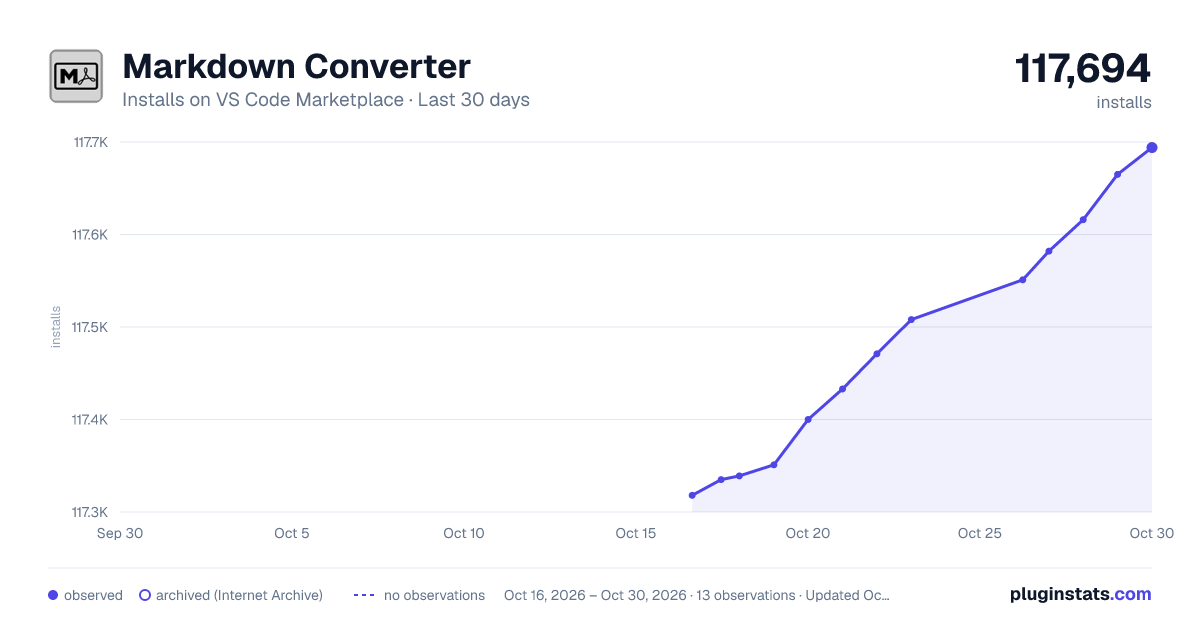
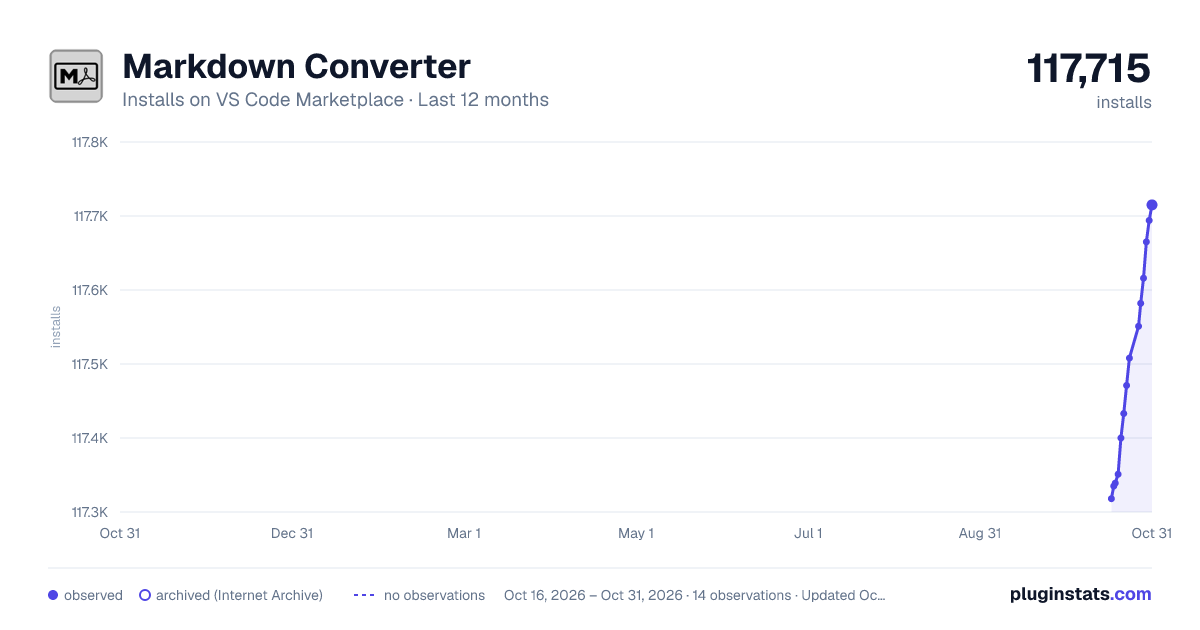
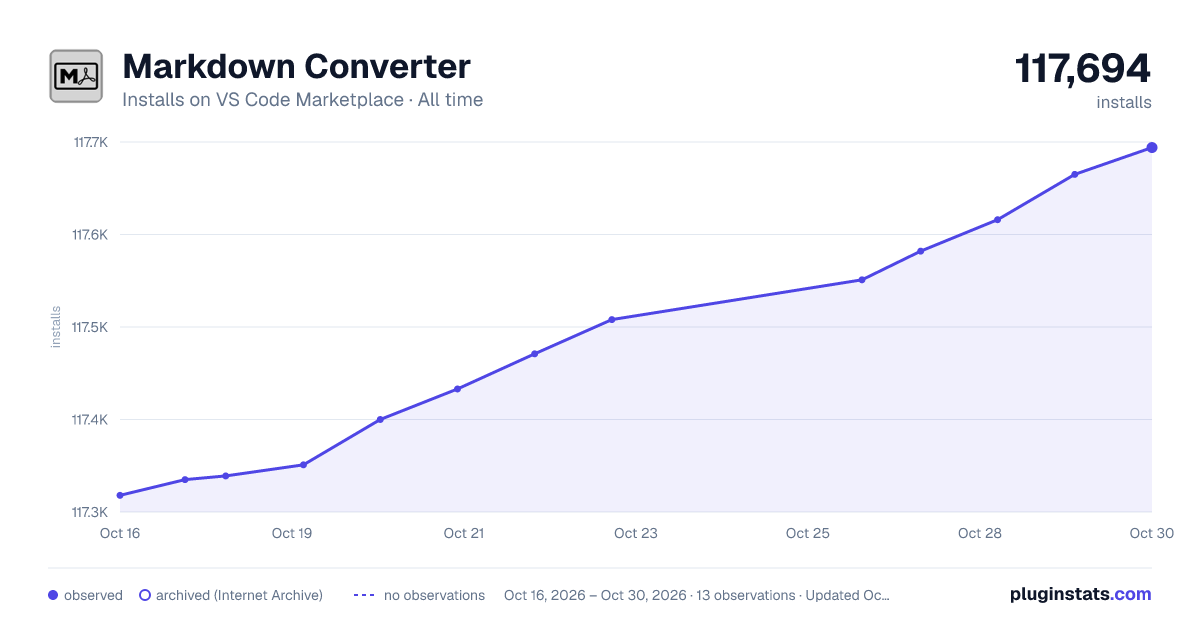
Markdown Converter has 117,351 recorded installs on VS Code Marketplace, ranking #2163 of 2,501 tracked listings.
Rating: 4.57 / 5 from 14 ratings
About Markdown Converter
MarkdownConverter
A markdown-converter for [vscode][vscode]
Table of Contents
• MarkdownConverter • Table of Contents • What is MarkdownConverter? • Usage • Variable Substitution • Date-Formatting • Custom Date-Formats • Headers and Footers • Including Table of Contents • Including Markdown Fragment Files • Creating Block-Level Custom Containers • Third Party Markdown Extensions • Assets • CSS- and JavaScript-Files • Insertion • Pictures • Settings
What is MarkdownConverter?
MarkdownConverter is a Visual Studio Code-extension which allows you to export your Markdown-file as PDF-, HTML or Image-files. It provides many features, such as DateTime-Formatting, configuring your own CSS-styles, custom JavaScript-files, setting Headers and Footers, FrontMatter and much more.
Usage
- Set your desired conversion-types or skip this step to convert your markdown-file to PDF: • Open up your Visual Studio Code-Settings and set markdownConverter.ConversionType to an array of types: 2. Optionally set the pattern for resolving the destination-path: 3. Open up the command pallet (Ctrl, Shift+P) and search one of these commands: • Markdown: Convert Document (Markdown: Dokument Konvertieren in German) or mco (mk in German) for short • Markdown: Convert all Documents (Markdown: Alle Dokumente konvertieren) or mcd (madk in German) for short • Markdown: Chain all Documents (Markdown: Alle Dokumente verketten) or mcad (madv in German) for short 4. Press enter and wait for the process to finish
Normally, MarkdownConverter will refuse to convert files which aren't recognized as markdown-files. If you don't like this behavior, you might want to set markdownConverter.IgnoreLanguageMode to true.
Variable Substitution
Before the conversion, the markdown-file is preprocessed using [Handlebars][Handlebars]. Variables (such as {{ Author }}) are automatically replaced with the corresponding attribute-value. While attribute-names wrapped in 2 braces are HTML-escaped, attribute-names wrapped in 3 braces (for example {{{ Content }}}) aren't escaped allowing it to contain HTML-code.
Example:
Following attributes are predefined and may be overridden by the document-attributes: • Title Either the name of the document-file without extension or Untitled • CreationDate A Date-value indicating the time of the creation of the markdown-file • ChangeDate A Date-value indicating the time of the last change of the content of the markdown-file • CurrentDate A Date-value representing the time of the conversion • Author The assumed name of the author according to GIT_AUTHOR_NAME, GIT_COMMITER_NAME, HGUSER, C9_USER, git, wmic or osascript • Attributes declared inside the vscode-settings (see Settings)
Date-Formatting
Date-attributes are being formatted by default. MarkdownConverter allows you to customize the format of every individual date.
You can format an individual date by using the FormatDate-helper like this:
Example:
Optionally, the FormatDate can be omitted:
By specifying the markdownConverter.DefaultDateFormat-setting, you can set the global default date-format which is applied to all documents by default:
You can override the default date-format for an individual document by adding a DateFormat attribute:
Example:
Custom Date-Formats
There are two predefined date-formats, namely Default and FullDate, which represent date-formats for your current locale.
If you use a specific date-format repeatedly you might want to specify a custom date-format using the markdownConverter.DateFormats setting (see Settings):
settings.json
Example
Headers and Footers
The markdownConverter.Document.HeaderFooterEnabled-setting allows you to enable or disable headers or footers. By default, the header and footer contains three sections: The left, the right and the centered section.
You can set the content of these sections using the markdownConverter.Document.HeaderContent and markdownConverter.Document.FooterContent options:
The content of the individual header- and footer-sections can be overridden for an individual document using attributes:
If you'd like to have more control on what your headers and footers look like, you might want to adjust the markdownConverter.Document.HeaderTemplate and markdownConverter.Document.FooterTemplate options.
Including Table of Contents
The MarkdownConverter provides the functionality to create a table of contents at runtime. Set the markdownConverter.Parser.Toc.Enabled to true to enable the creation of a table of contents.
By default, the markdown-it-table-of-contents plugin looks for a line starting with [[toc]] and replaces it with a table of contents. You might want to set the markdownConverter.Parser.Toc.Indicator to a custom regular expression if you want to have something else replaced with the table of contents.
You can set the class of the table of contents list by setting the markdownConverter.Parser.Toc.Class. The markdownConverter.Parser.Toc.ListType allows you to set whether the table of contents should be rendered as a numbered list (ol => ordered list) or an unordered list (ul).
Furthermore, the markdownConverter.Parser.Toc.Levels allows you to choose which levels to include in the table of contents.
Including Markdown Fragment Files
It is now possible to fragment the document in multiple sections and to merge them all into one. This way, it's possible to work on separate fragments at the same time without having to bear with conflicts during editing. Add fragments using this syntax:
Creating Block-Level Custom Containers
MarkdownConverter allows you to apply CSS classes to specific parts of your document. This feature can be used with the following syntax:
Markdown file:
CSS file:
Third Party Markdown Extensions…
Description from the VS Code Marketplace listing.
- Convert
- HTML
- MarkDown
- PNG
README badge
Show your rank in a README or on your website. The badge updates automatically.
Charts
Images: 30d · 1y · all time · 1600×900 dark

Adoption over time
7/30/90-day growth
Ranking history
Ratings over time
Listing placement
Listing placement
Filled points are observed values; hollow points come from Internet Archive snapshots of the listing page. Dashed segments span periods with no observations — values between points are not interpolated.
Each band is one page of 20. Installs on a linear scale. Placement is projected from installs, so it can differ from the marketplace's own sort order. Hover a dot to see the listing.
Recent observations
Full history (4)Similar VS Code Marketplace Other plugins
All 20 Markdown Converter alternativesData source
Install counts, average rating, and rating counts come from the public Visual Studio Marketplace gallery API. Installs are cumulative and exclude updates.
Listing: https://marketplace.visualstudio.com/items?itemName=manuth.markdown-converter. First seen Oct 16, 2026; last successful collection Oct 19, 2026. See the methodology.