 PluginStats
Remote X11 installs statistics
By Joel Spadin (2 listings) · VS Code Marketplace · Other
Sets the DISPLAY variable when in a remote workspace so that GUI applications can be run from VS Code.
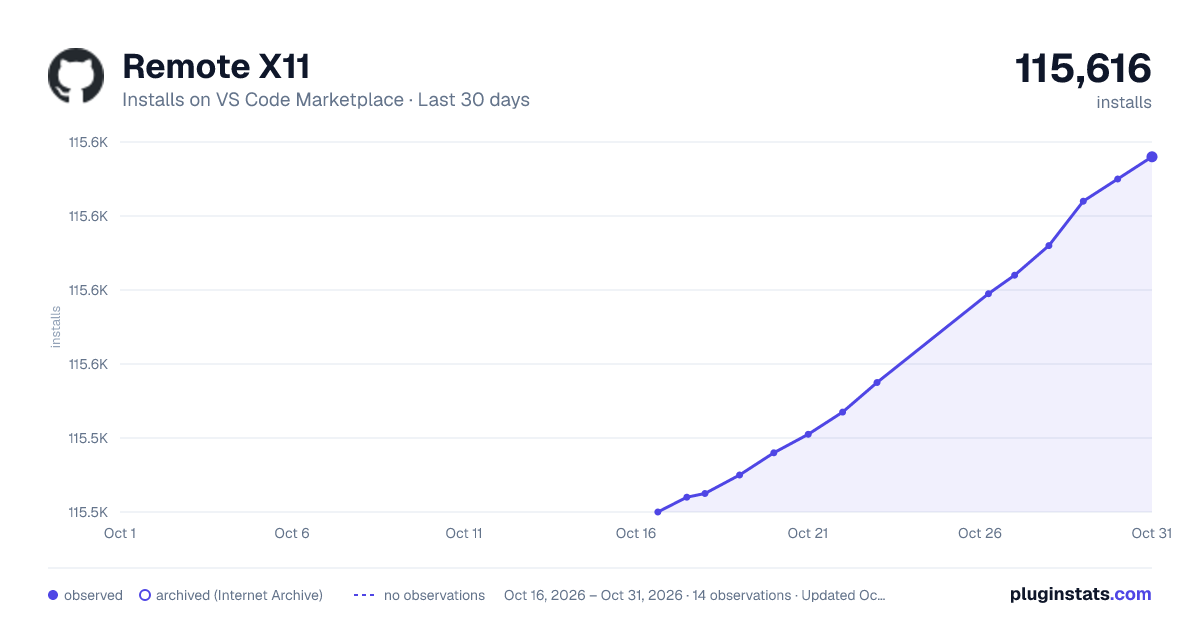
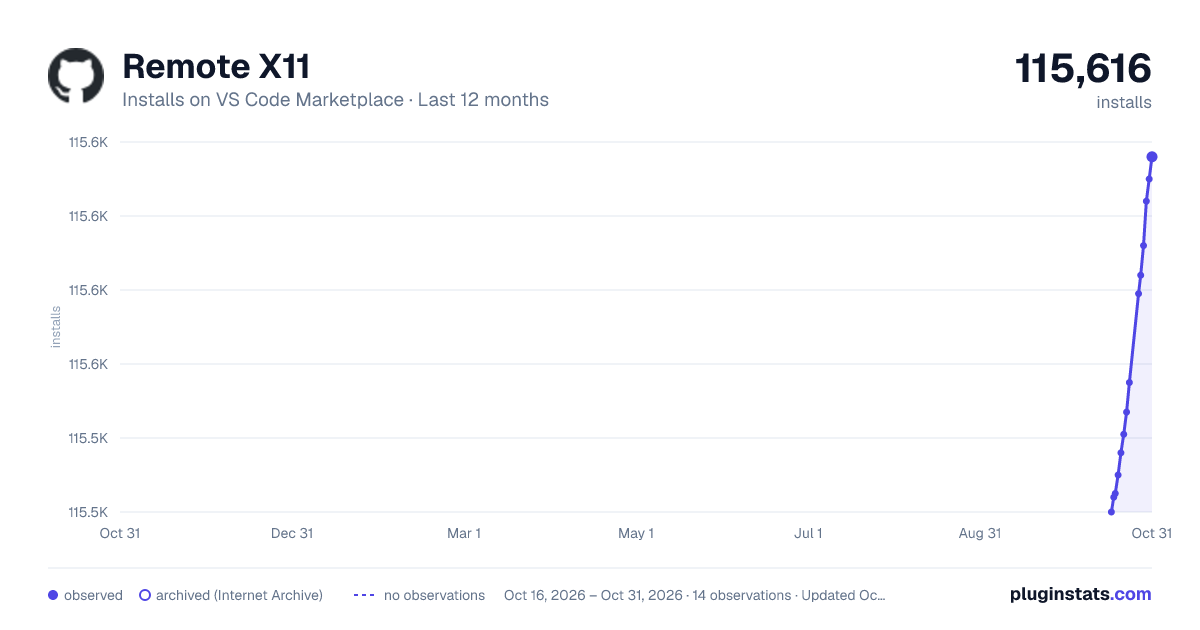
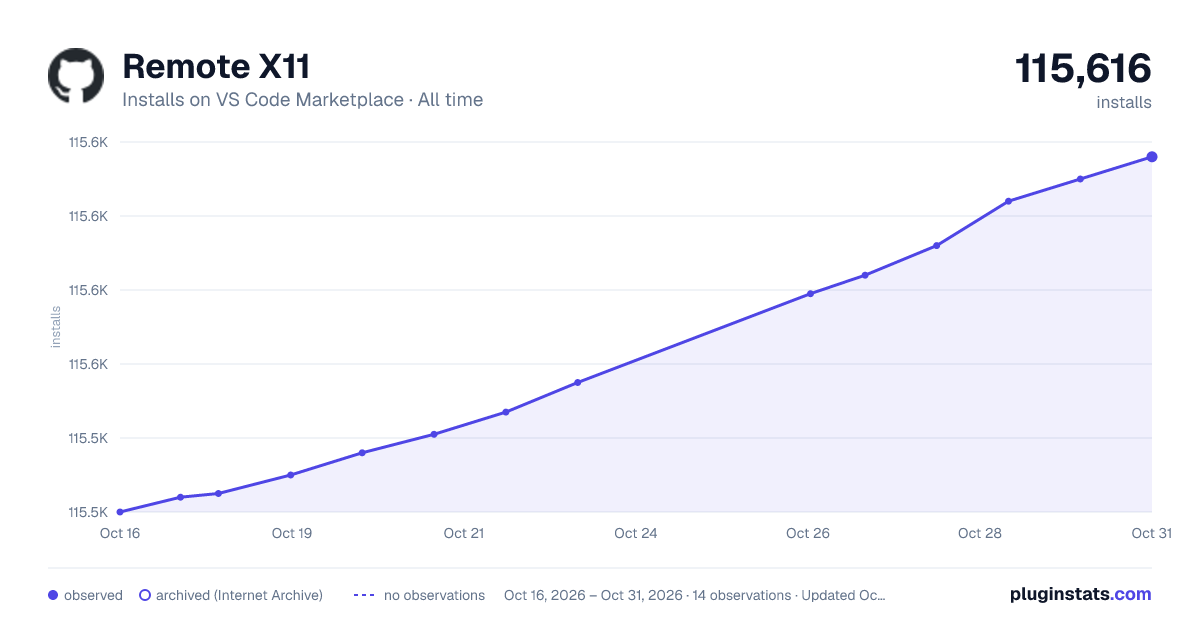
Remote X11 has 115,525 recorded installs on VS Code Marketplace.
It ranks #2180 of 2,500 tracked VS Code Marketplace listings by installs.
It is rated 4.2 out of 5 from 5 ratings.
PluginStats has 3 daily observations since Oct 16, 2026; the latest is from Oct 18, 2026.
Rating: 4.20 / 5 from 5 ratings
About Remote X11
Remote X11
When working in a remote environment, this extension sets the DISPLAY environment variable so that X windows applications started from Visual Studio Code appear on the local machine.
For this extension to work, it must be installed on the remote machine, and you must be running an X server on the local machine. For SSH connections, the Remote X11 (SSH) extension must also be installed on the local machine (this should be installed automatically when you install this extension).
You may need to change some settings for this to work with SSH! Please check the "Authentication Settings" section below, as this extension cannot use VS Code's SSH authentication, and it does not support all SSH authentication methods.
For Windows hosts, this extension has only been tested with VcXsrv, but other servers such as Cygwin/X, Xming, and X410 should also work. Windows remotes are not currently supported.
For SSH connections, if the remote machine does not have Bash installed, you must change the remoteX11.SSH.displayCommand setting and provide a command that prints the value of the DISPLAY variable. If you are using port forwarding, you may also need to change the remoteX11.SSH.port setting. See below for more details.
Access Control
For containers and WSL 2, you will need to either authorize with your X server or disable access control.
For SSH and WSL 1 targets, connections to the X server will come from the local machine, so you should not need to configure anything for these to work.
X11 Forwarding
The Remote - SSH extension does not currently enable X11 forwarding (see issue [#267](https://github.com/microsoft/vscode-remote-release/issues/267)). To work around this, the Remote X11 (SSH) extension creates an SSH connection to the remote machine with forwarding enabled in the background.
This extension currently only supports public key authentication. See below for more details on authentication settings.
Extension Settings
Changes to settings will normally apply automatically after a short delay. You may need to restart any terminals if setting changes result in the DISPLAY variable changing.
You can also use F1 > Remote X11: Reconnect Display to force an update.
• remoteX11.display - Display number to connect to. Change this if your X server is using a display other than 0. • remoteX11.screen - Screen number to connect to. • remoteX11.container.enable - Set DISPLAY for containers? • remoteX11.SSH.enable - Enable X11 forwarding and set DISPLAY for SSH targets? • remoteX11.SSH.authenticationMethod: • keyFile - Authenticate with the private key file specified by remoteX11.SSH.privateKey. Passphrase-protected keys are not supported. • agent - Use ssh-agent to get keys. This method does support passphrase-protected keys. • remoteX11.SSH.agent - Name of a Unix socket or Windows named pipe for ssh-agent. Set to pageant to use Pageant on Windows. If left empty, defaults to Windows 10's OpenSSH agent (\\.\pipe\openssh-ssh-agent) or the SSH_AUTH_SOCK environment variable on other platforms. Only used if remoteX11.SSH.authenticationMethod is agent. • remoteX11.SSH.privateKey - Absolute path to your SSH private key file. Only used if remoteX11.SSH.authenticationMethod is publicKey. • remoteX11.SSH.XAuthPermissionLevel - Select between untrusted (ssh -X) and trusted (ssh -Y) permissions. • remoteX11.SSH.X11ConnectionType - Select between TCP and Unix sockets for the X11 connection. Defaults to tcp on Windows hosts or unix otherwise. • remoteX11.SSH.X11Socket - Selects the Unix socket to connect to. The screen number is appended to the end of this setting. • remoteX11.SSH.displayCommand - A command which prints DISPLAY= followed by a newline, where is the value of the DISPLAY variable. Note that there must not be any spaces in this text. Change this when connecting to a machine that doesn't support the default command. • remoteX11.SSH.timeout - Number of seconds to wait for the SSH shell to respond to the above command. Use 0 to wait forever. • remoteX11.SSH.host - Sets the hostname or IP address used to connect to the SSH server. Use this if Remote X11 tries to connect to the wrong address. • remoteX11.SSH.port - Sets the port used to connect to the SSH server. Use this if Remote X11 tries to connect to the wrong port. • remoteX11.WSL.enable - Set DISPLAY for WSL targets?
Authentication Settings
Remote X11 currently only supports public key authentication. You must use ssh-keygen to generate a public/private key pair and add your public key to your server's ~/.ssh/authorized_keys file.
There are two ways RemoteX11 can be configured to get keys:
Private Key File
If the remoteX11.SSH.authenticationMethod setting is keyFile, Remote X11 will read the file given by the remoteX11.SSH.privateKey file as your private key. This defaults to ~/.ssh/id_rsa, so you must change it if your file is named differently.
This method does not support passphrase-protected private keys! See below for methods that do.
SSH Agent
If the remoteX11.SSH.authenticationMethod setting is agent, Remote X11 will use ssh-agent to read keys added with ssh-add. See the VS Code documentation for instructions on enabling the SSH Agent.
To add your key to the SSH agent, open a terminal on the local machine and run:
If your key is passphrase-protected, you will be prompted to enter the passphrase. You can then log in without re-entering the passphrase.
On Windows, you can also use Pageant instead of the built-in OpenSSH agent by changing the remoteX11.SSH.agent setting to pageant.
Troubleshooting
Is the extension installed?
When in a remote workspace, open the Extensions view (Ctrl+X) and check that "Remote X11" is installed and enabled on the remote machine. If you are using an SSH connection, also check that "Remote X11 (SSH)" is installed and enabled on the local machine.
Check the logs…
Description from the VS Code Marketplace listing.
- x11
Where Remote X11 sits in the listing
Each band is one page of 20. Installs on a log scale. Placement is projected from installs, so it can differ from the marketplace's own sort order. Hover a dot to see the listing.


Charts
Images: 30d · 1y · all time · 1600×900 dark

Adoption over time


7/30/90-day growth


Ranking history


Filled points are observed values; hollow points come from Internet Archive snapshots of the listing page. Dashed segments span periods with no observations — values between points are not interpolated.
Recent observations
Full history (3)Similar VS Code Marketplace Other plugins
Data source
Install counts, average rating, and rating counts come from the public Visual Studio Marketplace gallery API. Installs are cumulative and exclude updates.
Listing: https://marketplace.visualstudio.com/items?itemName=spadin.remote-x11. First seen Oct 16, 2026; last successful collection Oct 18, 2026. See the methodology.