 PluginStats
Volar has 158,907 recorded installs on VS Code Marketplace.
It ranks #1791 of 2,500 tracked VS Code Marketplace listings by installs.
PluginStats has 3 daily observations since Oct 16, 2026; the latest is from Oct 18, 2026.
About Volar
Volar - Plan, Review & Build with AI
*Annoyed when AI starts touching unrelated code?*
*Getting nervous when you ask AI to write something maybe a little too complicated?*
*Pulling hair out when AI forgets your instructions?*
Volar helps you guide your AI coding assistant more effectively: 1. Defining Tasks: Write your idea and let AI fill in the details. 2. Planning & Breakdown: Let your AI flesh out specifics, break down complex requests into manageable pieces, and plan implementation steps. 3. Review & Refinement: You review the AI's plan, add context, and make adjustments *before* any code is written. 4. Precise Execution: Instruct the AI to implement the approved plan, ensuring it sticks to the defined scope.
Volar is an orchestrator, preparing and sending detailed prompts to your chosen AI tool, and helping you manage the AI's output.
NOTE: Volar doesn't use AI directly. Volar creates prompts for your AI coding tool.
System Requirements
Volar is tested for macOS environments. While you can run Volar on other platforms, you may encounter unexpected behavior with some features.
🚀 Getting Started: Setup and Configuration
To use Volar, you first need to choose what AI tool to use it with. MCP(Model Context Protocol) is what Volar uses to share info with your AI tools (through calls like "update this task"). Choose the tool that you use in Volar's main task screen, and the MCP will be set up accordingly.
• Cursor: MCP will be automatically set up • Windsurf: MCP will be automatically set up • Claude Code: MCP will be automatically set up • Other Tool: MCP needs to be set up manually
NOTE: You may need to manually refresh/enable the MCP config in Cursor and Windsurf: go to their MCP settings and verify VolarTaskServer is enabled and running. You can click the ⚙️ icon next to tool dropdown menu to go to settings. Then search "MCP" to find the right setting.
For other tools, as long as they support MCP, Volar can be set up to work with them. You can find the Volar MCP url next to tool dropdown menu.
MCP Setup for Cline
1. Copy the MCP url above Volar's task list. 1. Go to Cline's MCP setup tab. 2. Use the following values: • Server Name: VolarTaskServer • Server URL: http://localhost:/sse (the copied url)
💡 Core Features & Usage
Once Volar is configured, you can start planning, reviewing, and building with your AI!
Task View & Task Management
The Volar extension adds a new view to your VS Code sidebar where you can manage your tasks.
• View Task: Click on any task to see its details. • Create Tasks: Write down a task title and hit "Enter" to see the new task. • Edit Task Details: In task detail view, click the "✏️" (pencil) emoji to edit the task content. • AI-Assisted Task Updates (with MCP): If you've set up MCP, you can also ask your AI agent (e.g., Cursor) to update tasks directly for you through chat.
Taking Actions on Tasks with AI
For each task, you can ask your AI to perform specific actions.
If you are using Claude Code, the task action prompt will be sent to terminal automatically. Hit enter to execute the command.
If you are using Cursor/Windsurf/etc, the prompt will be copied to your clipboard, and you can paste it into your coding tool's chat window.
There are three key actions:
• Plan: • What it does: Provide a concise task title or a brief description. Volar will then prompt your AI to analyze your codebase (if relevant) and generate a detailed implementation plan. • When to use it: For any new idea or feature. This is your first step to get the AI to articulate its understanding and proposed solution. • Outcome: The AI's plan will populate the task details. Review this plan carefully. Make changes as needed. • Breakdown: • What it does: If a task or its plan seems too complex, ambiguous, or large for the AI to handle in one go, use "Breakdown". Volar will prompt your AI to break the current task into smaller, more manageable sub-tasks. • When to use it: When a task feels overwhelming, or the initial "Plan" is too high-level. • Outcome: New sub-tasks will be created. You can recursively use "Plan" and "Breakdown" on these sub-tasks until each one is small and clear enough for reliable execution. • Execute: • What it does: After you have reviewed and are satisfied with a task's plan (either an initial plan or one refined after breakdowns), use "Execute". Volar will prompt your AI to write the code according to that specific plan. • When to use it: When the plan is clear, detailed, and you're confident the AI can implement it correctly. For very simple, self-contained changes, you might execute directly. • Outcome: The AI will attempt to make the code changes according to the task content.
⚠️ Known Issues & Troubleshooting
• Your AI coding tool cannot get task info from Volar: Please check the MCP settings of your AI coding tools (Cursor/Windsurf/etc) and verify the status of VolarTaskServer is enabled and running, and the server URL matches the MCP URL shown in the Volar extension, next to the Tool dropdown menu.
Description from the VS Code Marketplace listing.
- ai
- planning
- productivity
- tasks
Where Volar sits in the listing
Each band is one page of 20. Installs on a log scale. Placement is projected from installs, so it can differ from the marketplace's own sort order. Hover a dot to see the listing.


Charts
Images: 30d · 1y · all time · 1600×900 dark
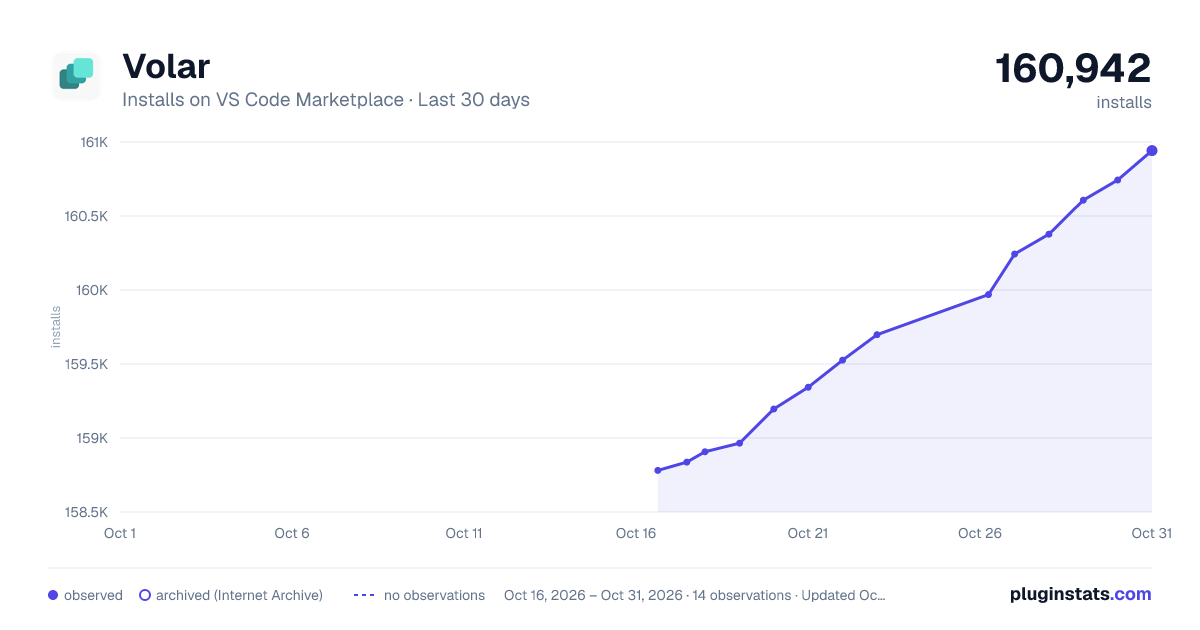
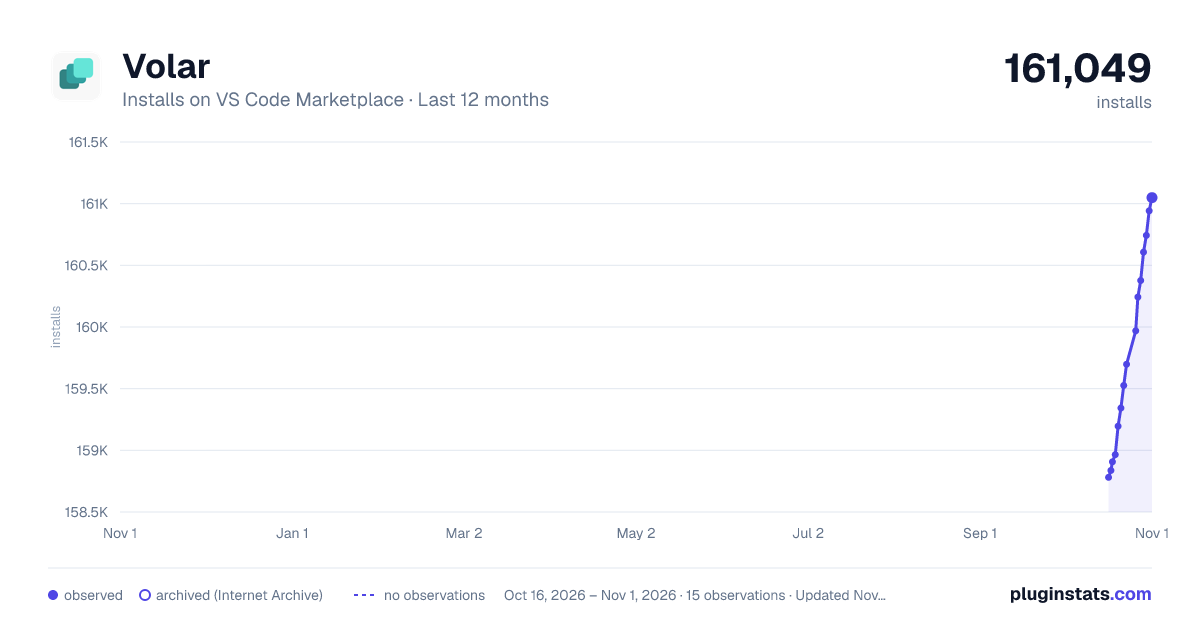
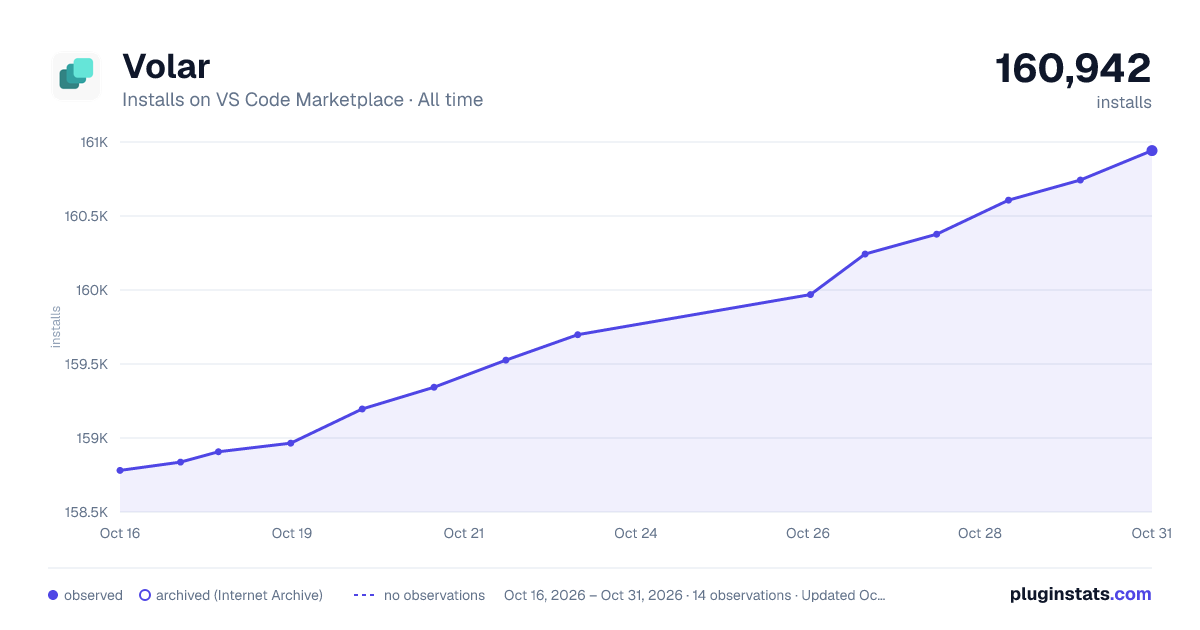

Adoption over time


7/30/90-day growth


Filled points are observed values; hollow points come from Internet Archive snapshots of the listing page. Dashed segments span periods with no observations — values between points are not interpolated.
Recent observations
Full history (3)Similar VS Code Marketplace Other plugins
Data source
Install counts, average rating, and rating counts come from the public Visual Studio Marketplace gallery API. Installs are cumulative and exclude updates.
Listing: https://marketplace.visualstudio.com/items?itemName=VolarTools.volar-ai. First seen Oct 16, 2026; last successful collection Oct 18, 2026. See the methodology.