 PluginStats
learn-article-templates installs statistics
By Microsoft (224 listings) · VS Code Marketplace · Other
Learn article templates
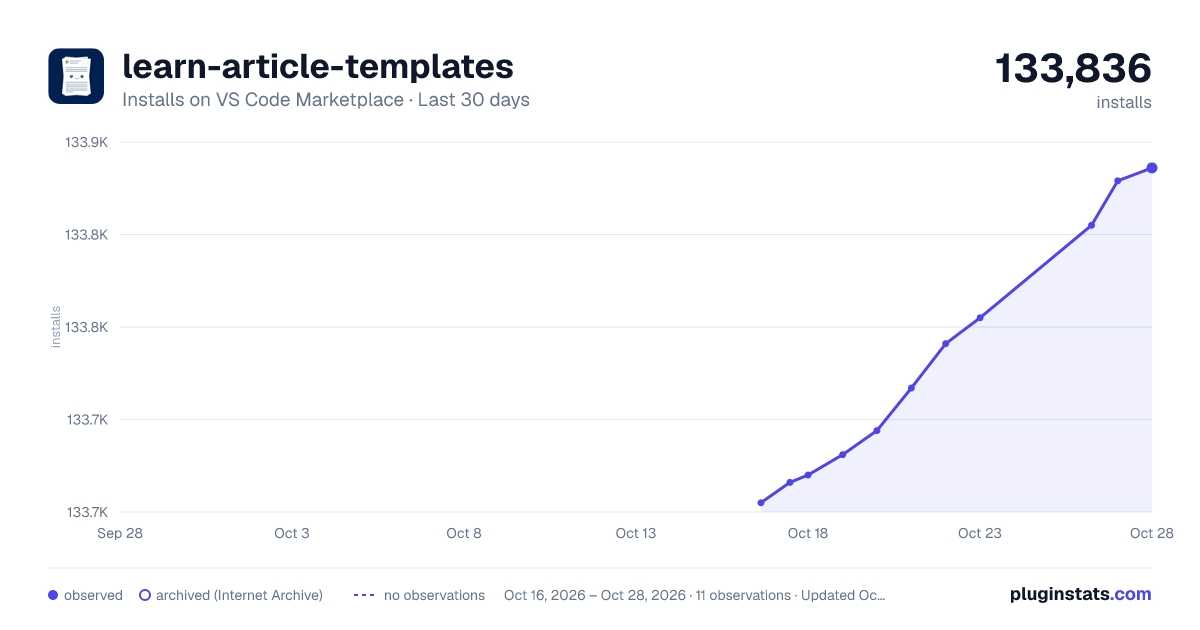
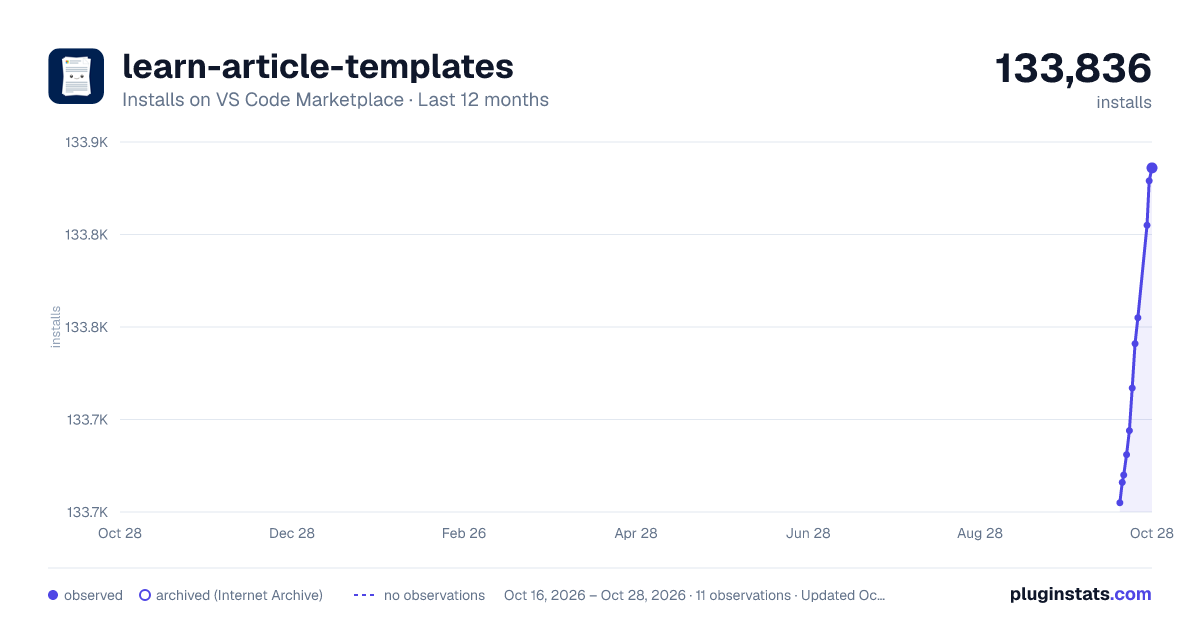
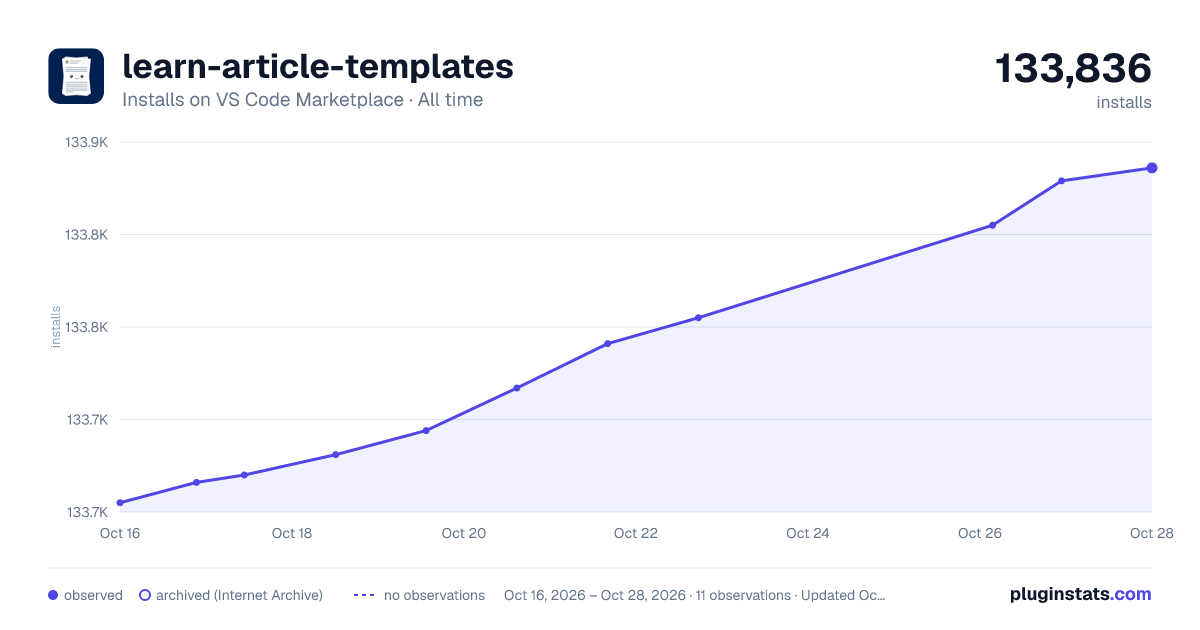
learn-article-templates has 133,681 recorded installs on VS Code Marketplace.
It ranks #1995 of 2,501 tracked VS Code Marketplace listings by installs.
It is rated 4.0 out of 5 from 2 ratings.
PluginStats has 4 daily observations since Oct 16, 2026; the latest is from Oct 19, 2026.
Rating: 4.00 / 5 from 2 ratings
About learn-article-templates
Learn Article Templates Extension
The Learn Article Templates extension lets writers in VS Code pull a Markdown template from a centralized store and apply it to a file. Templates can help ensure that required metadata is included in articles, that content standards are followed, and so on. Templates are managed as Markdown files in a public GitHub repository.
To apply a template in VS Code
1. Ensure the Learn Article Templates extension is installed and enabled. 1. If you don't have the Learn Markdown extension installed, hit F1 to open the command palette, start typing "template" to filter, then click Learn: Template. If you do have Learn Markdown installed, you can use either the command palette or click Alt+M to bring up the Docs Markdown QuickPick menu, then select Template from the list. 1. Select the desired template from the list that appears.
To add your GitHub ID and/or Microsoft alias to your VS Code settings
The Templates extension supports three dynamic metadata fields: author, ms.author, and ms.date. That means that if a template creator uses these fields in the metadata header of a Markdown template, they will be auto-populated in your file when you apply the template, as follows:
|Field |Value |
|author |Your GitHub alias, if specified in your VS Code settings file. | |ms.author|Your Microsoft alias, if specified in your VS Code settings file. If you are not a Microsoft employee, leave this unspecified. | |ms.date |The current date in the Docs-supported format, MM/DD/YYYY. Note that the date is not automatically updated if you subsequently update the file - you must update this manually to indicate the article freshness date.|
To set author and/or ms.author:
1. In VS Code, go to File -> Preferences -> Settings (CTRL+Comma). 1. Select User Settings to change the settings for all VS Code workspaces, or Workspace Settings to change them for just the current workspace. 1. In the Default Settings pane on the left, find Learn Article Templates Extension Configuration, click the pencil icon next to the desired setting, then click Replace in Settings.
1. The User Settings pane will open side-by-side, with a new entry at the bottom. 1. Add your GitHub ID or Microsoft email alias, as appropriate, and save the file. 1. The updated settings might looks something like this:
1. You might need to close and restart VS Code for the changes to take effect. 1. Now, when you apply a template that uses dynamic fields, your GitHub ID and/or Microsoft alias will be auto-populated in the metadata header.
To make a new template available in VS Code
1. Draft your template as a Markdown file. 2. Submit a pull request to the templates folder of the https://github.com/MicrosoftDocs/content-templates repo.
The learn.microsoft.com team will review your template and merge the PR if it meets learn.microsoft.com style guidelines. Once merged, the template will be available to all users of the Learn Article Templates extension.
Template metadata
Including metadata in your template can help contributors add the right metadata to each file. File-level metadata is specified in a YML header at the top of the Markdown file. You should only include file-level metadata in your template for values that are generally not set at the doc set or folder level; otherwise, users might inadvertently overwrite the correct global values. You can use comments (#) to describe the expected values, and dynamic fields to auto-populate certain values.
The following is a basic YML metadata header that you might use for a getting started article template:
Known issues
• Templates are stored in a public GitHub repo, so don't include any sensitive information in your templates! • In this beta release, all templates will be available to all users of the VS Code extension. Repo-specific templates, which take advantage of VS Code's GitHub integration to only show certain templates for certain repos, are not yet supported.
License
MIT
Description from the VS Code Marketplace listing.
- markdown
- yaml
Charts
Images: 30d · 1y · all time · 1600×900 dark

Adoption over time


7/30/90-day growth


Ranking history


Ratings over time


Listing placement


Filled points are observed values; hollow points come from Internet Archive snapshots of the listing page. Dashed segments span periods with no observations — values between points are not interpolated.
Each band is one page of 20. Installs on a log scale. Placement is projected from installs, so it can differ from the marketplace's own sort order. Hover a dot to see the listing.
Recent observations
Full history (4)Similar VS Code Marketplace Other plugins
All 20 learn-article-templates alternativesData source
Install counts, average rating, and rating counts come from the public Visual Studio Marketplace gallery API. Installs are cumulative and exclude updates.
Listing: https://marketplace.visualstudio.com/items?itemName=docsmsft.docs-article-templates. First seen Oct 16, 2026; last successful collection Oct 19, 2026. See the methodology.