 PluginStats
Sass Formatter installs statistics
By Saša Jovanović Spuki · VS Code Marketplace · Programming Languages
Beautify sass, scss and css files.
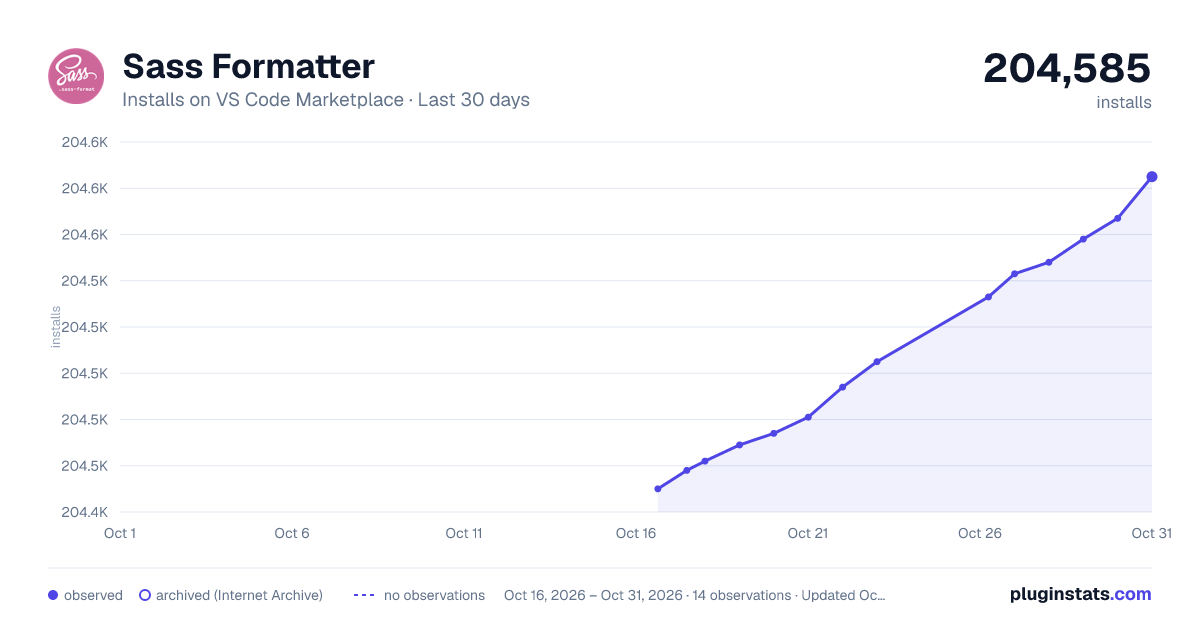
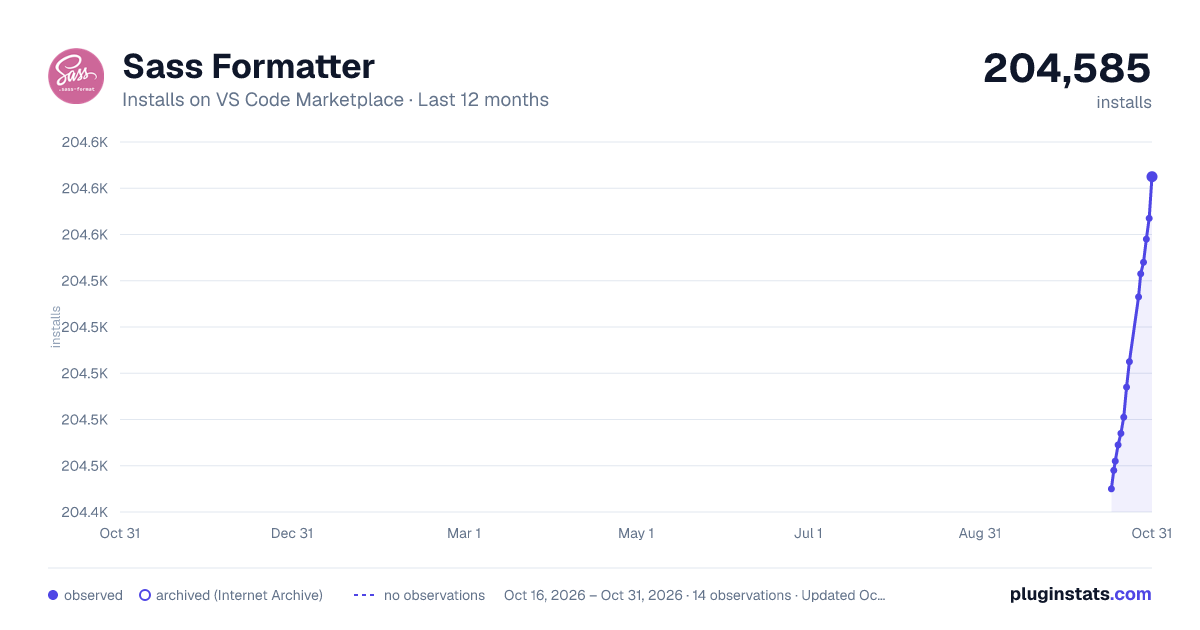
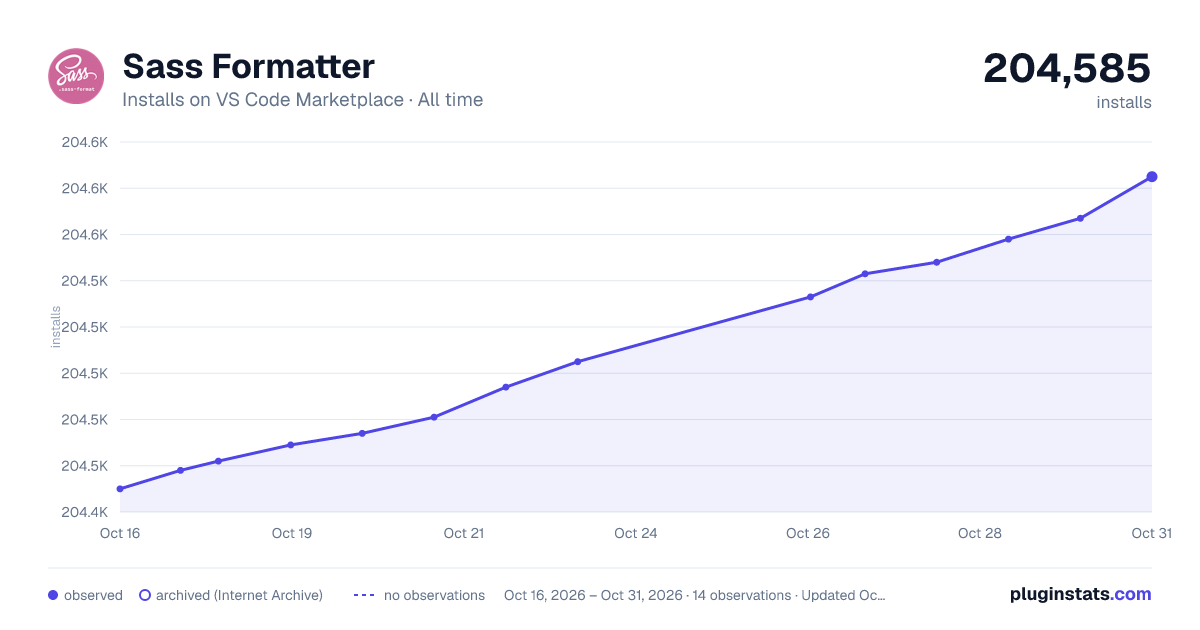
Sass Formatter has 204,474 recorded installs on VS Code Marketplace, ranking #1485 of 2,501 tracked listings.
Rating: 3.80 / 5 from 10 ratings
About Sass Formatter
Sass Formatter
Sass formatter extension for VS Code built on top of sass-convert. Beautify sass, scss and css files.
Important
Since the latest version od Sass (Dart Sass) not providing a sass-convert library, I have decided to stop further maintenance of this extension. You can continue using this extension with old Sass (Ruby Sass) implementation.
Requirements
Requires Ruby Sass command-line tools to be installed. Tested sass command-line tools: Ruby Sass Gem v3.7.4.
It is important to say that Dart Sass introduced on March 26, 2018, is not supported by this extension because sass-convert functionality is not provided in Dart implementation (more details: GitHub/Dart Sass/Are you planning to implement sass-convert?).
More details about Sass Syntax used in this formatter.
Install Ruby Sass via command-line
This procedure was official before March 26, 2018. With the release of Dart Sass 1.0.0, Ruby Sass become officially deprecated.
More official links about a transition from Ruby Sass to Dart Sass:
So instead of following this Install Sass, which will install Dart Sass, please follow the old official procedure below for installing Ruby Sass instead.
Linux
If you're using a distribution of Linux, you'll need to install Ruby first. You can install Ruby through the apt package manager, rbenv, or rvm. You will also need the build-essential package, available through a package manager as well.
sudo gem install sass --no-user-install
Windows
Before you start using Sass, you will need to install Ruby. The fastest way to get Ruby on your Windows computer is to use Ruby Installer. It's a single-click installer that will get everything set up for you super fast.
The installer will also install a Ruby command-line PowerShell application that will let you use the Ruby libraries.
Mac
If you prefer the command-line over an application, then getting Sass set up is a fairly quick process. Sass has a Ruby dependency, but if you're using a Mac, congratulations, Ruby comes pre-installed.
Install Ruby Sass
Here's the quickest way we've found to start using Sass by using the command-line:
-
Open your Terminal or Command Prompt. On the Mac, the Terminal.app comes installed by default. It's located in your "Utilities" folder. On Windows, run
cmd. -
Install Ruby Sass. Ruby uses Gems to manage its various packages of code like Sass. In your open terminal window type:
gem install sass
This will install Sass and any dependencies for you. It's pretty magical. If you get an error message, then it's likely you will need to use the sudo command to install the Sass gem. It would look like:
sudo gem install sass
- Double-check. You should now have Sass installed, but it never hurts to double-check. In your terminal application you can type:
sass --version
sass-convert --version
It should return Ruby Sass 3.7.4.
Usage
Files can be formatted on-demand by right-clicking in the document and selecting Format Document in the editor context menu, using the associated keyboard shortcut, or by running command Format Document from the Command Palette.
Default keyboard shortcuts for Format Document command:
- macOS: Shift+Alt+F
- Linux: Ctrl+Shift+I
- Windows: Shift+Alt+F
Selection can be formatted on-demand by right-clicking in the document and selecting Format Selection in the editor context menu, by using the associated keyboard shortcut, or by running command Format Selection from the Command Palette.
Default keyboard shortcuts for Format Selection command:
- macOS: Cmd+K Cmd+F
- Linux: Ctrl+K Ctrl+F
- Windows: Ctrl+K Ctrl+F
By default, formatter using UTF-8 encoding to ensure proper encoding of all characters. This allows us to use Unicode characters directly in our styling files:
// UTF-8 example
.icon-prev {
	&:before {
		// Unicode Character 'SINGLE LEFT-POINTING ANGLE QUOTATION MARK' (U+2039)
		content: "‹";
	}
}

// ASCII example
.icon-prev {
	&:before {
		// Unicode Character 'SINGLE LEFT-POINTING ANGLE QUOTATION MARK' (U+2039)
		content: "\2039";
	}
}
To automatically format on paste, add the following to your settings.json file: "editor.formatOnPaste": true.
To automatically format a file on saving, add the following to your settings.json file: "editor.formatOnSave": true.
To automatically insert a final newline at the end of the file when saving it, add the following to your settings.json file: "files.insertFinalNewline": false.
Sass Formatting Demo

Sass Formatter Settings
This extension contributes the following settings:…
Description from the VS Code Marketplace listing.
- beautify
- css
- prettify
- sass
- scss
README badge
Show your rank in a README or on your website. The badge updates automatically.
Charts
Images: 30d · 1y · all time · 1600×900 dark

Adoption over time
7/30/90-day growth
Ranking history
Ratings over time
Listing placement
Listing placement
Listing placement
Filled points are observed values; hollow points come from Internet Archive snapshots of the listing page. Dashed segments span periods with no observations — values between points are not interpolated.
Each band is one page of 20. Installs on a linear scale. Placement is projected from installs, so it can differ from the marketplace's own sort order. Hover a dot to see the listing.
Recent observations
Full history (5)Similar VS Code Marketplace Programming Languages plugins
All 20 Sass Formatter alternativesData source
Install counts, average rating, and rating counts come from the public Visual Studio Marketplace gallery API. Installs are cumulative and exclude updates.
Listing: https://marketplace.visualstudio.com/items?itemName=sasa.vscode-sass-format. First seen Oct 16, 2026; last successful collection Oct 20, 2026. See the methodology.