 PluginStats
.NET Install Tool installs statistics
By Microsoft (223 listings) · VS Code Marketplace · Other
This extension installs and manages different versions of the .NET SDK and Runtime.
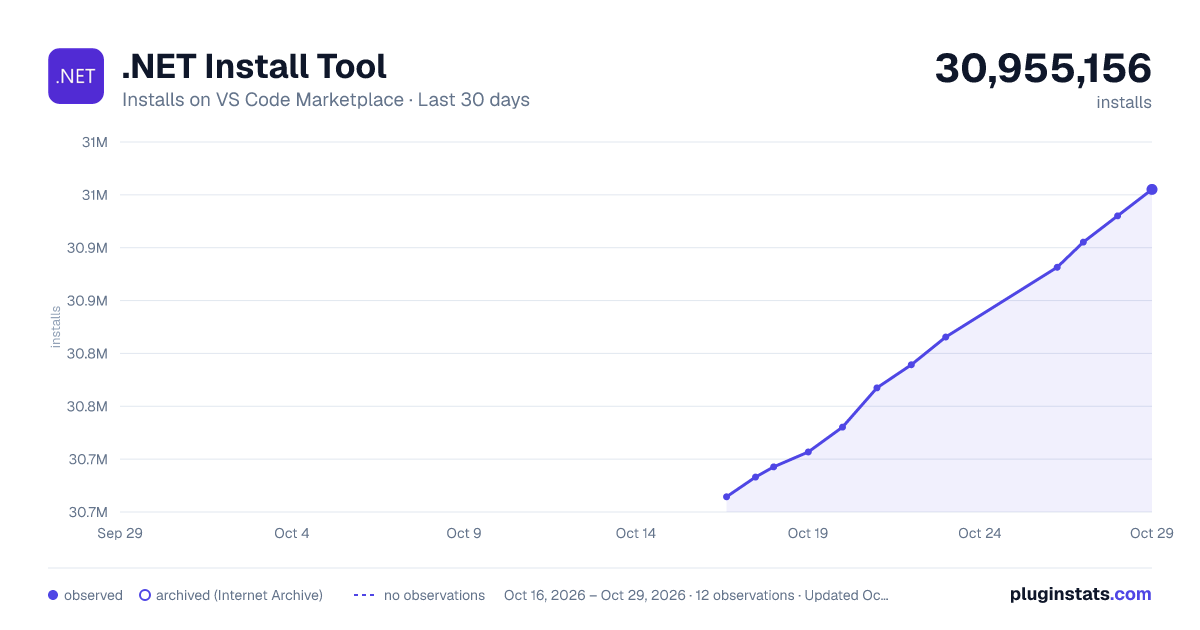
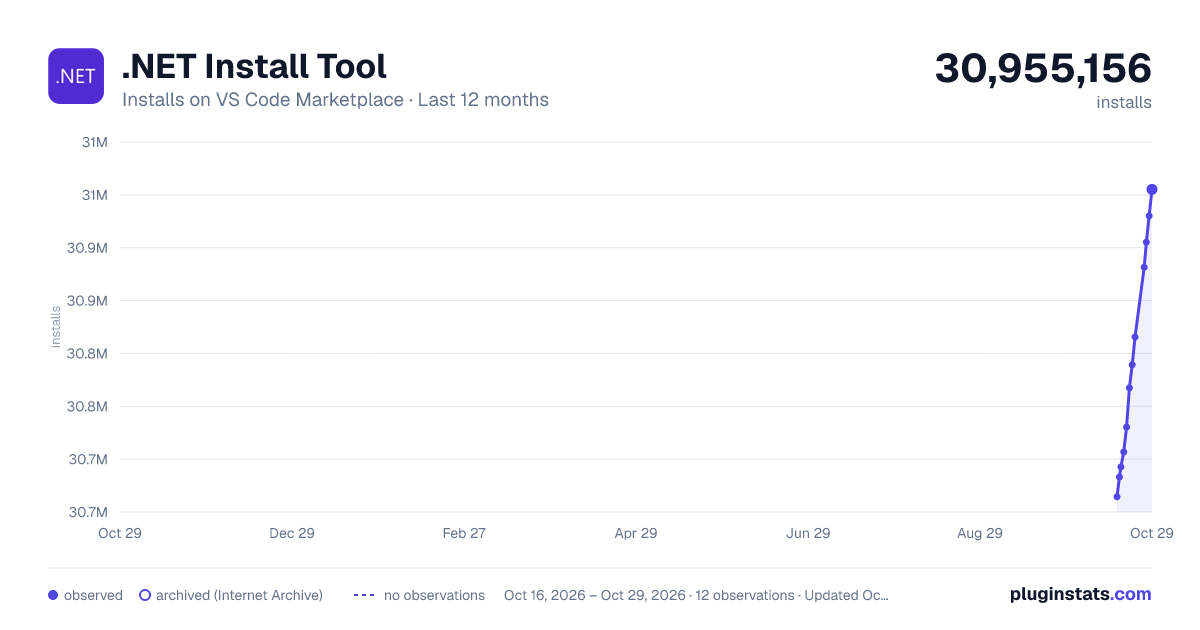
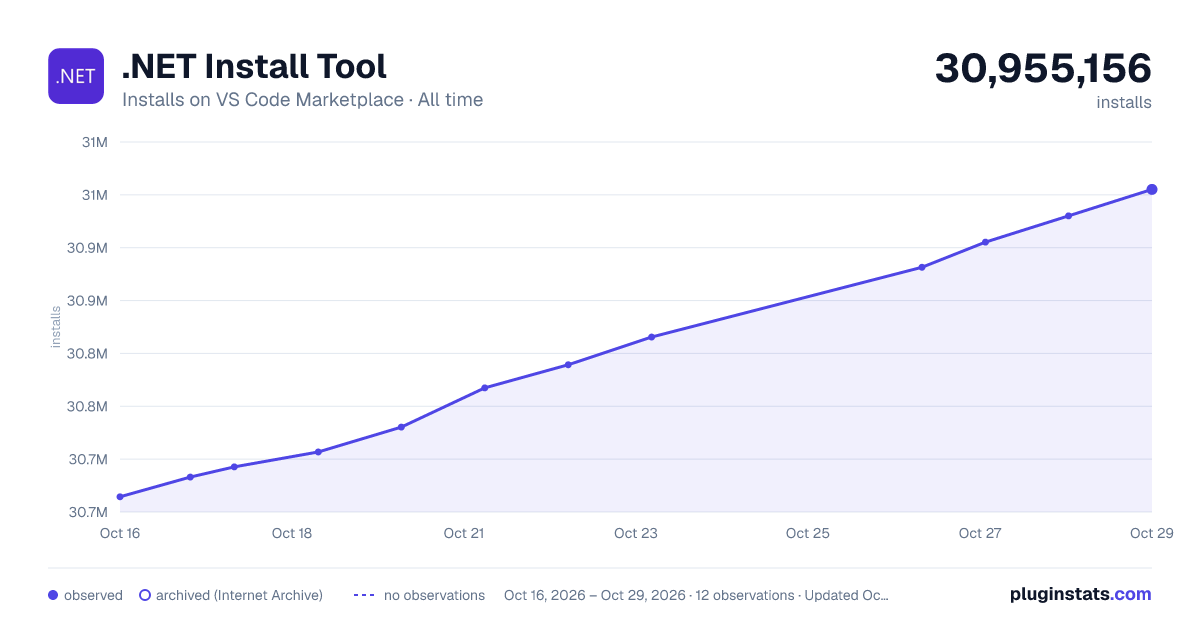
.NET Install Tool has 30,692,683 recorded installs on VS Code Marketplace.
It ranks #39 of 2,500 tracked VS Code Marketplace listings by installs.
It is rated 2.1 out of 5 from 105 ratings.
PluginStats has 3 daily observations since Oct 16, 2026; the latest is from Oct 18, 2026.
Rating: 2.15 / 5 from 105 ratings
About .NET Install Tool
.NET Install Tool
This extension provides a unified way for other extensions like the [C#] and [C# Dev Kit] extensions to install local versions of the .NET Runtime, and machine-wide versions of the .NET SDK. Those extensions tell the .NET Install Tool when they would like a .NET SDK to be on the machine, and we install one for them if there's not already one that matches the SDK they need to run properly. Users can also install the .NET SDK themselves by reading below.
Why do I have this extension?
This extension was probably included as a dependency of one of the following extensions, though this list is not exhaustive:
• [C#] • [C# Dev Kit] • [Unity] • [.NET MAUI] • [CMake] • [Bicep]
The above extensions call into this extension to provide a unified way of downloading shared .NET Runtimes or .NET SDKs. If you already have an installation of .NET that you'd like to use, see the troubleshooting section below. If you want to remove this extension completely, you will need to uninstall any extensions that depend on it first. If this extension is uninstalled, any .NET Runtimes installed by it will also be removed.
Using the extension yourself
As of version 2.0.2, you can install the .NET SDK using part of our private API via the VS Code Command Palette!
To use the feature: Bring up the command palette (ctrl + shift + p) and run the command: .NET Install Tool - Install the .NET SDK System-Wide.
The command will try to find the best version of .NET for you to install, but you can tell it to install other versions as well based on its prompt. Note this feature does not support all distros, WSL, nor preview or RC versions of .NET.
The rest of the extension functionality is still limited to other extensions that rely on our extension.
Troubleshooting
I already have a .NET Runtime or SDK installed, and I want to use it
If you want to use your own installation(s) of .NET, you can either use one for all extensions in VS Code, or use different installations for specific extensions.
This is the path to an existing .NET host executable that will select a runtime based on what's installed beside it for an extension's code to run under. ⚠️ This is NOT the .NET Runtime that your project will use to run. Extensions such as C#, C# DevKit, and more have components written in .NET. This .NET PATH is the dotnet.exe or dotnet that these extensions will use to run their code, not your code.
Using a path value in which .NET does not meet the requirements of a specific extension will cause that extension to fail. The version of .NET that is used for your project is determined by the .NET host, or dotnet.exe. The .NET host picks a runtime based on your project. To use a specific version of .NET for your project, install the .NET SDK using the .NET Install Tool - Install SDK System-Wide command, install .NET manually using our instructions, or edit your PATH environment variable to point to a dotnet.exe that has an /sdk/ folder with only one SDK.
If you want to use the installation for all extensions, set the dotnetAcquisitionExtension.sharedExistingDotnetPath.
Example:
If instead you want more granular control, add the requesting extension to the dotnetAcquisitionExtension.existingDotnetPath setting in your vscode.json settings file. You can read more about [using external installations] in our documentation, but here's an example of how to tell the [C#] extension to use your existing .NET installation:
For [C# Dev Kit] you would use the same thing, but with the extension ID ms-dotnettools.csdevkit. Other extensions, like the MAUI and Unity extensions, will have their own extension IDs that you can find in the extension pane by right-clicking on them and choosing 'Copy Extension ID'.
NOTE: You'll need to make a new item in the settings array for each extension that uses this extension to acquire .NET.
Downloading .NET times out
It can sometimes take a while to download .NET. While the default download time is 600 seconds, if you need more time you can set the dotnetAcquisitionExtension.installTimeoutValue setting to change that timeout. Here's an example of increasing the download timeout to 11 minutes:
You can read more about [changing the installation timeout] in our documentation.
The extension thinks you are offline with error response of 400 or 407, and you have a proxy.
This is a known issue with axios, the system we use to make web-requests. The requests we make need to be routed through the proxy. We have logic to try to detect your proxy automatically. If your proxy does not get detected by us, please try adding it here. You may want to consider temporarily switching to version 1.7.2 of the runtime extension if you are still experiencing issues as this version does not use axios. Note that proxies that require additional credentials are not yet supported.
Note: GFW / China also blocks some of our requests, which may be why our extension thinks you are offline or times out.
You can add the proxy in the extension settings like following the advice above for timeouts.
Information for repo contributors
Goals: Acquiring .NET Runtimes for extensions
Prior to the release of this extension, extension authors had no way of knowing if the .NET Runtime was installed on their target machines. Other solutions had a number of challenges:…
Description from the VS Code Marketplace listing.
- .NET
- .NET Core
- dotnet
- Extension Authoring
- language-model-tools
- runtime
- tools
Where .NET Install Tool sits in the listing
Each band is one page of 20. Installs on a log scale. Placement is projected from installs, so it can differ from the marketplace's own sort order. Hover a dot to see the listing.


Charts
Images: 30d · 1y · all time · 1600×900 dark

Adoption over time


7/30/90-day growth


Ranking history


Filled points are observed values; hollow points come from Internet Archive snapshots of the listing page. Dashed segments span periods with no observations — values between points are not interpolated.
Recent observations
Full history (3)Similar VS Code Marketplace Other plugins
Data source
Install counts, average rating, and rating counts come from the public Visual Studio Marketplace gallery API. Installs are cumulative and exclude updates.
Listing: https://marketplace.visualstudio.com/items?itemName=ms-dotnettools.vscode-dotnet-runtime. First seen Oct 16, 2026; last successful collection Oct 18, 2026. See the methodology.