 PluginStats
Ansible installs statistics
By Red Hat (18 listings) · VS Code Marketplace · Programming Languages
Ansible language support
Ansible has 1,315,413 recorded installs on VS Code Marketplace.
It ranks #460 of 2,501 tracked VS Code Marketplace listings by installs.
It is rated 2.9 out of 5 from 43 ratings.
PluginStats has 4 daily observations since Oct 16, 2026; the latest is from Oct 19, 2026.
Rating: 2.86 / 5 from 43 ratings
About Ansible
Ansible VS Code Extension
The Ansible extension for Visual Studio Code streamlines Ansible development by providing an integrated, feature-rich environment tailored for automation workflows. It offers features such as syntax highlighting, linting, intelligent code completion, and AI-assisted suggestions via Ansible Lightspeed.
With support for multi-root workspaces, containerized execution environments, and extensive configuration options, the extension enhances productivity and ensures consistent code quality for both individual and team-based projects. This extension adds language support for Ansible in Visual Studio Code and OpenVSX by using the ansible-language-server.
Installation Requirements
Before you begin, make sure your system has:
• The ansible-dev-tools python package • A supported version of ansible-core • Optionally, a devcontainer.yaml file to develop in a devcontainer eliminating the need to install and manage python versions and packages.
Note: On Windows, use with the Remote - WSL or Remote - Containers extensions for optimal compatibility.
Manual Extension Activation
It is recommended to open a folder containing Ansible files with a VS Code workspace.
Note:
• For Ansible files open in an editor window ensure the language mode is set to Ansible (bottom right of VS Code window). • The runtime status of extension should be in activate state. It can be verified in the Extension window Runtime Status tab for Ansible extension.
Getting Started
Welcome Page
The extension provides a comprehensive Welcome Page that serves as a dashboard for Ansible development tools. Access it as follows:
• Open the Command Palette (Ctrl+Shift+P or Cmd+Shift+P) • Type "Open Ansible Development Tools menu" and selecting it.
OR
• From the Quick Links panel, click Getting Started. • The walkthroughs will appear on the right-hand side.
Interactive Walkthroughs
The extension offers guided walkthroughs to help you quickly get started with Ansible development using step-by-step instructions.
Create an Ansible Environment
Learn how to create a new Ansible playbook, configure the environment using the status bar, and install the necessary Ansible packages to get set up.
Start Automating with Your First Ansible Playbook
This walkthrough guides you through enabling Ansible Lightspeed, creating a playbook project, writing your first playbook, and saving it within the project structure.
Discover Ansible Development Tools
Explore the full range of Ansible development tools available in the extension, including scaffolding content, testing, and deployment guidance for your automation journey.
Quick Links
The Quick Links panel provides easy access to common Ansible tasks and is available in the Ansible sidebar view. It can be accessed by clicking on the Ansible extension icon and includes:
Launch Section
This section provides quick access to:
• Getting Started: Opens the Ansible Development Tools welcome page • Ansible code bot: Documentation for the AI-powered code assistant • Documentation: Links to Ansible Development Tools documentation • Settings: Quick access to extension settings
Initialize Section
This section helps you create new Ansible projects:
• Collection project: Create a new Ansible collection • Execution environment project: Set up a new execution environment • Playbook project: Create a new Ansible playbook project
Add Section
This section allows you to add resources to existing projects:
• Collection plugin: Add a plugin to an existing collection • dev container: Create a dev container configuration • Devfile: Create a devfile for development environments • Role: Add a role to an existing collection • Playbook: Generate a playbook with Ansible Lightspeed
Using Dev Containers
This extension supports generating dev containers to provide isolated, consistent Ansible development environments in VS Code. The Microsoft Dev Containers extension is required for this feature. See the Ansible Development Tools (ADT)- Execution Environment documentation for more information on what is included in the generated dev container.
Create a dev container
Quick Links Panel: Go to Ansible sidebar → click dev container
Command Palette: Ctrl+Shift+P → search "Ansible: Create a dev container"
Configuration Options
Choose image:
• Upstream: ghcr.io/ansible/community-ansible-dev-tools:latest • Downstream: registry.redhat.io/.../ansible-dev-tools-rhel8:latest
Set destination and overwrite options in the webview, and click "Create".
Open workspace in the dev container
Command Palette: Ctrl+Shift+P → search "Dev Containers: Reopen in container"
Select the dev container file that matches your desired container engine.
The workspace will reopen in a container with all the Ansible Development Tools (ADT) installed.
Ansible Lightspeed
The extension integrates with Ansible Lightspeed with watsonx Code Assistant to provide AI-powered features. Lightspeed provides inline code suggestions as you type:
• Press Ctrl+. to trigger suggestions • Press Tab to accept a suggestion • Press Escape to hide a suggestion
See the Red Hat Ansible Lightspeed setup guide to get started.
Content Creation Tools
The extension provides webview-based interfaces for creating and scaffolding Ansible content.
Creating Collections
You can create a new Ansible collection with a structured layout including:
• Basic collection metadata • Directory structure for plugins, modules, and roles • Documentation templates • Test framework setup
To create a collection:
• Click "Collection project" in the Quick Links panel • Enter the namespace and collection name • Specify the destination directory • Click "Create"
Creating Playbooks
The extension offers multiple ways to create playbooks:
Empty Playbook
• Use the command "Ansible: Create an empty Ansible playbook" • Edit the playbook manually
AI-Generated Playbook (with Ansible Lightspeed)…
Description from the VS Code Marketplace listing.
- ansible
- ansible-jinja
- autocompletion
- json
- keybindings
- validation
- yaml
- yml
Where Ansible sits in the listing
Each band is one page of 20. Installs on a log scale. Placement is projected from installs, so it can differ from the marketplace's own sort order. Hover a dot to see the listing.


Charts
Images: 30d · 1y · all time · 1600×900 dark
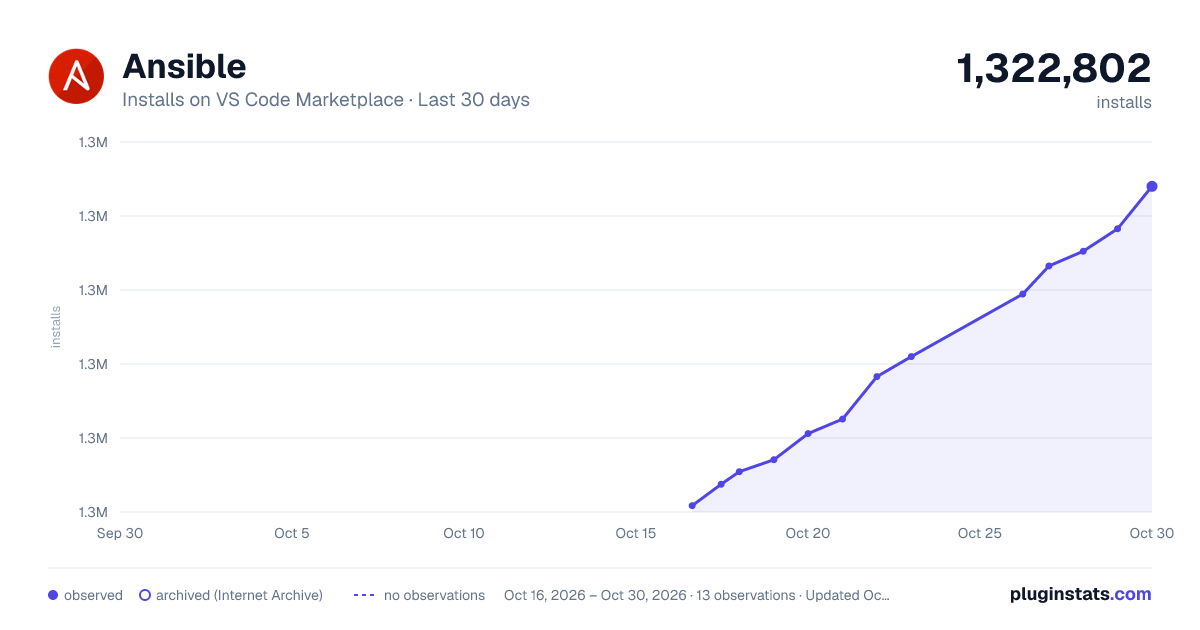
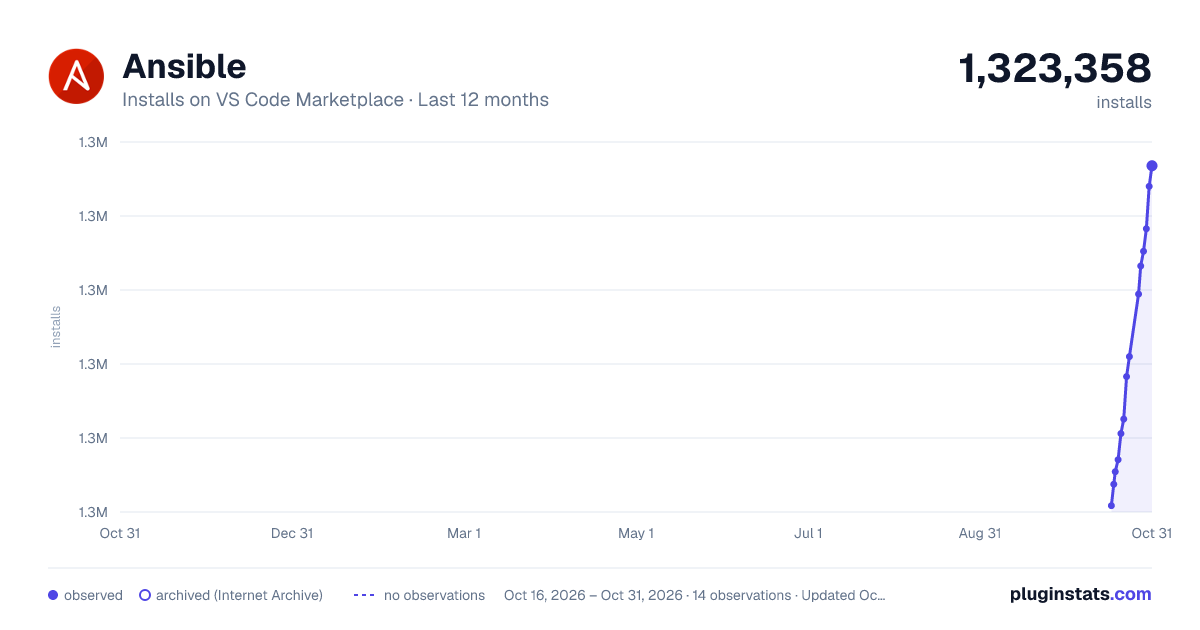
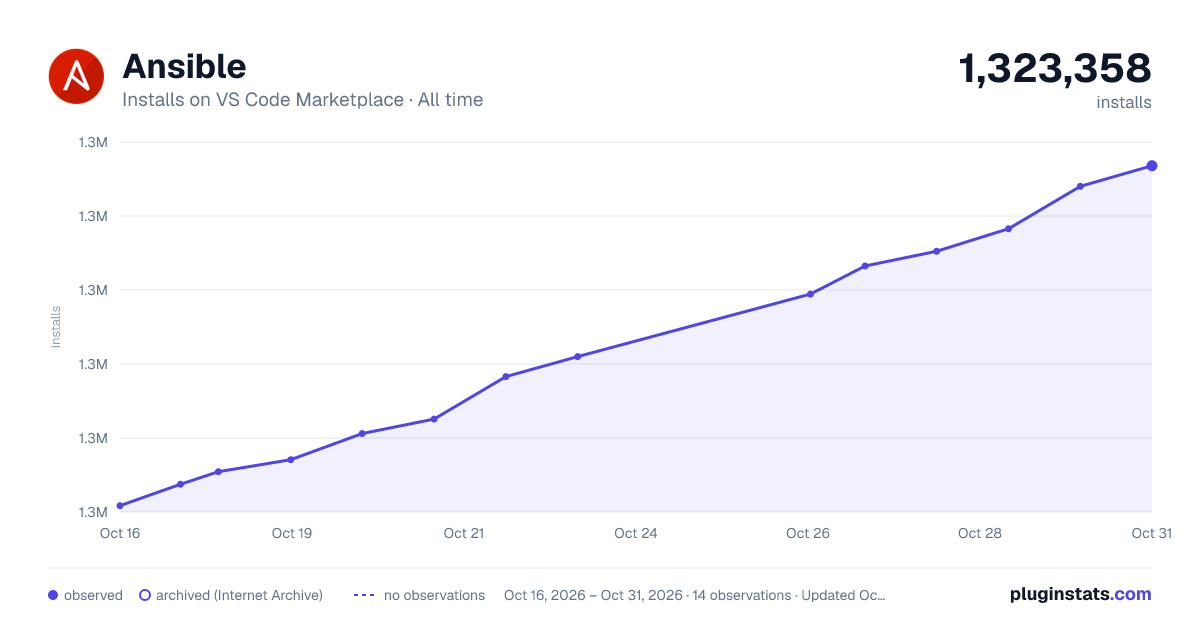

Adoption over time


7/30/90-day growth


Filled points are observed values; hollow points come from Internet Archive snapshots of the listing page. Dashed segments span periods with no observations — values between points are not interpolated.
Recent observations
Full history (4)Similar VS Code Marketplace Programming Languages plugins
Data source
Install counts, average rating, and rating counts come from the public Visual Studio Marketplace gallery API. Installs are cumulative and exclude updates.
Listing: https://marketplace.visualstudio.com/items?itemName=redhat.ansible. First seen Oct 16, 2026; last successful collection Oct 19, 2026. See the methodology.