 PluginStats
glTF Tools installs statistics
By CesiumJS.org · VS Code Marketplace · Linters
Tools for glTF and GLB 3D models
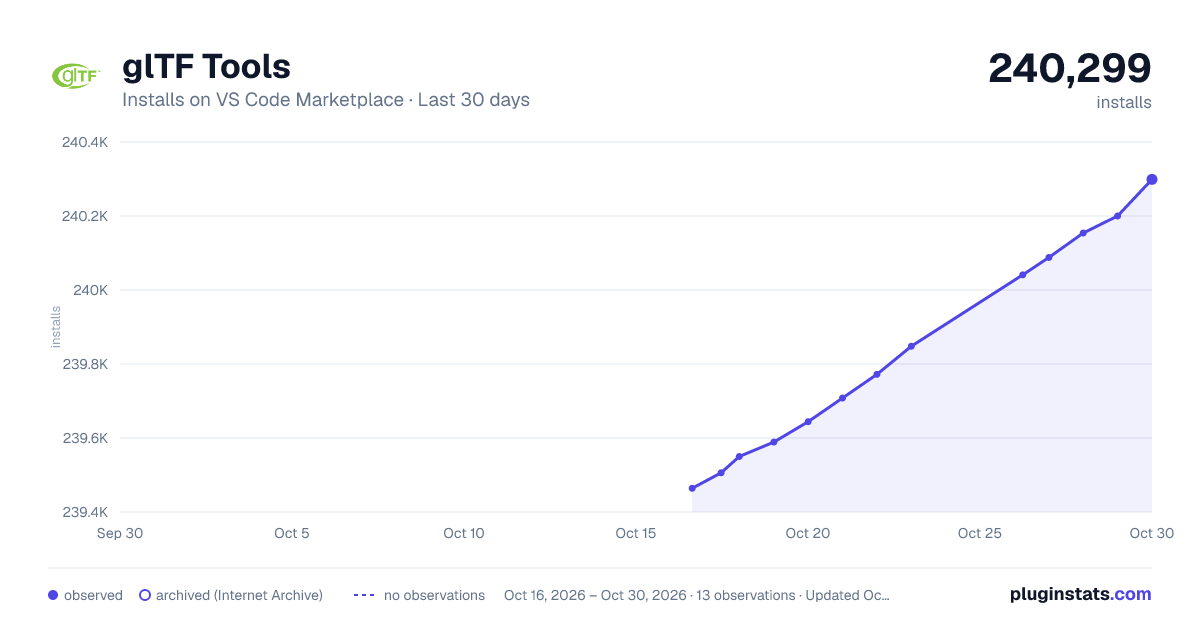
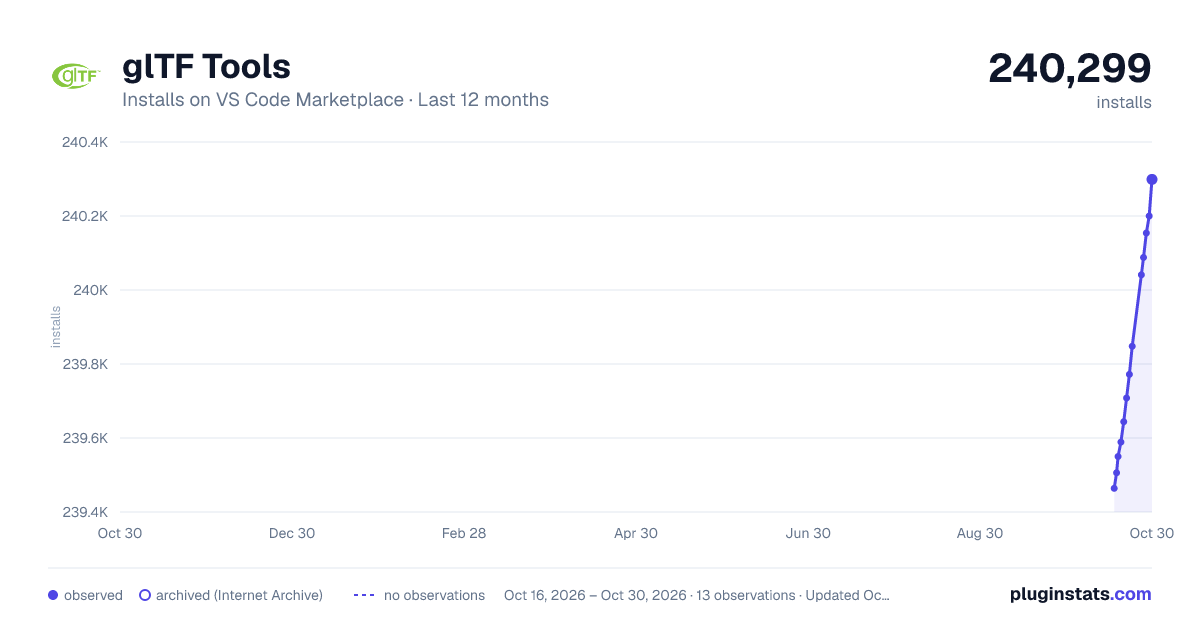
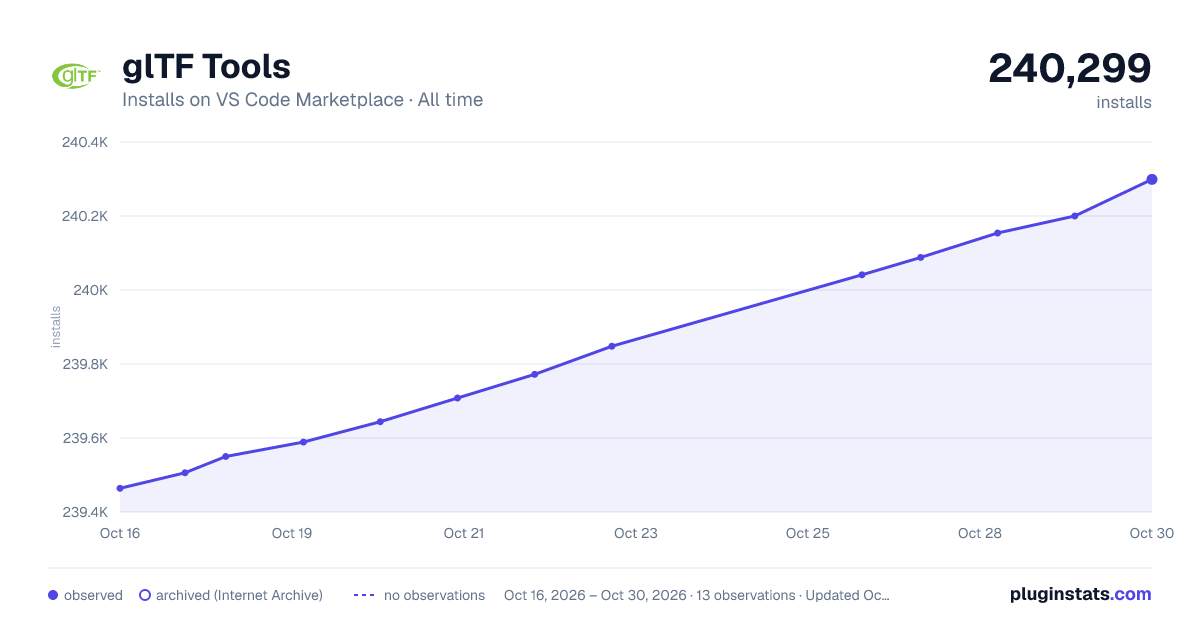
glTF Tools has 239,644 recorded installs on VS Code Marketplace, ranking #1336 of 2,501 tracked listings.
Rating: 5.00 / 5 from 13 ratings
About glTF Tools
glTF Tools Extension for Visual Studio Code



Preview and debug glTF 3D models directly in the editor

Command name: glTF: Preview 3D Model, default key binding: <kbd>ALT</kbd> + <kbd>G</kbd>
The above model, other sample models, and associated licenses can be obtained from the glTF-Sample-Models repository.
You can preview glTF files in a number of different rendering engines: BabylonJS, Cesium, and ThreeJS. The ThreeJS engine will preview the saved model as opposed to the current content in your open VS Code tab. The Babylon and Cesium engines will first try to preview what is currently in your tab, and only if that fails will it fall back on displaying the version of the model saved on disk.
Installing the glTF Tools Extension
Once you have Visual Studio Code installed, the next steps are simple:

If you wish to build this from source code, see Developer Environment.
Export text-based .gltf file and all its resources to binary .glb file.

Command name: glTF: Export to GLB (Binary file)
The glTF 3D model format comes in two varieties: *.gltf is a JSON-based text file, easily editable with this VS Code extension, often with references to external files such as texturemaps and binary mesh data. *.glb is a binary version, typically smaller and self-contained, but not easily editable.
The glTF: Export to GLB (Binary file) command will export your text-based glTF from the editor to a binary .glb file. In the exported version, whitespace in the JSON is stripped out, external file references are read in and converted to GLB binary bufferViews, and the resulting file becomes a self-contained transportable file that can be easily shared.
Import a binary .glb file as text-based .gltf
Command name: glTF: Import from GLB


The glTF: Import from GLB command will convert a binary .glb to JSON-based .gltf for editing, creating a separate file for the binary and additional files for each of the included images. Note that during import, some filenames are calculated based on the target filename of the output .gltf. For example, importing a sample file BoomBox.glb to .gltf may create the following files:
BoomBox.gltf- The JSON structure.BoomBox_data.bin- The binary mesh dataBoomBox_img0.png- Image file(s) extracted from the GLBBoomBox_img1.pngBoomBox_img2.pngBoomBox_img3.png
The user is given a "Save As..." dialog for the base .gltf output filename only. The other files are saved to the same folder with names calculated by appending to the user's selected base name, and any pre-existing files with the same name will be overwritten.
Inspect data from files or data-URIs

Command name: glTF: Inspect Data, default key binding: <kbd>ALT</kbd> + <kbd>D</kbd>
Above, the user is inspecting the first accessor that is part of the BoomBox.gltf model from the official sample model repository. Place the document cursor on shaders, images, accessors, or mesh primitives then select the glTF: Inspect Data command to inspect the data. The command works for files or data-URIs.
If you plan to preview GLSL shader code, consider installing a 3rd-party syntax highlighter with support for the *.glsl extension, for example Shader Language Support for VSCode by slevesque, to enable syntax highlighting in shader previews.
Tree View of Scene Nodes
When editing a glTF file, an icon with the glTF logo is visible in the left bar. This outline view reveals the structure of the glTF file and its internal references. This is a different structure than the plain JSON outline that keeps objects grouped by type.
You can also inspect the vertex and triangle data from a selected mesh primitive.

glTF Debugging
Debugging mesh primitive data can be achieved by opening the preview window at the same time as inspecting the mesh primitive data.
Note that this feature is currently only supported when Babylon.js is the rendering engine.
For example, selecting a vertex will show the axes for that vertex. If multiple vertices are selected, each vertex will show an axes.

Here is an example of selecting triangles. Multi-select is available by holding down <kbd>SHIFT</kbd> and using the arrow keys.…
Description from the VS Code Marketplace listing.
- 3D
- glb
- glTF
- json
- keybindings
- Khronos
- model
README badge
Show your rank in a README or on your website. The badge updates automatically.
Charts
Images: 30d · 1y · all time · 1600×900 dark

Adoption over time
7/30/90-day growth
Ranking history
Ratings over time
Listing placement
Listing placement
Listing placement
Listing placement
Filled points are observed values; hollow points come from Internet Archive snapshots of the listing page. Dashed segments span periods with no observations — values between points are not interpolated.
Each band is one page of 20. Installs on a linear scale. Placement is projected from installs, so it can differ from the marketplace's own sort order. Hover a dot to see the listing.
Recent observations
Full history (5)Similar VS Code Marketplace Linters plugins
All 20 glTF Tools alternativesData source
Install counts, average rating, and rating counts come from the public Visual Studio Marketplace gallery API. Installs are cumulative and exclude updates.
Listing: https://marketplace.visualstudio.com/items?itemName=cesium.gltf-vscode. First seen Oct 16, 2026; last successful collection Oct 20, 2026. See the methodology.