 PluginStats
Claude Code Assistant for VSCode installs statistics
By CodeFlow Studio · VS Code Marketplace · Other
Unofficial integration of Anthropic's Claude Code AI assistant into VSCode
Claude Code Assistant for VSCode has 295,777 recorded installs on VS Code Marketplace.
It ranks #1170 of 2,500 tracked VS Code Marketplace listings by installs.
It is rated 5.0 out of 5 from 3 ratings.
PluginStats has 3 daily observations since Oct 16, 2026; the latest is from Oct 18, 2026.
Rating: 5.00 / 5 from 3 ratings
About Claude Code Assistant for VSCode
Claude Code Assistant for VSCode
*Unofficial integration* of Anthropic's Claude Code AI assistant into Visual Studio Code. Get intelligent coding assistance without leaving your editor.
Disclaimer: This is an unofficial extension not affiliated with Anthropic. It integrates with the official Claude Code CLI tool which must be installed separately.
Features
🤖 AI-Powered Coding Assistant
• Seamless Integration: Access Claude Code directly from VSCode's sidebar • Smart Launch Options: Choose how to start your Claude session • Auto-Start Control: Configure automatic startup behavior • Persistent Sessions: Maintain conversations across your coding sessions • Context-Aware: Claude understands your workspace and current files
🚀 Smart Session Management
• Launch Options: When Claude isn't running, choose from three convenient options: • Start New Session: Begin a fresh conversation • Continue Last Session: Resume your previous conversation • Select History: Browse and choose from past conversations • Auto-Start Configuration: Control whether Claude starts automatically when VSCode opens • Flexible Commands: Configure which command to use for auto-start (claude, claude -c, etc.)
🖼️ Visual Context Support
• Drag & Drop Images: Simply drag images into the chat • Paste Screenshots: Ctrl/Cmd+V to paste images directly • File Selection: Use the image button to browse and attach files • Multiple Formats: Supports JPG, PNG, GIF, WebP, and SVG
🚀 Quick Fix Integration
• Instant Error Help: "Fix with Claude Code" appears in VSCode's Quick Fix menu (Ctrl+. / Cmd+.) • Automatic Context: Sends error details, file references, and surrounding code automatically • Seamless Workflow: Click the lightbulb on any error to get Claude's assistance instantly • Smart Detection: Works with all types of errors and warnings from any language
💬 Smart Interactions
• @mentions: Reference workspace problems and terminal output • Slash Commands: Quick access to Claude's powerful features • Custom Commands: Create your own project and user slash commands • Markdown Support: Rich formatting with syntax highlighting • Code Actions: Copy code blocks with one click
🎨 Beautiful Interface
• Claude-Styled UI: Familiar interface matching Claude's design • Dark/Light Theme: Adapts to your VSCode theme • Status Indicators: Real-time feedback on Claude's state • Clear History: Easy conversation management
Prerequisites
• Visual Studio Code 1.70.0 or newer • Claude Code CLI installed on your system • Active Claude account with authentication
Building the Extension
To build the extension, follow these steps:
1. Install dependencies:
2. Build the extension:
This will generate a .vsix file in the project root directory.
Installing the Extension
From the VSIX file
1. Open VSCode 2. Go to the Extensions view 3. Click the "..." menu (top-right of Extensions view) 4. Select "Install from VSIX..." 5. Browse to the .vsix file generated in the build step 6. Select the file and click "Install"
From the Command Line
You can also install the extension using the VSCode CLI:
Getting Started
1. Install the extension from the VSCode Marketplace 2. Open the Claude Code panel from the sidebar (look for the Claude icon) 3. Choose how to launch Claude: • Auto-start enabled: Claude starts automatically when VSCode opens • Auto-start disabled: Select from launch options (New Session, Continue Last, or Select History) 4. Start chatting with Claude about your code!
Usage
🚀 Launch Options
When Claude isn't running, you'll see three launch options: • Start New Session (▶️): Begin a fresh conversation with Claude • Continue Last Session (⏭️): Resume your previous conversation where you left off • Select History (📚): Browse and choose from your past conversations
💬 Basic Chat
• Type your questions or requests in the input area • Press Enter or click Send to submit • Claude will respond with helpful suggestions and code
🚀 Quick Fix with Claude
• Instant Help: When you see a red/yellow squiggly line under code, press Ctrl+. (Cmd+. on Mac) • Select Fix: Choose "Fix with Claude Code" from the Quick Fix menu • Auto Context: Claude receives the error details, file location, and surrounding code automatically • Get Solution: Claude analyzes the error and provides targeted fixes
🖼️ Working with Images
• Drag & Drop: Drag image files directly onto the input area • Paste: Copy an image and paste with Ctrl/Cmd+V • Browse: Click the 📎 button to select image files • Supported: JPG, PNG, GIF, WebP, SVG
🔧 Advanced Features
• @mentions: Type @ to reference problems or terminal output • Slash Commands: Type / to see available commands • Custom Commands: Create your own project-specific (/project:command) and personal (/user:command) slash commands • Clear Chat: Click the clear button to start fresh • Restart Claude: Use the restart button if needed
⚙️ Configuration
The extension can be customized through VSCode settings:
• Auto Start On Activation: Enable/disable automatic Claude startup when VSCode opens • Auto Start Command: Configure which command to use when auto-starting Claude • claude - Start a new session • claude -c - Continue the last session • claude -r - Select from conversation history • Custom commands as needed
Access these settings through VSCode preferences: File > Preferences > Settings and search for "Claude Code Extension".
See our documentation for detailed guides, including how to create custom slash commands.
Development
• npm run compile - Compile the extension • npm run watch - Watch for changes and recompile • npm run package - Package the extension for production (webpack) • npm run lint - Run ESLint on source files • npm run test - Run tests • npm run vsix - Create VSIX package for installation
Support
• 🔧 Troubleshooting Guide - Fix common issues like service worker errors • 📖 Documentation • 🐛 Report Issues • 💬 Discussions
License
MIT License - see LICENSE.md for details
Contributing…
Description from the VS Code Marketplace listing.
- ai
- anthropic
- artificial intelligence
- claude
- code assistant
- codeflow
- coding
- unofficial
Where Claude Code Assistant for VSCode sits in the listing
Each band is one page of 20. Installs on a log scale. Placement is projected from installs, so it can differ from the marketplace's own sort order. Hover a dot to see the listing.


Charts
Images: 30d · 1y · all time · 1600×900 dark
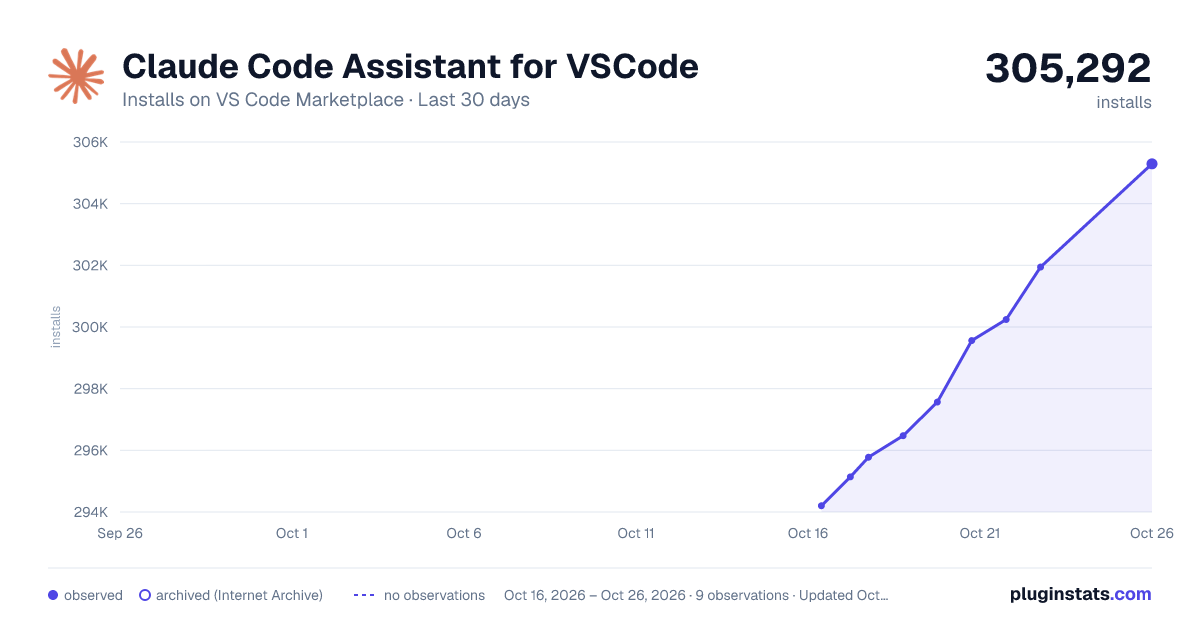
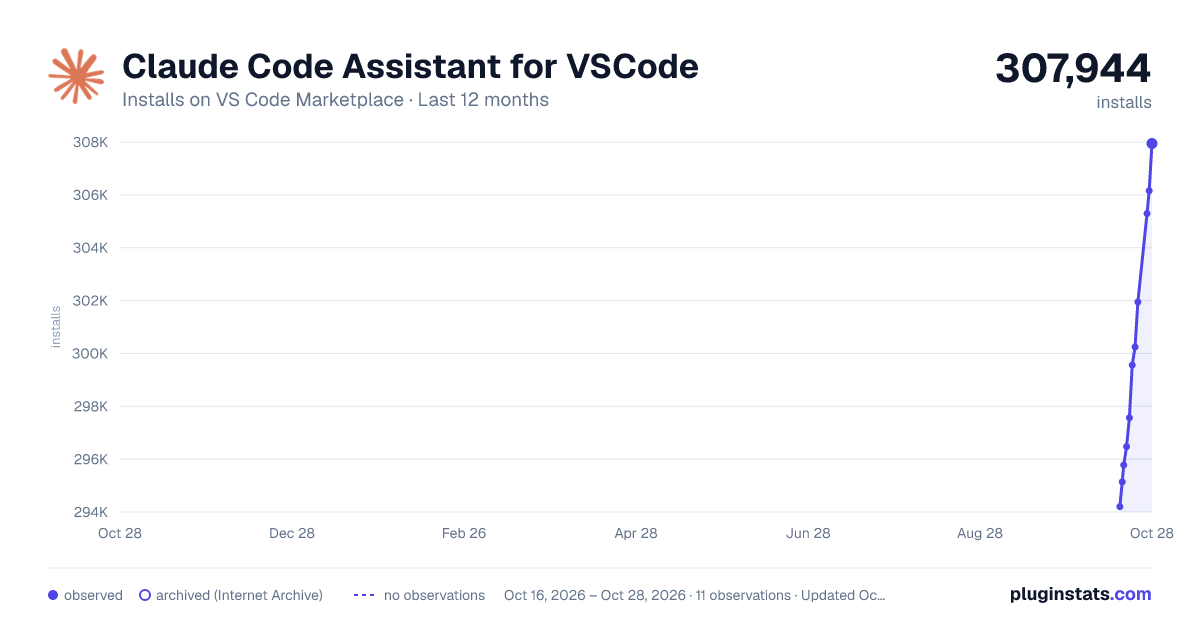
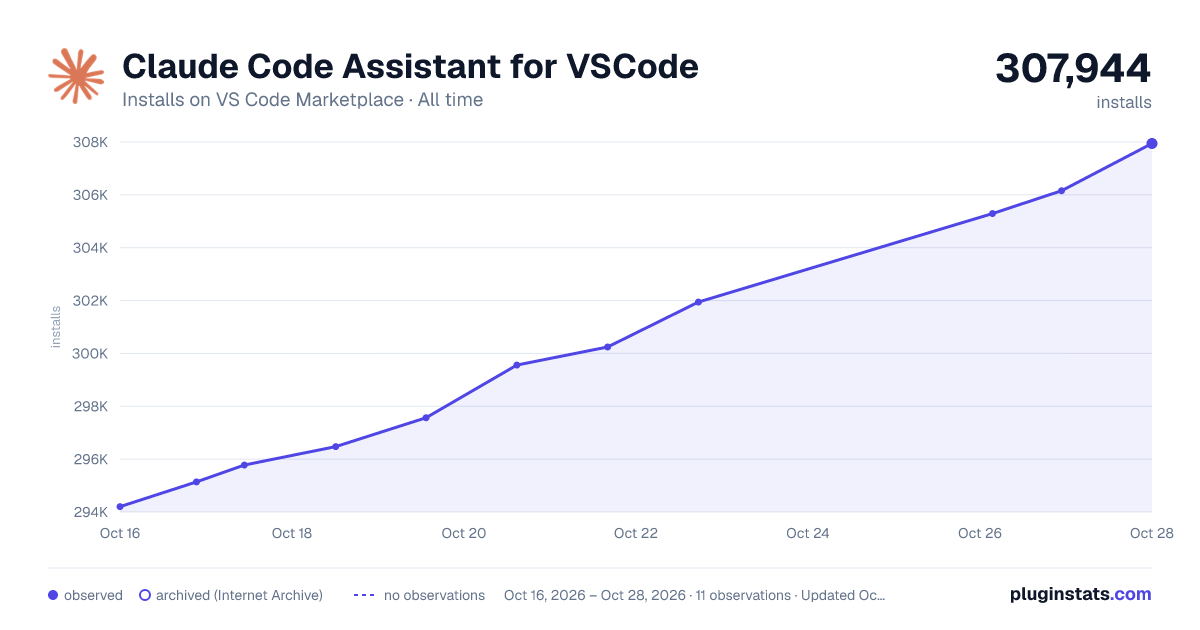

Adoption over time


7/30/90-day growth


Ranking history


Filled points are observed values; hollow points come from Internet Archive snapshots of the listing page. Dashed segments span periods with no observations — values between points are not interpolated.
Recent observations
Full history (3)Similar VS Code Marketplace Other plugins
Data source
Install counts, average rating, and rating counts come from the public Visual Studio Marketplace gallery API. Installs are cumulative and exclude updates.
Listing: https://marketplace.visualstudio.com/items?itemName=codeflow-studio.claude-code-extension. First seen Oct 16, 2026; last successful collection Oct 18, 2026. See the methodology.