 PluginStats
Debugger for Chrome (Nightly) installs statistics
By Microsoft (224 listings) · VS Code Marketplace · Debuggers
Debug your JavaScript code in the Chrome browser, or any other target that supports the Chrome Debugger protocol.
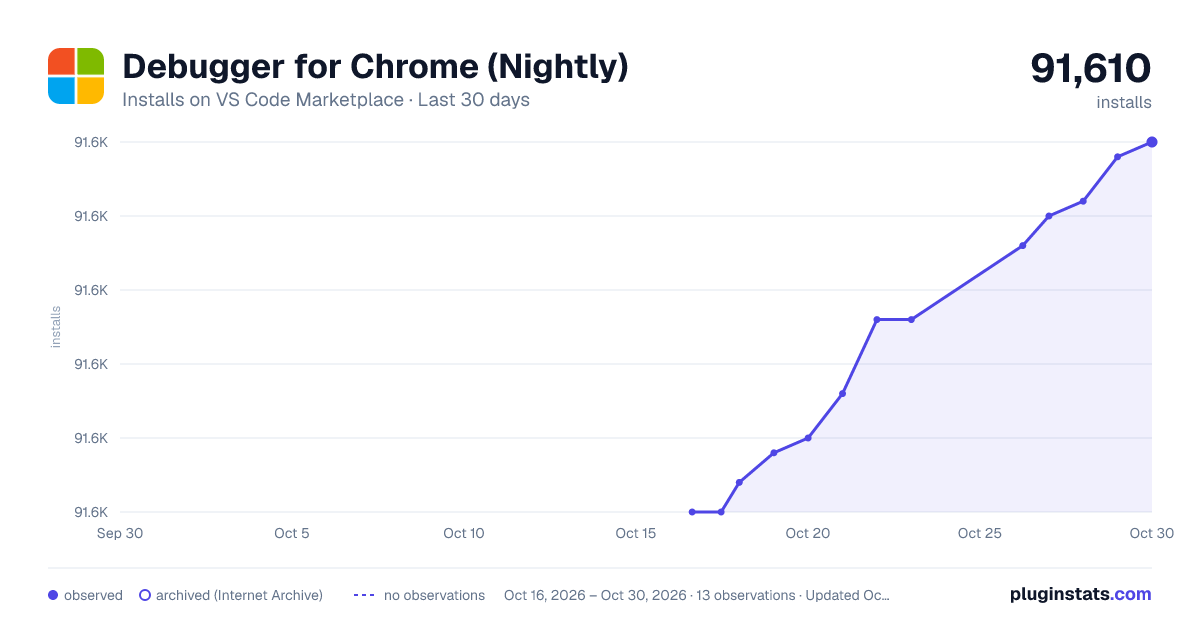
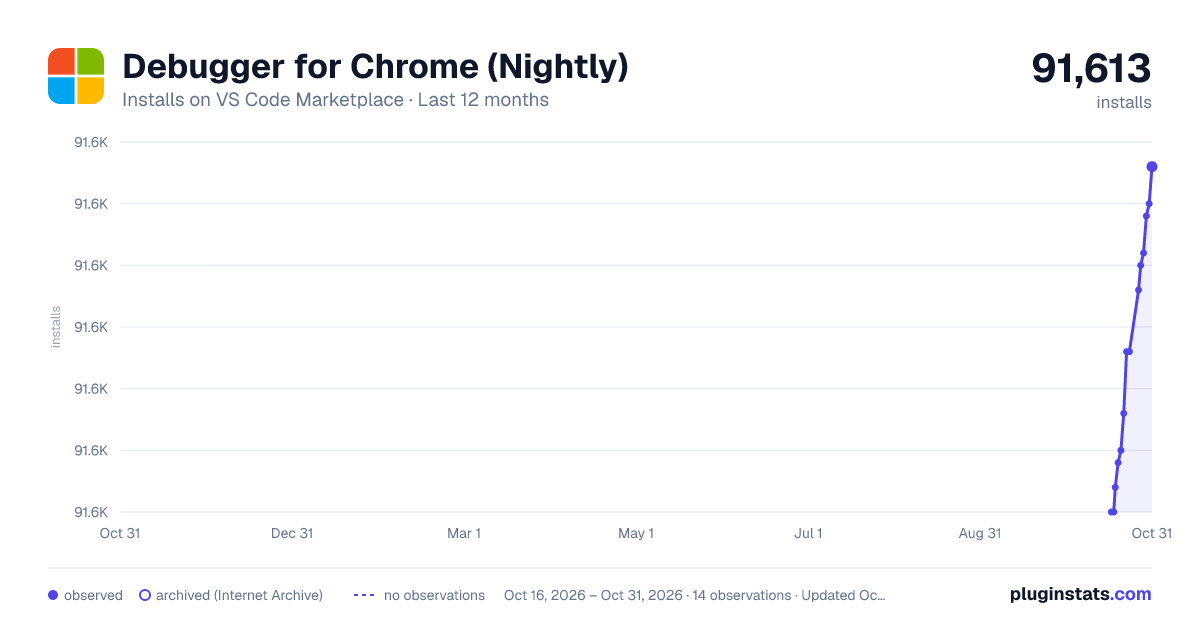
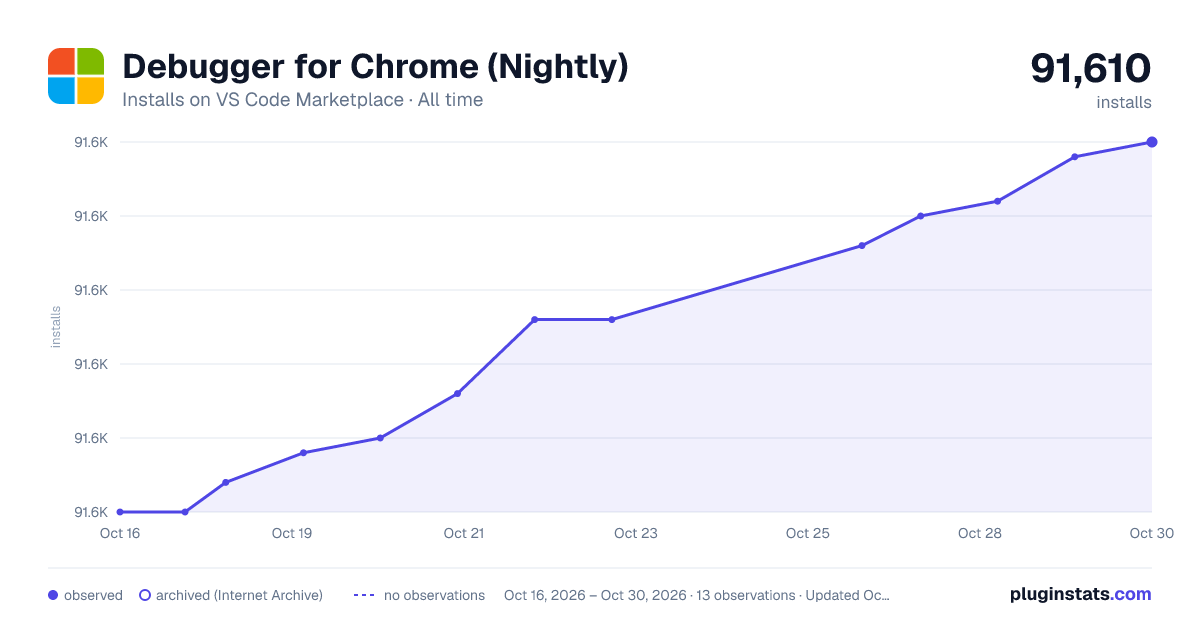
Debugger for Chrome (Nightly) has 91,593 recorded installs on VS Code Marketplace, ranking #2489 of 2,502 tracked listings.
About Debugger for Chrome (Nightly)
This is a nightly version of this extension for early feedback and testing
<h1 align="center"> <br> <img src="https://github.com/Microsoft/vscode-chrome-debug/blob/master/images/icon.png?raw=true" alt="logo" width="200"> <br> VS Code - Debugger for Chrome <br> <br> </h1> <h4 align="center">Debug your JavaScript code running in Google Chrome from VS Code.</h4> <p align="center"> <a href="https://vscode.visualstudio.com/1e32b5a6-a974-467b-9d5f-f47e49589c5e/_build/definition?definitionId=9"><img src="https://vscode.visualstudio.com/_apis/public/build/definitions/1e32b5a6-a974-467b-9d5f-f47e49589c5e/9/badge" alt="vsts"></a> <a href="https://marketplace.visualstudio.com/items?itemName=msjsdiag.debugger-for-chrome"><img src="https://vsmarketplacebadge.apphb.com/version/msjsdiag.debugger-for-chrome.svg?label=Debugger%20for%20Chrome" alt="Marketplace bagde"></a> <a href="https://gitter.im/Microsoft/vscode-chrome-debug?utm_source=badge&utm_medium=badge&utm_campaign=pr-badge&utm_content=badge"><img src="https://badges.gitter.im/Microsoft/vscode-chrome-debug.svg" alt="Release"></a> </p>Disable the stable version of the extension before using the nightly version
A VS Code extension to debug your JavaScript code in the Google Chrome browser, or other targets that support the Chrome DevTools Protocol.

Supported features
- Setting breakpoints, including in source files when source maps are enabled
- Stepping, including with the buttons on the Chrome page
- The Locals pane
- Debugging eval scripts, script tags, and scripts that are added dynamically
- Watches
- Console
Unsupported scenarios
- Debugging web workers
- Any features that aren't script debugging.
Getting Started
- Install the extension
- Open the folder containing the project you want to work on.
Using the debugger
When your launch config is set up, you can debug your project. Pick a launch config from the dropdown on the Debug pane in Code. Press the play button or F5 to start.
Configuration
The extension operates in two modes - it can launch an instance of Chrome navigated to your app, or it can attach to a running instance of Chrome. Both modes requires you to be serving your web application from local web server, which is started from either a VS Code task or from your command-line. Using the url parameter you simply tell VS Code which URL to either open or launch in Chrome.
Just like when using the Node debugger, you configure these modes with a .vscode/launch.json file in the root directory of your project. You can create this file manually, or Code will create one for you if you try to run your project, and it doesn't exist yet.
Tip: See recipes for debugging different frameworks here: https://github.com/Microsoft/vscode-recipes
Launch
Two example launch.json configs with "request": "launch". You must specify either file or url to launch Chrome against a local file or a url. If you use a url, set webRoot to the directory that files are served from. This can be either an absolute path or a path using ${workspaceFolder} (the folder open in Code). webRoot is used to resolve urls (like "http://localhost/app.js") to a file on disk (like /Users/me/project/app.js), so be careful that it's set correctly.
{
    "version": "0.1.0",
    "configurations": [
        {
            "name": "Launch localhost",
            "type": "chrome",
            "request": "launch",
            "url": "http://localhost/mypage.html",
            "webRoot": "${workspaceFolder}/wwwroot"
        },
        {
            "name": "Launch index.html",
            "type": "chrome",
            "request": "launch",
            "file": "${workspaceFolder}/index.html"
        },
    ]
}
If you want to use a different installation of Chrome, you can also set the runtimeExecutable field with a path to the Chrome app.
Attach
With "request": "attach", you must launch Chrome with remote debugging enabled in order for the extension to attach to it. Here's how to do that:
Windows
- Right click the Chrome shortcut, and select properties
- In the "target" field, append
--remote-debugging-port=9222 - Or in a command prompt, execute
<path to chrome>/chrome.exe --remote-debugging-port=9222
macOS
- In a terminal, execute
/Applications/Google\ Chrome.app/Contents/MacOS/Google\ Chrome --remote-debugging-port=9222
Linux
- In a terminal, launch
google-chrome --remote-debugging-port=9222
If you have another instance of Chrome running and don't want to restart it, you can run the new instance under a separate user profile with the --user-data-dir option. Example: --user-data-dir=/tmp/chrome-debug. This is the same as using the userDataDir option in a launch-type config.
Launch Chrome and navigate to your page.
An example launch.json file for an "attach" config.
{
    "version": "0.1.0",
    "configurations": [
        {
            "name": "Attach to url with files served from ./out",
            "type": "chrome",
            "request": "attach",
            "port": 9222,
            "url": "<url of the open browser tab to connect to>",
            "webRoot": "${workspaceFolder}/out"
        }
    ]
}
Chrome user profile note (Cannot connect to the target: connect ECONNREFUSED)…
Description from the VS Code Marketplace listing.
- debuggers
- javascript
- keybindings
- multi-root ready
README badge
Show your rank in a README or on your website. The badge updates automatically.
Charts
Images: 30d · 1y · all time · 1600×900 dark

Adoption over time
7/30/90-day growth
Ranking history
Ratings over time
Listing placement
Listing placement
Filled points are observed values; hollow points come from Internet Archive snapshots of the listing page. Dashed segments span periods with no observations — values between points are not interpolated.
Each band is one page of 20. Installs on a linear scale. Placement is projected from installs, so it can differ from the marketplace's own sort order. Hover a dot to see the listing.
Recent observations
Full history (6)Similar VS Code Marketplace Debuggers plugins
All 20 Debugger for Chrome (Nightly) alternativesData source
Install counts, average rating, and rating counts come from the public Visual Studio Marketplace gallery API. Installs are cumulative and exclude updates.
Listing: https://marketplace.visualstudio.com/items?itemName=msjsdiag.debugger-for-chrome-nightly. First seen Oct 16, 2026; last successful collection Oct 21, 2026. See the methodology.