 PluginStats
Blender Development installs statistics
By Jacques Lucke (2 listings) · VS Code Marketplace · Other
Tools to simplify Blender development.
Blender Development has 121,031 recorded installs on VS Code Marketplace.
It ranks #2127 of 2,500 tracked VS Code Marketplace listings by installs.
It is rated 4.8 out of 5 from 27 ratings.
PluginStats has 3 daily observations since Oct 16, 2026; the latest is from Oct 18, 2026.
Rating: 4.85 / 5 from 27 ratings
About Blender Development
[!TIP] Check CHANGELOG for changes and new features.
Prefer the previous layout? Browse the classic README.
Blender VS Code
Blender addon development with python debugger. Everything you need is available through the Blender command palette menu (press Ctrl+Shift+P).
Table of Contents
• Blender VS Code • Table of Contents • Quick Start • Addon Development • Creating a new addon • Opening an existing addon • Environment Isolation • Script Tools • Customization \& Shortcuts • Keyboard Shortcuts • Troubleshooting \& Logs • Status \& Contribution
Quick Start
1. Install the extension the same way you install any VS Code extension (id: JacquesLucke.blender-development). 2. Open the addon folder (one per workspace) and press Ctrl+Shift+P → Blender: Start. 3. Choose a Blender executable (any Blender ≥ 2.8.34) and wait for the session to launch. 4. Use Blender: Reload Addons after editing your addon and Blender: Run Script to execute scripts.
Opening Blender for the first time may take longer because dependency libraries are set up automatically.
Addon Development
Extensions and legacy addons (pre Blender 4.2) are supported. For migration guide visit Legacy vs Extension Add-ons. VS code uses the automatic logic to determine if you are using addon or extension
[!NOTE] VS Code automatically creates permanent symlinks (junctions on Windows) so your addon is visble inside Blender: - Addons: bpy.utils.user_resource("SCRIPTS", path="addons") - Extensions: bpy.utils.user_resource("EXTENSIONS", path="vscode_development")
Creating a new addon
• Run Blender: New Addon to scaffold a ready-to-use addon folder. The wizard asks which template to use, where to save the addon (prefer an empty folder without spaces), what to name it, and who is authoring it. • Once the scaffold exists, open it in VS Code to start developing. All commands, including reload and script runners, work immediately because VS Code creates the required symlinks.
Opening an existing addon
• This extension works with folder-based addons or extensions. If your addon is just single file something.py, move it into a folder and rename the file to init.py. • Open the folder for your addon in VS Code, run Ctrl+Shift+P → Blender: Start, and point the command at a Blender executable (Blender ≥ 2.8.34). The terminal output appears inside VS Code and you can debug as usual with breakpoints. • The very first launch can take longer because Blender installs the required Python dependencies automatically; keep a stable internet connection during that run. • Debugging is limited to workspace files by default. Disable blender.addon.justMyCode if you want to step into third-party libraries (caution: this can make Blender less stable in rare cases). • Use Blender: Reload Addons after each change (requires Blender started via the extension). • Enable blender.addon.reloadOnSave to trigger reload automatically on save.
[!WARNING] In some cases uninstalling addon using Blender Preferences UI interface might lead to data loss. So don't use UI to uninstall, just delete the link manually.
Environment Isolation
Set blender.environmentVariables to point Blender to a dedicated development workspace:
This keeps settings, addons, and user scripts separate from your daily Blender setup.
You can also specify the finer-grained BLENDER_USER_* variables listed here:
Script Tools
This extension helps you write, run, and debug standalone Blender scripts that are not full addons.
[!WARNING] Running scripts from VS Code occasionally crashes Blender. Keep your work saved and restart Blender if it becomes unresponsive. Don't go crazy with you scripts!
• Execute Blender: New Script and follow the prompts to create a script in your chosen folder. • Run Blender: Run Script to execute every script in any open Blender session started through VS Code. Blender will automatically start if no instances are running. • Insert a comment like #context.area: VIEW_3D or run Blender: Set Script Context to control where scripts execute. • Pass CLI arguments to python script by adding them after -- in blender.additionalArguments (they become available in sys.argv). Note: newer approach is to register command with bpy.utils.register_cli_command (Blender 4.2 and newer) and use --command to call it.
Common pitfalls: • Avoid calling sys.exit inside Blender scripts (see sys.exit gotcha). • Prefer bpy.utils.register_cli_command when wiring command line entry points.
Customization & Shortcuts
The extension is driven by settings (search for blender. inside VS Code settings). A few useful ones: • blender.additionalArguments: pass extra CLI flags and optionally a default .blend file (prefer this as the last argument). • blender.preFileArguments / blender.postFileArguments: control where Blender expects file names in the argument list. • blender.executables: register frequently used Blender installations and mark one with "isDefault": true to keep prompts silent. • blender.addon.justMyCode: disable to step into third-party libraries while debugging. • blender.addon.reloadOnSave: reload addons every time a workspace file changes while Blender is running. • blender.addon.logLevel: control the verbosity of the Blender output channel for debugging. blender.addon.buildTaskName: VS Code task name that is executed before addon start and on every addon reload (output shown in terminal). See detailed example:
1. Open tasks.json (crtl+shift+p and search Tasks: Open User Tasks) 2. Add task:
3. Configure blender.addon.buildTaskName set to my-blender-reload-task 4. Task will be triggered before every Blender: Start and Blender: Reload Addons for every addon in workspace
Keyboard Shortcuts
Add shorcuts by editing keybindings.json (crtl+shift+p and search for Preferences: Open Keyborad Shortcuts (JSON)).
Blender: Start shortcut:
Blender: Start shortcut, but with specific executable or script:
Blender: Run Script shortcut:
Troubleshooting & Logs…
Description from the VS Code Marketplace listing.
- blend
- Blend File
Where Blender Development sits in the listing
Each band is one page of 20. Installs on a log scale. Placement is projected from installs, so it can differ from the marketplace's own sort order. Hover a dot to see the listing.


Charts
Images: 30d · 1y · all time · 1600×900 dark
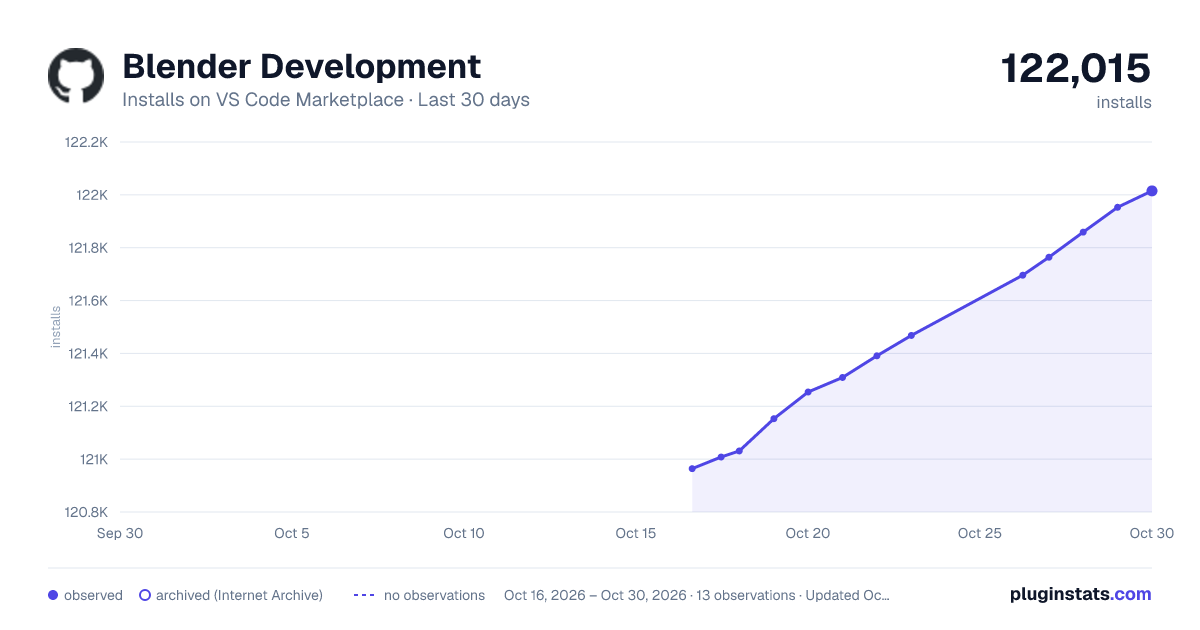
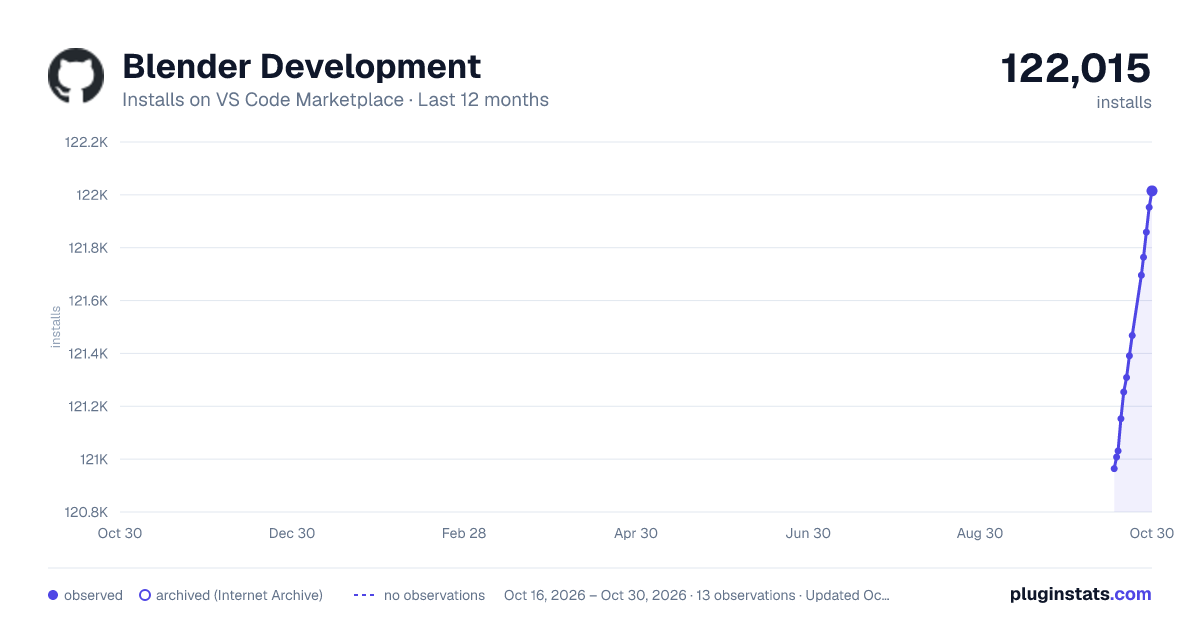
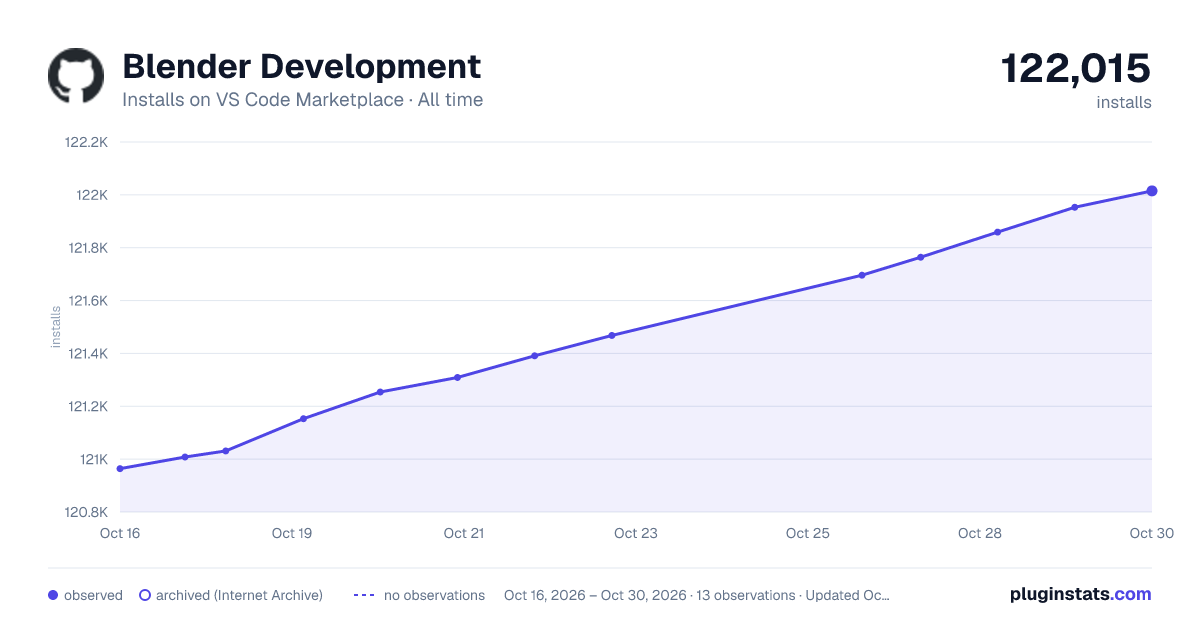

Adoption over time


7/30/90-day growth


Ranking history


Filled points are observed values; hollow points come from Internet Archive snapshots of the listing page. Dashed segments span periods with no observations — values between points are not interpolated.
Recent observations
Full history (3)Similar VS Code Marketplace Other plugins
Data source
Install counts, average rating, and rating counts come from the public Visual Studio Marketplace gallery API. Installs are cumulative and exclude updates.
Listing: https://marketplace.visualstudio.com/items?itemName=JacquesLucke.blender-development. First seen Oct 16, 2026; last successful collection Oct 18, 2026. See the methodology.