 PluginStats
VSNotes installs statistics
By Patrick Lee · VS Code Marketplace · Other
Simple VS Code extension for plain text note taking.
VSNotes has 119,080 recorded installs on VS Code Marketplace, ranking #2147 of 2,501 tracked listings.
Rating: 4.24 / 5 from 25 ratings
About VSNotes
VS NOTES
VS Notes is a simple tool that takes care of the creation and management of plain text notes and harnesses the power of VS Code via the Command Palette.

- VS NOTES
- Demo Video
- Repository
- Features
- Quick Start
- Taking Notes
- Settings
- Tips and tricks
- Roadmap & Features
- Change log
- Contributing
- Contributors
- Reviews
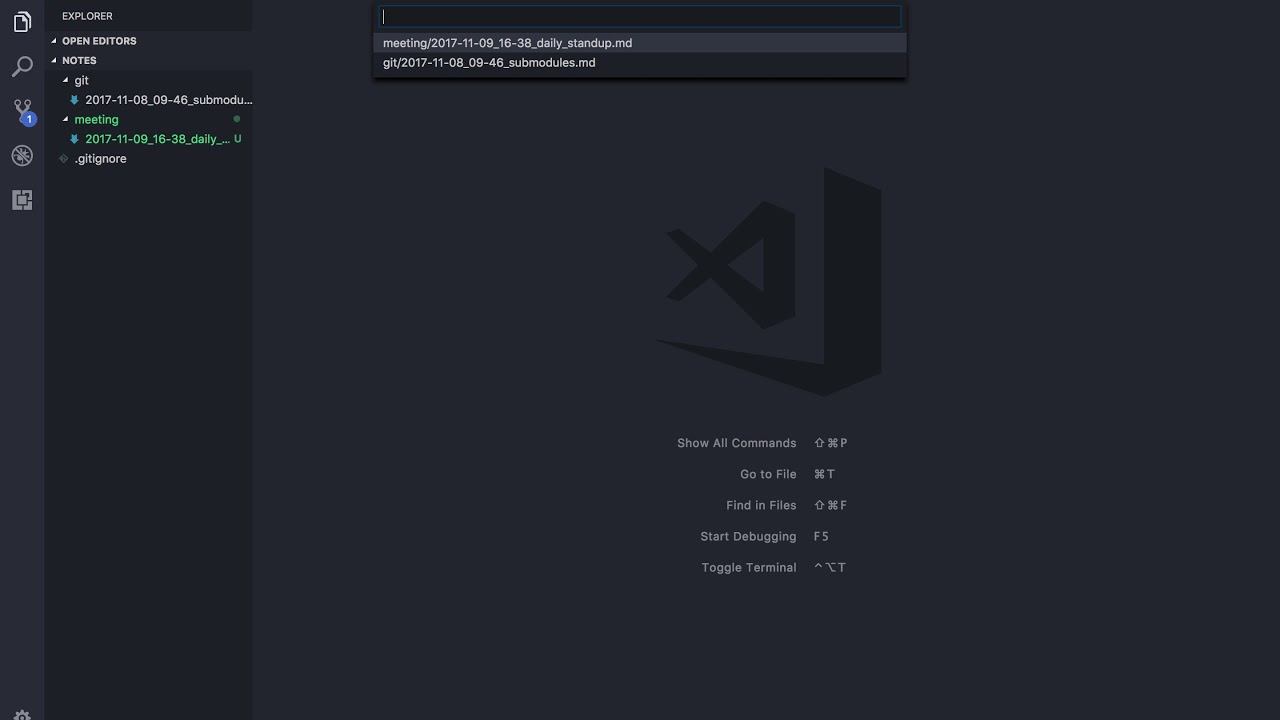
Demo Video
Click to watch 1 min demo video.
Repository
VS Notes is MIT Licensed and available on Github
Features
- Access commands quickly from the VS Code command palette
Ctrl/Cmd + Shift + p. - Set a base folder for your notes and all notes created will be saved in that folder.
- Easily access latest notes with
Open Notecommand. - Retrieve notes via tags in YAML encoded frontmatter on your notes.
- Open your note folder in a new window.
- View your notes and tags in your filebar.
- Automatically insert a VS Code snippet upon creation of a new note.
- Commit and push to your upstream repository with a single command.
- New Create a note in a currently open workspace.
Quick Start
- Install the extension from the VS Code Extension menu or click install on this page..
- Open the command palette
Ctrl/Cmd + Shift + pand typevsnotes. Select Run Setup. - Click start and then select a directory to save your notes to.
To modify other settings, open the VS Code settings
Preferences > Settingsor hitCtrl/Cmd + ,and type in vsnotes in the search bar. To override the setting, copy it over to your user settings file and modify.
- Access VSNotes commands in the command pallette by pressing
ctrl/cmd + shift + pand typing vsnotes.
Taking Notes
VSNotes is just a quick way to create files in a single location and retrieve them later. Harness the power of VSCode and the extension ecosystem to customize your note taking workflow. The default file type is markdown and features are built around taking markdown notes. However if you want to save your notes as other types of plain text files, you can change the settings to append a different file extension.
[New in 0.6.0] Create a note in one of the currently open workspaces with the new Create note in workspace command. If you have multiple workspaces open, you will be down a dropdown list to pick which workspace to create a note in.
Note Filename
When creating a new note, VS Notes will look at the vsnotes.defaultNoteTitle setting to grab the format for the file name. This string contains several tokens that is converted by VS Notes when a note is created. Tokens can be modified in the vsnotes.tokens setting, but shouldn't be modified unless necessary. When asked to input a title for your new note, VSNotes can detect file paths and will create subfolders as necessary.
Filename Tokens
Tokens are added to the defaultNoteTitle setting and will automatically insert desired data into the file name of the note. This gives us the ability to specify a simple title for a note and have additional metadata added to the file name.
-
datetime: Inserts the current date time in a format specified by the format key. Formatting options. Don't modify type or token keys unless you know what you're doing.
{ "type": "datetime", "token": "{dt}", "format": "YYYY-MM-DD_HH-mm", "description": "Insert current datetime" } -
title: When you create a new note, VS Notes will ask you for a title for the note. After entering a title, it will replace this token with the input text. There shouldn't be any need to modify this setting.
{ "type": "title", "token": "{title}", "description": "Insert note title", "format": "Untitled" }, -
extension: The file extension for the file. Defaults to markdown but you can change it to whatever you want. For example, if you prefer plain text notes, change it to
.txt.{ "type": "extension", "token": "{ext}", "description": "Insert file extension", "format": "md" }
Additional Note Titles
[New in 0.7.1] Added a new option vsnotes.additionalNoteTitles which is an array that contains note title tokens. If there are any tokens in this array, a picker will be shown with the option to choose which note title format you'd like to use.
File Path Detection
VSNotes understands file paths and will create folders as necessary. When prompted for a note title, inputting a path will nest the new note under the folders designated in the path. All paths are generated from the main notes folder.
Input text delimited by your system's file path separator. Windows: \ Mac/Linux: /

VSCode generates necessary subfolders and places the new note inside

Default Template…
Description from the VS Code Marketplace listing.
- keybindings
- note
- note taking
- notes
- productivity
- snippet
- vsnotes
README badge
Show your rank in a README or on your website. The badge updates automatically.
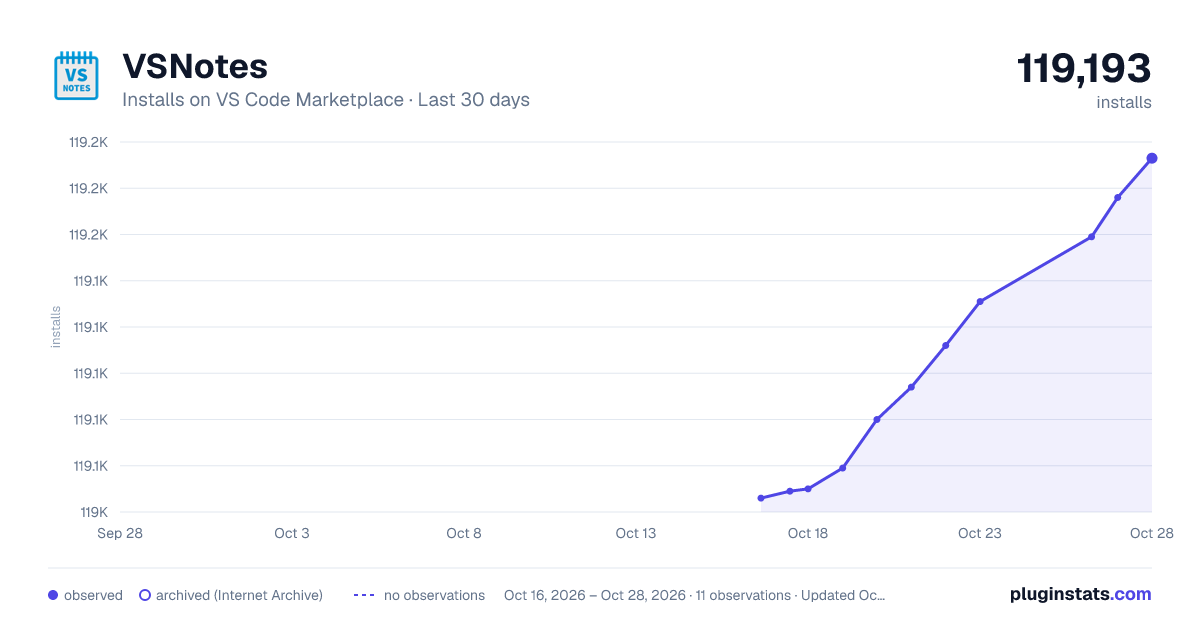
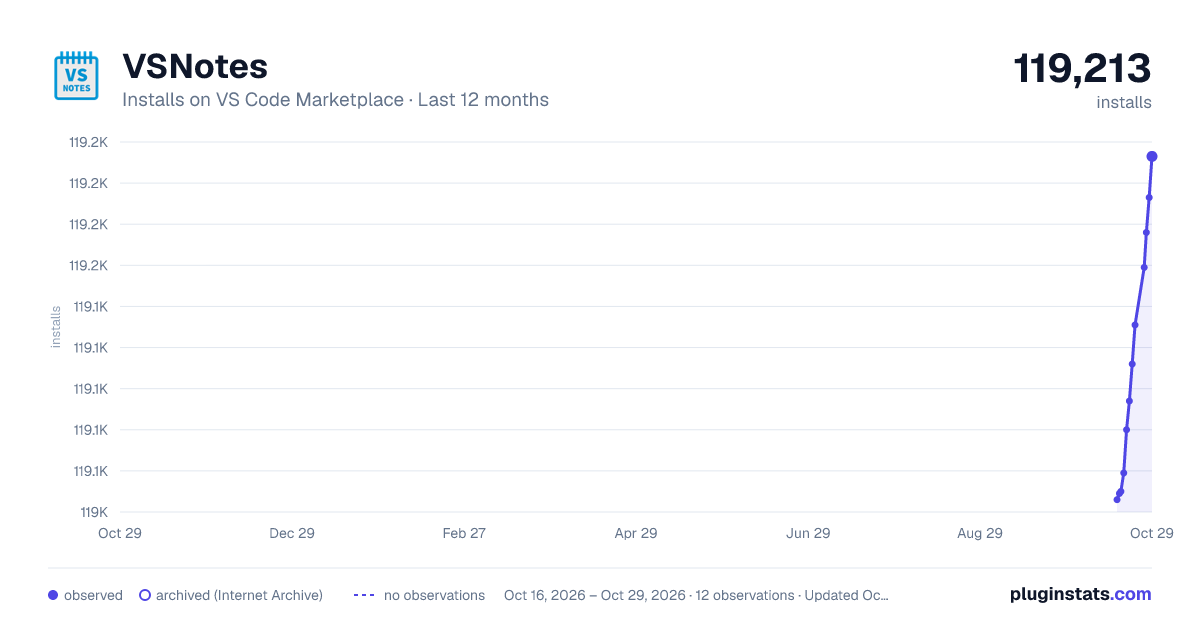
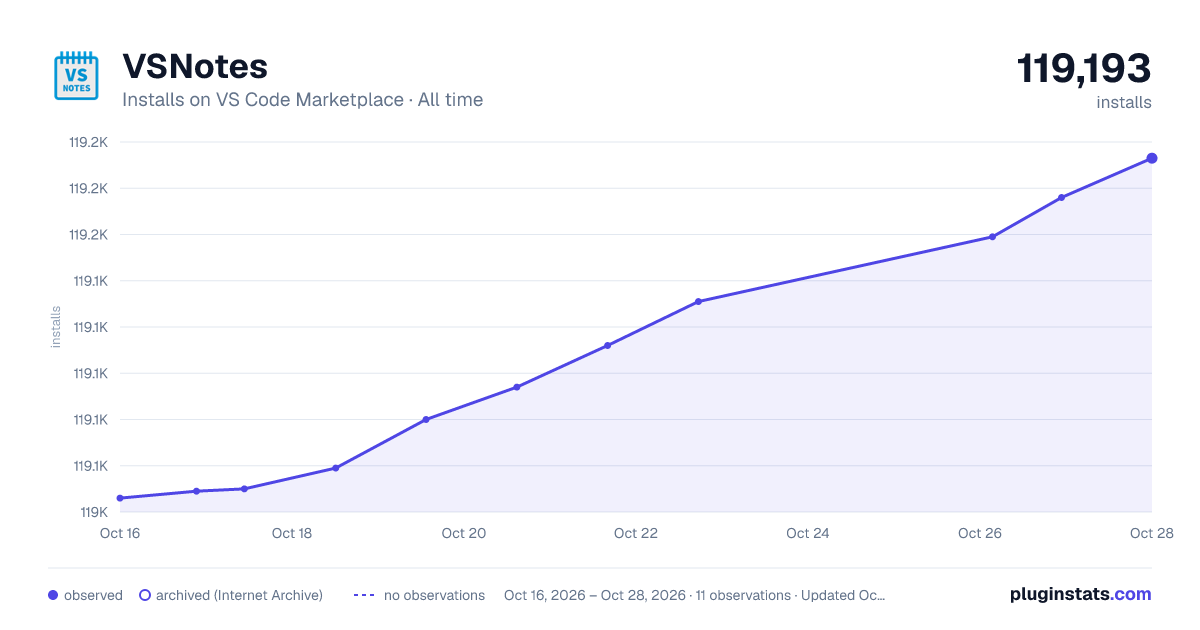
Charts
Images: 30d · 1y · all time · 1600×900 dark

Adoption over time
7/30/90-day growth
Ranking history
Ratings over time
Listing placement
Listing placement
Filled points are observed values; hollow points come from Internet Archive snapshots of the listing page. Dashed segments span periods with no observations — values between points are not interpolated.
Each band is one page of 20. Installs on a linear scale. Placement is projected from installs, so it can differ from the marketplace's own sort order. Hover a dot to see the listing.
Recent observations
Full history (5)Similar VS Code Marketplace Other plugins
All 20 VSNotes alternativesData source
Install counts, average rating, and rating counts come from the public Visual Studio Marketplace gallery API. Installs are cumulative and exclude updates.
Listing: https://marketplace.visualstudio.com/items?itemName=patricklee.vsnotes. First seen Oct 16, 2026; last successful collection Oct 20, 2026. See the methodology.