 PluginStats
MATLAB installs statistics
By MathWorks · VS Code Marketplace · Programming Languages
Edit MATLAB code with syntax highlighting, linting, navigation support, and more
MATLAB has 803,761 recorded installs on VS Code Marketplace.
It ranks #615 of 2,500 tracked VS Code Marketplace listings by installs.
It is rated 4.5 out of 5 from 33 ratings.
PluginStats has 3 daily observations since Oct 16, 2026; the latest is from Oct 18, 2026.
Rating: 4.52 / 5 from 33 ratings
About MATLAB
MATLAB Extension for Visual Studio Code
This extension provides support for editing, running, and debugging MATLAB® code in Visual Studio® Code and includes features such as syntax highlighting, code analysis, navigation support, and more.
You can use this extension with or without MATLAB installed on your system. However, to make use of the advanced features of the extension or run MATLAB code, you must have MATLAB R2021b or later installed. For more information, see the Get Started section.
Note: This extension no longer supports MATLAB R2021a. To use advanced features or run MATLAB code, you must have MATLAB R2021b or later installed.
Table of Contents
1. Installation 2. Get Started 3. Run and Debug MATLAB Code 4. View MATLAB Workspace Content 5. Work with MATLAB Projects 6. Run MATLAB Tests 7. Run MATLAB in Jupyter Notebooks 8. Configuration 9. Troubleshooting 10. Contact Us 11. Release Notes
Installation
You can install the extension from within Visual Studio Code or download it from Visual Studio Code Marketplace. After installing the extension, you might need to configure it to make full use of all the features. For more information, see the Configuration section.
Get Started
To get started using the extension, open any MATLAB code file (.m), or create a new file and set the language to MATLAB.
Basic Features (MATLAB not required)
The extension provides several basic features, regardless of whether you have MATLAB installed on your system. These features include: • Syntax highlighting • Code snippets • Commenting • Code folding
Advanced Features (requires MATLAB installed on your system)
If you have MATLAB R2021b or later installed on your system, you have access to an additional set of advanced features. These features include: • Code execution and debugging • Automatic code completion • Source code formatting (document formatting) • Code navigation • Code analysis, such as continuous code checking and automatic fixes • Code outline • Symbol renaming • Test discovery and execution
Run and Debug MATLAB Code
To run a MATLAB code file in Visual Studio Code, click the Run button at the top of the file. You also can use the Run File or Run Current Selection commands. When you run the file, output displays in the "Terminal" pane of Visual Studio Code. You also can enter MATLAB code directly in the MATLAB terminal. To stop execution of MATLAB code, press Ctrl+C.
To debug a MATLAB code file, add breakpoints to the file by clicking the area to the left of an executable line. Then run the file. Visual Studio Code stops at the first breakpoint. When Visual Studio Code is paused, you can use the Debug toolbar to peform debugging actions such as Continue, Step into, and Stop. You also can enter commands in the MATLAB terminal to perform debug actions or change variable values. Use the Run and Debug view to see your workspace variables, watch points, and call stack.
Limitations
There are some limitations to running and debugging MATLAB code in Visual Studio Code: • Output from timers, callbacks, and DataQueue objects is not shown in the Command Window. • Creating a custom run configuration for a file is not supported. • When using the dbstop and dbclear functions to set and clear breakpoints, the breakpoints are added to file but are not shown in Visual Studio Code. • Variable values changed in the MATLAB terminal when Visual Studio Code is paused do not update in the Run and Debug view until the next time Visual Studio Code pauses.
View MATLAB Workspace Content
If you have MATLAB R2023a or later installed on your system, you can interactively inspect the MATLAB workspace by opening the MATLAB view in Visual Studio Code. In the Workspace section of the MATLAB view, you can interactively manage variables in the MATLAB workspace while you run and debug MATLAB code. To access the MATLAB view, select the MATLAB icon in the Activity Bar on the left side of the Visual Studio Code window, which opens the view in the Side Bar.
In the Workspace section of the MATLAB view, you can: • View the name, value, size, and class of each variable in the MATLAB workspace. • Interactively rename, delete, and sort variables in the MATLAB workspace. • Open variables in a new tab to inspect their contents.
To inspect a variable, right-click the variable in the Workspace section and select Open Variable. The variable opens in a new tab. Numeric variables that are scalars, vectors, or 2-D matrices, as well as tables, open in a scrollable data grid. Table data that cannot be displayed in the grid appears as plain text. Other variable types, such as structs, strings, categoricals, cell arrays, sparse matrices, and tall arrays, open as plain text previews.
Tip: To access the MATLAB Workspace while debugging, drag the MATLAB icon from the Activity bar into the Run and Debug view. This adds the Workspace section of the MATLAB view to the Run and Debug view.
Limitations
• Interactively editing workspace variables in the Workspace section of the MATLAB view is limited to inline edits. Editing complex data types such as matrices, cells, and structs is not supported. • Variables opened from the workspace are read-only and cannot be edited. • Multi-row selection is not supported. • Refreshing the workspace is not supported.
Work with MATLAB Projects
If you have MATLAB R2021b or later installed on your system, you can work with MATLAB Projects directly in Visual Studio Code. You can create new projects, open existing projects, and close the current project.
To create a new project, right-click a folder in the Explorer and select MATLAB: Project > MATLAB: New Project. To open an existing project, right-click a project file or a folder that contains a project and select MATLAB: Project > MATLAB: Open Project.
When a project is open, Visual Studio Code shows the project name in the status bar.
Run MATLAB Tests…
Description from the VS Code Marketplace listing.
- debuggers
- keybindings
- linters
- matlab
- snippet
Where MATLAB sits in the listing
Each band is one page of 20. Installs on a log scale. Placement is projected from installs, so it can differ from the marketplace's own sort order. Hover a dot to see the listing.


Charts
Images: 30d · 1y · all time · 1600×900 dark
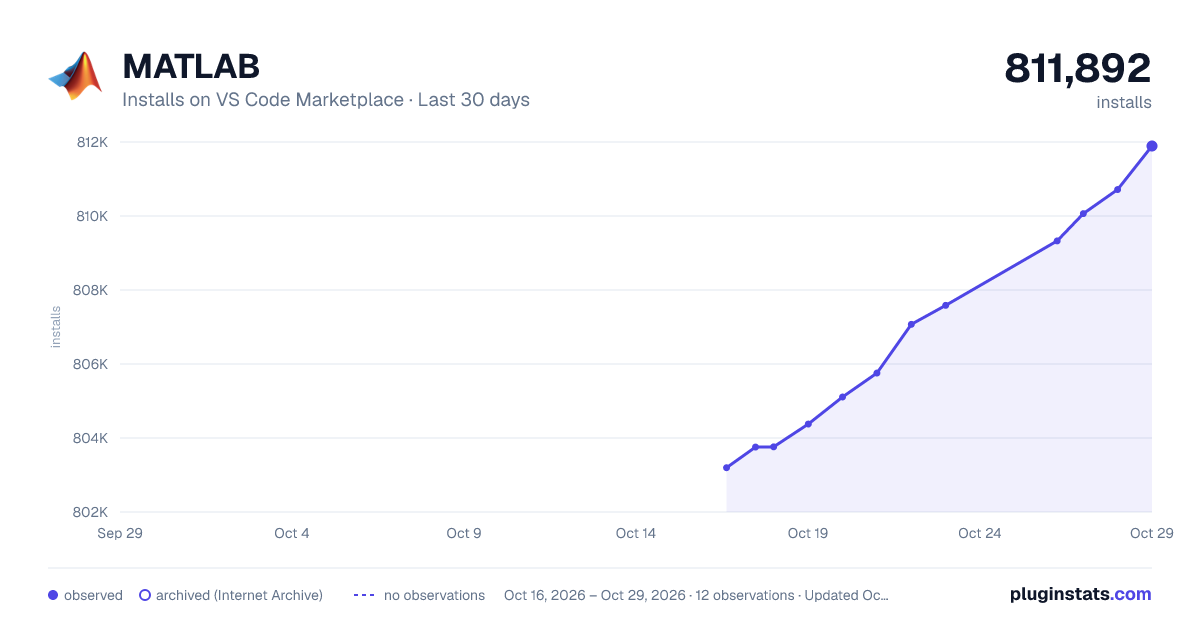
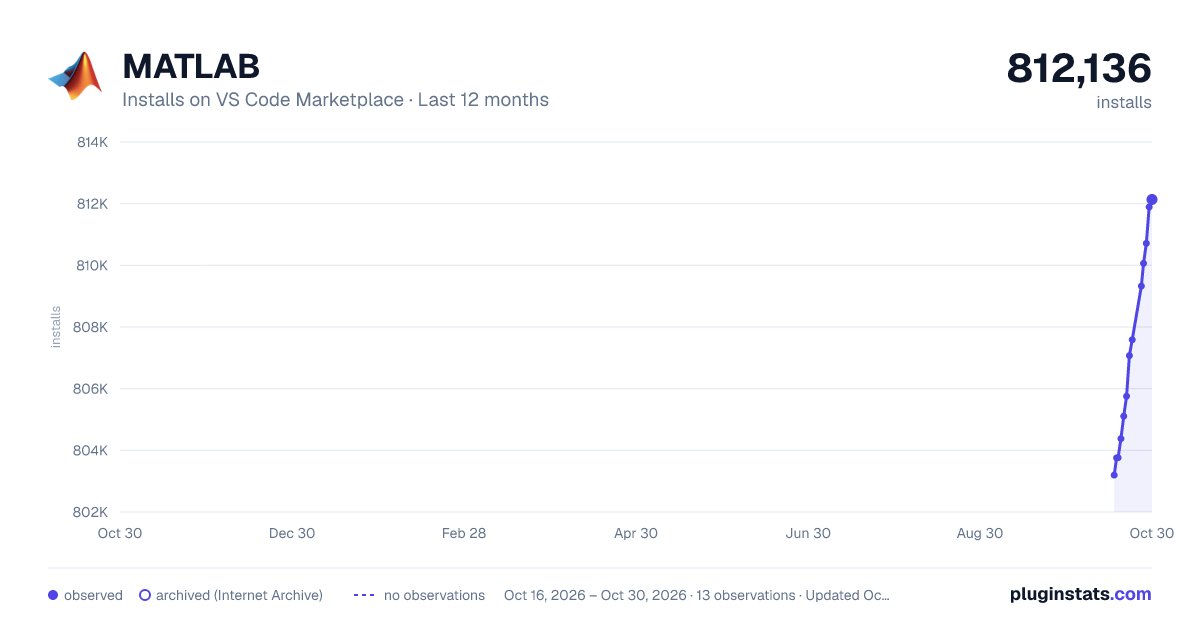
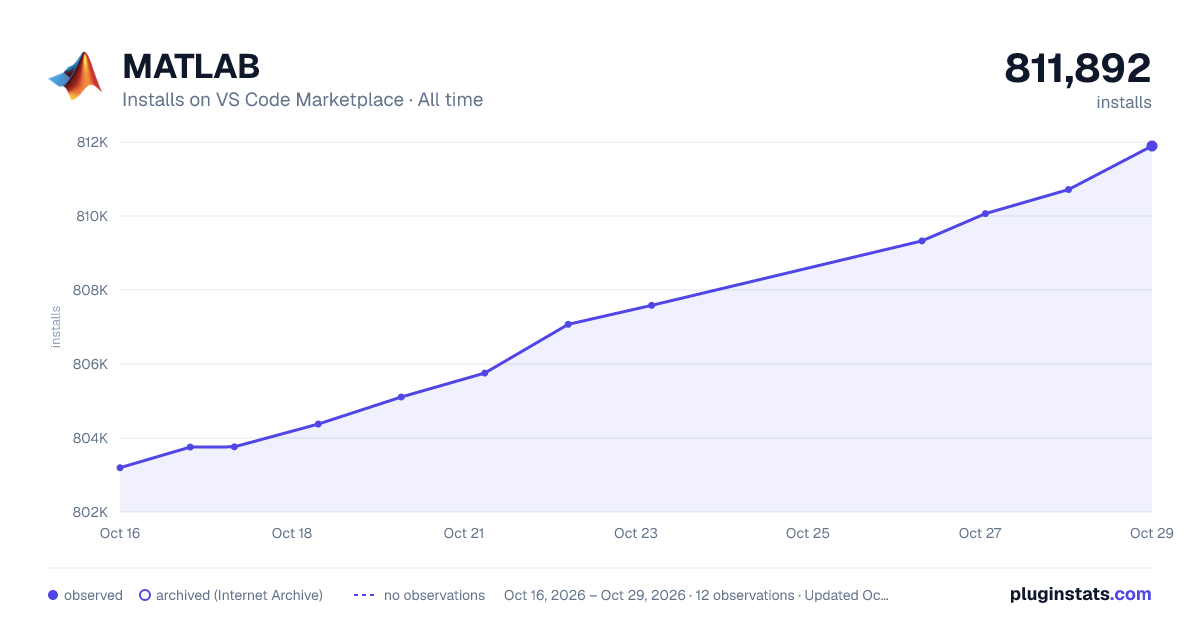

Adoption over time


7/30/90-day growth


Filled points are observed values; hollow points come from Internet Archive snapshots of the listing page. Dashed segments span periods with no observations — values between points are not interpolated.
Recent observations
Full history (3)Similar VS Code Marketplace Programming Languages plugins
Data source
Install counts, average rating, and rating counts come from the public Visual Studio Marketplace gallery API. Installs are cumulative and exclude updates.
Listing: https://marketplace.visualstudio.com/items?itemName=MathWorks.language-matlab. First seen Oct 16, 2026; last successful collection Oct 18, 2026. See the methodology.