 PluginStats
Language Server for Java by Apache NetBeans installs statistics
By Apache Software Foundation (3 listings) · VS Code Marketplace · Programming Languages
Apache NetBeans Language Server Extension for Visual Studio Code
Language Server for Java by Apache NetBeans has 302,234 recorded installs on VS Code Marketplace.
It ranks #1153 of 2,501 tracked VS Code Marketplace listings by installs.
It is rated 4.7 out of 5 from 12 ratings.
PluginStats has 4 daily observations since Oct 16, 2026; the latest is from Oct 19, 2026.
Rating: 4.67 / 5 from 12 ratings
About Language Server for Java by Apache NetBeans
Apache NetBeans Language Server Extension for VS Code
This is Apache NetBeans Language Server extension for VS Code. Use it to get all the _goodies of NetBeans_ via the VS Code user interface! Runs on JDK21 and all newer versions.
Apache NetBeans Language Server brings full featured Java development (edit-compile-debug & test cycle) for Maven and Gradle projects to VSCode. As well as other features.
Getting Started
1. Use command Java: JDK Configuration to set same JDK in Apache NetBeans Language Server and all other Java settings in VSCode like Integrated terminal JAVA_HOME and PATH, Maven Runtime and JDK for MS Java as well if installed:
2. Select installed JDK to use for these settings in step 2/3 3. In step 3/3 select if settings will be applied at User level for all Workspaces (Folders open) or for current Workspace (Folder) only. 4. NetBeans Language Server JDK Home setting netbeans.jdkhome is also available in VSCode | Preferences | Settings ... Netbeans: Jdkhome . More below in section Selecting the JDK 5. Setting netbeans.project.jdkhome holds a path to a JDK that is used as a default platform for opened folder/workspace (e.g. Java project). To avoid possible issues with default platform changing (i.e. changes from JDK21 to JDK8), NBLS is restarted when netbeans.project.jdhome changes.
2. Use Java: New Project... " command to start creating new project, or 3. Open the folder with existing pom.xml for Maven or _Gradle_ project files (_build.gradle, gradle.properties_). • Language Server opens the project, performs priming build and might ask for Resolving problems, usually related to opening subprojects etc. 4. Or simply create a new Java class file with public static void main(String[] args) method in opened folder and start coding, compiling, debugging. Works on JDK 8 and newer.
Supported Actions
• Java: New Project... allows creation of new Maven or Gradle project • Java: New from Template... add various files to currently selected open project. Files are: • Java - broad selection of various predefined Java classes • Unit tests - JUnit and TestNG templates for test suites and test cases • HTML5/JavaScript - Templates for JS, HTML, CSS,... files • Other - various templates for JSON, YAML, properties, ... files • Java: Compile Workspace - invoke Maven or Gradle build • Debugger Java+... - start main class or test on selected JDK. More in Debugger section • Progress shown for long running operations with cancel support for selected types • Native Image Debugger is a new Run configuration added which allows Java style debugging of Ahead of Time compiled native-images, produced by GraalVM. It is experimental feature which works with GDB on Linux. GDB 7.11 or GDB 10.1+ is required due to known issue #26139 in GDB 8 and 9. • It is also possible to attach to running native image process using Attach to Native Image launch configuation. • Micronaut and Spring support especially for YAML configuration files with code completion and source code navigation to Java. • Test Explorer for Java tests results visualization and execution including editor code Lenses. • Maven and Gradle support including multi-project projects, subprojects opening and Gradle priming builds.
Project Explorer
Project Explorer provides an overview of logical project structure, groups sources together and greatly simplifies Java package structure exploration. Project Explorer is an addition to the classical workspace explorer. Use it to build, test, execute and operate your Maven and Gradle Java projects.
Debugger and Launch Configurations
Language Server Java+ ... launch configuration supports debugging and running Java applications using JDK11 or newer. 1. The launch configuration (debugger) is invoked when Run main | Debug main code lense is selected in the code. 2. Or Java+... is selected in Run and Debug activity panel.
Launch Configurations
• Launch Java App - Debug or Run current Java project • Launch Java: Continuous Mode - Runs Micronaut project and reloads it when source code has been changed. • Attach to Port & Attach to Process - Attach debugger actions. Available when Java+ ... at the bottom of drop down list is selected. • Select this configuration, then click the • Select either from available process or enter the port to connect to JVM running with JDWP. • Attach to Shared Memory is available on Windows in addtion to above mentioned _Attach..._
Default launch configurations provided by Language Server can modified in launch.json file using intellisense for available options.
Run Configurations panel
Program arguments, VM options, evironment variables,... can be set in Run Configuration panel a part of Explorer. The panel is sufficient for all typical use-cases Java programmer faces. Only advanced, expert scenarios may require touching of launch.json (which still takes precedence).
Supported Refactorings
Class level refactorings as well as variable refactorings are supported in VSCode via Apache NetBeans extension. See following screenshots:
Source Action ... context menu
Introduce refactorings available via Show Code actions light bulb
More Refactorings available also using Refactor... context menu
Surroung with refactorings
Some refactorings are two steps with like Override method ... where method to be overriden is selected in 2nd step:
Change Method Parameters refactoring
Change method parameters refactoring is provided using dedidacated form allowing to change, add, move, remove method parameters.
Move Members Refactoring
Move members refactoring provides dedicated form as well.
Some of supported refactorings:…
Description from the VS Code Marketplace listing.
- debuggers
- jackpot-hint
- java
- Java Hints
- javascript
- json
- keybindings
- multi-root ready
Charts
Images: 30d · 1y · all time · 1600×900 dark
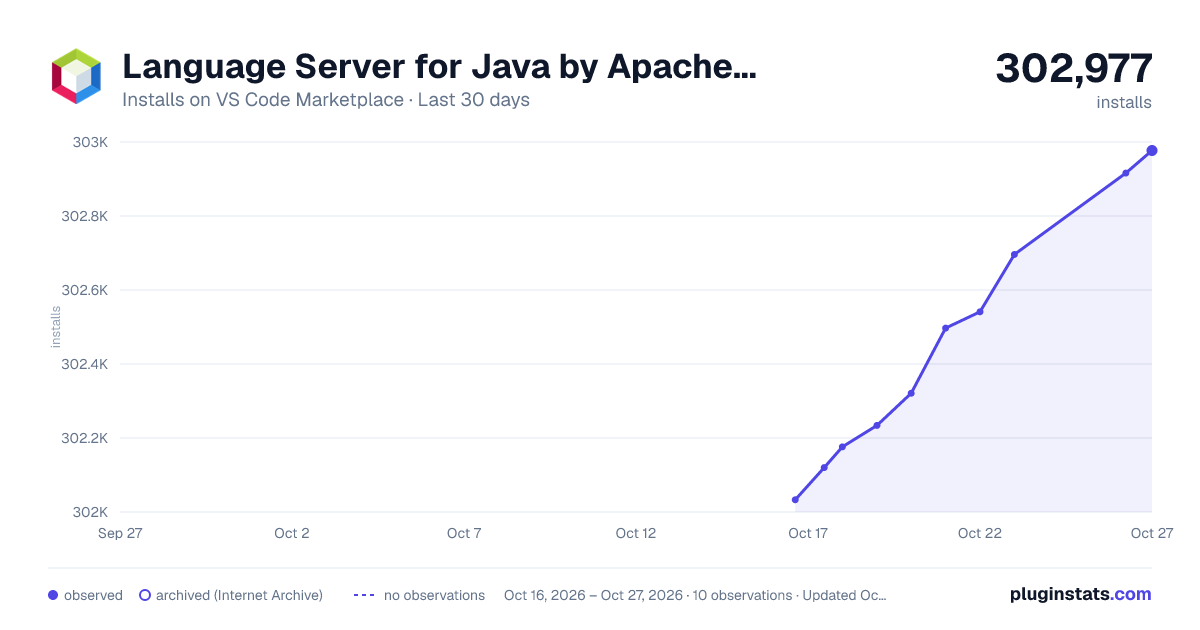
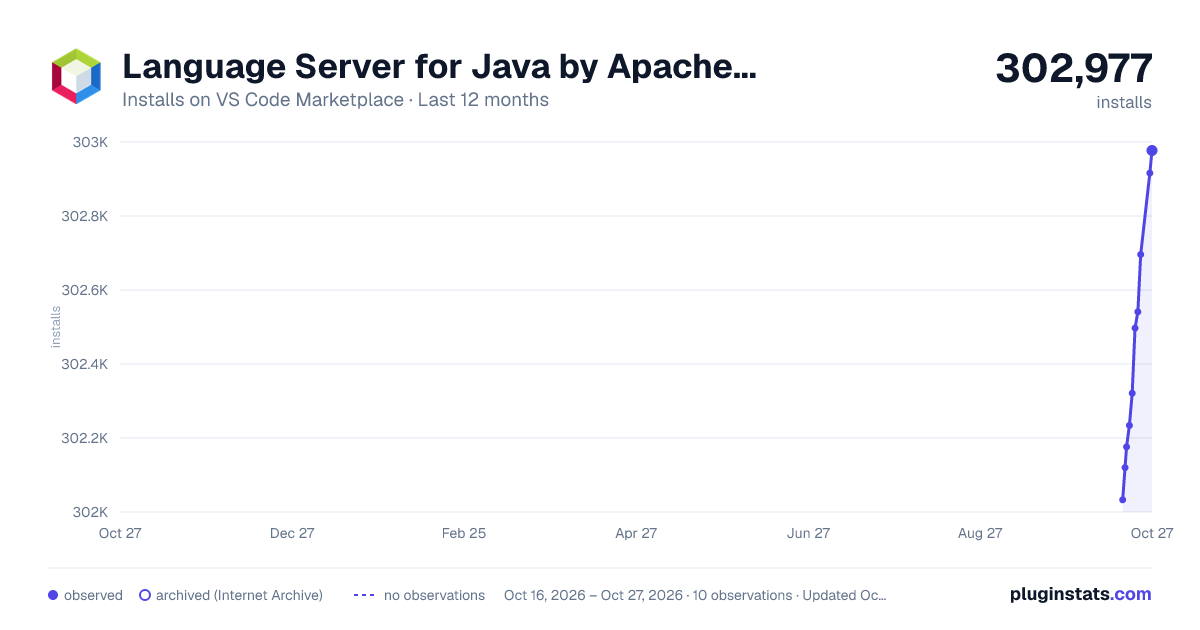
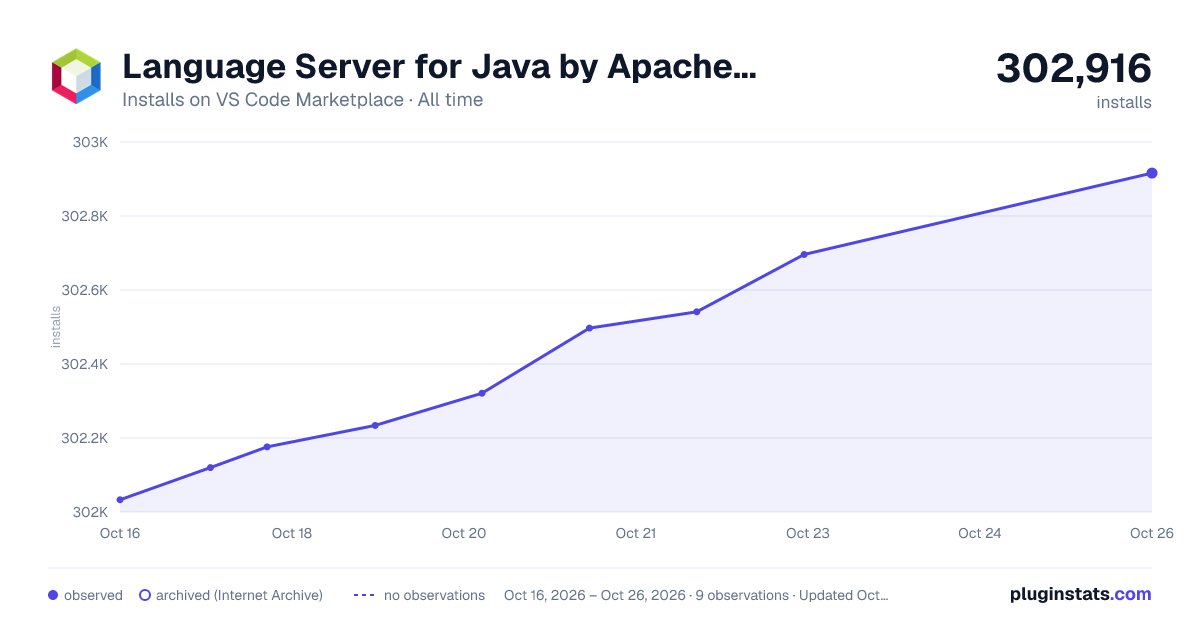

Adoption over time


7/30/90-day growth


Ranking history


Ratings over time


Listing placement


Listing placement


Listing placement


Filled points are observed values; hollow points come from Internet Archive snapshots of the listing page. Dashed segments span periods with no observations — values between points are not interpolated.
Each band is one page of 20. Installs on a log scale. Placement is projected from installs, so it can differ from the marketplace's own sort order. Hover a dot to see the listing.
Recent observations
Full history (4)Similar VS Code Marketplace Programming Languages plugins
All 20 Language Server for Java by Apache NetBeans alternativesData source
Install counts, average rating, and rating counts come from the public Visual Studio Marketplace gallery API. Installs are cumulative and exclude updates.
Listing: https://marketplace.visualstudio.com/items?itemName=ASF.apache-netbeans-java. First seen Oct 16, 2026; last successful collection Oct 19, 2026. See the methodology.