 PluginStats
Java installs statistics
By Oracle Corporation (8 listings) · VS Code Marketplace · Programming Languages
Java Platform Extension for Visual Studio Code
Java has 6,583,784 recorded installs on VS Code Marketplace.
It ranks #146 of 2,500 tracked VS Code Marketplace listings by installs.
It is rated 4.6 out of 5 from 29 ratings.
PluginStats has 3 daily observations since Oct 16, 2026; the latest is from Oct 18, 2026.
Rating: 4.62 / 5 from 29 ratings
About Java
Java Platform Extension for Visual Studio Code
Java Platform extension from Oracle brings full-featured development support (edit-compile-debug & test cycle) to VS Code. It also offers support for Maven and Gradle projects. Applications using JDK 8 and above are supported.
Getting Started
1. See the VS Code Tips wiki for a quick primer on getting started with VS Code. 2. Setting up the JDK • If no JDK is present in your system then the extension can set things up for you. For more details refer to JDK Downloader section. • Set the VS Code Settings | Jdk: Jdkhome setting to point to the JDK that the Language Server will run on and also by default use for running and compiling projects. • The extension requires JDK 21 or newer to run. • Optionally, set a different JDK to compile and run projects in the Settings | Jdk › Project: Jdkhome setting. • By default, the jdk.jdkhome setting is used. • Projects can run on JDK 8 and above. • For more information, see the section Selecting the JDK. 3. Use any one of the following ways to start coding, compiling and debugging in Java. • Simply create a new Java class with main method. • Use the Java: New File from Template... command to create a new Java file. • Use the Java: New Project... command to create a new project. • Open the folder with existing Maven or Gradle project files (_pom.xml_ or _build.gradle, gradle.properties_).
Supported Actions
In the VS Code command palette: • Java: New Project... allows creation of new Maven or Gradle project • Java: New File from Template... adds various files to the currently selected open project. Files are: • Java - broad selection of various predefined Java classes • Unit tests - JUnit and TestNG templates for test suites and test cases • Other - various templates for Javascript, JSON, YAML, properties, ... files • Java: Create New Notebook... command to create a new Java notebook (.ijnb file) • Java: Open JShell... command to open JShell. • Java: Compile Workspace - invoke Maven or Gradle build • Java: Clean Workspace - clean Maven or Gradle build • Download, install and Use JDK - allows download and installation of JDK binaries • Debugger Java+... - start main class or test on selected JDK. More in Debugger section • Test Explorer for Java tests results visualization and execution including editor code Lenses. • Maven and Gradle support including multi-project projects, subprojects opening and Gradle priming builds. • Java: Go To Test/Tested Class - Navigates to the corresponding test or source class file
Project Explorer
Project Explorer provides an overview of logical project structure, groups sources together and greatly simplifies Java package structure exploration. Project Explorer is an addition to the classical workspace explorer. Use it to build, test, execute and operate your Maven and Gradle Java projects.
Interactive Java Notebooks
Introduction
• Experience interactive coding with Java notebooks. See the Using Interactive Java Notebooks wiki for guidance and tutorials on using notebooks. • Use the Java: Create New Notebook... command to create a new Java notebook (.ijnb file) • Add code snippets with + Code button and document with markdown cells using the + Markdown button. • Double-click on a cell to edit and press Esc when done. • Jupyter-style notebooks let you combine Java code snippets with markdown-formatted text cells. • Run individual code cells or execute the entire notebook. • Save outputs alongside code cells. • Sharing notebooks: • Share as .ijnb files for use with the Oracle Java extension. • Rename with a .ipynb extension for viewing in other IDEs, such as Jupyter. • Download the sample notebooks and open them in VS Code to get started.
Java Notebooks for Java Projects
• Document Java projects with interactive Java notebooks. • Open or create a Java notebook in your workspace folder loaded with classes from your project. • Use the Project Context options to switch to a different project context. • Provide code snippets, markdown explanations, and expected outputs.
Notebook Configurations
The following configuration settings are available: • jdk.notebook.classpath • jdk.notebook.modulepath • jdk.notebook.addmodules • jdk.notebook.enablepreview • jdk.notebook.implicitimports • jdk.notebook.vmOptions
These settings *override* their default values inferred from project context. These also support VS Code variable substitution.
Note: If you change these settings while a notebook is open, click Restart kernel to apply the changes.
JShell
• Use the Java: Open JShell... command to open JShell. • Project classes from currently open project are automatically loaded.
Debugger and Launch Configurations
Language Server Java+ ... launch configuration supports debugging and running Java applications using JDK11 or newer. 1. The launch configuration (debugger) is invoked when Run main | Debug main codelens is selected in the code. 2. Or Java+... is selected in Run and Debug activity panel.
Launch Configurations
• Launch Java App - Debug or Run current Java project • Attach to Port & Attach to Process - Attach debugger actions. Available when Java+ ... at the bottom of drop down list is selected. • Select this configuration, then click the button. • Select either from available process or enter the port to connect to JVM running with JDWP. • Attach to Shared Memory is available on Windows in addition to above mentioned _Attach..._
Default launch configurations provided by Language Server can modified in launch.json file.
Run Configurations panel
Program arguments, VM options, environment variables, etc., can be set in the Run Configuration panel in the Explorer view. The panel is sufficient for typical use-cases Java programmers face. Advanced, expert scenarios may require the use of the VS Code launch.json.
VS Code variable substitution in settings…
Description from the VS Code Marketplace listing.
- debuggers
- Gradle
- jackpot-hint
- java
- Java Hints
- java properties
- javascript
- JDK
- json
- junit
- keybindings
- Maven
- multiroot
- multi-root ready
- OpenJDK
Where Java sits in the listing
Each band is one page of 20. Installs on a log scale. Placement is projected from installs, so it can differ from the marketplace's own sort order. Hover a dot to see the listing.


Charts
Images: 30d · 1y · all time · 1600×900 dark
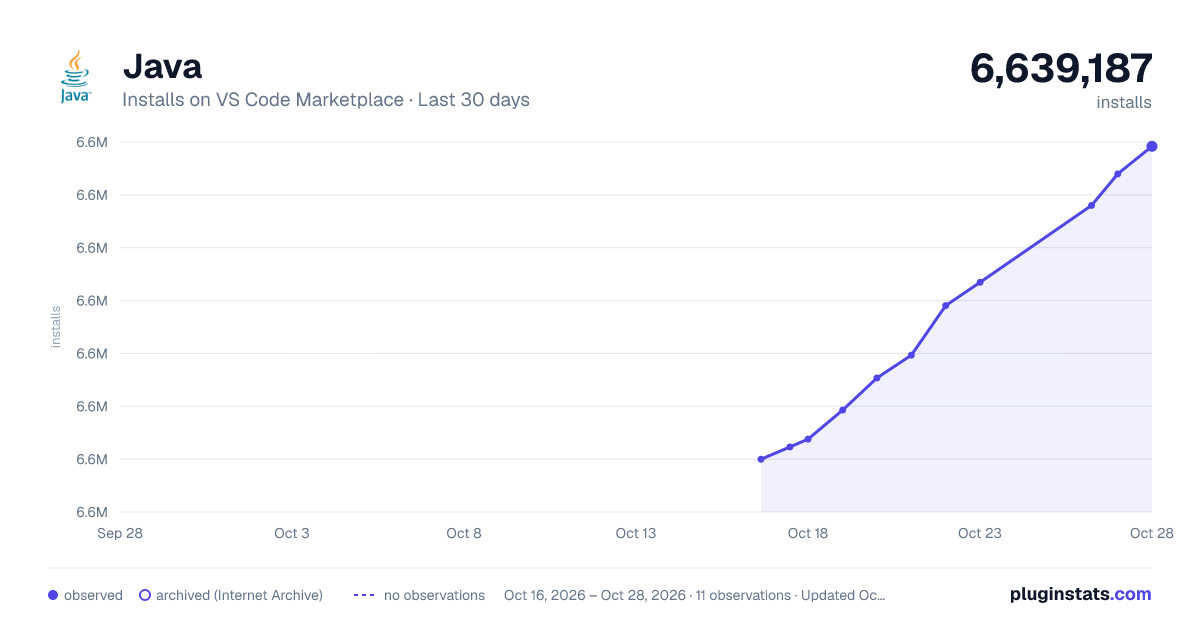
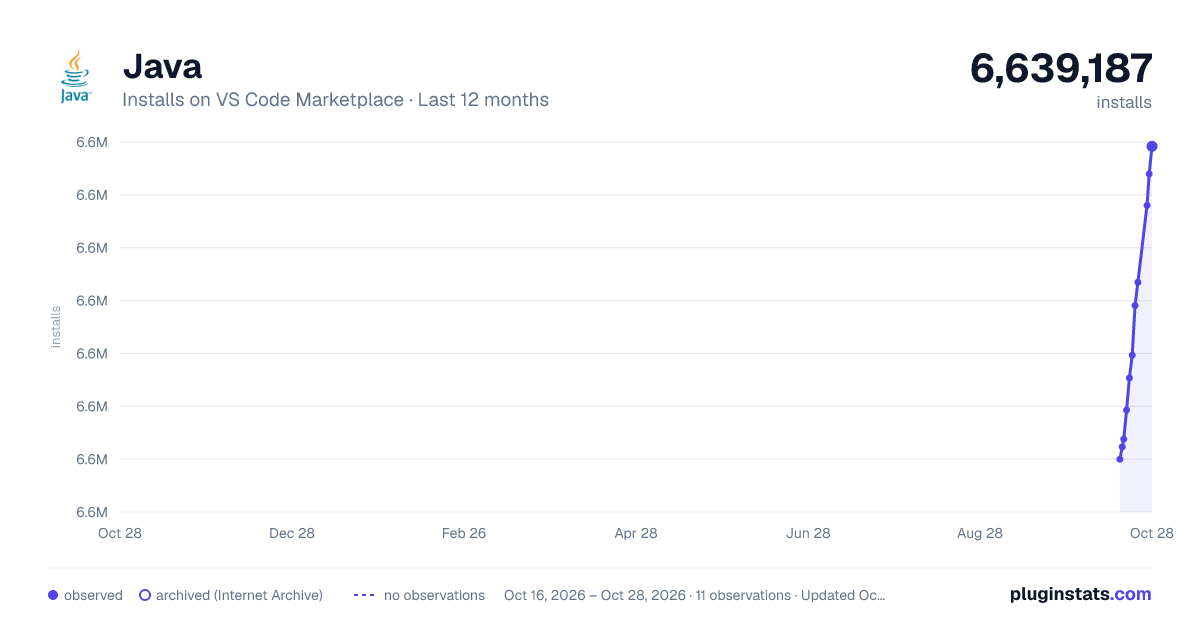
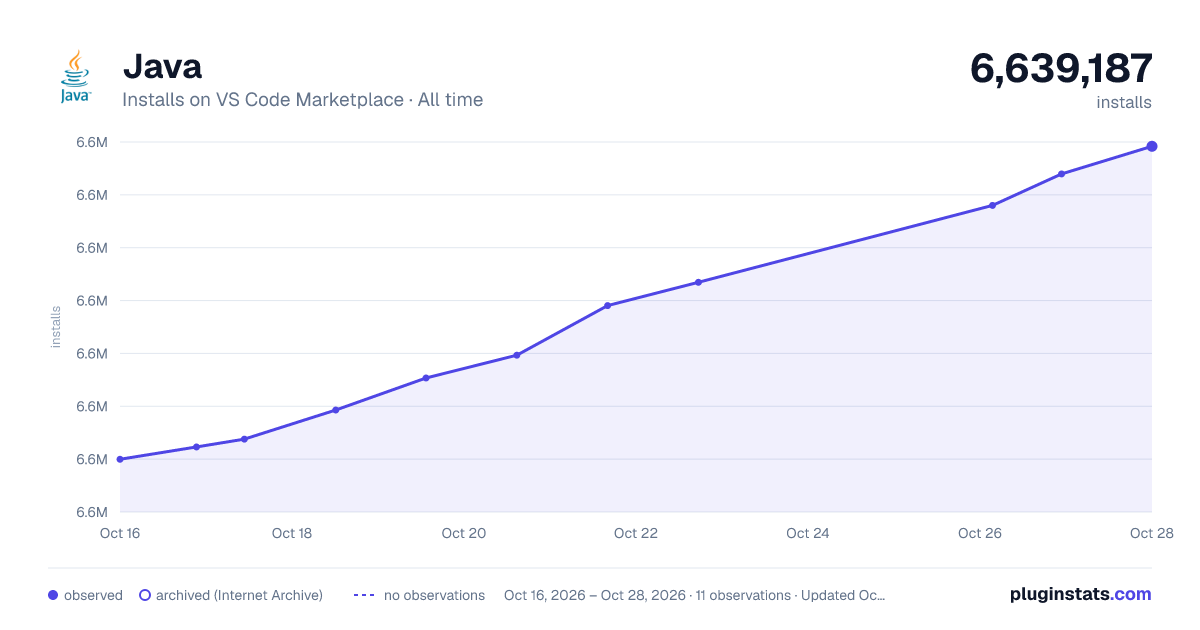

Adoption over time


7/30/90-day growth


Filled points are observed values; hollow points come from Internet Archive snapshots of the listing page. Dashed segments span periods with no observations — values between points are not interpolated.
Recent observations
Full history (3)Similar VS Code Marketplace Programming Languages plugins
Data source
Install counts, average rating, and rating counts come from the public Visual Studio Marketplace gallery API. Installs are cumulative and exclude updates.
Listing: https://marketplace.visualstudio.com/items?itemName=Oracle.oracle-java. First seen Oct 16, 2026; last successful collection Oct 18, 2026. See the methodology.