 PluginStats
Memory Inspector installs statistics
By Eclipse CDT Cloud (3 listings) · VS Code Marketplace · Debuggers
A powerful and configurable memory viewer that works with debug adapters
Memory Inspector has 529,207 recorded installs on VS Code Marketplace.
It ranks #821 of 2,501 tracked VS Code Marketplace listings by installs.
PluginStats has 4 daily observations since Oct 16, 2026; the latest is from Oct 19, 2026.
About Memory Inspector
Memory Inspector
A Visual Studio Code extension that provides a powerful and configurable memory viewer that works with debug adapters.
Features
• Configurable Memory Display: Shows memory data with various display options. • Address Navigation: Easily jump to and scroll through memory addresses. • Variable Highlights: Colors memory ranges for variables. • Multiple Memory Formats: Shows memory data on hover in multiple formats. • Edit Memory: Allows in-place memory editing, if the debug adapter supports the WriteMemoryRequest. • Memory Management: Enables saving and restoring memory data for specific address ranges (Intel Hex format). • Customized Views: Create and customize as many memory views as you need. • Lock Views: Keep views static, unaffected by updates from the debug session. • Periodic Refresh: Automatically refresh the memory data. • Multiple Debug Sessions: Switch between multiple debug sessions using a dropdown in the memory view. • Data Breakpoints (Experimental): Set data breakpoints in the memory view. • And much more
Getting Started
Prerequisites
1. Install: Add the extension to VS Code. 2. Verify Debugger Capability: Ensure the debug adapter supports ReadMemory requests. 3. Enable Debug Type: Enable the Memory Inspector for the debug configuration type (VS Code setting _Debug Types_: memory-inspector.debugTypes).
Use Memory Inspector
1. Debug Session: Start a debug session. 2. Open Memory Inspector: Either run the _Memory: Show Memory Inspector_ command or right-click a variable in the Variables view and select _Show in Memory Inspector_. 3. Adjust View: Modify the memory range you're interested in, as needed.
Configuration
Use the gear symbol in each memory view to customize the individual settings like columns, grouping, and formats. Default settings can be adjusted in the VS Code settings of this extension.
Memory Format Settings
The Memory Format settings allow to configure how data that is read from the target system is interpreted and displayed. Use the following to adjust the view to your needs and the inspected memory architecture:
1. Bytes per MAU: The number of _Bytes_ that form the Minimum Addressable Unit. It commonly is a fixed number for a specific target hardware. Use for example a value of 1 for byte-addressable architectures. 2. MAUs per Group: The number of _MAUs_ that form a _Group_ considering the selected _Endianess_. Use for example a value of 2 to form a 4-byte value consisting of 2 2-byte MAUs. 3. Groups per Row: Number of _Groups_ to display in a row. This can be a fixed number of _Groups_. Or the value Autofit to let the Memory Inspector calculate the best utilization of space in the Data column. 4. Group Endianess: The order of _MAUs_ within a _Group_. The value can be Little Endian or Big Endian.
The following terminology is used:
• Byte: A data unit of 8 Bits. • MAU (Minimum Addressable Unit): A Minimum Addressable Unit of memory. It consists of one or more _Bytes_ represented by a single address. • Group: A group of _MAUs_ that forms a data value. _Groups_ are the Memory Inspector's default granularity to edit memory contents. • Row: A row in the Memory Inspector display containing multiple _Groups_. • Endianess: The order of displaying _MAUs_ within a _Group_.
Periodic Updates
The Memory Inspector can automatically refresh displayed memory data based on different triggers. You can configure the auto-refresh behavior using the following options:
• On Stop: Refreshes memory data when the program pauses. • Periodic Refresh: Refreshes memory data after a specified delay. • Always: Refreshes memory data continuously, regardless of the program execution state. • While Running: Refreshes memory data only when the program is running. • Off: Disables automatic refresh of memory data.
These settings can be adjusted individually for each Memory Inspector view or globally in the preferences.
Multiple Debug Sessions
The Memory Inspector supports multiple debug sessions. If multiple debug sessions are active, a dropdown appears in the memory view which allows you to switch between them. This enables you to target different debug sessions in multiple windows, simultaneously.
Set Data Breakpoints
The Memory Inspector allows to set data breakpoints from a memory view. The feature is experimental and must be enabled through the extension setting memory-inspector.dataBreakpoints. Also, the debug adapter must support the DataBreakpointInfo and SetDataBreakpoints requests.
1. Data Breakpoints are managed through the context menu of a memory cell. You can select between data breakpoints that halt program execution on memory read (Read), write (Change), or both (Access). 2. Memory rows with one or more data breakpoints are marked with a red circle. 3. Memory cells with a data breakpoint are marked with a red frame.
Important: The Memory Inspector installs data breakpoints via the debug adapter like other built-in IDE views. However, technical limitations of the IDE prohibit adding them to the BREAKPOINTS view. Hence, such breakpoints must be removed again via the Memory Inspector context menu.
Contributing
We welcome contributions on GitHub. Check our contribution guidelines for more info. This open-source project is part of Eclipse CDT Cloud.
Behind the Scenes
The Memory Provider
The primary entry point for the backend functionality of the plugin is the the MemoryProvider class. That class has two primary functions: it handles requests that are specified by the Debug Adapter Protocol, and it instantiates custom handlers that can provide additional functionality depending on the capabilities of a given debug adapter. In order to register custom capabilities, the AdapterRegistry matches debug types to objects implementing the AdapterCapabilities interface.
Memory Widget…
Description from the VS Code Marketplace listing.
- debug
- memory
Charts
Images: 30d · 1y · all time · 1600×900 dark
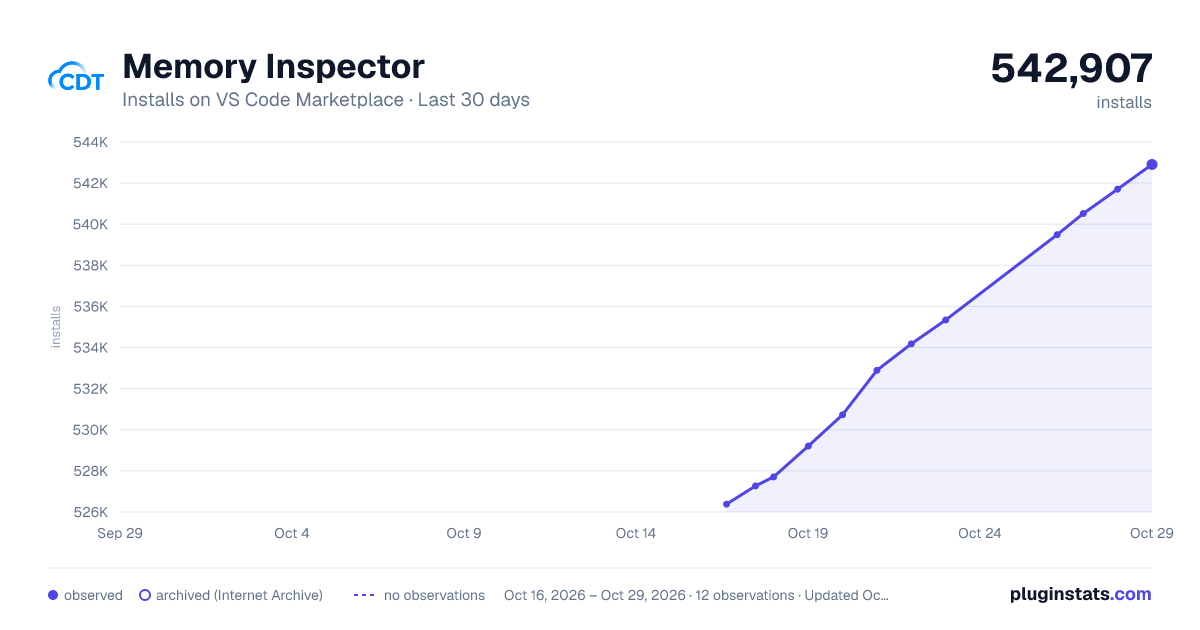
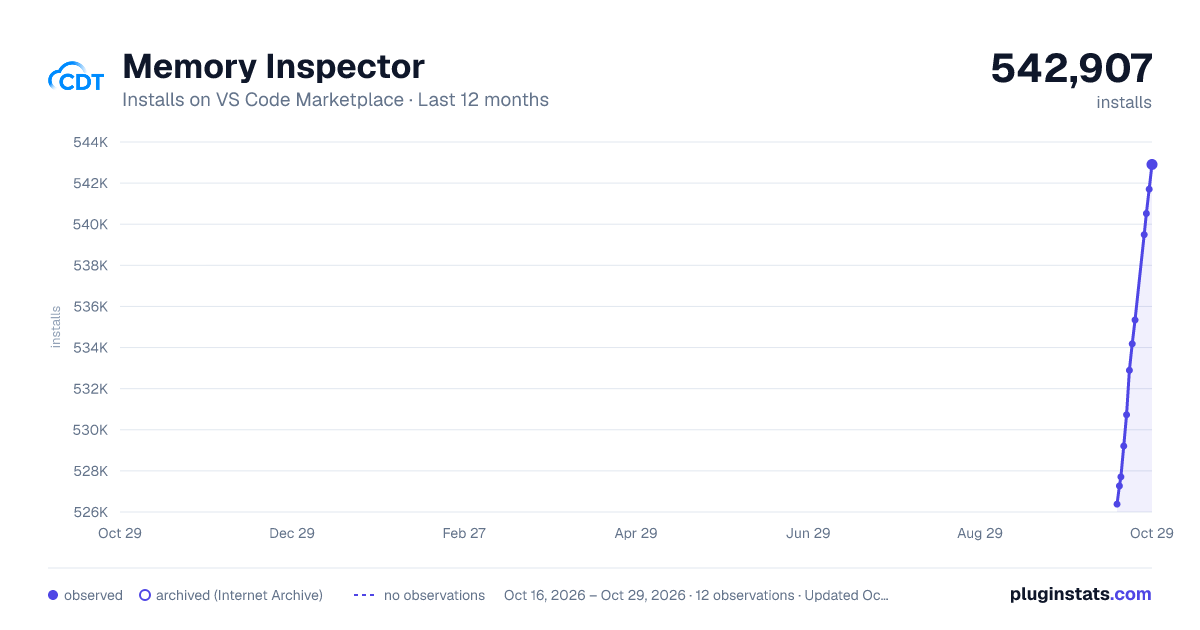
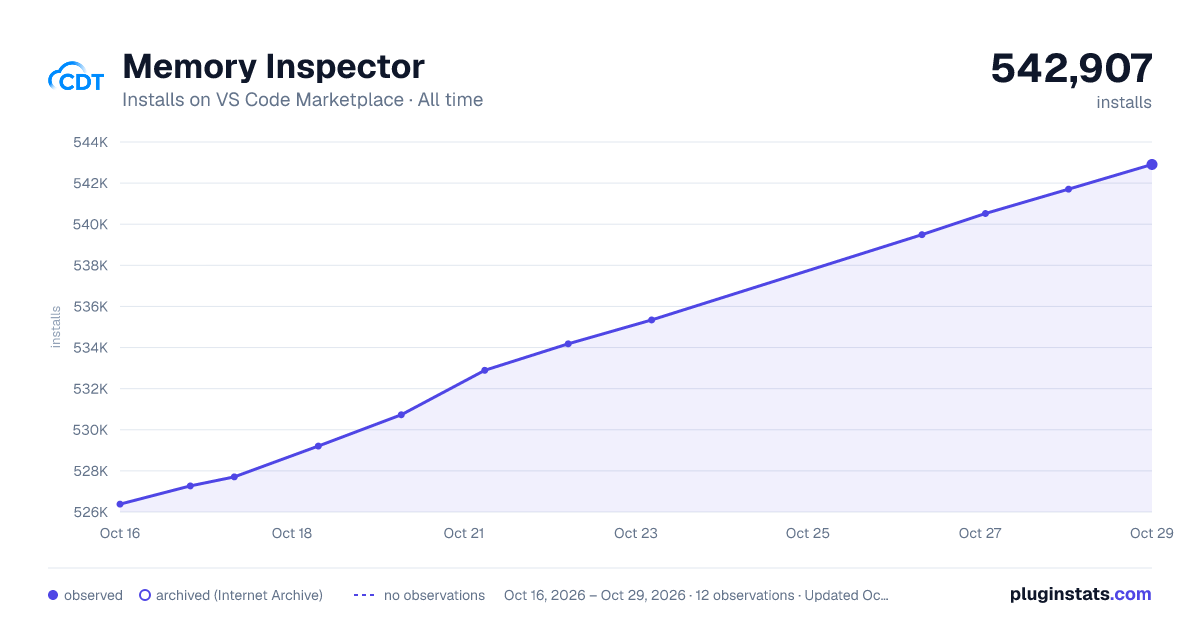

Adoption over time


7/30/90-day growth


Ranking history


Listing placement


Filled points are observed values; hollow points come from Internet Archive snapshots of the listing page. Dashed segments span periods with no observations — values between points are not interpolated.
Each band is one page of 20. Installs on a log scale. Placement is projected from installs, so it can differ from the marketplace's own sort order. Hover a dot to see the listing.
Recent observations
Full history (4)Similar VS Code Marketplace Debuggers plugins
All 20 Memory Inspector alternativesData source
Install counts, average rating, and rating counts come from the public Visual Studio Marketplace gallery API. Installs are cumulative and exclude updates.
Listing: https://marketplace.visualstudio.com/items?itemName=eclipse-cdt.memory-inspector. First seen Oct 16, 2026; last successful collection Oct 19, 2026. See the methodology.