 PluginStats
CSV installs statistics
By ReprEng · VS Code Marketplace · Programming Languages
View and edit CSV, TSV, TAB, and PSV files as tables.
CSV has 636,414 recorded installs on VS Code Marketplace.
It ranks #737 of 2,501 tracked VS Code Marketplace listings by installs.
It is rated 4.5 out of 5 from 24 ratings.
PluginStats has 4 daily observations since Oct 16, 2026; the latest is from Oct 19, 2026.
Rating: 4.50 / 5 from 24 ratings
About CSV
CSV
View and edit .csv, .tsv, .tab, and .psv files as tables in VS Code. CSV supports multiline cells, selection and clipboard operations, column filters, frozen panes, and a text-view switch for working with the underlying file.
Actual CSV table webview with example data, captured in Chromium.
Open and edit a file
Install CSV by ReprEng from the Extensions view, then open a supported file. CSV opens it as a table unless your editor associations select another editor. The default separators are comma for .csv, tab for .tsv and .tab, and pipe for .psv.
1. Click a cell to select it. Type to start a quick edit, or press Enter or double-click for detail editing. 2. Press Enter or Tab, click outside the cell, or move focus away to commit its text to the VS Code document. In quick edit, arrow keys also commit and move to the adjacent cell. In detail edit, arrows move the text caret; Shift+Enter inserts a line break. 3. Press Ctrl/Cmd+S to commit the active cell and save the document. Committing a cell alone does not write the file to disk; VS Code's autosave can save committed document changes if enabled.
Escape cancels the active cell draft. If VS Code rejects an edit, its draft stays available: retry it or press Escape to discard it before structural operations, switching views, or disabling the table. Changes remain unsaved until a save succeeds.
An empty file can be edited immediately. The extra bottom row is an append affordance; entering a value creates source data, while leaving it empty does not. Disable csv.showTrailingEmptyRow to hide it.
CSV declares support for VS Code 1.70 or later. Saved-file table/text replacement requires 1.100 for clean documents and 1.120 for documents with unsaved changes. Older hosts show update guidance for that action.
Select, copy, paste, and arrange data
Selection is visible as soon as you press the mouse button. Drag or Shift+click to select a range. Click a header to select its column; a second separate click on the same header selects only the header cell. Double-click edits the header. Click the serial index to select a row, or the top-left corner to select the table. Shift+click extends whole-row or whole-column selections.
Use Ctrl/Cmd+C or X, or the selection's right-click Copy or Cut action. Clipboard data uses the active separator and quotes each value only when needed, preserving separators, line breaks, literal quotes, surrounding whitespace, and real empty cells. The serial index and extra append row are excluded. Selecting only the append row leaves the clipboard unchanged. Clipboard shortcuts inside cell edits, Find, Replace, and filter inputs keep their normal text-editing behavior.
Paste with Ctrl/Cmd+V in selection mode or the right-click Paste action. A single value fills a selected rectangle; a copied matrix starts at the selection. With filters active, copying, cutting, filling, and matrix paste use matching source rows. Additional pasted rows append at the physical end of the file. Nonmatching rows stay intact, and saving includes the full file.
Right-click cells to insert or delete rows and columns. Multi-selection actions use the selected count. Drag selected headers or row indices to reorder a column/row or selected group. Right-click a header to sort ascending or descending; with filters active, sorting rearranges matching rows within their source positions and leaves hidden rows in place. These operations change the document and require saving like other edits. Unchanged field quoting and existing line endings are preserved; new values follow a consistent existing column quote style where available.
Context menus open toward the available space, flip above or left when needed, and scroll in small panes. Resizing the editor or changing CSV zoom dismisses an open menu.
Headers, metadata rows, widths, and frozen panes
• Header: Right-click a cell in the first visible source row and choose Use first row as header or Treat first row as data. Hidden leading metadata is skipped; filtering does not promote an arbitrary matching row to the header. The Command Palette also provides CSV: Toggle First Row as Header. • Serial index: Right-click an index cell or its top-left corner and choose Hide serial index column. Restore it with CSV: Toggle Serial Index Column. The numbers identify source rows and can have gaps while filtering. • Metadata: CSV: Hide First N Rows hides leading records without deleting them. Blank input inherits csv.defaultIgnoreRows; an explicit 0 shows them even if the configured default is nonzero. • Widths: Automatic column widths account for the longest line in multiline cells. Drag close to a column boundary to resize, including with headers off. Double-click the boundary to restore automatic sizing. Manual widths are remembered per file; narrow columns retain a selectable center. Drag the bottom edge of a serial-index cell to adjust its row height. • Word wrap: Word wrap starts off for each file, showing single-line cutoff with an ellipsis. Use the wrap icon beside the table/text switch in the editor title bar to toggle it; hover for Enable Word Wrap or Disable Word Wrap. Automatic widths remain capped at 100 characters; manual widths and row heights stay intact. Cutoff lets long rows collapse or be resized shorter. The selected cell/range stays selected and its active cell stays in view. Editing always shows the full value, and copying, searching and saving use the complete text. The display choice is remembered with the table's webview state. • Frozen panes: Right-click to freeze through a visible row or data column, or use CSV: Freeze Leading Rows/Columns. Enter 0 to unfreeze an axis. Counts are remembered per file. By default, the header stays frozen; with headers off, no rows freeze until requested. Hidden metadata and the append row do not count. Frozen rows follow measured multiline/zoomed heights and paint their divider seams; the serial index stays alongside frozen data columns.…
Description from the VS Code Marketplace listing.
- csv
- PSV
- TAB
- tsv
Charts
Images: 30d · 1y · all time · 1600×900 dark
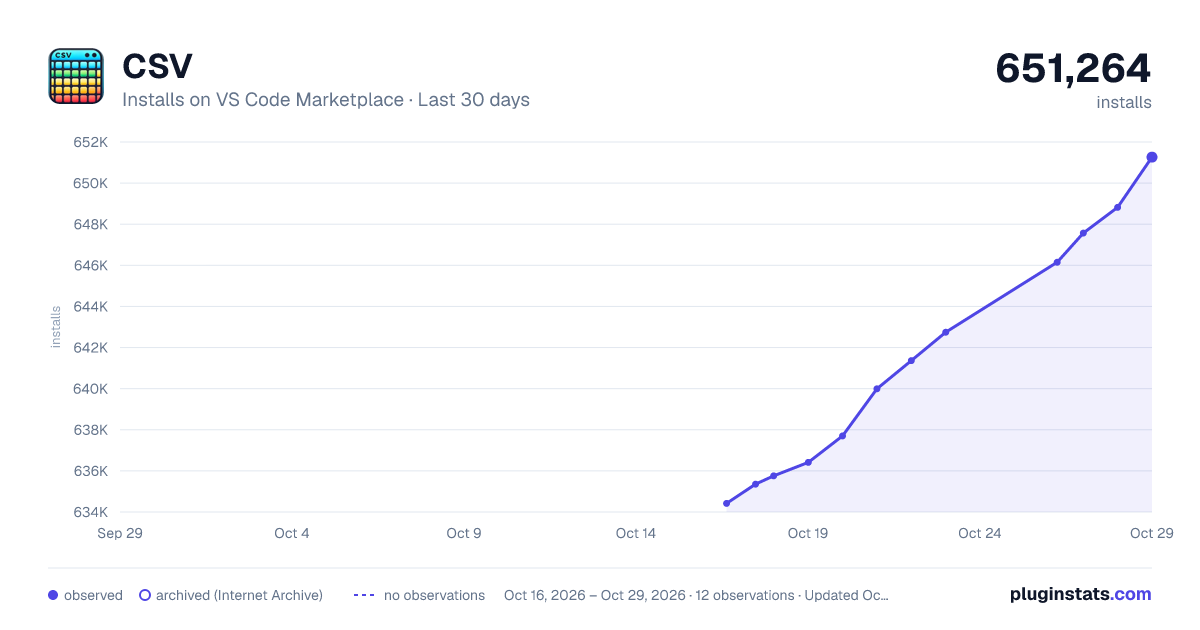
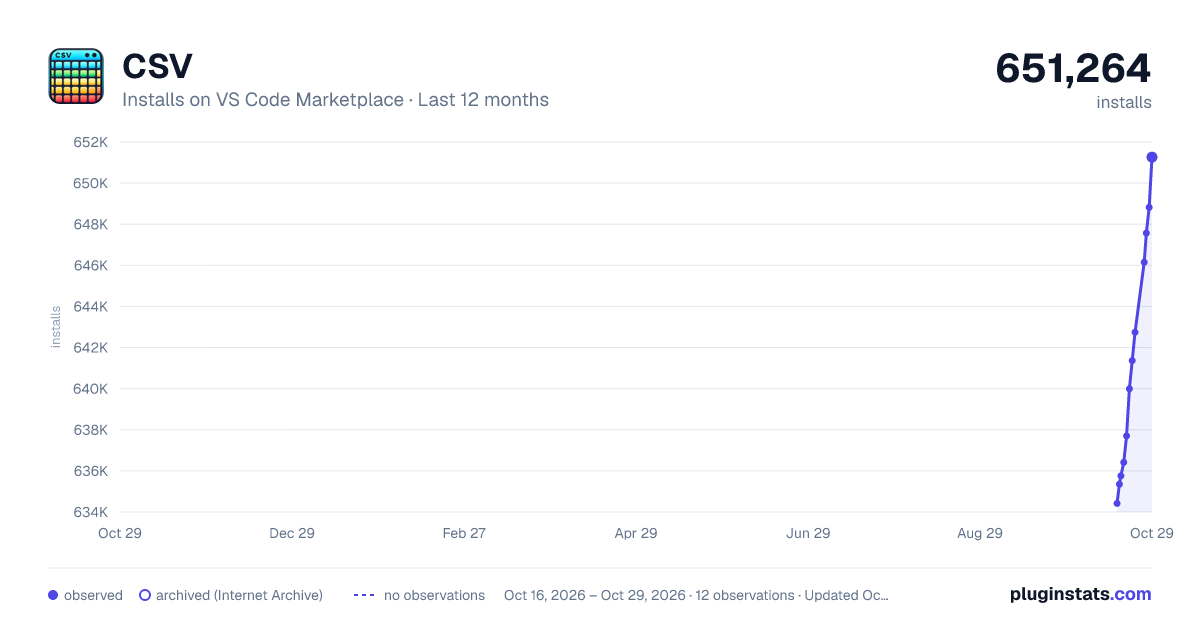
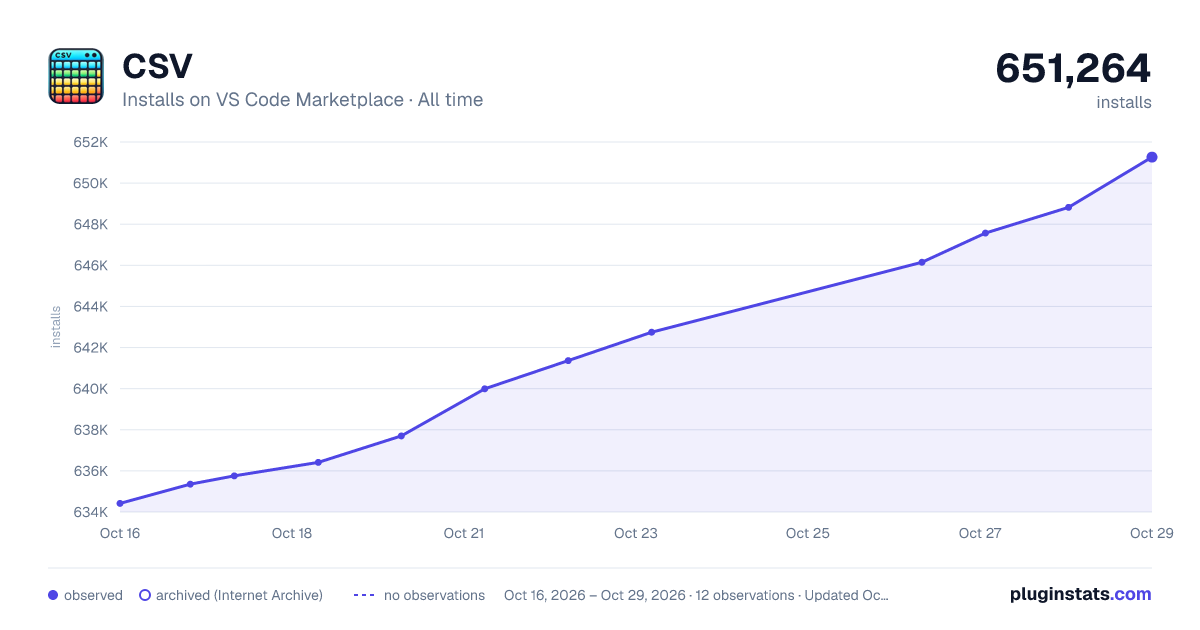

Adoption over time


7/30/90-day growth


Ratings over time


Listing placement


Listing placement


Filled points are observed values; hollow points come from Internet Archive snapshots of the listing page. Dashed segments span periods with no observations — values between points are not interpolated.
Each band is one page of 20. Installs on a log scale. Placement is projected from installs, so it can differ from the marketplace's own sort order. Hover a dot to see the listing.
Recent observations
Full history (4)Similar VS Code Marketplace Programming Languages plugins
All 20 CSV alternativesData source
Install counts, average rating, and rating counts come from the public Visual Studio Marketplace gallery API. Installs are cumulative and exclude updates.
Listing: https://marketplace.visualstudio.com/items?itemName=ReprEng.csv. First seen Oct 16, 2026; last successful collection Oct 19, 2026. See the methodology.