 PluginStats
Auto Build Marlin installs statistics
By Marlin Firmware · VS Code Marketplace · Formatters
Provides an interface to configure, build, and upload Marlin Firmware.
Auto Build Marlin has 805,136 recorded installs on VS Code Marketplace.
It ranks #612 of 2,500 tracked VS Code Marketplace listings by installs.
It is rated 4.1 out of 5 from 8 ratings.
PluginStats has 3 daily observations since Oct 16, 2026; the latest is from Oct 18, 2026.
Rating: 4.13 / 5 from 8 ratings
About Auto Build Marlin
Auto Build Marlin
"Auto Build Marlin" provides a simplified interface to configure, build, and upload Marlin Firmware.
The Auto Build tool automatically detects the correct environments for your MOTHERBOARD and provides an interface to build them. No more editing platformio.ini or scanning a long list of environments in the PlatformIO IDE. Just press the Build button and go!
The Configuration Editor provides an enhanced interface for editing configurations. This includes a search filter to find the options you need and to discover new and useful features. To use, right-click a file in the VSCode file explorer and select Open With… > Config Editor. *This is an alpha preview and will probably have some issues.*
Custom Commands for formatting, building, and more.
PlatformIO Required
When installing "Auto Build Marlin" you'll also be prompted to install the PlatformIO extension. PlatformIO handles all the details of the build and is required for "Auto Build Marlin" to function.
Usage
• Start *Visual Studio Code* and open a project folder with *Marlin Firmware* version 2.0 or later. Be careful to open the folder containing platformio.ini and not the "Marlin" folder within it. (You may also use the Import Project… option from the "PlaformIO Home" page.) • The "File Explorer" should point to your Marlin Firmware folder like so:
Auto Build
• Click the Auto Build Marlin icon in the Activity Bar (on the far side of the *Visual Studio Code* window) to open the Auto Build Marlin sidebar. • Use the Show ABM Panel button (or click on any of the buttons in the toolbar) to open the Auto Build Marlin panel. If more than one target environment exists for your board you'll have to choose the specific environment to use before the build.
Icon|Action
|Start Marlin Build to test your Marlin build |Start Marlin Upload to install Marlin on your board |Start Marlin Upload (traceback) to install Marlin with debugging |Start Marlin Clean to delete old build files |Open the Configuration Tool
• The Auto Build Marlin panel displays information about your selected motherboard and basic machine parameters. Each board comes with one or more build environments that are used to generate the final Marlin binary. Choose the environment that best matches your MCU, bootloader, etc.
Configuration Editor
The Config Editor provides a form divided up into sections with search filtering. In the future we may make the Config Editor the default, but in the meantime there are a few ways to open the Editor.
• Open Auto Build Marlin and reveal the Welcome Panel. Click on the Edit Configuration.h or Edit Configuration_adv.h button. • If Configuration.h or Configuration_adv.h is open as text, right-click on its tab title and choose "Reopen Editor with…" > Config Editor to switch. • In the VSCode File Explorer right click on Configuration.h or Configuration_adv.h and choose "Open with…" to select the Config Editor.
Editor Usage
• Use the navigation sidebar to view a single isolated section, or all. • Use the "Filter" field to locate options by name. • Click the "Show/Hide Disabled" button to show or hide disabled options. • Click the "Show/Hide Comments" button to show or hide comments. • Click the title of a section to hide/show that section. • Hold down alt/option and click on any title to hide/show all sections.
Config Annotations
• Marlin's standard configuration files are annotated to provide hints to configuration tools. Edit the configuration file text to add your own @section markers, provide allowed values for options, or improve documentation. Please submit your improvements and suggestions to enhance the configuration experience for users worldwide!
Formatters
• Open the Command Palette and choose "Format Marlin Code." The file will be formatted according to Marlin standards. • NOTE: The context menu item "Format Document With…" -> "Auto Build Marlin" doesn't work so ignore that menu command for now.
Internals
The Auto Build Marlin extension for VSCode contributes sidebar panels, a web view, a custom editor, custom formatters, and other commands. This extension is written entirely in Javascript (so we don't have to learn TypeScript).
Bootstrapping
When VSCode starts the extension it just loads extension.js. This file imports abm.js and prefs.js for utility functions, and format.js, docs.js, and editor.js for our feature providers. These files import js/marlin.js and js/schema.js to process Marlin files, and node fs for file functions. Any top level code in these files runs as soon as extension.js does. This is when modules init their classes and export their symbols.
With all that done, extension.js defines the code that will register ABM's commands and feature providers with VSCode upon activation.
ConfigSchema
ConfigSchema is the most important class, providing a configuration parser and utility methods for use throughout the extension. Since views scripts also need access this class, js/schema.js is made to be loaded either as a module with requires() or as a typical HEAD script.
The first time the extension needs to show a view that uses the schema it reads the configurations.
File Changes
View providers and views don't share common memory, so data has to be sent between them with serialized messaging. Providers handle messages from the UI in handleMessageFromUI and their views receive messages in handleMessageToUI.
Any external file changes cause the whole schema to be refreshed. Changes made in the Custom Editor (i.e., editview.js) are applied to a local copy of the schema before being sent in a message to the provider. The provider uses the message to update the shared schema and alert other views to update.
Description from the VS Code Marketplace listing.
- 3DPrinting
- ARM
- AVR
- Embedded
- Firmware
- PlatformIO
Where Auto Build Marlin sits in the listing
Each band is one page of 20. Installs on a log scale. Placement is projected from installs, so it can differ from the marketplace's own sort order. Hover a dot to see the listing.


Charts
Images: 30d · 1y · all time · 1600×900 dark
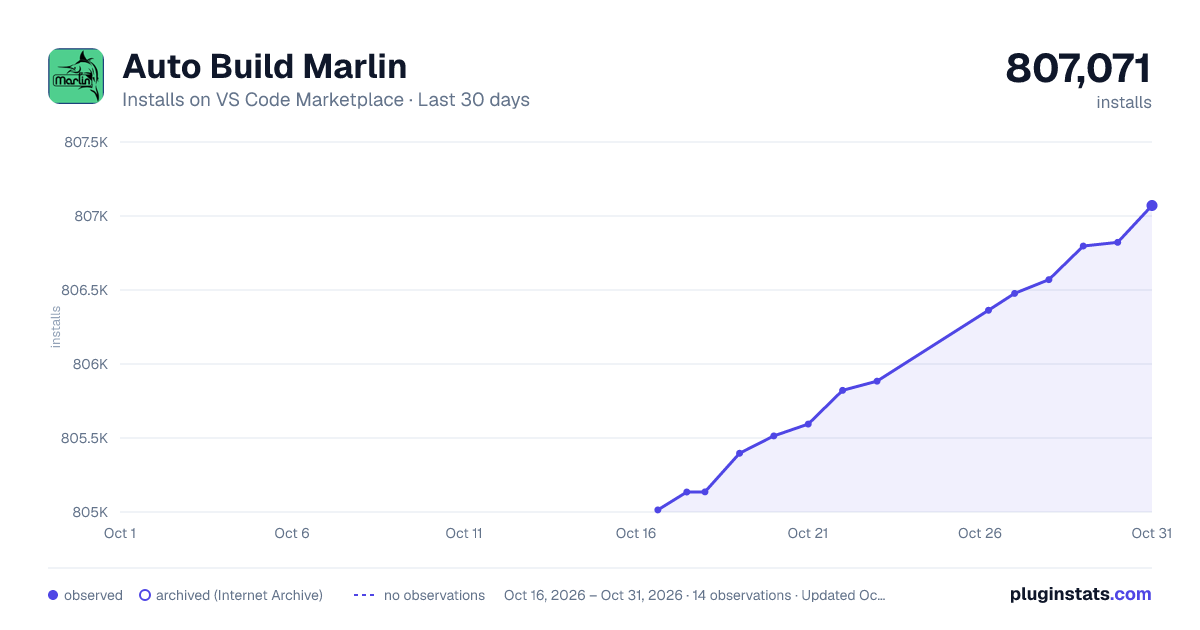
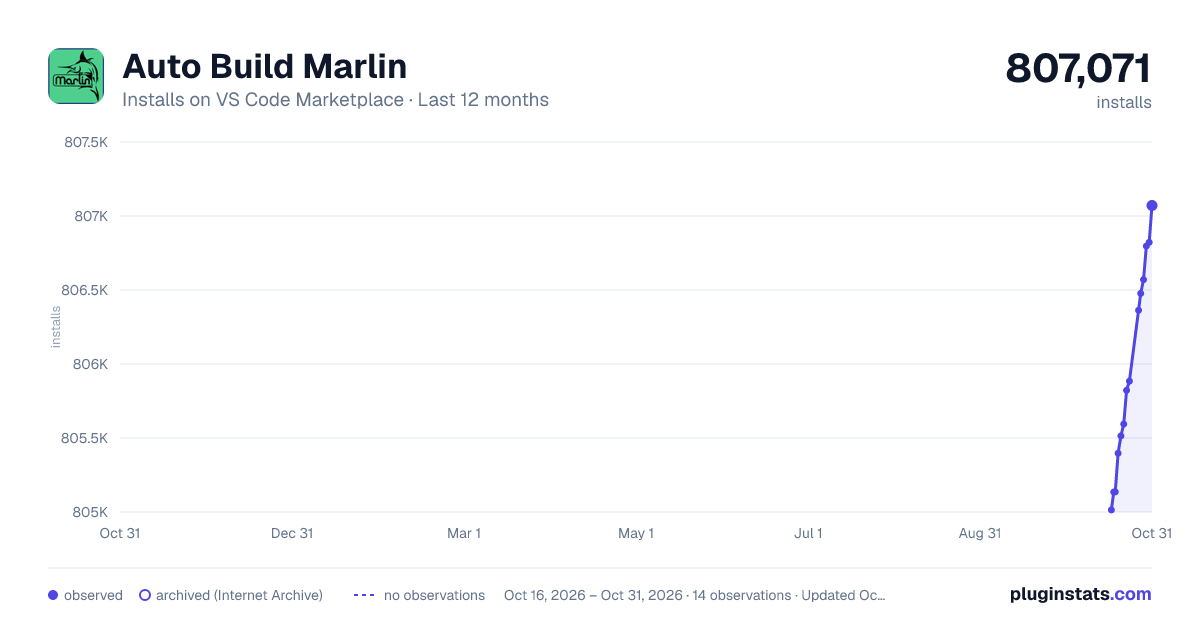
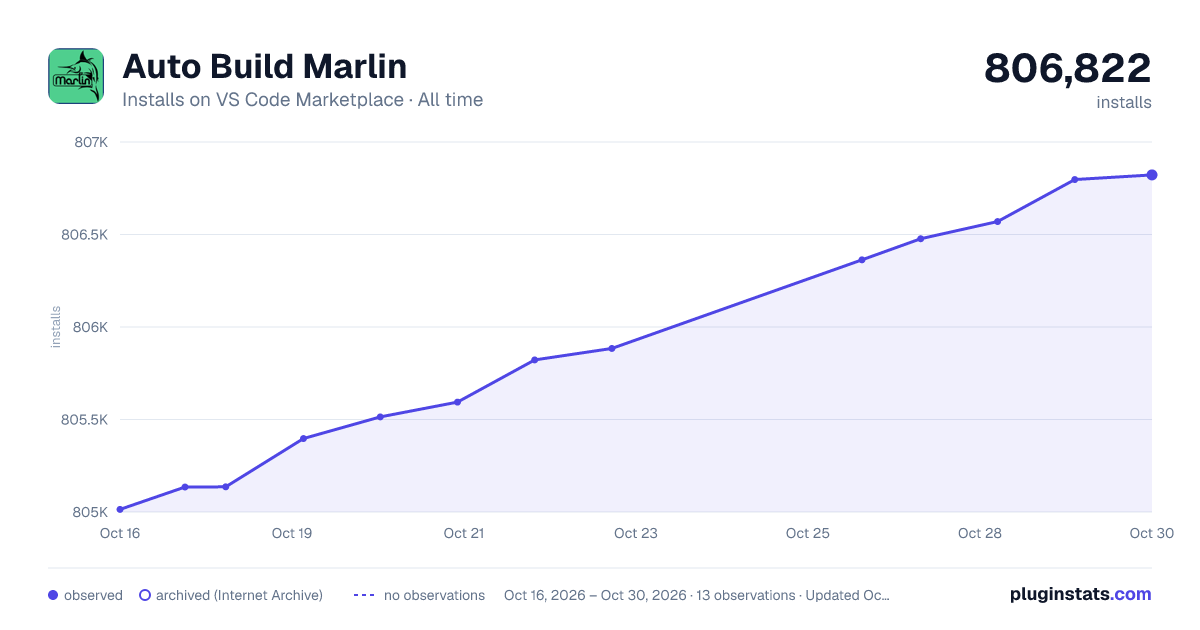

Adoption over time


7/30/90-day growth


Ranking history


Filled points are observed values; hollow points come from Internet Archive snapshots of the listing page. Dashed segments span periods with no observations — values between points are not interpolated.
Recent observations
Full history (3)Similar VS Code Marketplace Formatters plugins
Data source
Install counts, average rating, and rating counts come from the public Visual Studio Marketplace gallery API. Installs are cumulative and exclude updates.
Listing: https://marketplace.visualstudio.com/items?itemName=MarlinFirmware.auto-build. First seen Oct 16, 2026; last successful collection Oct 18, 2026. See the methodology.