 PluginStats
Apex Log Analyzer installs statistics
By Certinia · VS Code Marketplace · Other
Salesforce Apex Debug Log Analyzer: Fast VS Code extension for Salesforce developers. Visualize and debug Apex logs with interactive flame charts, dynamic call trees, and detailed SOQL/DML breakdowns. Identify performance bottlenecks, gain deep transaction insights and optimize slow Apex.
Apex Log Analyzer has 1,294,268 recorded installs on VS Code Marketplace.
It ranks #467 of 2,501 tracked VS Code Marketplace listings by installs.
It is rated 4.8 out of 5 from 16 ratings.
PluginStats has 4 daily observations since Oct 16, 2026; the latest is from Oct 19, 2026.
Rating: 4.81 / 5 from 16 ratings
About Apex Log Analyzer
🚀 Apex Log Analyzer - Visualize Salesforce Debug Logs in VS Code
Find what made a Salesforce Apex transaction slow. Apex Log Analyzer is a fast VS Code extension for Salesforce developers. Instantly visualize and debug Apex logs with interactive flame charts, dynamic call trees, and detailed SOQL/DML breakdowns. Identify performance bottlenecks, gain deep insight into complex transactions and optimize slow Apex methods faster than ever.
Installation | Debug Log Levels | Features | Customization | Documentation | Contributors | License
🚀 Key Features
• 🔥 See where the time went - An interactive flame chart of the whole transaction, with a minimap for navigating massive logs. • 🌲 Follow the execution - The full call tree in time order, aggregated, or bottom-up, with timing, row counts and DML/SOQL metrics. • 🚦 At a glance header - A "Log problems" chip and Notifications bell summarize issues, and chips show the debug levels the log was captured with. • 🧭 Inspect anything - Select any frame or statement and the dockable inspector shows its vitals, call stack and its own call tree. • 🗄️ Find the slow SOQL, DML and SOSL - Every statement with its timing, row counts and selectivity, so the expensive ones stand out. • 📊 Stay inside governor limits - Usage against the limit for every governor, and where in the transaction you consumed it. • 🧠 Understand heap - Net, gross and peak per method, so allocate-then-free churn no longer looks like a leak. • 📈 Find the hot Apex - Group by method or namespace to see what actually costs you time. • 🔍 Search the whole log - One search across the flame chart, call tree and database tables. • 📄 Jump to the raw log - Move between the analysis and the log file itself, in both directions. • 🤖 Ask an AI about a log - An MCP server so your assistant can analyze logs with you. • 🧠 Filter to what matters - Narrow any grid by namespace, object or type, or to a value range.
✨ Works with any .log Salesforce debug log file.
🛠️ Installation
📦 Install Apex Log Analyzer in VS Code
You can install Apex Log Analyzer directly from Visual Studio Code, the command line, or the Visual Studio Code Marketplace.
✅ Option 1: Install via VS Code
1. Open the Extensions sidebar (Ctrl+Shift+X or Cmd+Shift+X). 2. Search for Apex Log Analyzer. 3. Click Install.
🌐 Option 2: Install from Marketplace
➡️ Install Apex Log Analyzer on Visual Studio Code Marketplace
\_ Option 3: Install via Command Line
✨ Try the Pre-Release Version
💡 Access experimental features and shape future updates by switching to the Pre-Release Version from the extension banner in VS Code.
⚡ How It Works
Start Analysis
You can analyze logs in two ways:
1. Analyze an Open Log File
• Open a .log file in VS Code. • Run Log: Show Apex Log Analysis via: • Command Palette (Ctrl/Cmd + Shift + P) • Top-of-file code lens • Right-click menu • Editor toolbar button
2. Download a Log from Your Org
Use Log: Retrieve Apex Log And Show Analysis from the Command Palette.
⚙️ Recommended Debug Log Levels
• Set APEX_CODE level to FINE or higher - lower levels may omit important execution details. • Be aware that higher debug levels introduce logging overhead, which can inflate recorded execution times. • Avoid truncated logs - they can result in incomplete or misleading analysis. • Recommended settings for a good balance of detail and performance: APEX_CODE,FINE; APEX_PROFILING,FINE; CALLOUT,INFO; DB,FINEST; NBA,INFO; SYSTEM,DEBUG; VALIDATION,INFO; VISUALFORCE,FINE; WAVE,INFO; WORKFLOW,FINE
🚦 Header
The bar above the tabs summarizes the log at a glance:
• Log problems - A chip for problems found in the log itself (governor limit exceptions, fatal errors, skipped lines), with a count badge; click it for the full breakdown. • Notifications - A separate bell for messages about the tool rather than the log, kept apart from log problems so the two don't read as one severity count. • Log info - Entry point, user, and start time; hover for full details. • Debug levels - Chips showing the debug levels the log was captured with, one per category. Read-only display, not a filter. • ••• menu - Help, report an issue, and whatever the header sheds as the window narrows.
🔥 Timeline
The Timeline view shows a live visualization of your Salesforce Apex log execution, including methods, SOQL queries, DML operations, workflows, flows, and more.
• ⚡ Fast - Zoom, pan and render smoothly even on large logs, tested at 100 MB. • 🗺️ Minimap - Bird's-eye view with skyline density overview, viewport lens, and instant teleport. • 📊 Governor Limits Strip - At-a-glance limit usage with traffic light coloring, built from individual log events so every limit (heap included) updates as it's consumed, not just at cumulative snapshots. Expand for a detailed step chart. • 📏 Measure & Zoom - Shift+Drag to measure durations, Alt/Option+Drag to area-zoom, precision keyboard controls. • 🕐 Wall-Clock Time - Toggle between elapsed and real-time (HH:MM:SS.mmm) on the time axis via the toolbar clock button. • 🧭 Inspector - Select a frame to inspect it alongside the chart.
Also: Frame Selection & Navigation, Dynamic Frame Labels, Adaptive Frame Detail, Tooltips, Context Menu, Search & Highlight, 19 Curated Themes.
🧠 Great for spotting long-running operations, inefficient queries, and bottlenecks.
🌲 Call Tree
Explore nested method calls with performance metrics:…
Description from the VS Code Marketplace listing.
- analysis
- analyzer
- apex
- apex logs
- apex performance
- apexlog
- debug
- debug log
- debug logs
- debugging
- debuglog
- developer tools
- dml
- flamegraph
- log
- log analyzer
- log profiler
- log profiling
- performance
- performance analyzer
Where Apex Log Analyzer sits in the listing
Each band is one page of 20. Installs on a log scale. Placement is projected from installs, so it can differ from the marketplace's own sort order. Hover a dot to see the listing.


Charts
Images: 30d · 1y · all time · 1600×900 dark
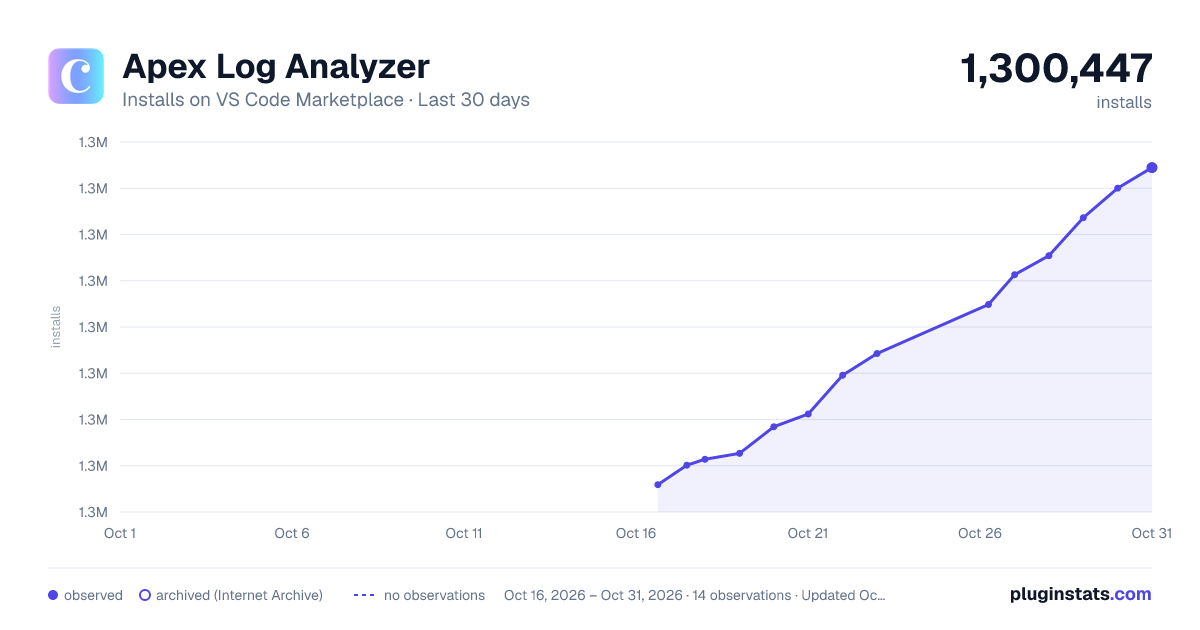
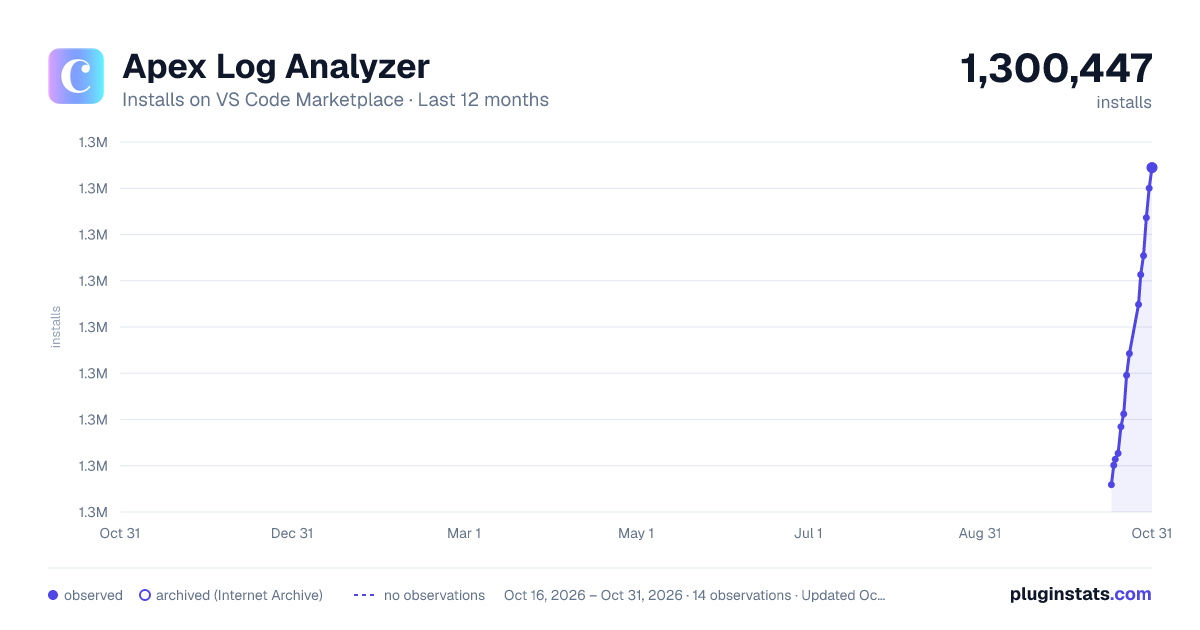
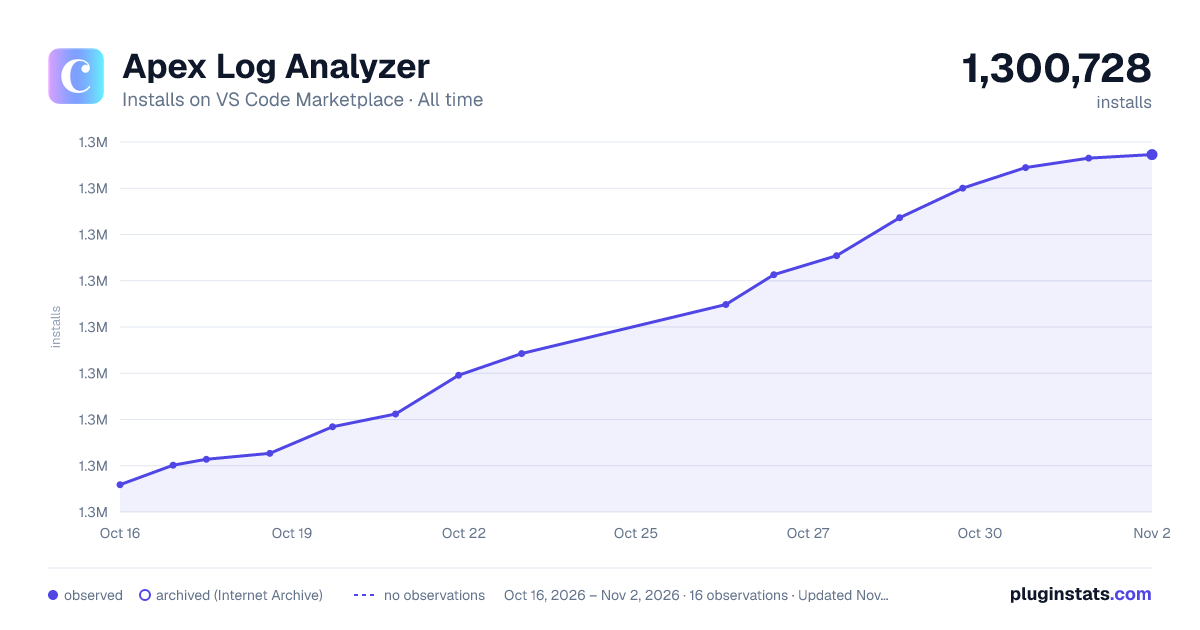

Adoption over time


7/30/90-day growth


Ranking history


Filled points are observed values; hollow points come from Internet Archive snapshots of the listing page. Dashed segments span periods with no observations — values between points are not interpolated.
Recent observations
Full history (4)Similar VS Code Marketplace Other plugins
Data source
Install counts, average rating, and rating counts come from the public Visual Studio Marketplace gallery API. Installs are cumulative and exclude updates.
Listing: https://marketplace.visualstudio.com/items?itemName=financialforce.lana. First seen Oct 16, 2026; last successful collection Oct 19, 2026. See the methodology.