 PluginStats
Arm Tools Environment Manager installs statistics
By Arm (6 listings) · VS Code Marketplace · Other
Download, activate and license tools through declarative configuration
Arm Tools Environment Manager has 191,751 recorded installs on VS Code Marketplace.
It ranks #1566 of 2,501 tracked VS Code Marketplace listings by installs.
PluginStats has 4 daily observations since Oct 16, 2026; the latest is from Oct 19, 2026.
About Arm Tools Environment Manager
Arm Tools Environment Manager
The Arm® Tools Environment Manager extension downloads, installs, and manages software development tools using Microsoft vcpkg artifacts. Arm Tools Environment Manager uses the vcpkg-configuration.json manifest file included in your project to acquire and activate the tools needed to set up your development environment.
The Arm Tools Artifactory lists the tools (compiler, debugger, simulation models, and utilities) and the different versions available. Some tools require a User-based Licensing (UBL) license that you must activate with the Arm License Management Utility available with Arm Tools Environment Manager.
The Arm Tools Environment Manager extension is free to use. You can use the extension independently, and it is also compatible with other extensions included in the Keil Studio Pack, or in the Arm Debugger extension pack.
The following features are available in the user interface:
• An Arm Tools and a license status bar indicators that show information about the tools installed for your project and your license and provide access to commands. • Commands to manage the tools for the project and your license. • A visual editor to select tools from the Arm Tools Artifactory. Alternatively, you can edit the vcpkg-configuration.json file manually.
This Readme provides additional details on:
• CI usage. Learn how to use the vcpkg manifest file in continuous integration and continuous delivery/deployment (CI/CD) systems to set up tools in a consistent way. • vcpkg folder. The folder where the tools are downloaded locally. • Environment variables. Environment variables are automatically set for the current context.
Arm Tools and license status bar indicators
The Arm Tools status bar indicator shows a loading icon during tool activation. The indicator turns red if there are errors. Move your mouse over the status bar indicator to see which tools the current environment added to the PATH environment variable. Click the Arm Tools status bar indicator to view commands that help you to manage the tools installed.
{ height=183 width=346 }
Next to Arm Tools, the activated tool license displays, for example Keil MDK Community. If you have not activated a license yet, No Arm License displays and the indicator is red. Click the license indicator in the status bar to open the Arm License Management Utility and manage your license.
Commands
You can access commands to manage the tools installed for the project when you take the following actions:
• When you click the Arm Tools status bar indicator. • When you right-click the vcpkg-configuration.json file from the Explorer view.
| Command | Description |
| Add Arm Tools Configuration to Workspace | When there is no vcpkg-configuration.json in the workspace of your project, select the required tools with the visual editor and add the vcpkg-configuration.json to the project. | | Configure Arm Tools Environment | Select the tools you need for your project and update the vcpkg-configuration.json using the visual editor. | | Activate Environment | Add the selected tools to the PATH environment. | | Deactivate Environment | Remove the tools from the PATH environment. | | Reactivate Environment | Deactivate and activate the PATH environment, for example if you have changed your vcpkg configuration. | | Update Tool Registry | Check for new tools available in the Arm Tools Artifactory. | | View Log | Review download and activation processes from the Output tab for the Arm Tools category. |
Another command is available to manage your license when you click the license status bar indicator.
| Command | Description |
| Activate or manage Arm licenses | Open the Arm License Management Utility to review and enter license activation codes. |
Manage the vcpkg-configuration.json file
The vcpkg-configuration.json file stores the tool setup of your project. The file must be located in the root directory of the folder. The Activate Environment command installs the tools that are listed in this file.
Notes:
• Run the Update Tool Registry command to get the catalog of latest available tools. • After modifying the vcpkg-configuration.json file, re-open the Terminal window to update the PATH environment.
Example:
The following file activates CMSIS-Toolbox, Arm Compiler, Ninja, and CMake with the versions specified. For Arm Compiler, the ^6.21.0 indicates the minimum version, but with ^, the latest version is installed.
Click Open Preview to the Side to open the visual editor.
CI usage
With a vcpkg-configuration.json file, you can install tools from the Arm Tools Artifactory across different environments in a consistent way.
The following picture shows how tools are activated in Visual Studio Code for desktop development and in CI for test automation. In both development environments the same vcpkg-configuration.json configuration file ensures a consistent tool setup.
The following resources provide more information:
• AVH CI Template. A GitHub Action template for CI unit test automation that uses vcpkg. • GitHub Action vcpkg. Tool activation with vcpkg for GitHub Action workflows. • vcpkg tool installation. Manual tool installation using vcpkg from the command line.
vcpkg folder
The base ~/.vcpkg directory (%USERPROFILE%\.vcpkg on Windows) contains the following sub-folders:
• artifacts: Installation folders of the tools. • downloads: Download images of the tools. • registries: A catalog of the tools available. The Update Tool Registry command retrieves the latest catalog.
Environment variables
Environment variable settings are local to the Visual Studio Code instance and not persistent. Paths to activated tools are added at the beginning of a local PATH environment variable in Visual Studio Code. This local PATH also inherits settings from the host computer PATH. The Arm Tools Environment Manager overrules permanent tool installations on the host computer.
Usage on Arm64 (Windows and Linux)…
Description from the VS Code Marketplace listing.
- environment
- json
- vcpkg
- vcpkg-artifacts
Where Arm Tools Environment Manager sits in the listing
Each band is one page of 20. Installs on a log scale. Placement is projected from installs, so it can differ from the marketplace's own sort order. Hover a dot to see the listing.


Charts
Images: 30d · 1y · all time · 1600×900 dark
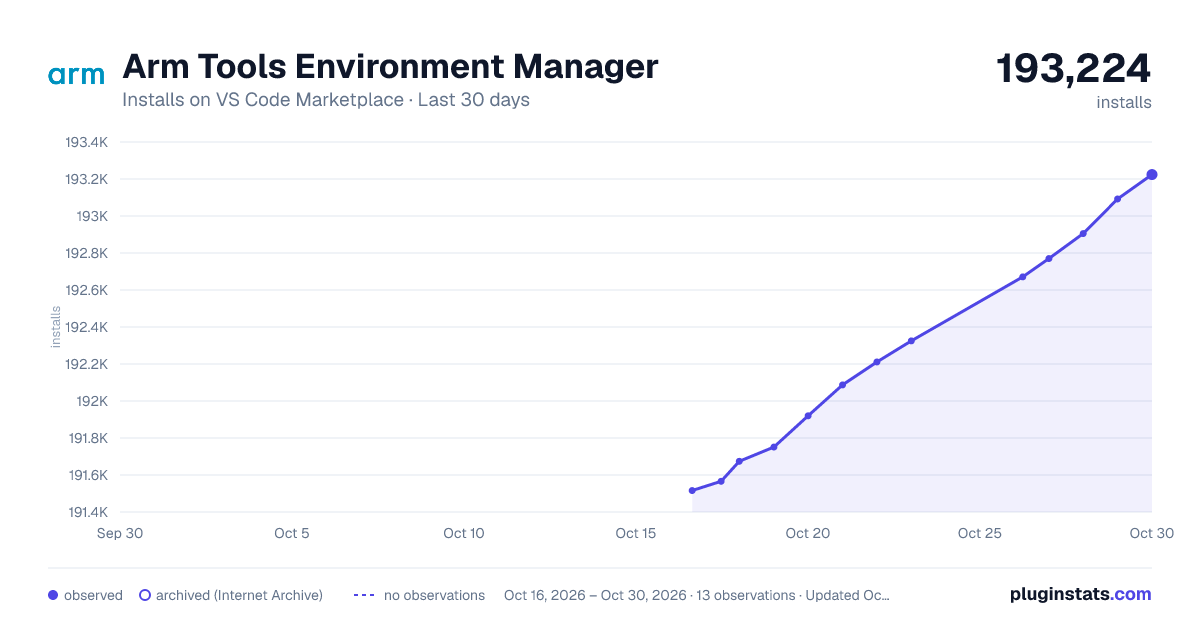
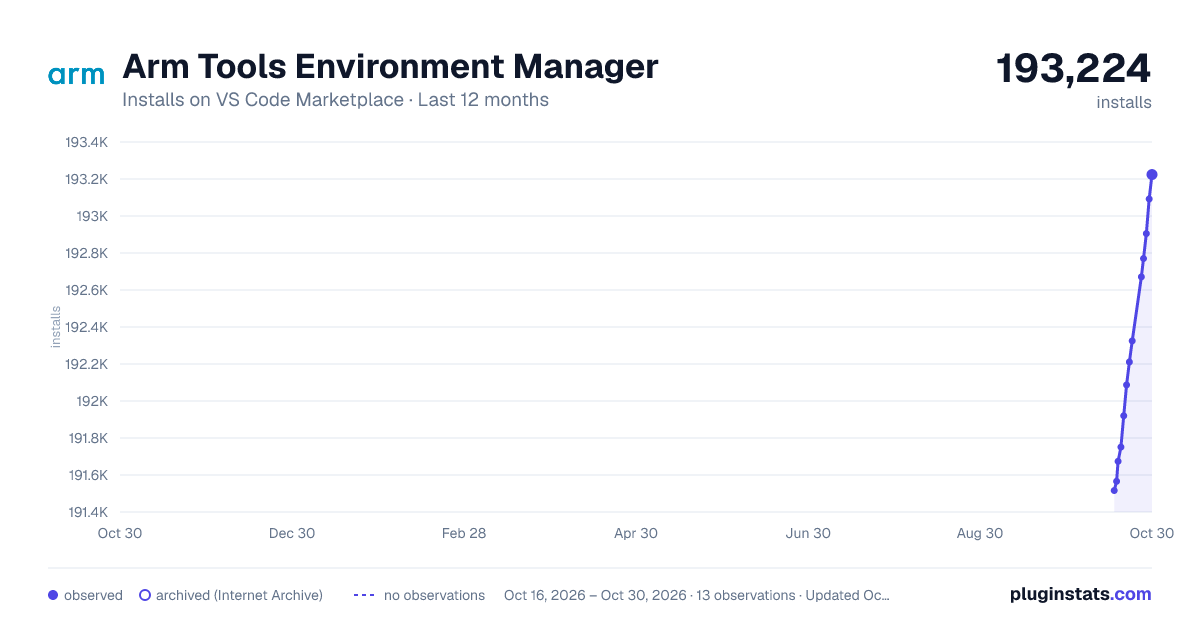
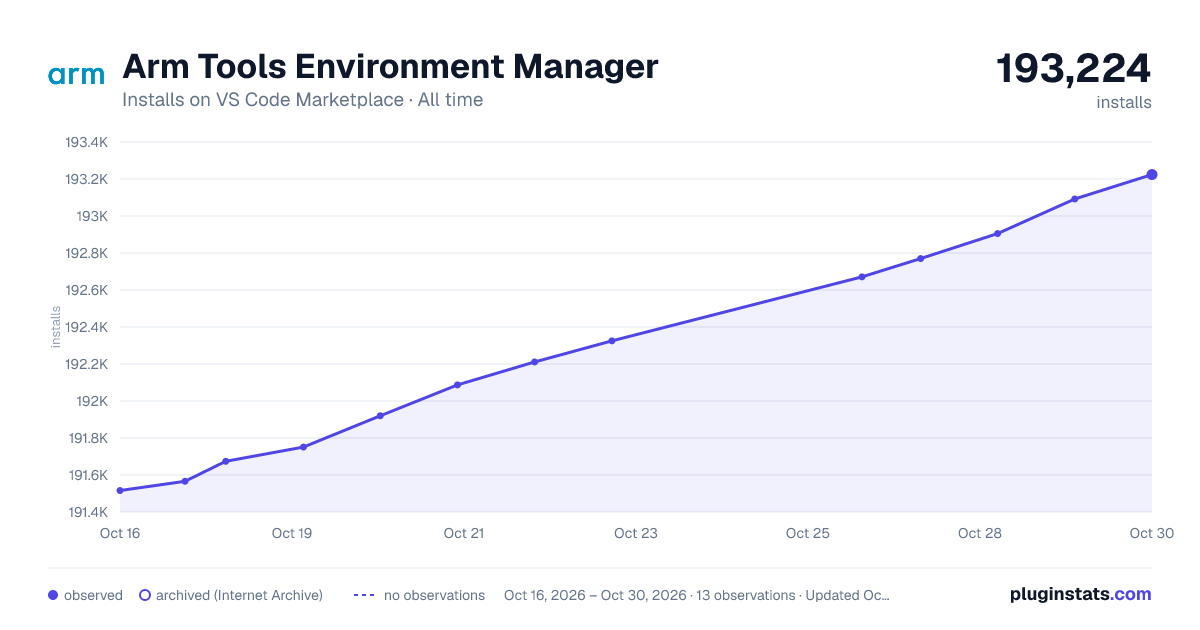

Adoption over time


7/30/90-day growth


Ranking history


Filled points are observed values; hollow points come from Internet Archive snapshots of the listing page. Dashed segments span periods with no observations — values between points are not interpolated.
Recent observations
Full history (4)Similar VS Code Marketplace Other plugins
Data source
Install counts, average rating, and rating counts come from the public Visual Studio Marketplace gallery API. Installs are cumulative and exclude updates.
Listing: https://marketplace.visualstudio.com/items?itemName=Arm.environment-manager. First seen Oct 16, 2026; last successful collection Oct 19, 2026. See the methodology.