 PluginStats
Arm Device Manager installs statistics
By Arm (6 listings) · VS Code Marketplace · Other
Manages device connections and configuration for Arm Cortex-M based microcontrollers, development boards and debug probes
Arm Device Manager has 122,669 recorded installs on VS Code Marketplace.
It ranks #2111 of 2,501 tracked VS Code Marketplace listings by installs.
PluginStats has 4 daily observations since Oct 16, 2026; the latest is from Oct 19, 2026.
About Arm Device Manager
Arm Device Manager
• Overview • Connect your hardware • Edit your hardware • Open a serial monitor • Troubleshooting • Submit feedback or report issues
Overview
The Device Manager extension allows you to manage hardware connections for Arm-based microcontrollers, development boards, and debug probes. You can install the extension individually or as part of the Arm Debugger extension pack.
Connect your hardware
This section describes how to connect your hardware for the first time.
1. Click Device Manager in the Activity Bar.
1. Connect your hardware to your computer over a USB connection.
The Device Manager detects the hardware and a pop-up message displays in the bottom right-hand corner.
1. Click OK to use the hardware.
Alternatively, click Add Device and select your hardware in the drop-down list that displays at the top of the window.
You can now use your hardware to run and debug a project.
To add more hardware, click Add Device in the top right-hand corner.
Edit your hardware
If the Device Manager cannot detect your hardware or if you are using an external debug probe, you can edit the hardware entry. You can specify a Device Family Pack (DFP) and a device name retrieved from the pack to be able to work with your hardware. DFPs handle device support.
1. Move your cursor over the hardware that you want to edit and click Configure Pack .
1. Select a DFP for your hardware in the drop-down list.
1. Select a device name in the drop-down list.
1. To change the name of the hardware, click Rename Device , then rename your hardware and press Enter.
Open a serial monitor
Open a serial monitor. The serial output shows the output of your board. You can use the serial output as a debugging tool or to communicate directly with your board.
1. Move your cursor over the hardware for which you want to open a serial monitor and click Open Serial .
A drop-down list displays at the top of the window where you can select a baud rate. The baud rate is the data rate in bits per second between your computer and your hardware. To view the output of your hardware correctly, you must select an appropriate baud rate. The baud rate that you select must be the same as the baud rate of your active project.
1. Select a baud rate.
A Terminal tab opens with the baud rate selected.
Troubleshooting
This section provides solutions to some common issues you might experience when you use the Device Manager extension.
Connected development board or debug probe not found
You have connected your development board or debug probe, but the Device Manager extension cannot detect the hardware.
Solution
• Run Device Manager on Windows, System Information on a Mac, or a Linux system utility tool like hardinfo. Check for warnings beside your hardware. Warnings can indicate that hardware drivers are not installed. If necessary, obtain and install the appropriate drivers for your hardware. • On Windows: ST development boards and probes require extra drivers. You can download them from the ST site. • On Windows: Check if you have an Mbed™ serial port driver installed on your machine. The Mbed serial port driver is required with Windows 7 only. Serial ports work out of the box with Windows 8.1 or newer. The Mbed serial port driver breaks native Windows functionality for updating drivers because it claims all the boards with a DAPLink firmware by default. We recommend that you uninstall the driver if you do not need it. Alternatively, you can disable it.
You can either:
• Uninstall the Mbed serial port driver (recommended): • Open a command prompt as an administrator. • Find and delete the mbedserial_x64.inf and mbedcomposite_x64.inf drivers. • Then, connect your hardware using a USB cable and open the Windows Device Manager. • In Ports (COM & LPT) and Universal Serial Bus controllers, find the mbed entries and right-click them both to uninstall them. • Finally, disconnect and reconnect your hardware. • Disable the Mbed serial port driver: • Open the Windows Device Manager. • In Ports (COM & LPT), find the Mbed Serial Port. Right-click it and select Properties. • Select the Driver tab and click Update Driver. • Click Browse my computer for drivers and then click Let me pick from a list of available drivers on my computer. • Select USB Serial Device instead of mbed Serial Port. • On Linux: udev rules grant permission to access USB boards and devices. To build and run a project on your hardware or to debug a project, you must install udev rules.
Clone the pyOCD repository, then copy the rules files which are available in the udev folder to /etc/udev/rules.d/ as explained in the README.md file. Follow the instructions in the README file.
The Device Manager extension can detect your connected hardware after you install the udev rules. If you still encounter a permission issue when accessing the serial output, run sudo adduser "$USER" dialout, and then restart your machine.
• Check that the firmware version of your board or debug probe is supported and update the firmware to the latest version. See Out-of-date firmware for more details. • Your board or device might be claimed by other processes or tools. This might happen if you are accessing a board or device with several instances of Visual Studio Code, or with different IDEs. • Activate the Manage All Devices setting. This setting allows you to select any USB hardware connected to your computer. By default, the Device Manager extension gives you access only to hardware from known vendors. • Open the settings: • On Windows or Linux, go to: File > Preferences > Settings. • On macOS, go to: Code > Settings > Settings. • Find the Device-manager: Manage All Devices setting and select its checkbox.
Out-of-date firmware
You have connected your development board or debug probe and a pop-up message appears mentioning that the firmware is out of date.
Solution
Update the firmware of the board or debug probe to the latest version:…
Description from the VS Code Marketplace listing.
- arm
- devices
- embedded
- microcontroller
- usb
Where Arm Device Manager sits in the listing
Each band is one page of 20. Installs on a log scale. Placement is projected from installs, so it can differ from the marketplace's own sort order. Hover a dot to see the listing.


Charts
Images: 30d · 1y · all time · 1600×900 dark
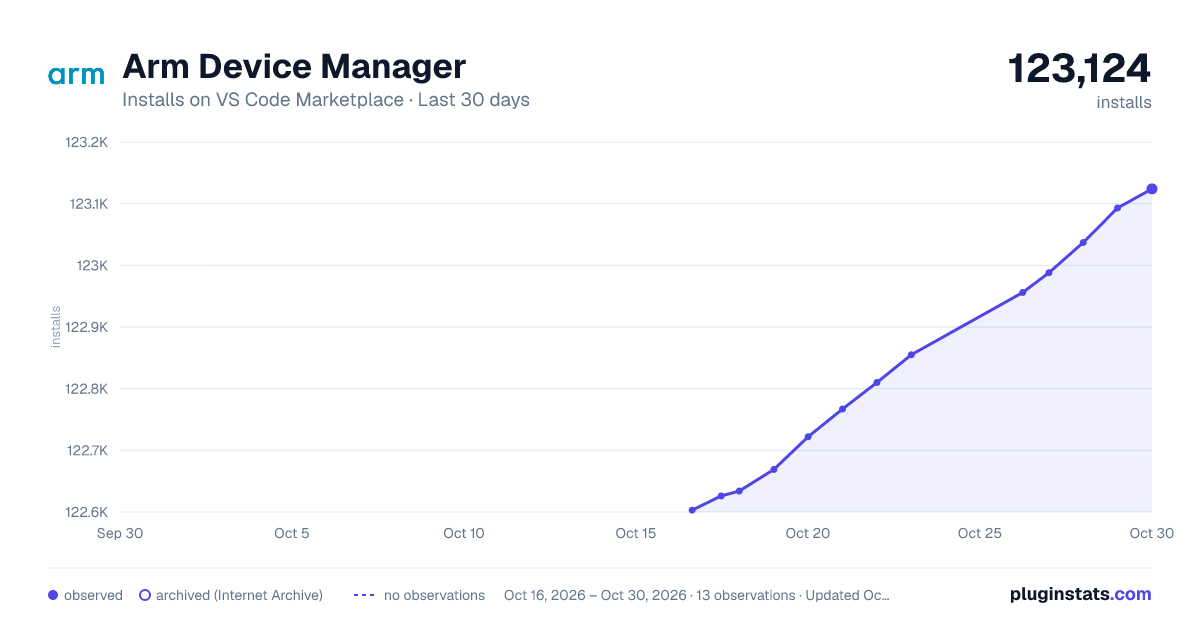
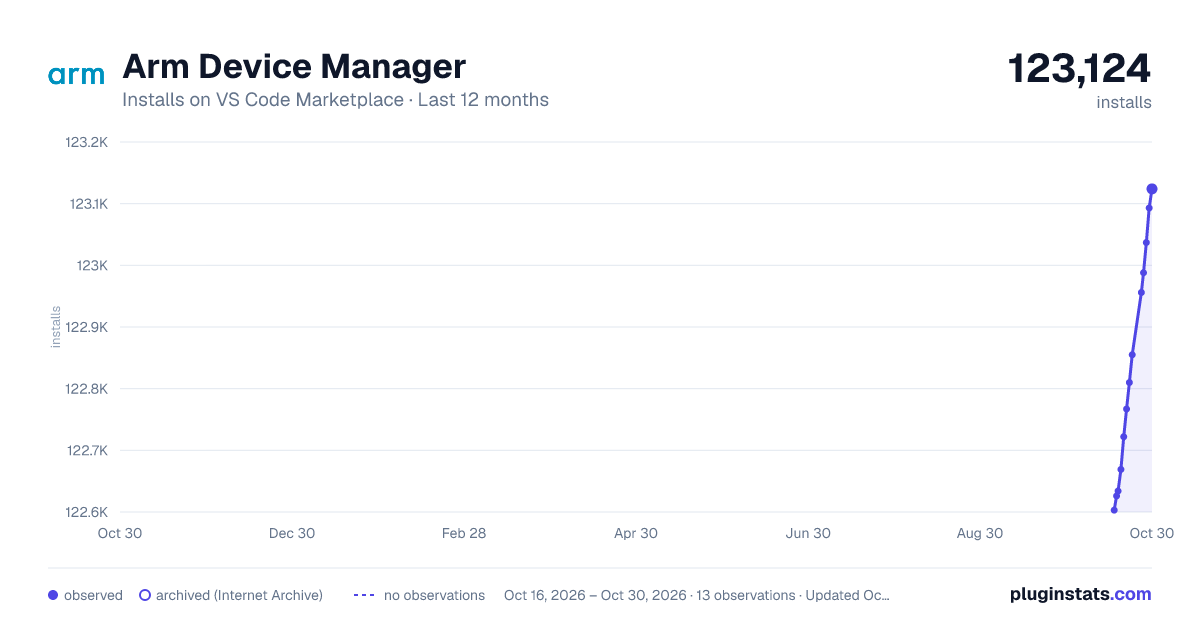
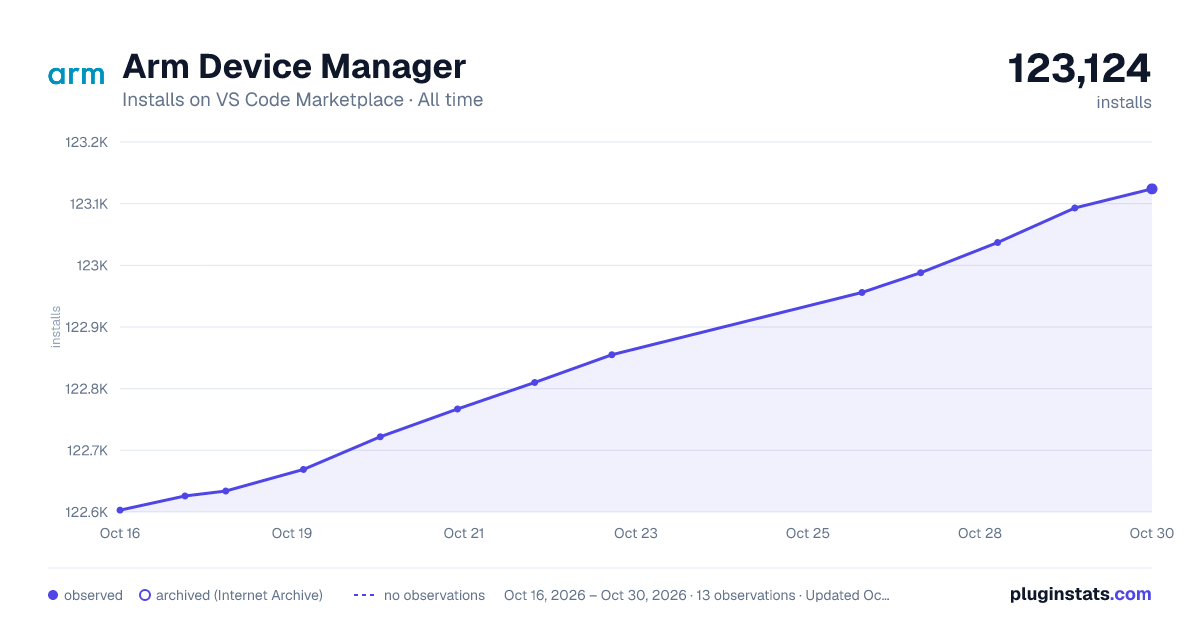

Adoption over time


7/30/90-day growth


Ranking history


Filled points are observed values; hollow points come from Internet Archive snapshots of the listing page. Dashed segments span periods with no observations — values between points are not interpolated.
Recent observations
Full history (4)Similar VS Code Marketplace Other plugins
Data source
Install counts, average rating, and rating counts come from the public Visual Studio Marketplace gallery API. Installs are cumulative and exclude updates.
Listing: https://marketplace.visualstudio.com/items?itemName=Arm.device-manager. First seen Oct 16, 2026; last successful collection Oct 19, 2026. See the methodology.