 PluginStats
AL Navigator installs statistics
By Waldemar Brakowski · VS Code Marketplace · Other
Create variables and parameters like a pro. Automatically select/insert startup object IDs in your launch.json file. Effortlessly navigate through AL files with intuitive shortcuts. Translate fields on hover and streamline report copying – all in one powerful extension.
AL Navigator has 103,813 recorded installs on VS Code Marketplace.
It ranks #2311 of 2,500 tracked VS Code Marketplace listings by installs.
It is rated 5.0 out of 5 from 3 ratings.
PluginStats has 3 daily observations since Oct 16, 2026; the latest is from Oct 18, 2026.
Rating: 5.00 / 5 from 3 ratings
About AL Navigator
AL Navigator
Simplify your AL development workflow: Create variables and parameters like a pro. Automatically select/insert startup object IDs in your launch.json file. Effortlessly navigate through AL files with intuitive shortcuts. Translate fields on hover and streamline report copying – all in one powerful extension.
🚀 Features
🔥 New: Smart Variable Ordering
Variables are now automatically inserted in the correct position according to Microsoft's AL Language specification:
Automatic Type-Based Sorting: • Complex object types are listed first: Record, Report, Codeunit, XmlPort, Page, Query • System types follow: Notification, BigText, DateFormula, RecordId, RecordRef, FieldRef, FilterPageBuilder • Simple types (Integer, Text, Boolean, etc.) appear after sorted types • Maintains clean, standards-compliant code structure
Key Benefits: • 📋 Standards Compliance: Follows Microsoft's official AL coding guidelines • 🎯 Better Readability: Variables grouped by type are easier to scan and understand • ✨ Zero Effort: Automatic sorting - no manual reorganization needed • 🔧 Works Everywhere: Applies to both global and local variable sections
Example: When you add an Integer variable to a section that already contains a Record, the Integer is correctly placed after the Record, not at the end of all variables. This ensures your code always follows AL best practices.
🔥 New: Analyze and Optimize Reports
Analyze and optimize your reports and report extensions from both AL and RDL/RDLC files with a unified, intelligent analyzer:
One command, multiple analyses: • 📊 Analyze All: Run all checks at once for a comprehensive report health check • 🔤 Font Analysis: Find non-Segoe UI fonts (intelligently preserves barcode fonts) • ⚠️ Expression Analysis: Detect irregular RDL expressions (e.g., Code.GetData without parameters) • 🗃️ Dataset Analysis: • Find unused columns in AL dataset (not used in layout) • Identify missing fields (referenced in layout but not defined in AL) • View complete usage statistics
Smart File Detection: • Run from AL report files and report extensions: Automatically finds and analyzes associated layout files • Run from RDL/RDLC files: Automatically locates corresponding AL file for dataset analysis • Handles reports with multiple layout files • For report extensions: Checks the base report to determine if it's processing-only
Auto-Fix Capabilities: • Fix fonts with one click (replace with Segoe UI) • Correct irregular expressions automatically • Remove unused variables from AL dataset • Multi-select which fixes to apply
Processing-Only Report Detection: • Automatically detects processing-only reports (reports without visual layouts) • For report extensions, checks the base report to determine processing-only status • Shows informative message when layout analysis is not available
Example Workflow: 1. Open an AL report file, report extension, or RDL/RDLC layout file 2. Run command: AL Navigator: Analyze and Optimize Report 3. Select analysis type (All, Fonts, Expressions, or Dataset) 4. Review detailed results in the output panel 5. Choose which issues to auto-fix
🔥 New: Select Startup Object with Status Bar & Recently Used
Instantly switch startup objects with a single click from the status bar!
Status Bar Button: • 🚀 Rocket icon shows your current startup object with name (e.g., "🚀 Page 9305: Sales Order List") • Click to open the unified startup object selection • Displays full object information: type, ID, and name • Object name is cached in launch.json for fast loading • Automatically updates after switching
Selection Options (in one unified command): 1. 📄 Current Object: Instantly use the currently open Page or Report • Only shown when a Page or Report is currently active • No searching needed - just one click
2. 📜 Recently Used *(New!)*: Your 10 most recently used startup objects • Sorted by most recent first • Shows time ago (e.g., "5m ago", "2h ago", "3d ago") • Perfect for switching between objects you're actively developing • Automatically tracked with every selection
3. ⭐ Popular Objects: Quick access to 35 commonly used Business Central pages • Sales: Quote, Order, Invoice, Credit Memo (Lists & Cards), Customer List/Card • Purchase: Quote, Order, Invoice, Credit Memo (Lists & Cards), Vendor List/Card • Inventory: Item List/Card • Finance: G/L Entries, General Journal, Chart of Accounts • Administration: Company Information, User Setup, Job Queue Entries
4. 📋 All Objects: Browse all pages and reports from your workspace and .app files • Smart filtering: Excludes previous versions of your own app from the list • Duplicate handling: Shows only the latest version when multiple versions of the same dependency app exist • Cleaner selection: Significantly improved readability for multi-app workspaces
Multi-Launch.json Support: • When your workspace contains multiple launch.json files (e.g., in different folders), you can: • Select which launch.json files to update • Or enable the setting alNavigator.updateAllLaunchJsons to automatically update all files without prompting
Multi-Configuration Support: • When your launch.json has multiple configurations (e.g., for different containers), you can: • Select which specific configurations to update with a unified multi-select dialog • All configurations from all selected launch.json files are shown together with clear file path indicators • Or enable the setting alNavigator.updateAllLaunchConfigurations (default: true) to automatically update all configurations without prompting
Configuration Settings: • alNavigator.updateAllLaunchJsons (default: false) - Automatically update all launch.json files without prompting • alNavigator.updateAllLaunchConfigurations (default: true) - Automatically update all configurations within selected launch.json files…
Description from the VS Code Marketplace listing.
- al
- AL Extensions
- Business Central
- CISDE
- Dynamics NAV
- keybindings
Where AL Navigator sits in the listing
Each band is one page of 20. Installs on a log scale. Placement is projected from installs, so it can differ from the marketplace's own sort order. Hover a dot to see the listing.


Charts
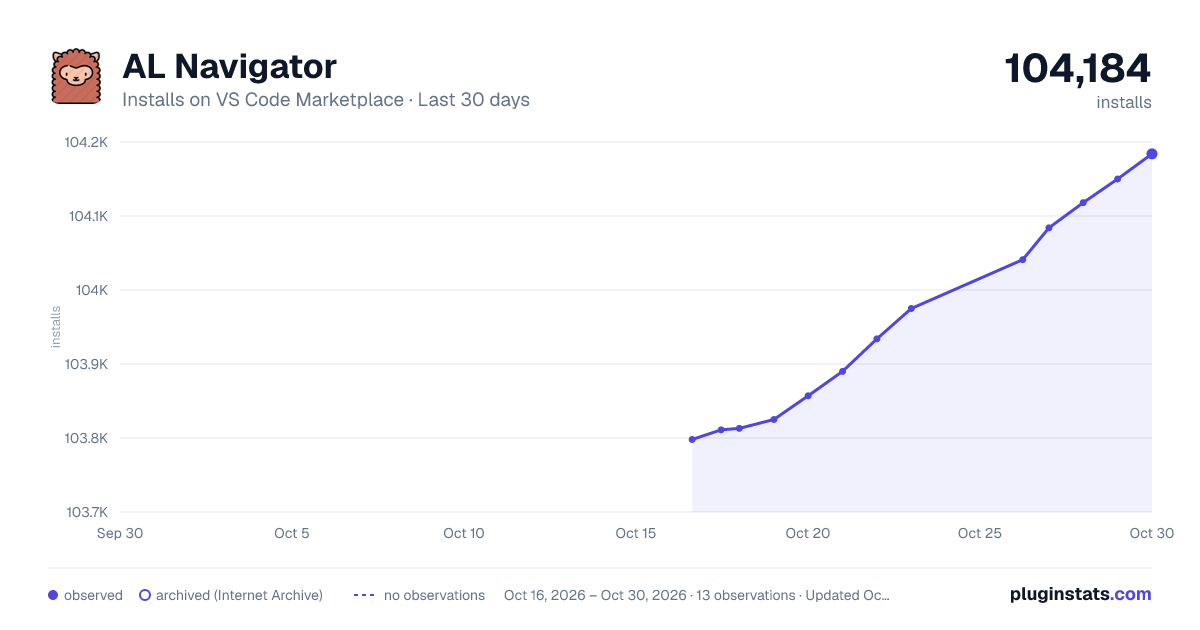
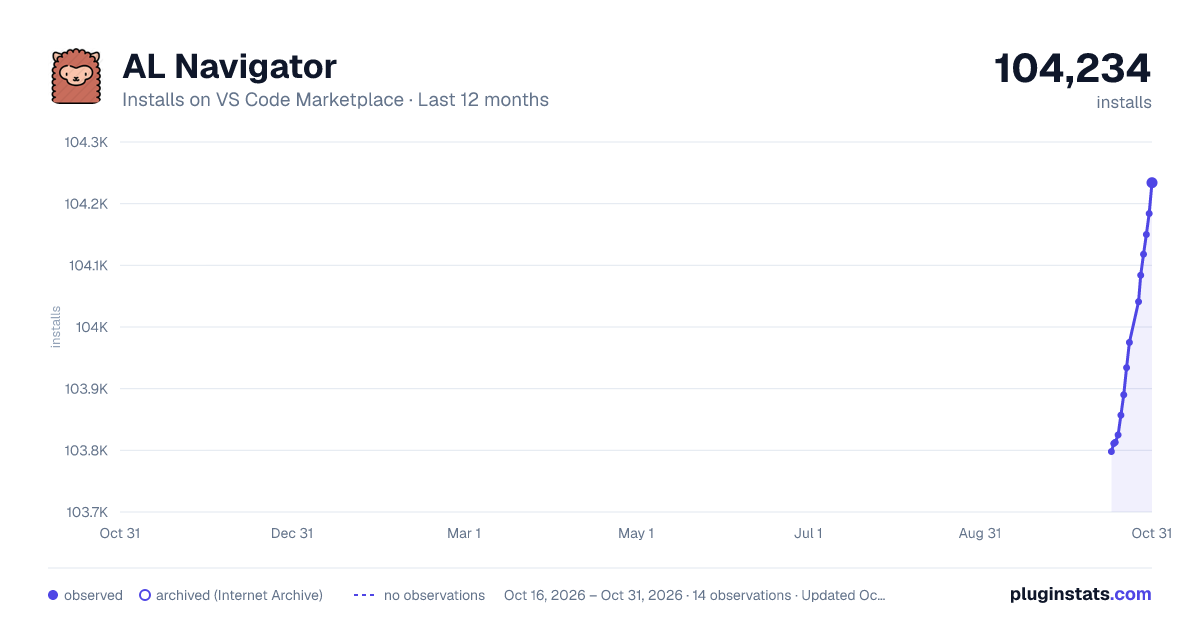
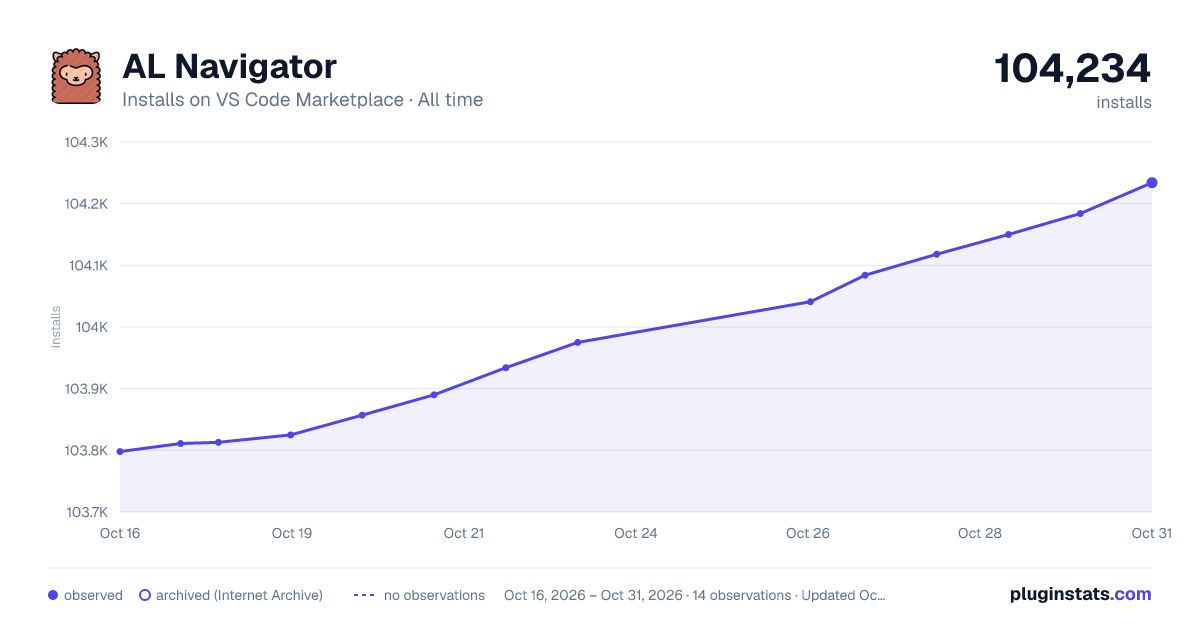
Images: 30d · 1y · all time · 1600×900 dark

Adoption over time


7/30/90-day growth


Ranking history


Filled points are observed values; hollow points come from Internet Archive snapshots of the listing page. Dashed segments span periods with no observations — values between points are not interpolated.
Recent observations
Full history (3)Similar VS Code Marketplace Other plugins
Data source
Install counts, average rating, and rating counts come from the public Visual Studio Marketplace gallery API. Installs are cumulative and exclude updates.
Listing: https://marketplace.visualstudio.com/items?itemName=wbrakowski.al-navigator. First seen Oct 16, 2026; last successful collection Oct 18, 2026. See the methodology.