 PluginStats
AutoCAD AutoLISP Extension installs statistics
By Autodesk (4 listings) · VS Code Marketplace · Programming Languages
This is a vscode extension for AutoCAD AutoLISP
AutoCAD AutoLISP Extension has 148,050 recorded installs on VS Code Marketplace.
It ranks #1875 of 2,501 tracked VS Code Marketplace listings by installs.
It is rated 3.7 out of 5 from 7 ratings.
PluginStats has 4 daily observations since Oct 16, 2026; the latest is from Oct 19, 2026.
Rating: 3.71 / 5 from 7 ratings
About AutoCAD AutoLISP Extension
Visual Studio Code Extension for AutoCAD® AutoLISP
简体中文
This extension adds support for AutoCAD AutoLISP source (LSP) files to Visual Studio Code. It allows you to edit and debug your lisp programs with AutoCAD 2021 and later. For information on creating lisp programs for AutoCAD with the AutoLISP programming language, see the: • AutoCAD AutoLISP: Developer’s Guide • AutoCAD AutoLISP: Reference • AutoCAD AutoLISP: Tutorials
The extension is open source and distributed under Apache License v2.0.
Your feedback is highly appreciated! Should you have any suggestions, please create an issue here.
Recent Updates
See the change log for recently added new features.
Features
1. AutoLISP Debugger • Launch/Attach Debug • Debug console • Breakpoints • Step In/Out/Over • Variables • Callstacks • Break on error
2. AutoLISP Editor • Syntax highlight • Autocompletion and code snippets • Smart bracket • Document/selection formatting using narrow or wide style • Auto indent • Easy access to online documentation through the context menu (selection sensitive) • Go to definition • Insert code region • Generate documentation for user defined function • Rename symbol • Go to references • Quick help on mouse hover • Add @Global in comment to expose symbol to workspace aware operations
3. AutoLISP Project • Open a project (.prj) • Create a project • Add .lsp files into a project • Remove files from a project • Find & Search in a project
Getting started
• Step 1. Install a supported AutoCAD release on your system. • Step 2. Install this extension. • Step 3. Open a folder that contains the AutoLISP source (LSP) files you want to work on. Or open an Autolisp project file via VSCODE side bar. • Step 4. Open a LSP file to modify or debug. • Step 5. Choose a debug configuration and start debugging the current LSP file.
Installation
This extension can be installed through the Extension panel within VS Code. Search for AutoCAD AutoLISP Extension. You can also install this extension by entering the following into the VS Code Open Command Palette...(click View > Command Palette... or press Ctrl+SHIFT+P): ext install autodesk.autolispext
Platform support
Windows | Mac | Linux |
√ | √ | x |
How to use the extension
To debug an AutoLISP source file: 1. Open a LSP file. 2. Click Run > Start Debugging (or press F5). 3. Then choose one of the following debug configurations: • AutoLISP Debug: Launch – Launches a new instance of the AutoCAD application to debug the current LSP file. • AutoLISP Debug: Attach – Allows you to attach to a running instance of the AutoCAD application to debug the current LSP file. If prompted, specify the absolute path to the AutoCAD executable (acad.exe on Windows or AutoCAD on Mac).
Note: To avoid specifying this path each time you click Run > Start Debugging (or press F5), this path is automatically saved with the extension. For additional information on configuring the extension, see How to Configure the AutoCAD Path.
How to Configure the AutoCAD Path
1. In Visual Studio Code, click File > Preferences > Settings. 2. Under the User tab, expand Extensions and click AutoCAD® AutoLISP Configuration. 3. Update the Debug: Attach Process setting with the process name in which to filter on during Debug Attach. 4. Update the Debug: Launch Program setting to specify the path of the AutoCAD executable to use with Debug Launch. 5. Update the Debug: Launch Parameters setting to specify the AutoCAD startup parameters.
Note: In the following examples, be sure to substitute the path with that of the AutoCAD application installed on your workstation.
Example (on Windows): • Launch Program: C:\Program Files\Autodesk\AutoCAD <release>\acad.exe • Attach Process: acad
Example (on Mac OS): • Launch Program: /Applications/Autodesk/AutoCAD <release>/AutoCAD <release>.app/Contents/MacOS/AutoCAD • Attach Process: AutoCAD
For more information, see the documentation online.
Notes
1. Other AutoLISP extensions may conflict with this extension. If you are unable to set a breakpoint in a LSP file or you can’t use the launch/attach debug configurations, you should disable or uninstall all other AutoLISP extensions. 2. When using this extension on Mac® OS, the "Launch Program" attribute in extension setting should be ".../AutoCAD <release>.app/Contents/MacOS/AutoCAD" rather than the absolute path of AutoCAD <release>.app. 3. For AutoCAD specialized toolsets or OEM-based products, the product name might not be the same as AutoCAD or acad.exe. To use this extension with those products, set the value of the "Launch Program" attribute in extension setting based on the product you want to debug with. 4. If you launch AutoCAD as an administrator, you should start Microsoft Visual Studio Code as an administrator as well. Otherwise, Microsoft Visual Studio Code will be unable to locate the AutoCAD process for attach debug.
Legal
Visual Studio Code Extension for AutoCAD® AutoLISP © 2020 Autodesk, Inc. All rights reserved.
Privacy
To learn more about Autodesk’s online and offline privacy practices, please see the Autodesk Privacy Statement.
Trademarks
The license does not grant permission to use the trade names, trademarks, service marks, or product names of Autodesk, except as required for reasonable and customary use in describing the origin of the work and reproducing the content of any notice file. Autodesk, the Autodesk logo, AutoCAD and AutoLISP are registered trademarks or trademarks of Autodesk, Inc., and/or its subsidiaries and/or affiliates in the USA and/or other countries. All other brand names, product names, or trademarks belong to their respective holders. Autodesk is not responsible for typographical or graphical errors that may appear in this document.
All other brand names, product names or trademarks belong to their respective holders.
Third-Party Trademarks, Software Credits and Attributions
See here.
AutoCAD® AutoLISP Visual Studio Code 扩展
English…
Description from the VS Code Marketplace listing.
- autolisp
- autolispdcl
- autolispprj
- dcl
- debuggers
- lisp
- snippet
Where AutoCAD AutoLISP Extension sits in the listing
Each band is one page of 20. Installs on a log scale. Placement is projected from installs, so it can differ from the marketplace's own sort order. Hover a dot to see the listing.


Charts
Images: 30d · 1y · all time · 1600×900 dark

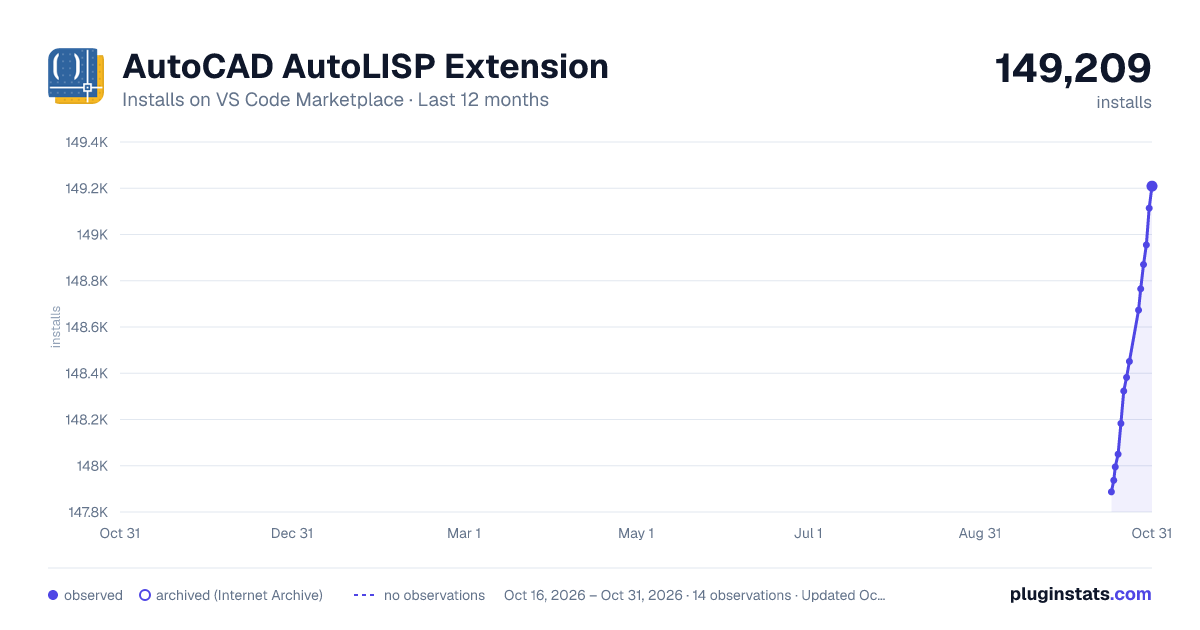
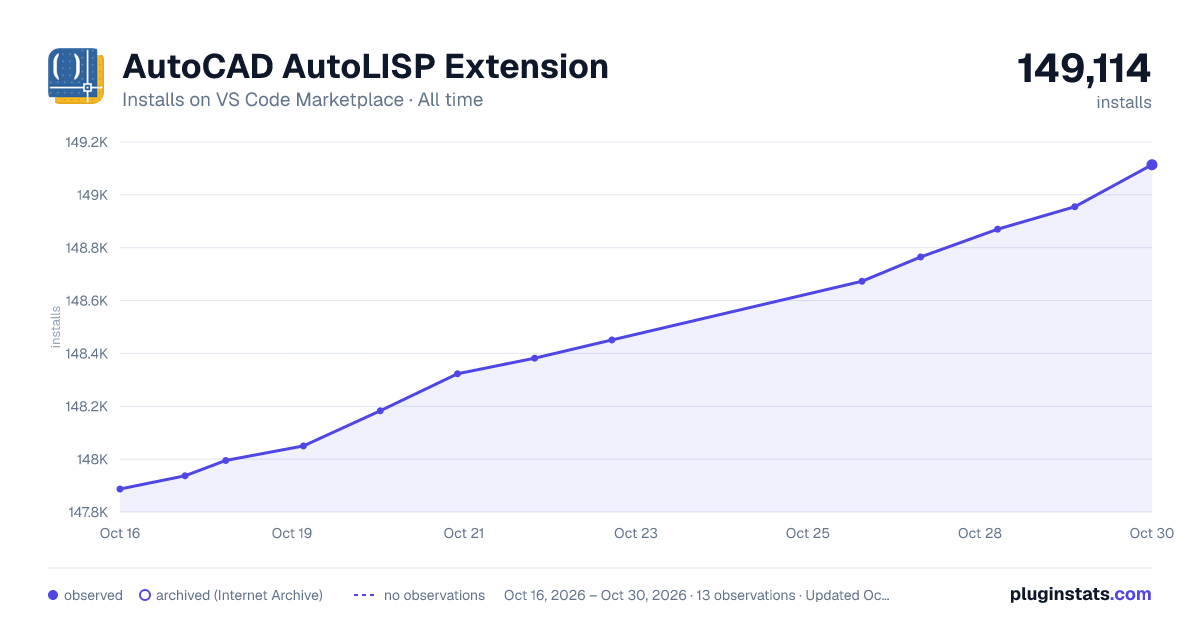

Adoption over time


7/30/90-day growth


Ranking history


Filled points are observed values; hollow points come from Internet Archive snapshots of the listing page. Dashed segments span periods with no observations — values between points are not interpolated.
Recent observations
Full history (4)Similar VS Code Marketplace Programming Languages plugins
Data source
Install counts, average rating, and rating counts come from the public Visual Studio Marketplace gallery API. Installs are cumulative and exclude updates.
Listing: https://marketplace.visualstudio.com/items?itemName=Autodesk.autolispext. First seen Oct 16, 2026; last successful collection Oct 19, 2026. See the methodology.