 PluginStats
CircleCI installs statistics
By CircleCI (98 listings) · VS Code Marketplace · Language Packs
The official CircleCI extension to create and manage your CI/CD runs
CircleCI has 111,360 recorded installs on VS Code Marketplace.
It ranks #2221 of 2,501 tracked VS Code Marketplace listings by installs.
It is rated 4.8 out of 5 from 19 ratings.
PluginStats has 4 daily observations since Oct 16, 2026; the latest is from Oct 19, 2026.
Rating: 4.84 / 5 from 19 ratings
About CircleCI
The official CircleCI VS Code extension is a new way to interact with CircleCI.
This extension provides an interface to visualize and manage CircleCI runs directly from your IDE, as well as providing contextual help when creating, modifying and editing CircleCI YAML config files. This way, it avoids expensive context-switching between VS Code and your browser.
More practically, this extension allows you to:
• Authenticate and connect VS Code to CircleCI • Browse and interact with your runs. Available actions include • Viewing runs, workflows, and jobs statuses • Viewing test outputs • Browsing job logs • Downloading artifacts • Approving jobs • Re-running builds • Debugging jobs with SSH • Be alerted through notifications when your workflows change status or need your attention • Access in-file support when editing CircleCI YAML configuration files, including: • Syntax validation • Syntax highlighting • Go-to-definition and go-to-reference • On-hover documentation and usage hints • Autocompletion • Launch commands to validate config files statically, or against your org policy
Getting started
It’s easy to get started with CircleCI for VS Code.
1. Install the extension
You can install the CircleCI extension from within VS Code, or download it from the marketplace.
⚠️ This extension is compatible with VS Code versions 1.85 or above.
2. Authenticate into CircleCI
Open the CircleCI Panel by clicking on the CircleCI icon on the activity bar on the left of your screen, then click on “Log in”. You can also sign in to CircleCI from VS Code's Accounts menu.
Select “Log in with your browser” to authenticate via your browser. Alternatively, you may select “Use a personal API token” to authenticate with a Personal API Token. If you don't have one, you can generate a new one for this purpose: the button next to the token's input opens the page.
If you are an Enterprise customer, select “Log in to a CircleCI Server” and enter your self-hosted server URL. Enterprise customers must authenticate using a Personal API Token.
3. Setup your project
If your VS Code workspace contains one or more CircleCI projects, the extension will detect them automatically, and the Runs Panel will be populated with your most recent runs.
If no project is detected, select your projects manually with the VS Code command CircleCI: Select projects, or by clicking on the status bar's "No project".
Please note that your manual selection will only be persisted if no projects are detected automatically.
A checkout linked to a project with circleci project link is linked to it here too: its .circleci/info.yml says which project it is, ahead of its git remote, and its project's runs are listed first. A standalone project, whose slug is made of IDs (circleci//), can't be told from a git remote, so this is how to have it found. Choosing a project with the Runs Panel's project button writes the same file in the project's checkout, and linking one in the terminal lists its runs straight away.
⚠️ Automatic project detection does not work for GitLab projects. Please select your project manually with the CircleCI: Select projects command.
4. Configure your Runs Panel
By default, your Runs Panel lists the latest runs of your current branch. The buttons at the top of the Runs Panel filter them:
• Branch: your current branch, the default branch, all branches, or _My runs_, the runs you triggered in every project • Status: only runs with a status, such as failed or running • Created: only runs newer, or older, than an hour, a day, a week... • Reset filters, shown when any filter is set, goes back to your current branch's runs
The filters in use are shown above the runs. If your workspace has more than one CircleCI project, the project button chooses whose runs are listed; its _Other project..._ chooses from every project in your organizations, standalone ones included.
5. Configure notifications
You can set up pop-up notifications to warn you when a workflow in your Runs Panel has changed status.
By default, you will receive a pop-up notification every time one of the workflows in your Runs Panel enters a failing status, or needs your approval.
If you wish to alter these defaults, you can:
• Mute notifications (a toggle button to change this setting is also available at the top of the Runs Panel) • Configure which workflow status changes you want to be notified about
Please note that you can only be notified about workflows that appear in your Runs Panel.
The Runs Panel
The Runs Panel lists the most recent runs of the CircleCI project detected in your workspace, newest first, with their workflows and jobs, and lets you monitor their status and interact with them.
For some tree objects, you can perform actions by clicking on the icons which appear when you hover over the item.
Run
Runs are the CircleCI unit of change, and they contain your workflows. Each shows its number, its commit's subject and its status, with its branch, revision, how long ago it was created and who triggered it. Click _Load more runs_, at the bottom of the list, to see older ones.
Hovering over a Run lets you:
• Open in browser, to view run details in the CircleCI app • Open the run's configuration
Workflow
Workflows are nested under each Run, and contain Jobs. Hovering over a Workflow lets you:
• Open in browser, to view workflow details in the CircleCI app, on your default web browser • Rerun workflow from start, to re-triggered the entire workflow • Rerun workflow from failed, to re-triggered the workflow starting from the first failed job
Job
Jobs are nested under each Workflow; click one to open its page, with its tests and artifacts. Hovering over a Job lets you:…
Description from the VS Code Marketplace listing.
- CI
- CI/CD
- CircleCI
- CircleCI Config
- circleci-expr
- CircleCIExpression
- Continuous Integration
- keybindings
- Language Server
- Pipelines
- Runs
Where CircleCI sits in the listing
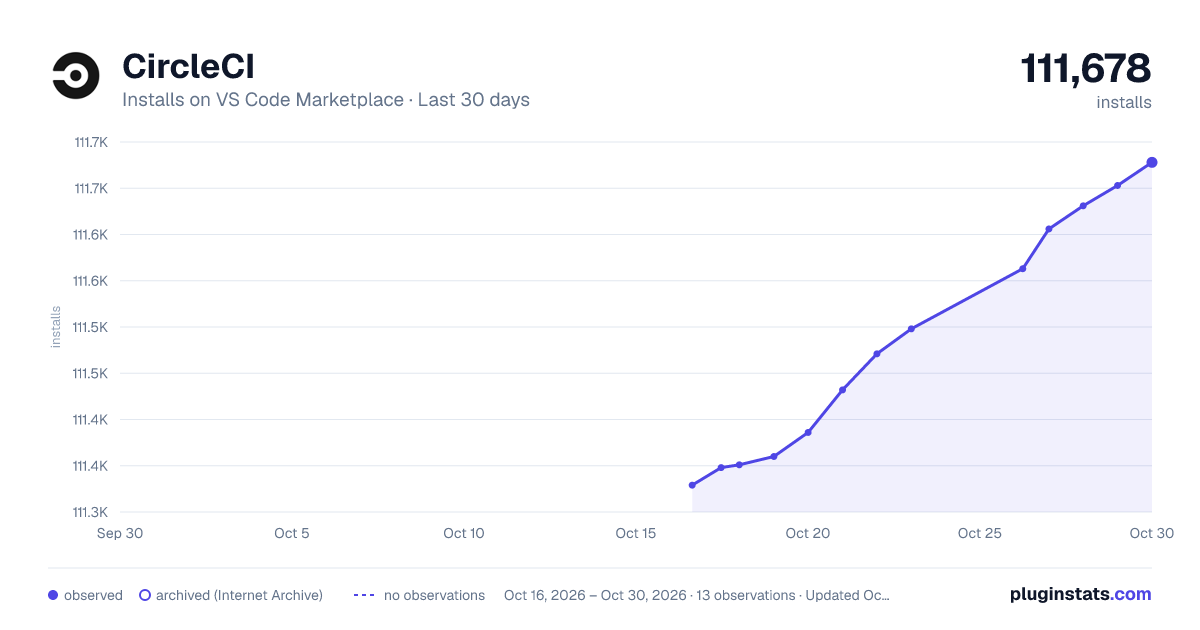
Each band is one page of 20. Installs on a log scale. Placement is projected from installs, so it can differ from the marketplace's own sort order. Hover a dot to see the listing.


Charts
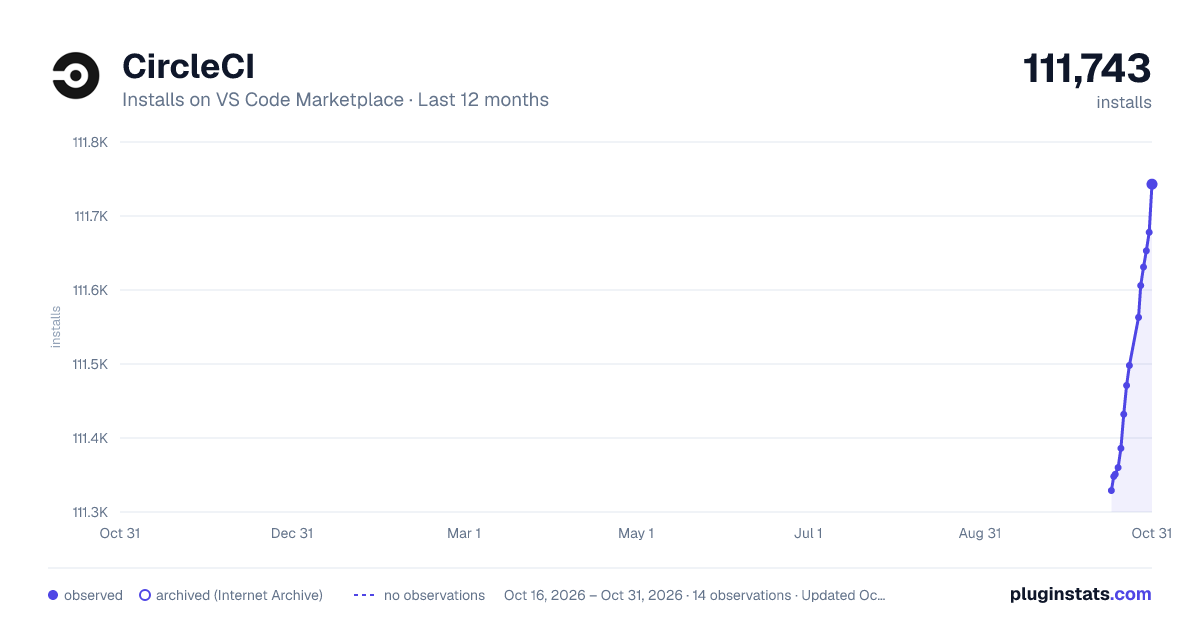
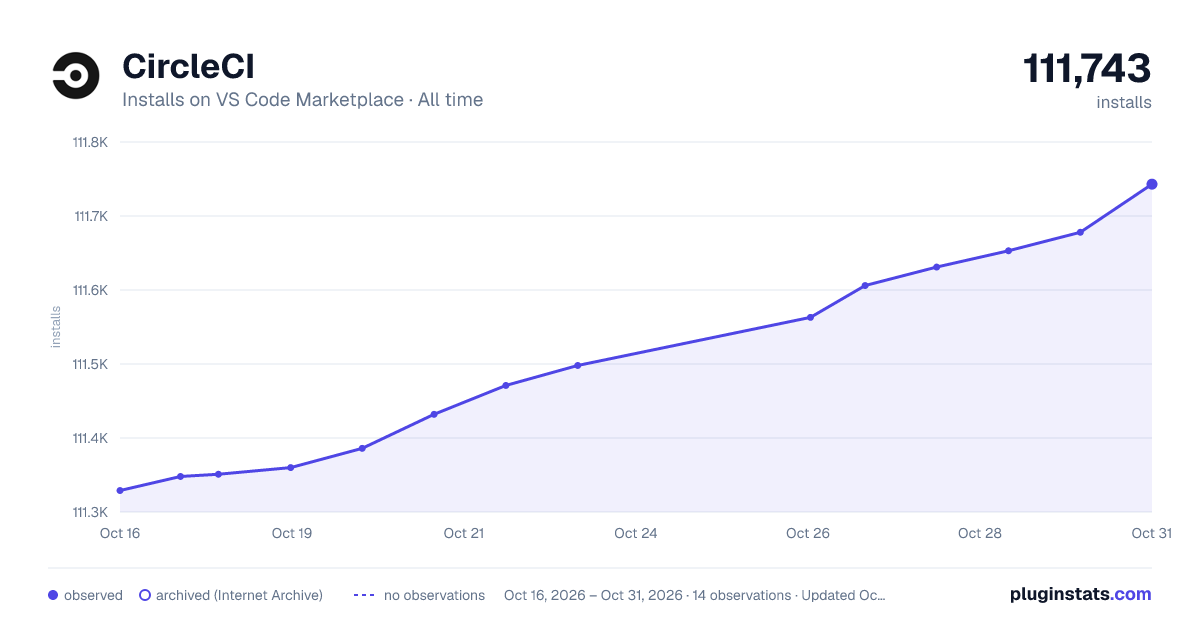
Images: 30d · 1y · all time · 1600×900 dark

Adoption over time


7/30/90-day growth


Filled points are observed values; hollow points come from Internet Archive snapshots of the listing page. Dashed segments span periods with no observations — values between points are not interpolated.
Recent observations
Full history (4)Similar VS Code Marketplace Language Packs plugins
Data source
Install counts, average rating, and rating counts come from the public Visual Studio Marketplace gallery API. Installs are cumulative and exclude updates.
Listing: https://marketplace.visualstudio.com/items?itemName=circleci.circleci. First seen Oct 16, 2026; last successful collection Oct 19, 2026. See the methodology.