 PluginStats
Prettier ESLint installs statistics
By Rebecca Vest · VS Code Marketplace · Formatters
A Visual Studio Extension to format JavaScript and Typescript code using prettier-eslint package
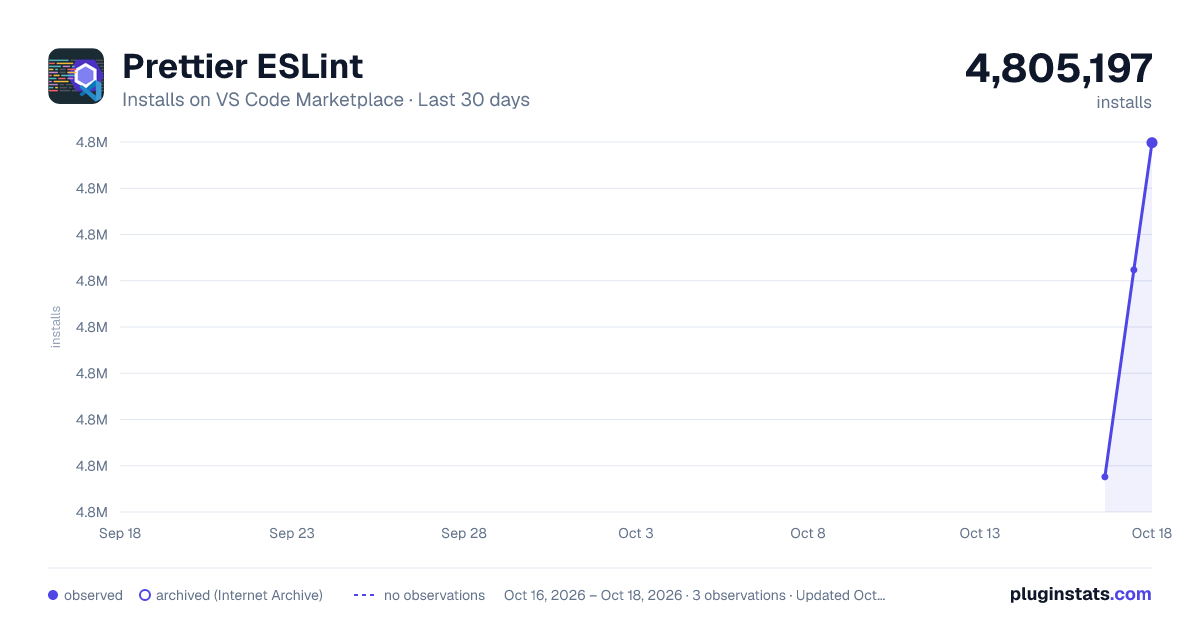
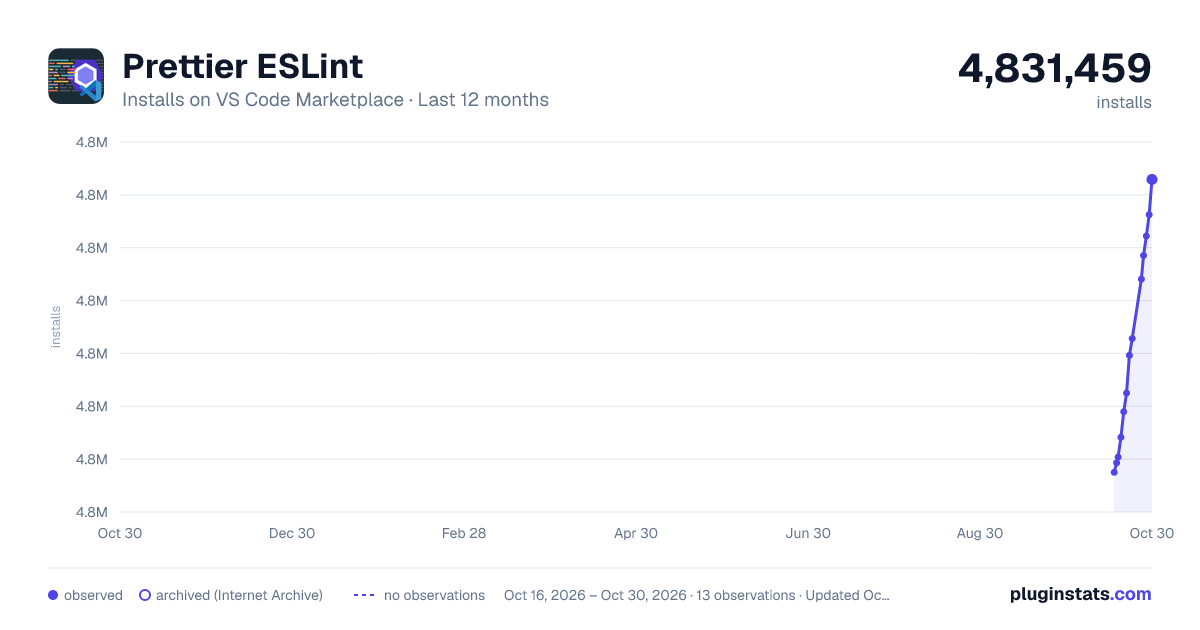
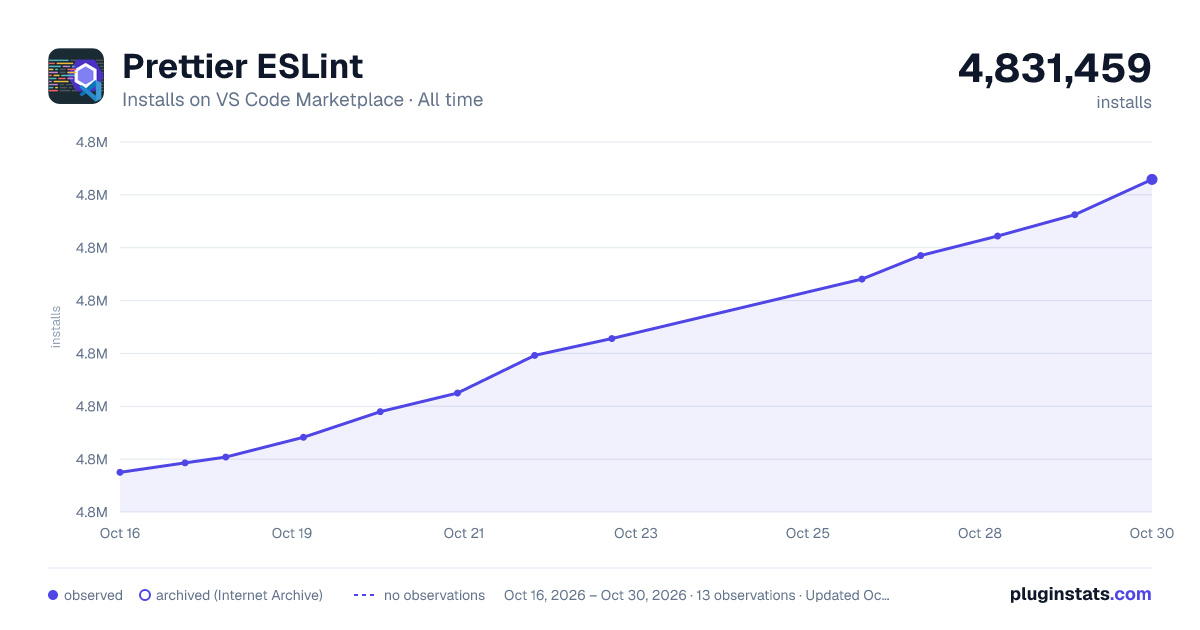
Prettier ESLint has 4,805,197 recorded installs on VS Code Marketplace.
It ranks #184 of 2,500 tracked VS Code Marketplace listings by installs.
It is rated 4.0 out of 5 from 51 ratings.
PluginStats has 3 daily observations since Oct 16, 2026; the latest is from Oct 18, 2026.
Rating: 4.00 / 5 from 51 ratings
About Prettier ESLint
VS Code Prettier ESLint
• Prerequisites • Installation • Configuration • Example Projects • Troubleshooting
A Visual Studio Code Extension to format JavaScript and TypeScript code using the prettier-eslint package.
Please create an issue before adding a rating. Keep in mind that I work full-time. I'd LOVE to have more contributors. See the Contributing section below.
Prerequisites
This extension requires the following NPM packages to be installed either locally or globally:
• prettier@^3.1.0 • eslint@^8.52.0 • prettier-eslint@^16.1.2 • @typescript-eslint/parser@^5.0.1 and typescript@^4.4.4 (Only for TypeScript projects) • vue-eslint-parser@^8.0.0 (Only for Vue projects)
Note: For earlier versions of Prettier and/or ESLint, see Support for Earlier Versions section
Installation
Download the extension if you haven't already.
Notes:
• The Prettier extension is not required. • The ESLint extension is not required. However, it is needed to have lint errors show while editing your file.
Install Dependencies
First we need to install prettier, eslint, and prettier-eslint as dev dependencies in your project. Run one of the following commands based on your project requirements. The commands listed below use yarn but you can also use npm. Just replace yarn add with npm i
Minimum Requirements
TypeScript Projects
Vue Projects
Project Settings
Next we need to configure your project to use the extension. To do that, we're going to open or create a settings.json file at the root of your project. If you already have a .vscode/settings.json file in your project, you can skip the first two steps below and jump straight to step 3.
1. Open the command palette in VS Code by typing:
• CMD + SHIFT + P (Mac OS) • CTRL + SHIFT + P (Windows)
2. In the command palette type Preferences: Open Workspace Settings (JSON).
3. In the .vscode/settings.json file we just opened, copy and paste the following settings
4. Restart VS Code
With settings listed above, your project should now be setup to automatically format your code when you save. If you run into any problems, check the troubleshooting guide below.
Configuration
The extension uses your ESLint and Prettier configuration files. These files are resolved starting from the location of the file being formatted, and searching up the file tree until a config file is (or isn't) found.
ESLint Configuration File
(From https://eslint.org/docs/user-guide/configuring)
Use a JavaScript, JSON or YAML file to specify configuration information for an entire directory and all of its subdirectories. This can be in the form of an .eslintrc.* file or an eslintConfig field in a package.json file, both of which ESLint will look for and read automatically.
Prettier Configuration File
(From https://prettier.io/docs/en/configuration.html)
Prettier uses cosmiconfig for configuration file support. This means you can configure prettier via (in order of precedence):
- A "prettier" key in your package.json file. - A .prettierrc file, written in JSON or YAML, with optional extensions: .json/.yaml/.yml (without extension takes precedence). - A .prettierrc.js or prettier.config.js file that exports an object. - A .prettierrc.toml file, written in TOML (the .toml extension is _required_).
Example Projects
These projects are setup to work with the VS Code Prettier ESLint extension. Use them to help troubleshoot or as a boilerplate for your project. If you don't see an example for your tech stack, create a PR of a working example.
• JavaScript • JavaScript with Vue • TypeScript • TypeScript with Vue
Troubleshooting
1. Check for an error by opening the View menu and click Output 2. Select Prettier ESLint from the dropdown to the right
3. Open a JavaScript (.js or .jsx) or TypeScript (.ts or .tsx) file 4. Press CTRL + SHIFT + P (Windows/Linux) or CMD + SHIFT + P (macOS) to open the command palette 5. Start typing Format Document With and select Prettier ESLint 6. Click on Output to open the panel 7. If you see _Error: Cannot find module_, quit and restart Visual Studio Code 8. If restarting did not work: • If you saw _Error: Cannot find module '@typescript-eslint/parser'_, view the TypeScript project for a working example. • Make sure you have the required packages installed locally (global installations don't work sometimes)
Notes:
• Most issues are caused by using an unsupported ESLint version or an invalid ESLint configuration. You can run npx eslint --print-config .eslintrc.js to check your ESLint configuration. This prints out the configuration being used after it applies plugins & extended configurations. • Running your files through the Prettier ESLint CLI first is a good way to determine if it's the extension, the prettier-eslint package, or your configuration. • There are known performance issues with quad-core or slower processors. The slowness comes from the prettier-eslint package the extension uses.
Support for Earlier Versions
• Prettier 1.9 & ESLint 6.8 - Version 3.10.0 (DOWNLOAD | README) • Prettier 2.0 & ESLint 7.0 - Version 4.10.0 (DOWNLOAD | README) • Prettier 2.0 & ESLint 8.0 - Version 5.1.0 (DOWNLOAD | README)
Contributing
If you have suggestions for how this extension could be improved, or want to report a bug, open an issue! I'd love all and any contributions. If you are interested in contributing to the project, check out the Contributing Guide.
Current Contributors ✨
Thanks goes to these wonderful people (emoji key):
Rebecca Vest 💬 💻 📖 🚇 🐛 🤔 👀 ⚠️ Thomas Bekaert 💻 Matt Brannon 📖 JounQin 💻 👀 Martín Rodríguez 💻
This project follows the all-contributors specification. Contributions of any kind welcome!
Description from the VS Code Marketplace listing.
- css
- eslint
- graphql
- html
- javascript
- javascriptreact
- json
- jsonc
- less
- linters
- markdown
- mdx
- multi-root ready
- prettier
- prettier-eslint
- scss
- svelte
- typescript
- typescriptreact
- vue
Where Prettier ESLint sits in the listing
Each band is one page of 20. Installs on a log scale. Placement is projected from installs, so it can differ from the marketplace's own sort order. Hover a dot to see the listing.


Charts
Images: 30d · 1y · all time · 1600×900 dark

Adoption over time


7/30/90-day growth


Ranking history


Filled points are observed values; hollow points come from Internet Archive snapshots of the listing page. Dashed segments span periods with no observations — values between points are not interpolated.
Recent observations
Full history (3)Similar VS Code Marketplace Formatters plugins
Data source
Install counts, average rating, and rating counts come from the public Visual Studio Marketplace gallery API. Installs are cumulative and exclude updates.
Listing: https://marketplace.visualstudio.com/items?itemName=rvest.vs-code-prettier-eslint. First seen Oct 16, 2026; last successful collection Oct 18, 2026. See the methodology.