 PluginStats
phpcs installs statistics
By shevaua · VS Code Marketplace · Programming Languages
PHP CodeSniffer for Visual Studio Code
phpcs has 198,158 recorded installs on VS Code Marketplace.
It ranks #1527 of 2,500 tracked VS Code Marketplace listings by installs.
It is rated 5.0 out of 5 from 4 ratings.
PluginStats has 3 daily observations since Oct 16, 2026; the latest is from Oct 18, 2026.
Rating: 5.00 / 5 from 4 ratings
About phpcs
vscode-phpcs
This linter plugin for Visual Studio Code provides an interface to phpcs. It will be used with files that have the “PHP” language mode.
Installation
Visual Studio Code must be installed in order to use this plugin. If Visual Studio Code is not installed, please follow the instructions here.
Linter Installation
Before using this plugin, you must ensure that phpcs is installed on your system. The preferred method is using composer for both system-wide and project-wide installations.
Once phpcs is installed, you can proceed to install the vscode-phpcs plugin if it is not yet installed.
NOTE: This plugin can detect whether your project has been set up to use phpcs via composer and use the project specific phpcs over the system-wide installation of phpcs automatically. This feature requires that both composer.json and composer.lock file exist in your workspace root or the phpcs.composerJsonPath in order to check for the composer dependency. If you wish to bypass this feature you can set the phpcs.executablePath configuration setting.
NOTE: You can also install phpcs on your system using pear or even manually but is beyond the scope of this plugin.
System-wide Installation
The phpcs linter can be installed globally using the Composer Dependency Manager for PHP.
1. Install composer. 1. Require phpcs package by typing the following in a terminal:
Project-wide Installation
The phpcs linter can be installed in your project using the Composer Dependency Manager for PHP.
1. Install composer. 1. Require phpcs package by typing the following at the root of your project in a terminal:
Plugin Installation
1. Open Visual Studio Code. 1. Press Ctrl+P on Windows or Cmd+P on Mac to open the Quick Open dialog. 1. Type ext install phpcs to find the extension. 1. Press Enter or click the cloud icon to install it. 1. Restart Visual Studio Code when prompted.
Basic Configuration
There are various options that can be configured to control how the plugin operates which can be set in your user, workspace or folder preferences.
phpcs.enable
[ *Scope:* All | Optional | *Type:* boolean | *Default:* true ]
This setting controls whether phpcs linting is enabled.
phpcs.executablePath
[ *Scope:* All | Optional | *Type:* string | *Default:* null ]
This setting controls the executable path for the phpcs. You may specify the absolute path or workspace relative path to the phpcs executable. If omitted, the plugin will try to locate the path parsing your composer configuration or the global path.
phpcs.standard
[ *Scope:* All | Optional | *Type:* string | *Default:* null ]
This setting controls the coding standard used by phpcs. You may specify the name, absolute path or workspace relative path of the coding standard to use.
NOTE: While using composer dependency manager over global installation make sure you use the phpcs commands under your project scope !
The following values are applicable:
1. This setting can be set to null, which is the default behavior and uses the default_standard when set in the phpcs configuration or fallback to the Pear coding standard.
You may set the default_standard used by phpcs using the following command:
or when using composer dependency manager from the root of your project issue the following command:
1. The setting can be set to the name of a built-in coding standard ( ie. MySource, PEAR, PHPCS, PSR1, PSR2, Squiz, Zend ) and you are good to go.
1. The setting can me set to the name of a custom coding standard ( ie. WordPress, Drupal, etc. ). In this case you must ensure that the specified coding standard is installed and accessible by phpcs.
After you install the custom coding standard, you can make it available to phpcs by issuing the following command:
or when using composer dependency manager from the root of your project issue the following command:
1. The setting can be set to the absolute path to a custom coding standard:
or you can use the path to a custom ruleset:
1. The setting can be set to your workspace relative path to a custom coding standard:
or you can use the path to your project's custom ruleset:
phpcs.autoConfigSearch
[ *Scope:* All | Optional | *Type:* boolean | *Default:* true ]
Automatically search for any phpcs.xml, phpcs.xml.dist, phpcs.ruleset.xml or ruleset.xml file to use as configuration. Overrides phpcs.standard configuration when a ruleset is found.
NOTE: This option does not apply for unsaved documents (in-memory).
phpcs.ignorePatterns
[ *Scope:* All | Optional | *Type:* array | *Default:* [] ]
An array of glob patterns to skip files and folders that match when linting your documents.
phpcs.ignoreSource
[ *Scope:* All | Optional | *Type:* array | *Default:* [] ]
An array of ignored sources. It could be file, gitfs or another file system of any extension
phpcs.errorSeverity
[ *Scope:* All | Optional | *Type:* number | *Default:* 5 ]
The minimum severity an error must have to be displayed. You may specify an integer value.
phpcs.warningSeverity
[ *Scope:* All | Optional | *Type:* number | *Default:* 5 ]
The minimum severity a warning must have to be displayed. You may specify an integer value.
phpcs.showWarnings
[ *Scope:* All | Optional | *Type:* boolean | *Default:* true ]
Control whether warnings are displayed.
phpcs.showSources
[ *Scope:* All | Optional | *Type:* boolean | *Default:* false ]
Show sniff source codes in diagnostic messages.
phpcs.trace.server
[ *Scope:* User | Optional | *Type:* string | *Default:* off ]
This setting controls whether the trace server is activated. Possible values you can use is off, messages or verbose.
Advanced Configuration
phpcs.composerJsonPath
[ *Scope:* All | Optional | *Type:* string | *Default:* composer.json ]
This setting allows you to override the path to your composer.json file when it does not reside at the workspace root. You may specify the absolute path or workspace relative path to the composer.json file.
phpcs.lintOnOpen…
Description from the VS Code Marketplace listing.
- php
Where phpcs sits in the listing
Each band is one page of 20. Installs on a log scale. Placement is projected from installs, so it can differ from the marketplace's own sort order. Hover a dot to see the listing.


Charts
Images: 30d · 1y · all time · 1600×900 dark
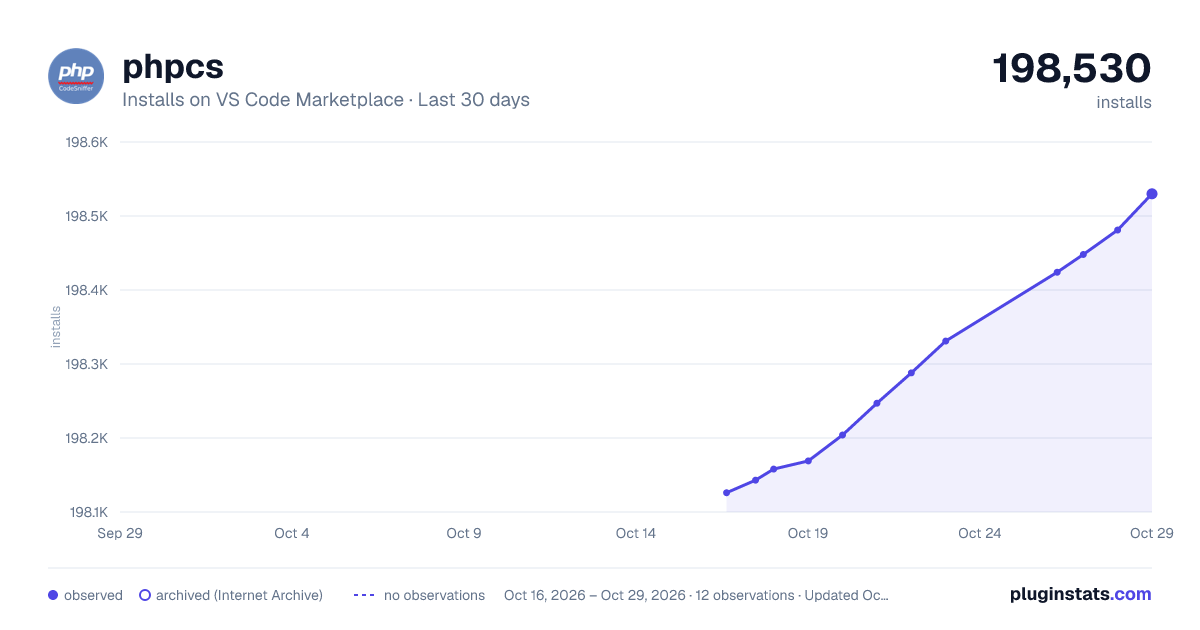
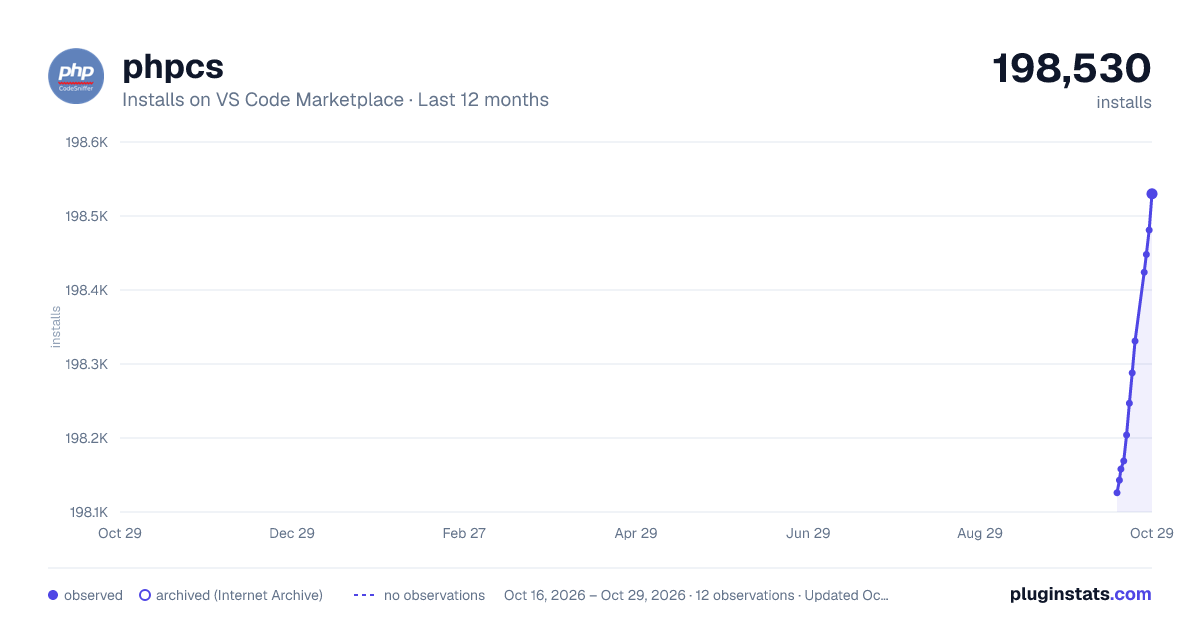
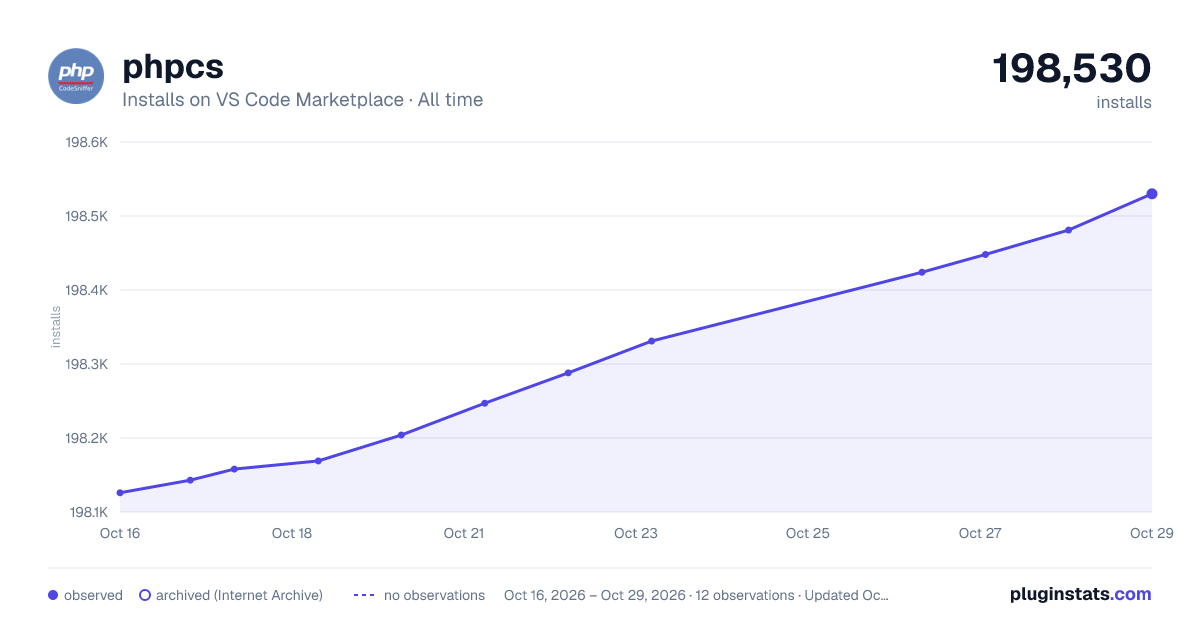

Adoption over time


7/30/90-day growth


Filled points are observed values; hollow points come from Internet Archive snapshots of the listing page. Dashed segments span periods with no observations — values between points are not interpolated.
Recent observations
Full history (3)Similar VS Code Marketplace Programming Languages plugins
Data source
Install counts, average rating, and rating counts come from the public Visual Studio Marketplace gallery API. Installs are cumulative and exclude updates.
Listing: https://marketplace.visualstudio.com/items?itemName=shevaua.phpcs. First seen Oct 16, 2026; last successful collection Oct 18, 2026. See the methodology.