 PluginStats
Jupyter installs statistics
By Microsoft (223 listings) · VS Code Marketplace · Extension Packs
Jupyter notebook support, interactive programming and computing that supports Intellisense, debugging and more.
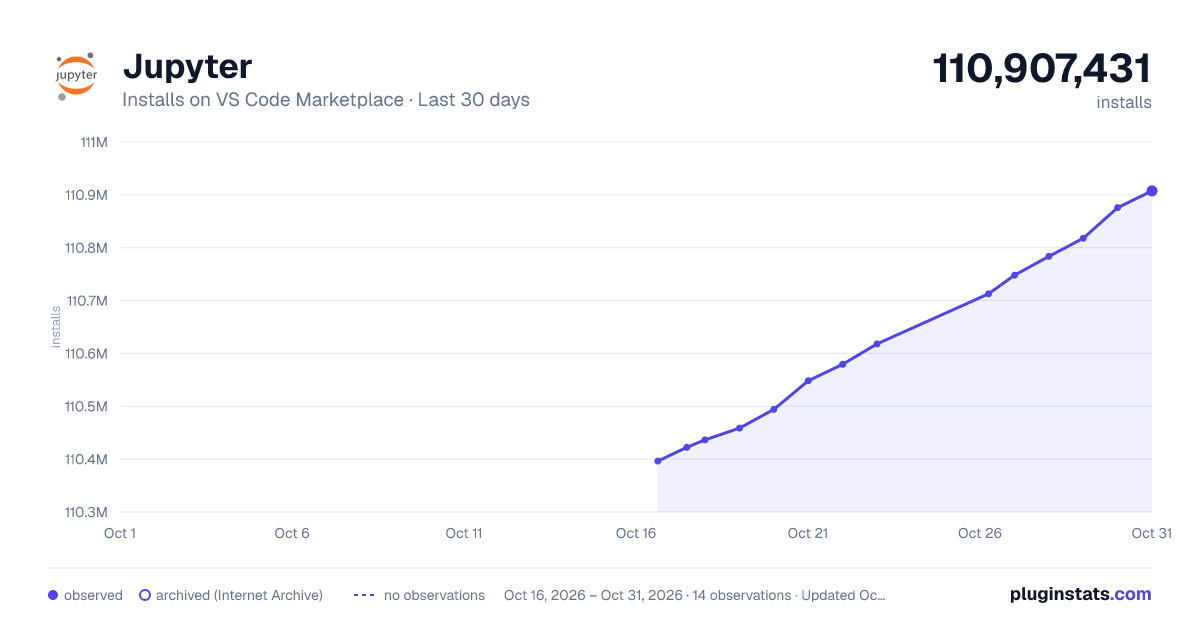
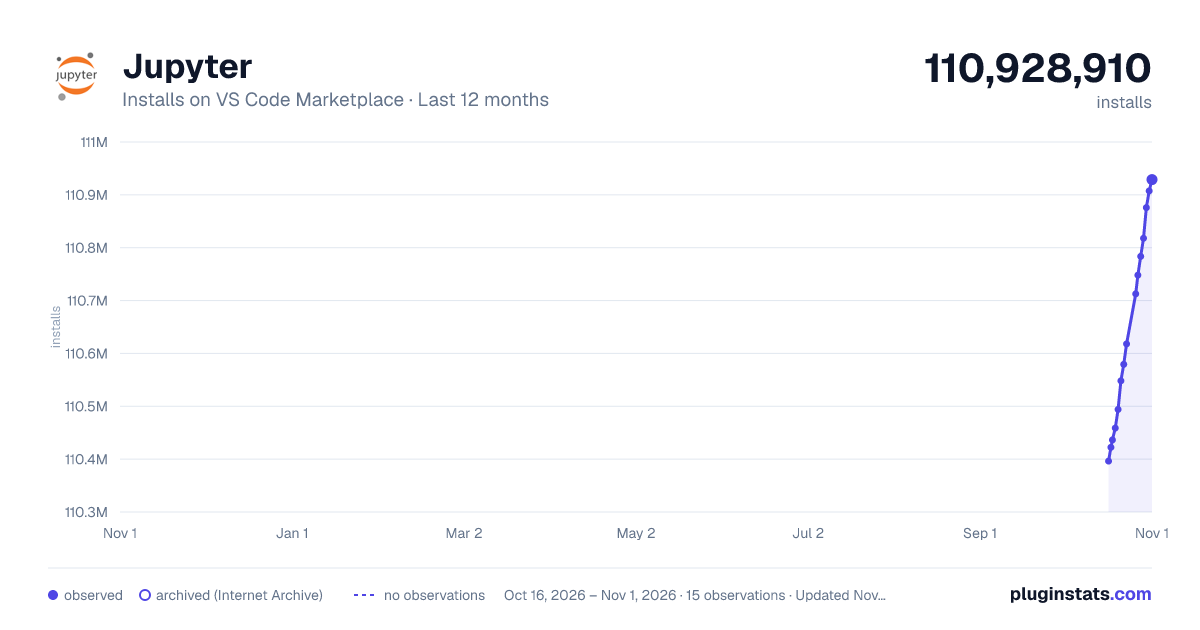
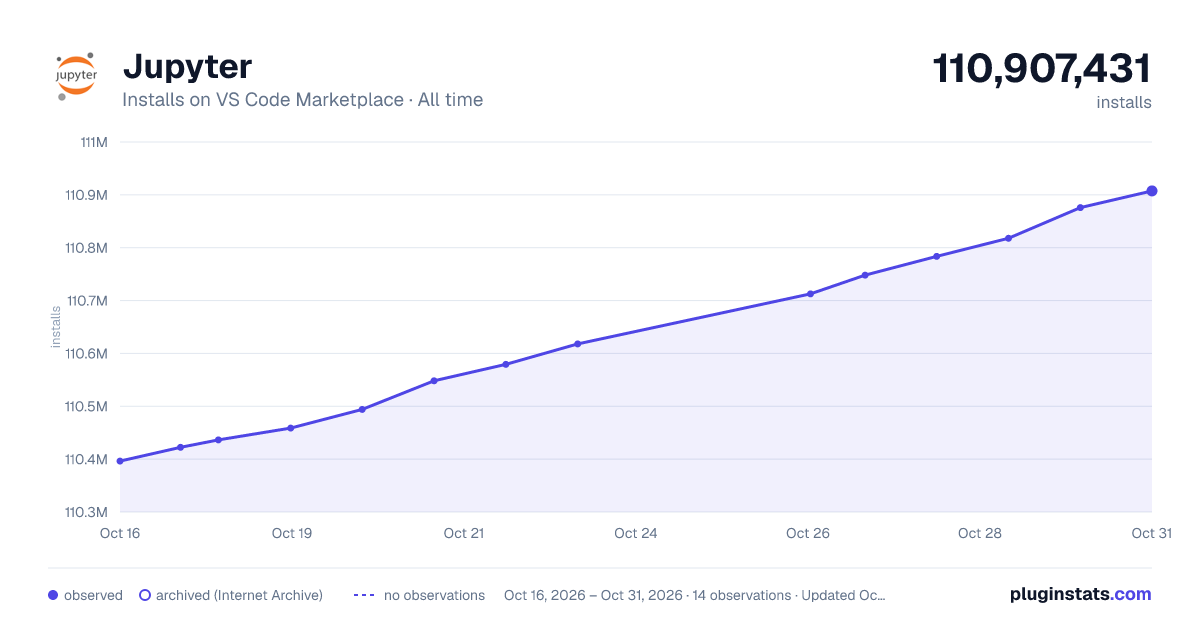
Jupyter has 110,436,410 recorded installs on VS Code Marketplace.
It ranks #4 of 2,500 tracked VS Code Marketplace listings by installs.
It is rated 2.6 out of 5 from 371 ratings.
PluginStats has 3 daily observations since Oct 16, 2026; the latest is from Oct 18, 2026.
Rating: 2.64 / 5 from 371 ratings
About Jupyter
Jupyter Extension for Visual Studio Code
A Visual Studio Code extension that provides basic notebook support for language kernels that are supported in Jupyter Notebooks today, and allows any Python environment to be used as a Jupyter kernel. This is _NOT a Jupyter kernel_--you must have Python environment in which you've installed the Jupyter package, though many language kernels will work with no modification. To enable advanced features, modifications may be needed in the VS Code language extensions.
| Link | Description |
| File an issue | Report problems and suggest enhancements | | Go to docs | Jupyter extension and data science in VS Code documentation, tutorials, and more | | Discussions | Post questions, and engage in community discussions |
Work in the browser
Editing Jupyter notebooks in VS Code can also be done on the browser in two ways. 1. The Jupyter extension has support for a web based interface provided by vscode.dev (which includes github.dev, available by typing '.' when viewing a repo on github.com) 2. The Jupyter extension can be installed on VS Code in GitHub Codespaces the same way it is done locally (or sync your VS Code settings to have your extensions installed automatically on Codespaces).
Installed extensions
The Jupyter Extension will automatically install the following extensions by default to provide enhanced Jupyter notebook experiences in VS Code. • Jupyter Keymap - to provide Jupyter-consistent keymaps • Jupyter Notebook Renderers - to provide renderers for MIME types such as latex, plotly, vega, etc. • Jupyter Cell Tags and Jupyter Slide Show - to provide the ability to tag cells in notebooks and support for presentations
You can also install the Jupyter PowerToys extension to try out experimental features (_not_ installed by default). Extensions installed through the marketplace are subject to the Marketplace Terms of Use, and any or all of these extensions can be disabled or uninstalled.
Working with Python
Quick Start
• Step 1. Install VS Code • Step 2. Install Anaconda/Miniconda or another Python environment in which you've installed the Jupyter package • Since not working with Python, make sure to have a Jupyter Kernel that corresponds to the language you would like to use installed on your machine. • Step 3. Install the Jupyter Extension and the Python Extension • Step 4. Open or create a notebook file by opening the Command Palette (Ctrl+Shift+P) and select Jupyter: Create New Jupyter Notebook. • Step 5. Select your kernel by clicking on the kernel picker in the top right of the notebook or by invoking the Notebook: Select Notebook Kernel command and start coding!
Working with other Languages
The Jupyter Extension supports other languages in addition to Python such as Julia, R, and C#.
Quick Start
• Step 1. Install VS Code • Step 2. Since not working with Python, make sure to have a Jupyter kernelspec that corresponds to the language you would like to use installed on your machine. • Step 3. Install the Jupyter Extension • Step 4. Open or create a notebook file and start coding!
Notebook support
The Jupyter Extension uses the built-in notebook support from VS Code. This UI gives a number of advantages to users of notebooks:
• Out of the box support for VS Code's vast array of basic code editing features like hot exit, find & replace, and code folding. • Editor extensions like VIM, bracket colorization, linters and many more are available while editing a cell. • Deep integration with general workbench and file-based features in VS Code like outline view (Table of Contents), breadcrumbs and other operations. • Fast load times for Jupyter notebook (.ipynb) files. Any notebook file is loaded and rendered as quickly as possible, while execution-related operations are initialized behind the scenes. • Includes a notebook-friendly diff tool, making it much easier to compare and see differences between code cells, output and metadata. • Extensibility beyond what the Jupyter extension provides. Extensions can now add their own language or runtime-specific take on notebooks, such as the .NET Interactive Notebooks and Gather • While the Jupyter extension comes packaged with a large set of the most commonly used renderers for output, the marketplace supports custom installable renderers to make working with your notebooks even more productive. To get started writing your own, see VS Code's renderer api documentation.
Useful commands
Open the Command Palette (Command+Shift+P on macOS and Ctrl+Shift+P on Windows/Linux) and type in one of the following commands:
| Command | Description |
| Jupyter: Create New Jupyter Notebook | Creates a new Jupyter Notebook | | Notebook: Select Notebook Kernel | Select or switch kernels within your notebook | | Notebook: Change Cell Language | Change the language of the cell currently in focus | | Jupyter: Export to HTML Jupyter: Export to PDF | Create a presentation-friendly version of your notebook in HTML or PDF |
To see all available Jupyter Notebook commands, open the Command Palette and type Jupyter or Notebook.
Context Keys for Key bindings
You can use the extension's context keys in 'when' clauses. Here's an example:
That keybinding states the jupyter.runAndDebugCell command should map to CTRL+I when not in the jupyter.webExtension.
The full list of context keys can be found here: https://github.com/microsoft/vscode-jupyter/wiki/Extensibility-for-other-extensions#context-keys-for-keybindings
Feature details
Learn more about the rich features of the Jupyter extension:
• IntelliSense: Edit your code with auto-completion, code navigation, syntax checking and more. • Jupyter Notebooks: Create and edit Jupyter Notebooks, add and run code/markdown cells, render plots, create presentation-friendly versions of your notebook by exporting to HTML or PDF and more.
Supported locales…
Description from the VS Code Marketplace listing.
- debuggers
- interactive
- julia
- jupyter
- keybindings
- language-model-tools
- multi-root ready
- notebook
- notebookKernelJupyterNotebook
- python
- raw
- tools
Where Jupyter sits in the listing
Each band is one page of 20. Installs on a log scale. Placement is projected from installs, so it can differ from the marketplace's own sort order. Hover a dot to see the listing.


Charts
Images: 30d · 1y · all time · 1600×900 dark

Adoption over time


7/30/90-day growth


Filled points are observed values; hollow points come from Internet Archive snapshots of the listing page. Dashed segments span periods with no observations — values between points are not interpolated.
Recent observations
Full history (3)Similar VS Code Marketplace Extension Packs plugins
Data source
Install counts, average rating, and rating counts come from the public Visual Studio Marketplace gallery API. Installs are cumulative and exclude updates.
Listing: https://marketplace.visualstudio.com/items?itemName=ms-toolsai.jupyter. First seen Oct 16, 2026; last successful collection Oct 18, 2026. See the methodology.